User Profile Administration
You can manage your profile using the Keycloak profile application.
Before you can manage your profile, you must log in to Belden Horizon Data Manager with credential-based authentication.
The User Profile is available as an option on the User menu, which is located at the top of the Belden Horizon Data Manager window.
You can do the following operations for User Profile Administration.
- Modify Your User Account
- Change Your User Account Password
- Set up Keycloak Two-Factor Authentication
- Remove Keycloak Two-Factor Authentication
- View Your Open Sessions
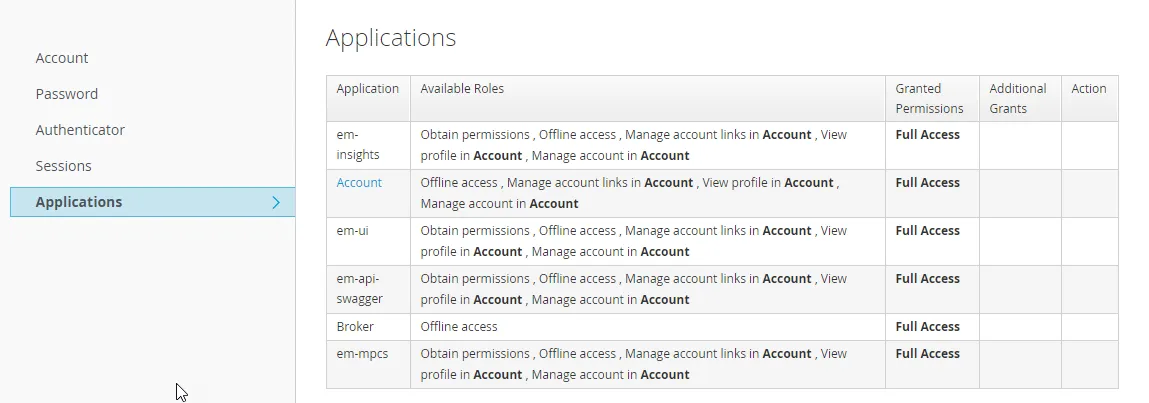
- View Allowed Applications
To open the User Profile:
1. Log in to Belden Horizon Data Manager. 2. Select a company. The Projects pane appears. 3. From the top of the window, click the User icon, and then select Profile.
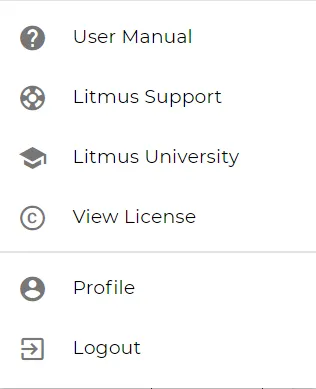
The Keycloak profile application opens and the Edit Account pane appears.
See Access to Belden Horizon Data Manager to access the Keycloak application.
Modify your User Account
You can modify your user account using the Keycloak profile application.
To modify your user account:
1. From the Keycloak profile application's Edit Account pane, enter your information and click Save.
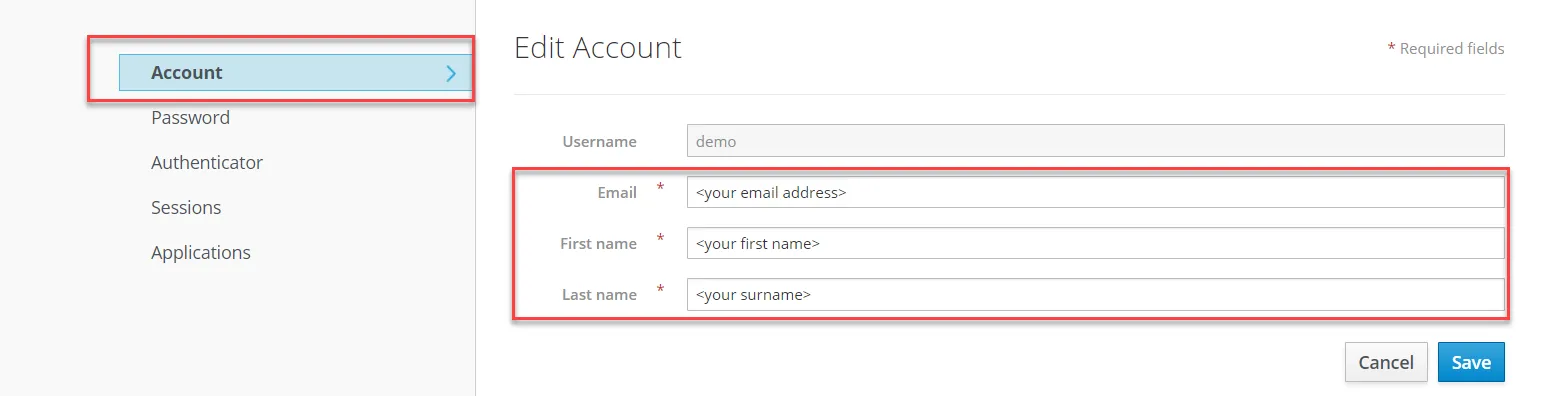
Your user account is changed according to your modifications.
Change your User Account Password
You can optionally change your user account password using the Keycloak profile application.
Notes:
- After you change your user account password, you are logged out and must log in again using your new password.
- If two-factor authentication is enabled, you must provide the six-digit code from the authentication application on your phone during log in.
To change your user account password:
1. From the Keycloak profile application's left pane, click Password. The Change Password pane appears.
2. (Optional) From the Change Password pane, enter the new password and click Save.
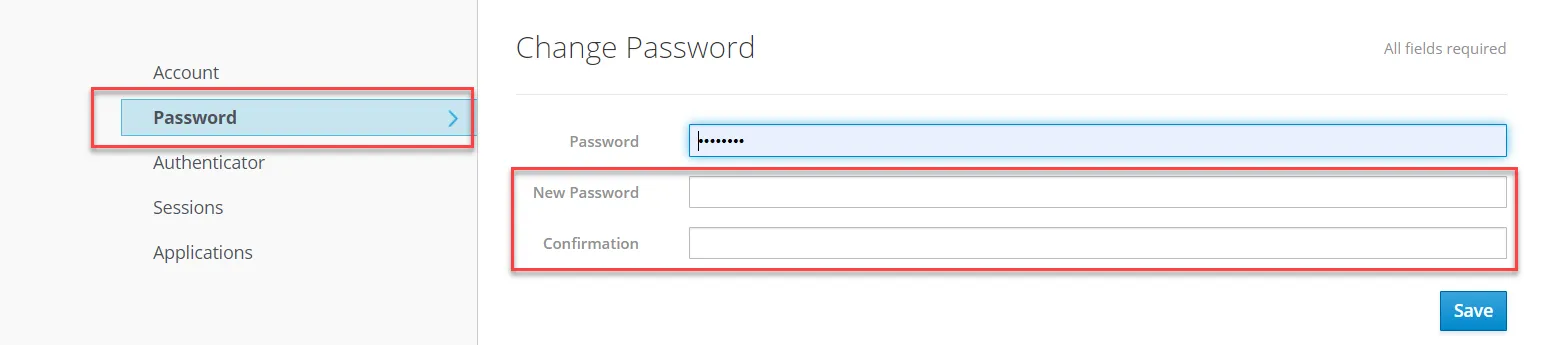
Note: Changing the password in the Keycloak profile application changes it for your Belden Horizon Data Manager log in.
Your user account password is changed according to your modifications.
Set up Keycloak Two-Factor Authentication
In addition to the classic credential-based log in, Belden Horizon Data Manager provides two-factor authentication and profile management using the Keycloak profile application.
For additional security, you can configure two-factor authentication (TFA) with a free authenticator application like Google Authentication.
Two-factor authentication exceeds standard security practices by requiring more than a username and password for login access. The authenticator software generates a token that expires within 60 seconds. This token provides the additional layer of authentication required for login.
Before You Begin
You must modify your user account and optionally change your user account password using the Keycloak profile application.
To configure two-factor authentication:
1. From the Keycloak profile application's left pane, click Authenticator. The Authenticator dialog box appears.
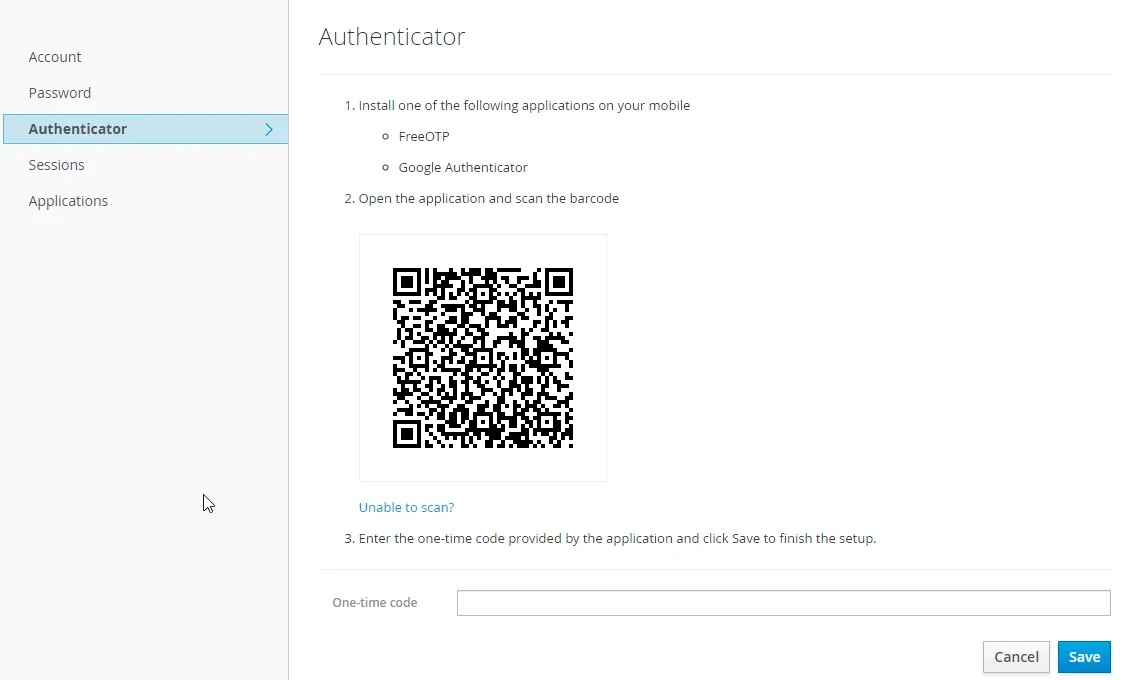
2. Download and install an authenticator application on your smart phone from the Google Play or Apple App store.
Authenticator Applications: FreeOTP, Google Authenticator
Note: These applications do not require internet access to generate a one-time code.
3. Open the authentication application on your smart phone.
4. Scan the barcode (or enter the key) displayed on the Authenticator dialog box.
If you cannot scan the barcode, do the following: a. Click the Unable to scan link. The Authenticator dialog box changes to include a random-number code. b. Copy the random-number code shown in the Authenticator dialog box to your clipboard, and then paste it into the One-time code field.
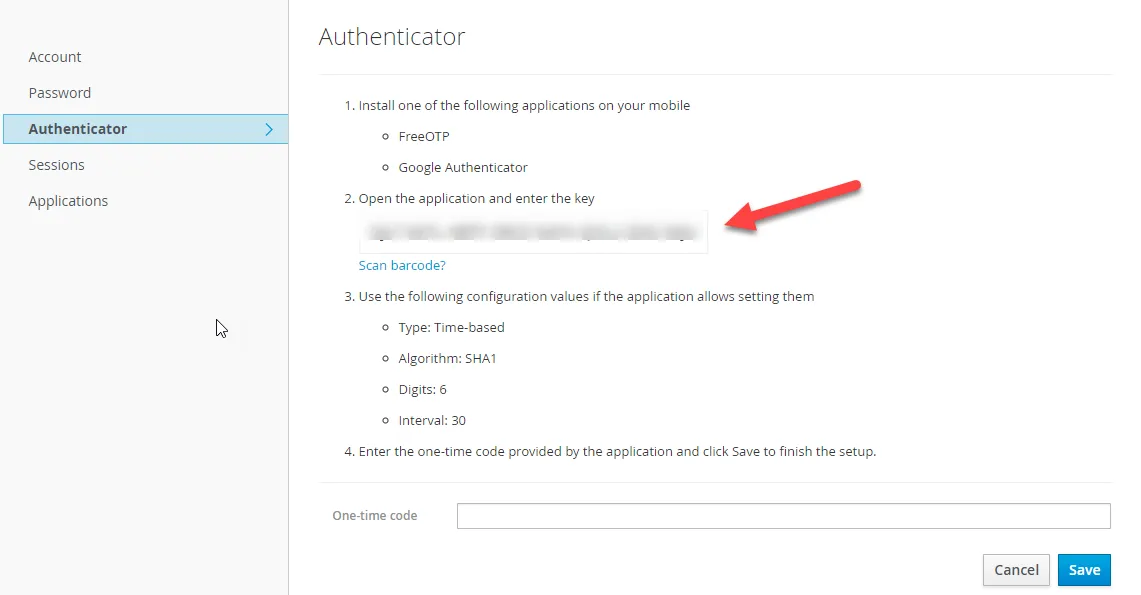
5. Click Save to complete the authentication configuration. Once you configure the authenticator, you will see a confirmation message.
Note:
- Once you set up two-factor authentication, you must use the authenticator application to access your account after entering your username and password.
- After you enter the username and password, the login directs you to a screen to enter the 6-digit one-time code generated by the application on your smart phone.
Remove Keycloak Two-Factor Authentication
You can remove Keycloak two-factor authentication using the Keycloak profile application.
To remove two-factor authentication:
1. From the Keycloak profile application's left pane, click Authenticator. The Authenticator dialog box appears.
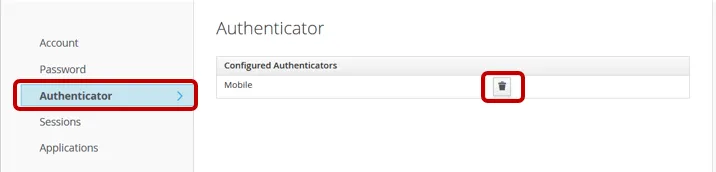
2. Click the Trash icon next to Mobile. The removal is verified.
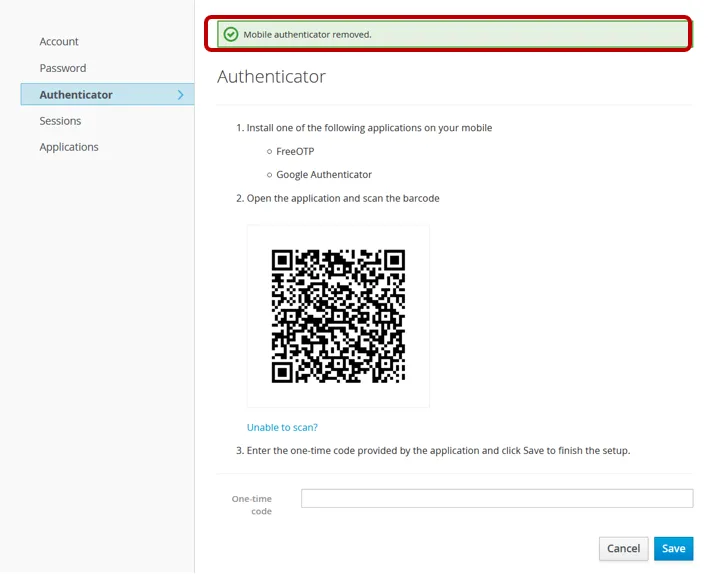
Tips:
- The web page may not update properly. In this case, refresh the browser.
- Some browsers may request a verification. In this case, click Resend.
- You can optionally remove the authenticator application from your smart phone.
View your Open Sessions
You can view your browser sessions from the Keycloak profile application.
If necessary, you can reset the open sessions by logging out of all sessions.
To view browser sessions:
1. From the Keycloak profile application's left pane, click Sessions. The Sessions pane appears.
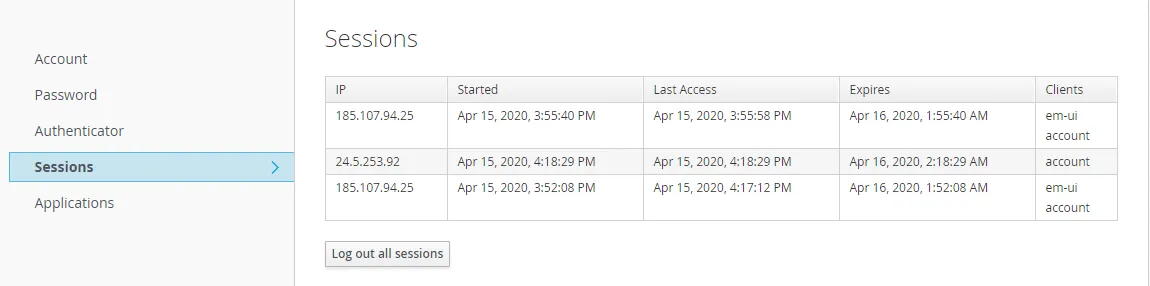
To log out of all open sessions:
1. From the Sessions pane, click Log out all Sessions.
After closing all sessions, you are logged out and must log in again.
View Allowed Applications
You can view applications and their available permissions from the Keycloak profile application.
To view allowed applications: 1. From the Keycloak profile application's left pane, click Applications. The Applications pane appears.