Software
After selecting a project, the Software module appears.
The Software module includes a list of runnable jobs for edge devices. This module also contains a Current (#) tab to view PENDING or RUNNING jobs and a History (#) tab to view COMPLETED or ERROR (failed) jobs.
You can add a software update job, run a job, or view info about a Current or History (previous) job.
Note: Software packages are added from the Images module in the Belden Horizon Data Manager Admin Console. See Edge Software Update.
Single or multiple jobs can be scheduled for edge devices. You can use user-defined commands that can be scheduled to be executed. You can restart and update Belden Horizon Data Operations software.
Access Software UI
To access the software UI:
1. Log in to Belden Horizon Data Manager.
2. Select a company. The Projects pane appears.
3. Do one of the following:
- Click a project from the Project pane. The Dashboard pane appears for the project.
- Click the Actions icon for a project, and then select View. The Dashboard pane appears for the project.
4. From the Navigation panel, select Software. The Software pane appears.
Refer to the following actions you can take on the Belden Horizon Data Manager User UI's Software pane.
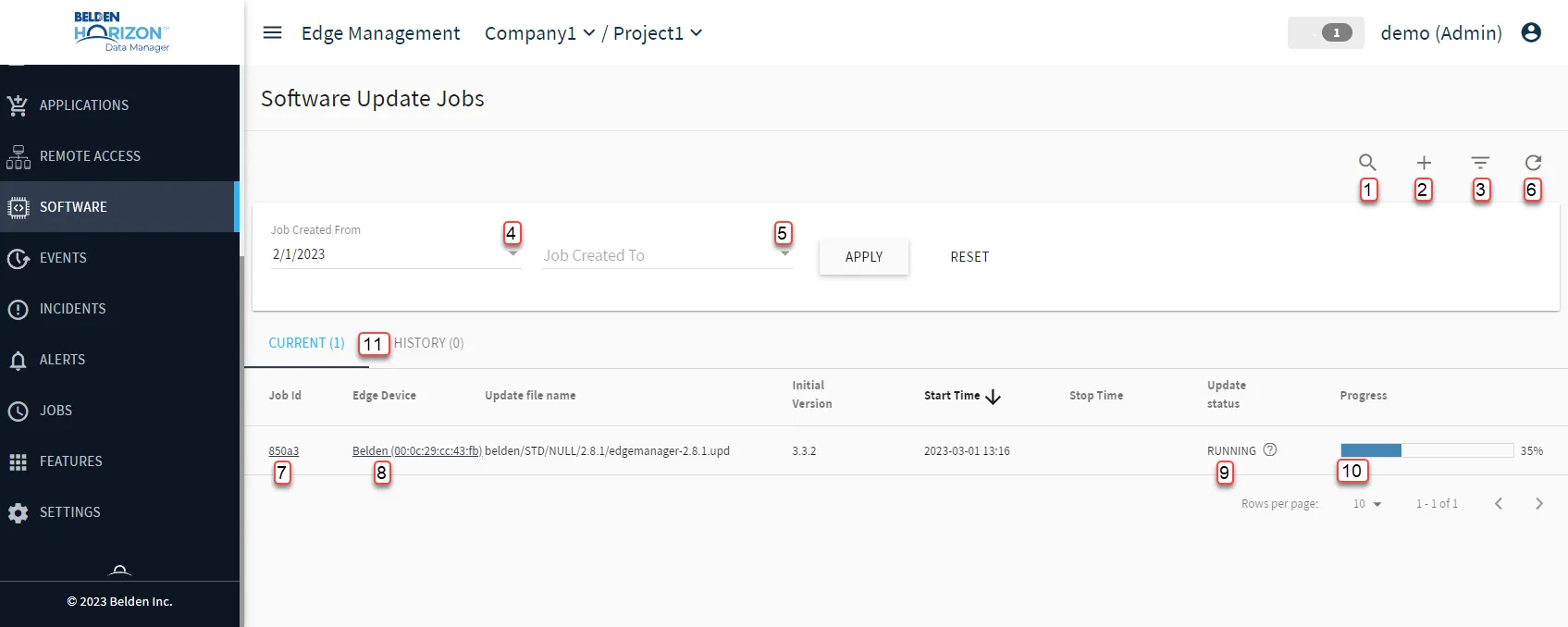
[1] Show filter / Hide filter: Search by Edge Device ID, Update file name, or Initial Version. The filter applies to both Current (#) and History (#) tab
[2] Add New Software Job
[3] Show/Hide Filter
[4] Select Job Created From
[5] Select Job Created To
[6] Refresh
[7] View Job Id: See Subtask Log section of Task List and Task Details
[8] View Edge Device: Info
[9] View status details: Available statuses are
- RUNNING
- PENDING
- COMPLETED
- ERROR
[10] Progress Bar
[11] Swap between Current / History tabs