Edge Devices
An edge device is a Belden Horizon Data Operations device that can be connected and activated, enabling data collection and allowing you to perform management tasks. Each new edge device added has a UUID, referred to as the device ID. A color-coded warning for license expiry is shown for each device that is expiring within 15 days.
Access Edge Device UI
To access the Edge Device UI:
1. Log in to Belden Horizon Data Manager.
2. Select a company. The Projects pane appears.
3. Do one of the following:
- Click a project from the Project pane.
- Click the Actions icon for a project, and then select View.
The Dashboard pane appears for the project.
4. From the Navigation panel, select Edge Devices. The Edge Devices pane appears.
Refer to the following actions you can take on the Edge Devices pane. The user interface below is for Belden Horizon Data Manager version 2.10.0 and later.
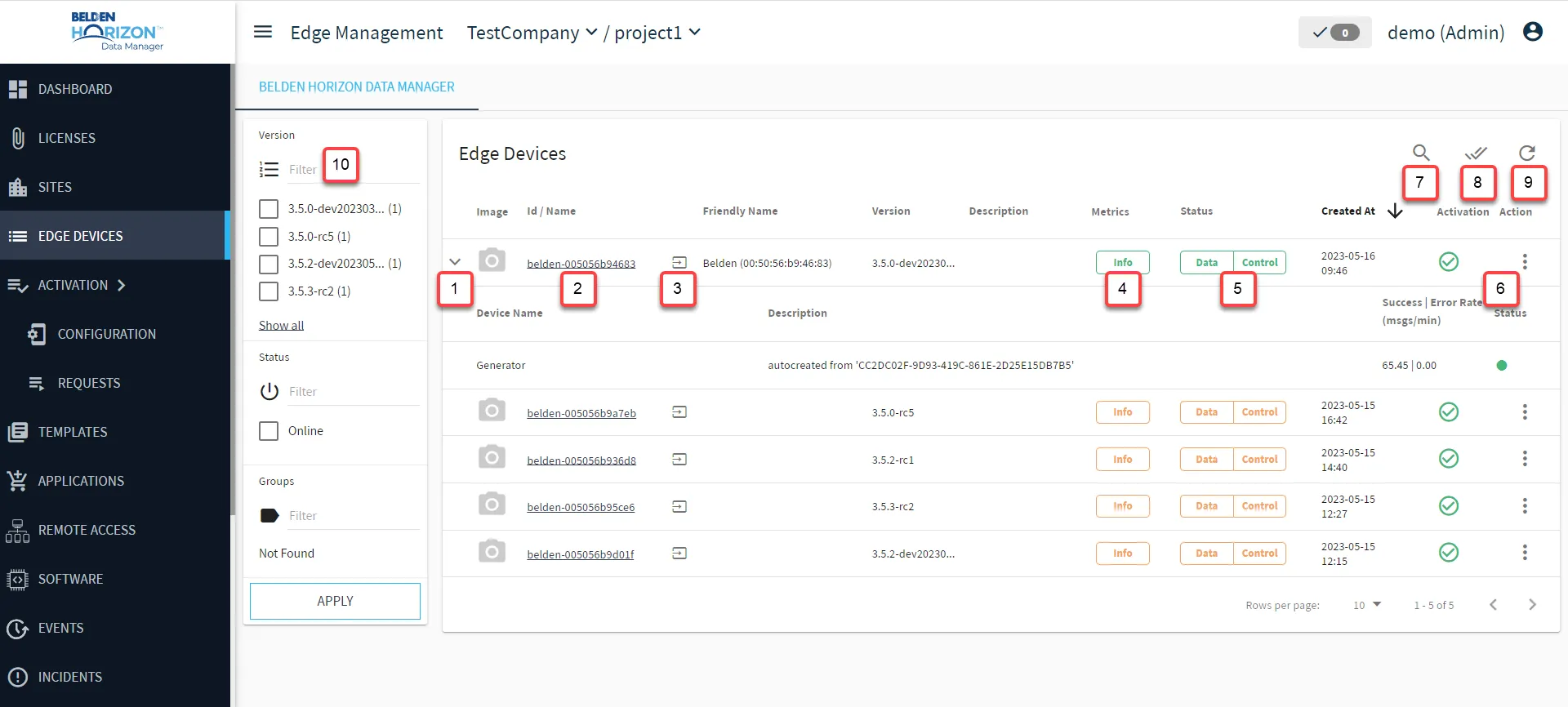
[1] Show child devices: Before a child device can be viewed, that child device's tag must be added or imported to the Default Generic MQTT SSL connector in the child's parent Belden Horizon Data Operations instance. See Set up Default Generic MQTT SSL Connector with Imported Topics in Belden Horizon Data Operations for details.
Note: If the child device's tag is removed from the Default Generic MQTT SSL connector, the child device is not deleted from the list of available child devices and will still be displayed.
[2] View Edge Device Details
[3] Open Edge Device
[4] View Edge Metrics
[5] View Data and Control Status
[6] Action menu:
- Deactivate: This action will disconnect the Data | Control for the selected edge device.
- Delete: Once an edge device is deleted, the delete status update updates in real time. However, the actual deletion from Belden Horizon Data Manager takes place after a 24-hour period.
- Open UI / Open UI (new tab)
[7] Open filter: Search by Id / Name, Friendly Name, or Version
[8] Multi-Select Mode: Use this feature to group several devices at the same time.
[9] Refresh device list
[10] Advanced Filter