User Journey
The diagram below displays the most common journey of the Belden Horizon Data Manager experience. These tasks include important edge device management activities, but there are many other capabilities and features available to you in Belden Horizon Data Manager.
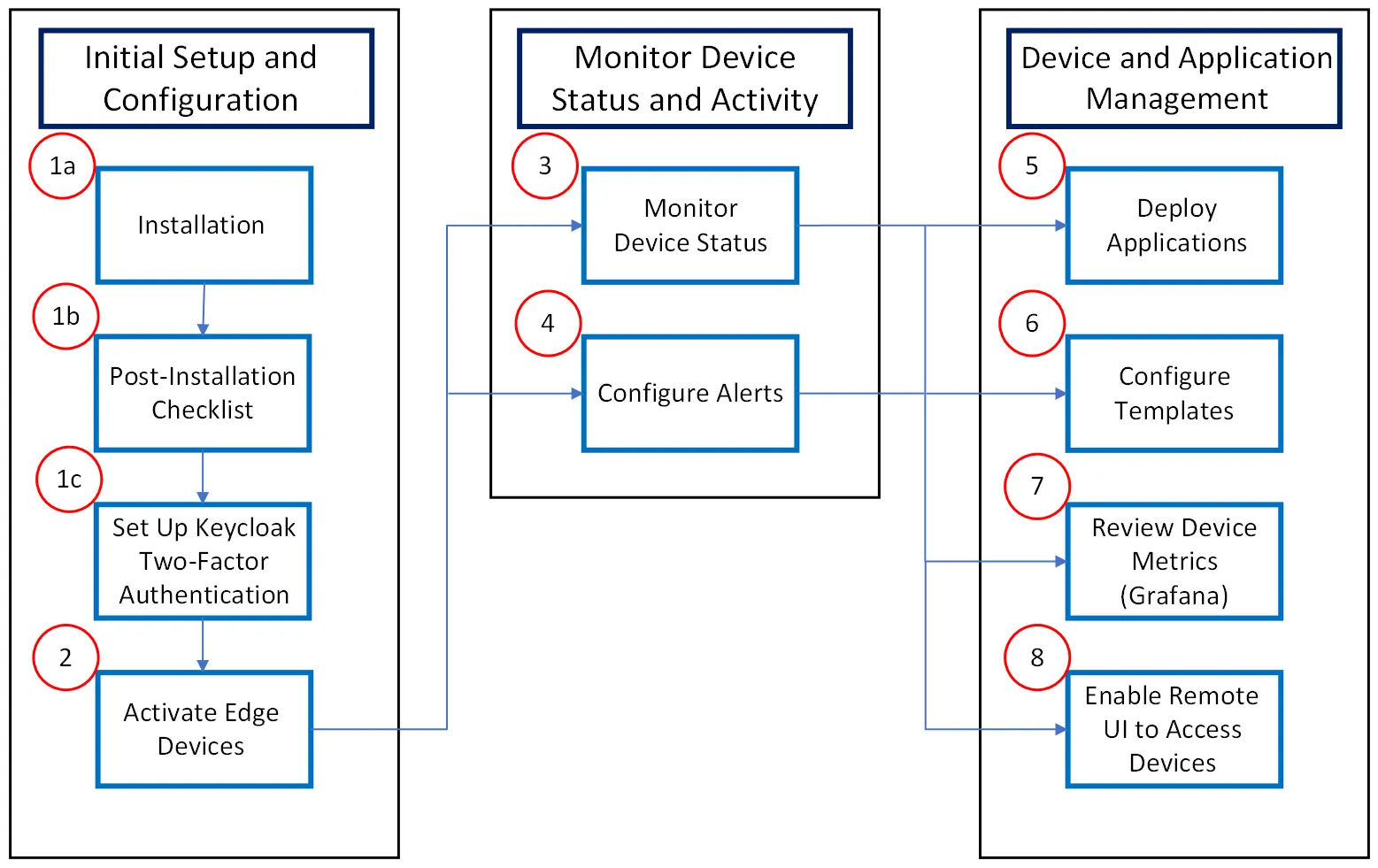
1a. Review the available options for Installation and Deployments to begin your journey.
1b. After installing, make sure to review the Post-Installation Checklist.
1c. You can review User Profile Administration to see how to manage your user account and set up Keycloak two-factor authentication.
2. To connect an edge device (Belden Horizon Data Operations instance) with Belden Horizon Data Manager, you will need to Create a Configuration and Activate an Edge Device.
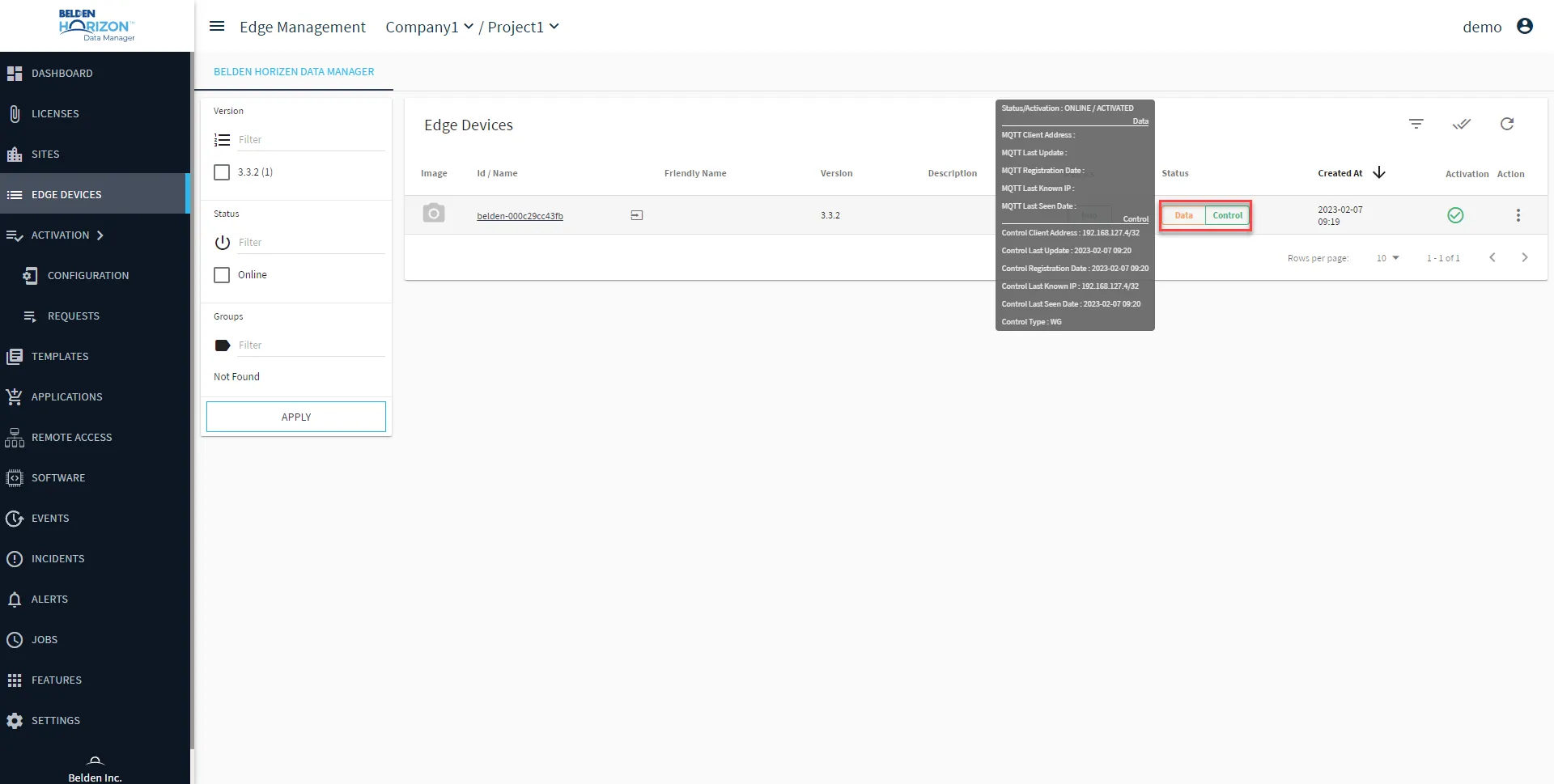
3. You can keep track of connected Edge devices by reviewing the status in Belden Horizon Data Manager.
To monitor the status of Edge devices, navigate to the Edge Devices pane and hover over the Data | Control icon to view the device status and additional details.
4. You can review details for Alerts and Manage Alert Triggers for connected devices. This allows you to monitor the activity of edge devices connected to Belden Horizon Data Manager and receive alerts when important events occur.
5. The Applications module contains a list of catalogs and applications available to the selected project. Belden Horizon Data Manager includes a default Marketplace catalog with applications ready to be deployed. You can Manage Applications from Belden Horizon Data Manager and Deploy an Application to Edge Devices.
6. Templates allow you to create a template from an edge device or upload a template from a file for your edge devices.
Important: Before you can create a template, you must add one or more online edge devices in the Edge Devices pane.
Learn more about doing the following:
7. To review metrics for an edge device, navigate to the Edge Devices pane and click the Metrics tab.
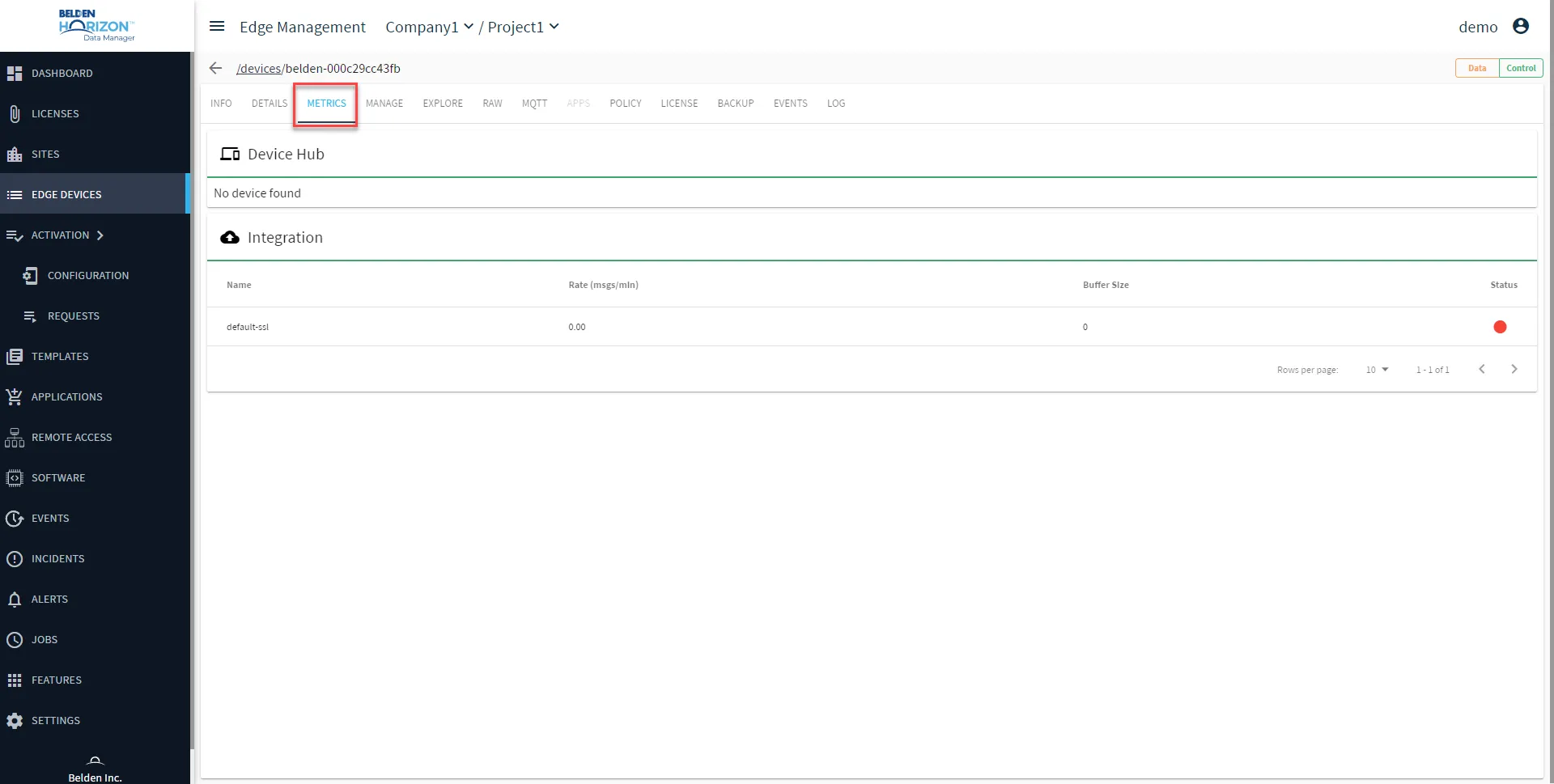
To access more device information, you can view Edge Device Details and View Data from an Edge Device and/or a Child Device.
You can also review metrics by using Grafana. Learn more about Grafana Dashboards and how to Visualize Child Device Data Using Grafana.
8. You can enable the Remote UI feature to access and manage your connected edge devices from Belden Horizon Data Manager. You do not need access to public internet to access your edge devices.
Before using this feature, review the Before You Begin section in Open Edge Devices.
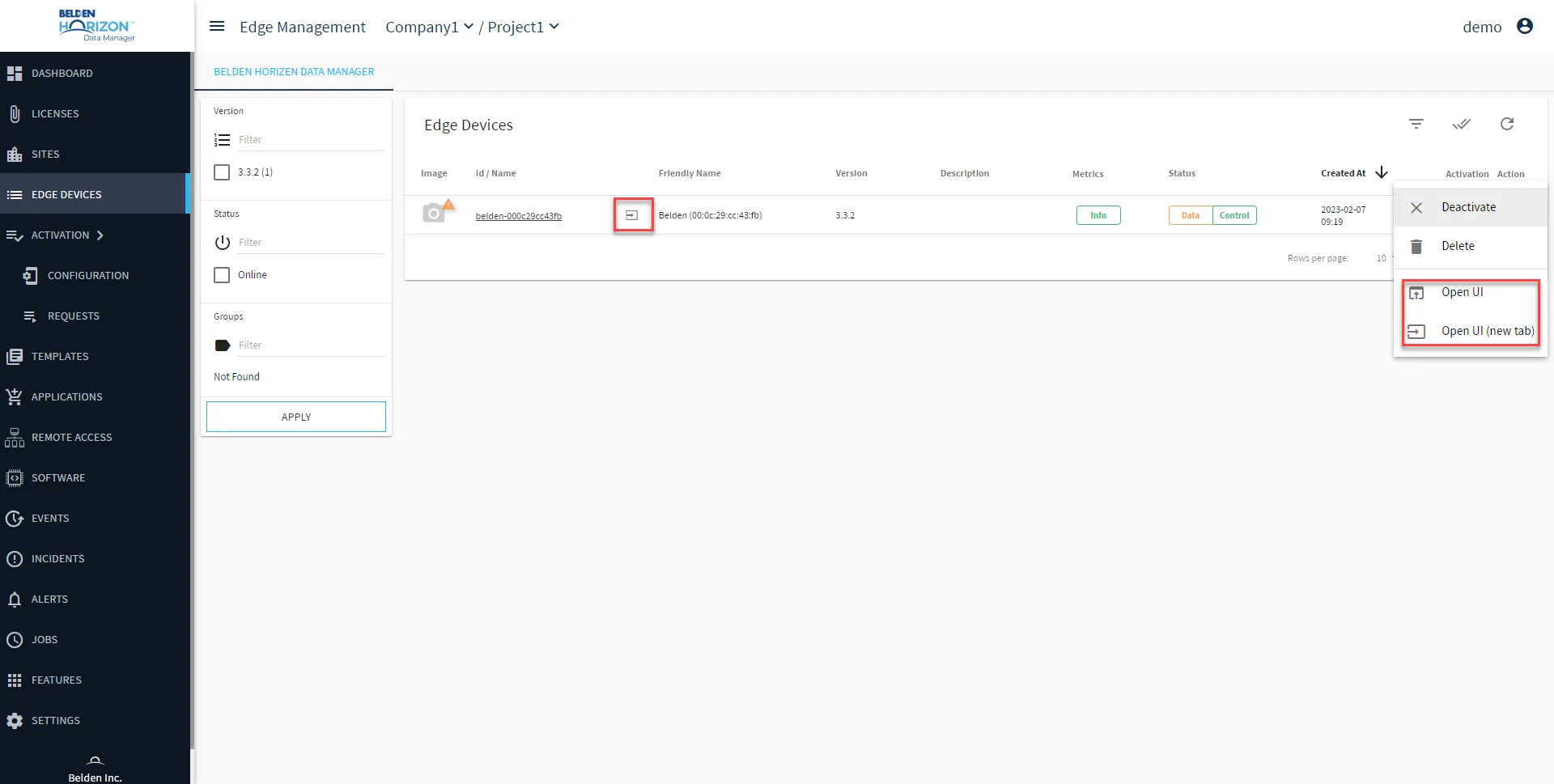
To use the Remote UI feature, navigate to Edge Devices and click the Open Belden Horizon Data Operations UI icon or open the Action menu and select Open UI.