License Server Management
Belden uses an embedded license server to provide site-based licenses to edge devices.
After receiving a site license key from Belden, a respective site license can then be generated and added to the embedded license server. The site license will then be automatically used when activating an edge device with Belden Horizon Data Manager. See Create a Configuration and Activate an Edge Device for more information.
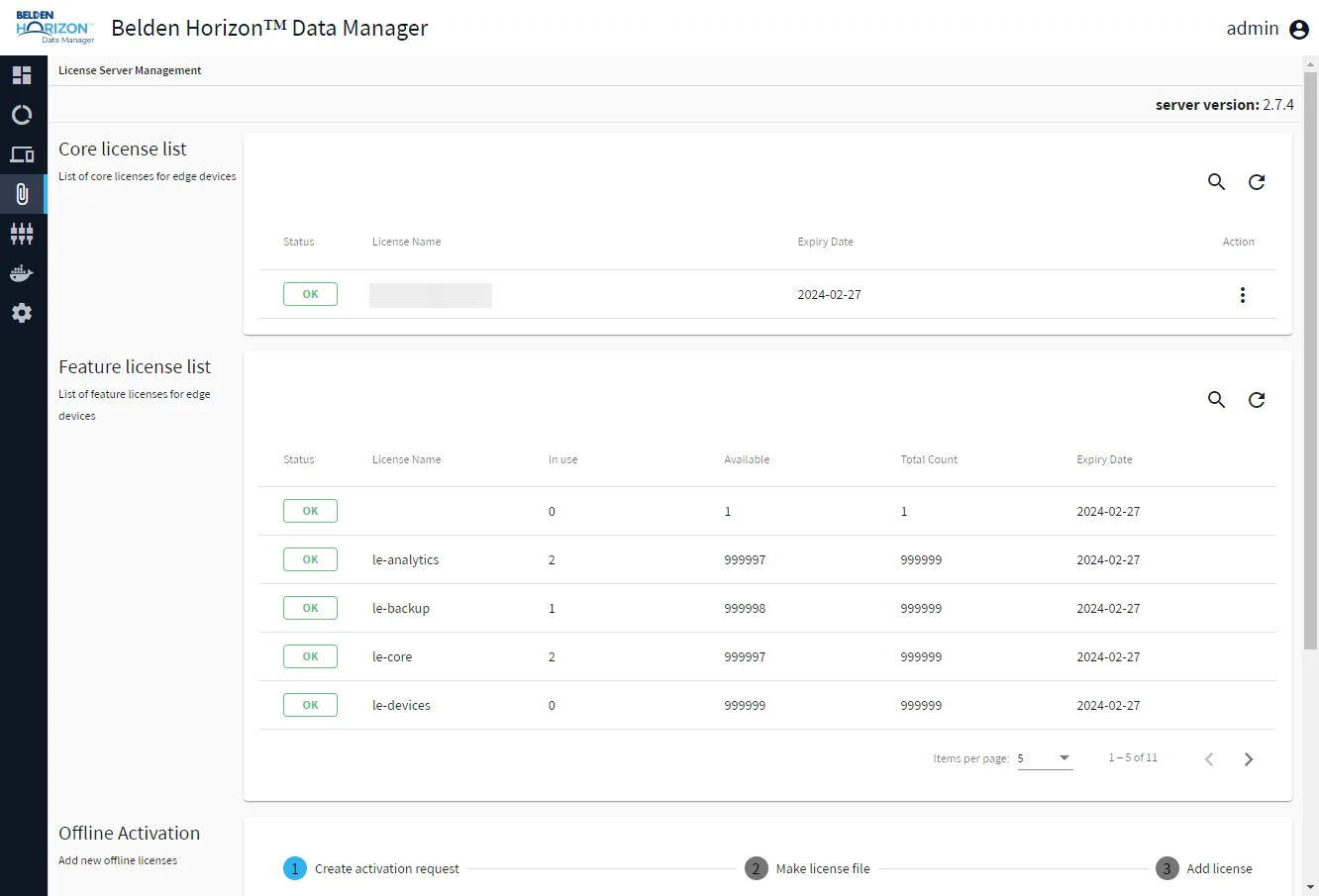
The License Server Management pane includes three sections.
- Core License List: Shows the activated site licenses and their statuses for edge devices.
- Feature License List: Shows a list of features enabled with the activated site license.
- Offline Activation: Enables you to activate a site license key with the license portal and add the respective site license.
Access License Server Management UI
To access the license server management UI:
1. Log in to Belden Horizon Data Manager Admin Console.
2. From the Navigation panel, select License Server Management. The License Server Management pane appears.
Core License List
The Core License list includes the following information.
- Status: The status for each site-license feature.
- License Name: The name of license features included for your connected edge devices
- Expiry Date: The expiration date for the license feature
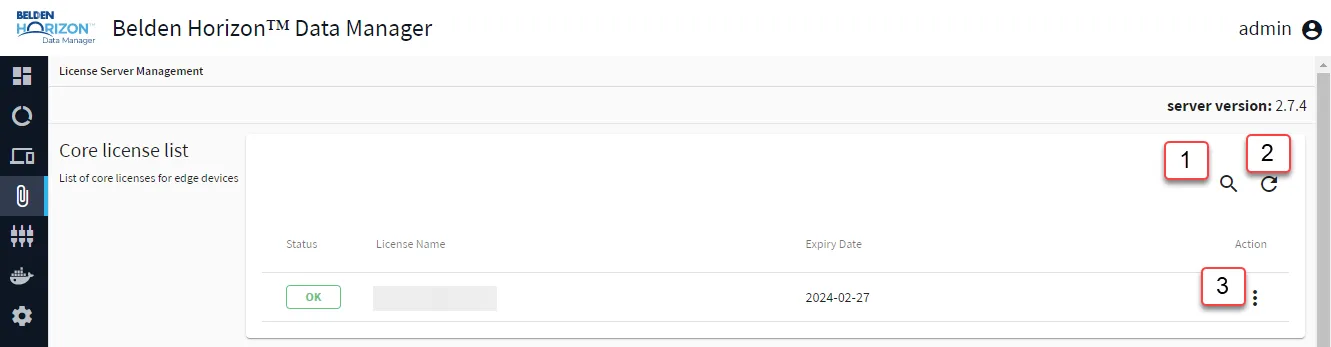
[1] Show filter / Hide filter: Search by License Name, Expiry Date
[2] Refresh
[3] Action menu:
- Remove
Feature License List
The Feature License list includes the following information:
- Status: The status for each site-license feature
- License Name: The name of license features included for your connected edge devices
- In use: The number of iterations that are currently in use for your license features
- Available: The number of iterations that are available for your license features
- Total Count: The total number of iterations that are available for your license features
- Expiry Date: The expiration date for the license feature
This section gives you list of available features with the activated site license for edge devices. The included site-license features are:
- Analytics
- Backup
- Core
- Catalog
- Devices
- Marketplace
- License Core
- OPCUA
- Tags
- Updates
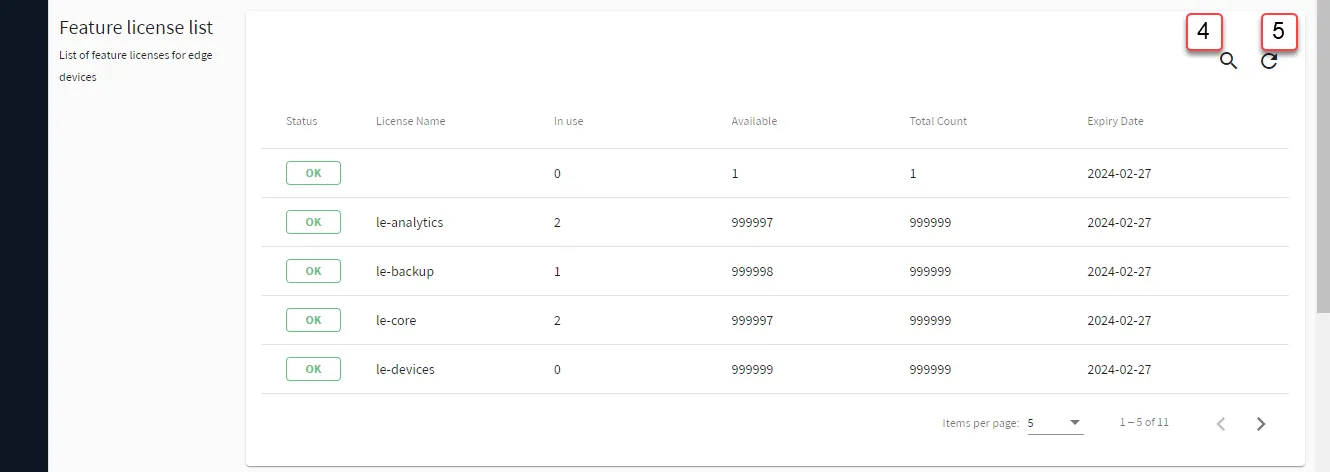
[4] Show filter / Hide filter: Search by License Name, Total Count, Expiry Date
[5] Refresh
Offline Activation
Note: This version of Offline Activation is available for Belden Horizon Data Manager version 2.8.0 and later.
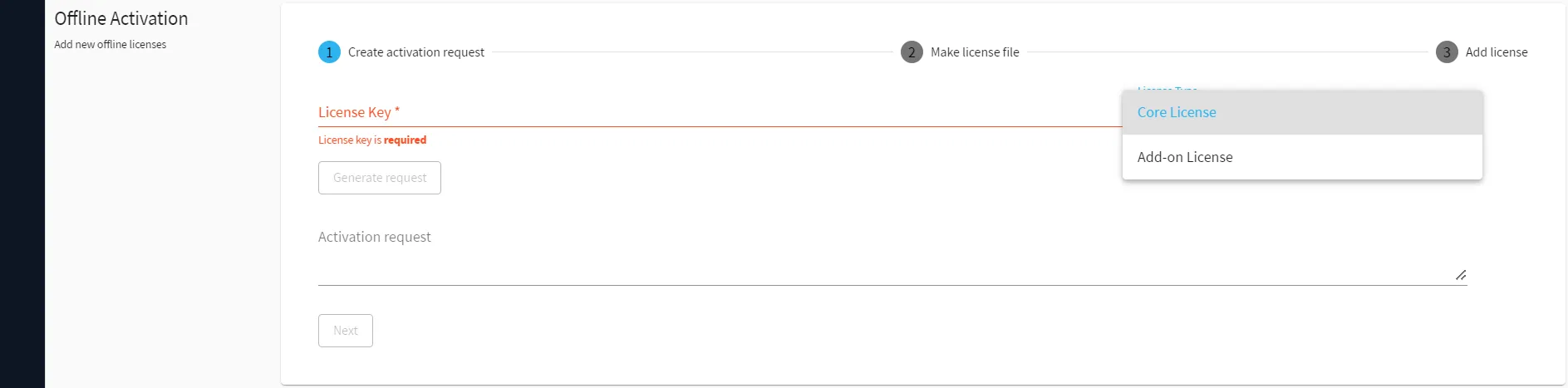
You can add a Core or an Add-on license for edge devices from the Offline Activation section in the License Server Management pane. Once the licenses are added, edge devices that have been or will be activated with a Site license will receive the Core and all the Add-on Site licenses.
While multiple Add-on licenses can be added as needed, only one Core license can exist.


Before You Begin
Make sure you have a site-license key. You can request a site-license key from Belden.
Add a Site License Offline
To add a site-based license offline:
- From the Create Activation Request section:
- In the License Key field, enter the site-license key.
- (Optional) From the License Type drop down menu, select a license type to add.
- Click Generate request. The activation request appears in the Activation request field.
- Next to the Activation request field, Click the Copy activation request icon. The activation request is copied to your clipboard.
- Click Next.
- From the Make license file section, click the License Portal link. The Licensing Portal page (https://litmus.activate.id/offline) opens in a new tab.
- In the Activation Request field, paste the activation request, and then click Make License. (You may need to verify I'm not a robot) The encoded license appears in the Activation Result field.
- Next to the Activation Result field, click the Copy content to clipboard icon.
- Return to the Make license file section in the Offline Activation browser tab, and then click Next.
- From the Add License section, in the License field, paste the encoded license, and then click Add License. The license is added.