Alerts
Alerts occur when an event triggers an action. You can add actions and triggers in the Alerts module that can use events to send notifications.
The Alerts module includes two sections.
Action List
From the Actions List section, you can add, modify, and view actions that is used by a trigger. The action sends a notification (Email, Slack, Webhook, Pagerduty) when a trigger is applied.
Triggers
The Triggers section includes user-defined triggers. A trigger uses an event or a metric to trigger an action, which in turn sends a notification.
You can create, view and modify user-defined triggers for the actions listed. An alert occurrence is registered as an incident and is shown in the Incidents module. The generated alert appears in the BHDM Dashboard module and the Events tab in Edge Device Details.
Alert Options:
- Email
- Webhook
- Slack
- Pagerduty
Example:
A device associated with an edge device sends data from a temperature sensor.
You can define the normal temperature (temp = 50) and then define (temp = 60) as a Trigger to show an incident.
You can define an Action (email) to notify you when an incident occurs.
Belden Horizon Data Manager then registers the trigger as an incident. The incident is shown on the Incident pane. The alert is shown on the Dashboard, Events tab in Edge Device Details, and you get an alert notification, as configured.
Access Alerts UI
To access the Alerts UI:
1. Log in to Belden Horizon Data Manager.
2. Select a company. The Projects pane appears.
3. Do one of the following:
- Click a project from the Project pane. The Dashboard pane appears for the project.
- Click the Actions icon for a project, and then select View. The Dashboard pane appears for the project.
4. From the Navigation panel, select Alerts. The Alerts pane appears.
Refer to the following actions you can take on the Belden Horizon Data Manager User UI's Alerts pane. The user interface below is for Belden Horizon Data Manager version 2.10.0 and later.
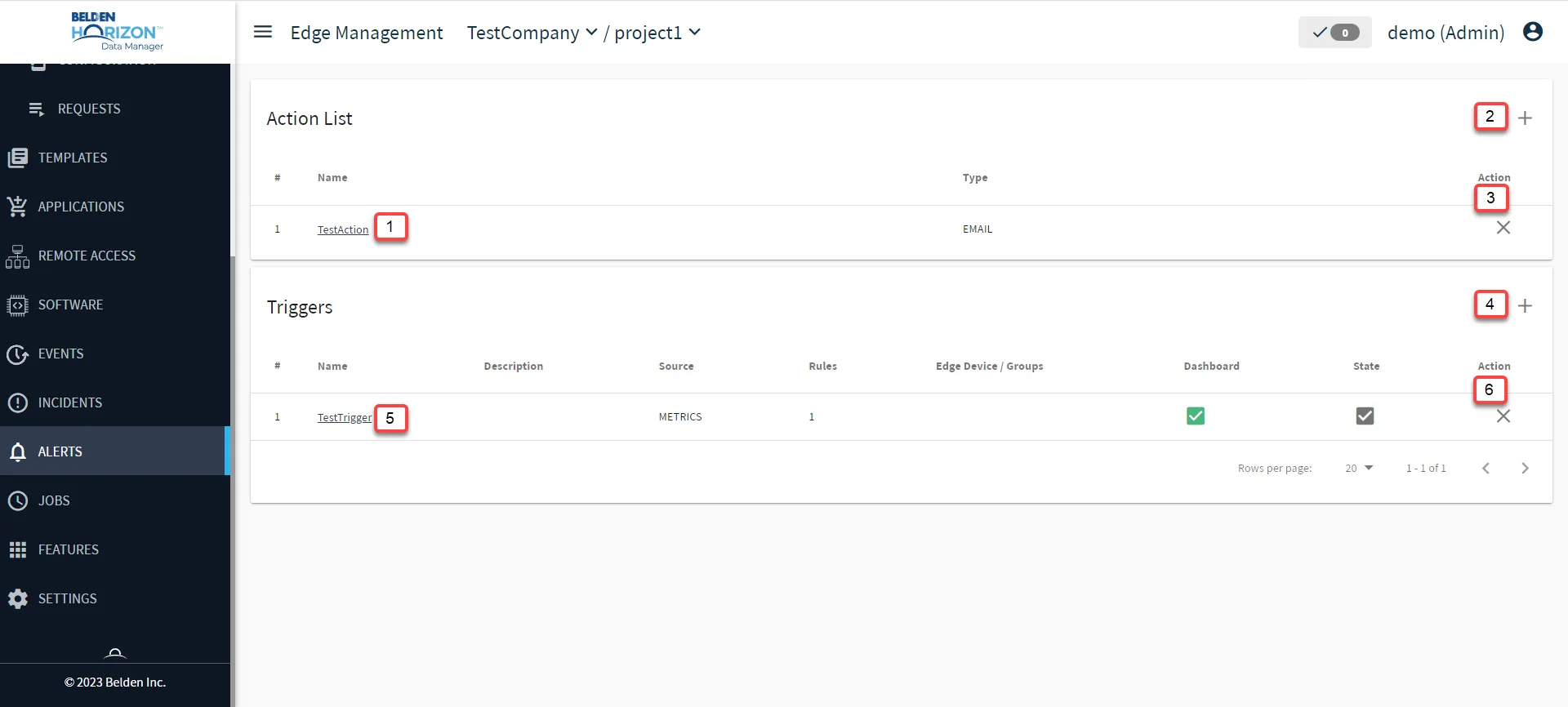
[1] Edit Alert action: Email, Slack, WebHook, PagerDuty.
[2] Add new Action: The Action Template option requirements differ for each action.
- Email
- Enter Email field
- Slack
- WebHook field
- Channel field
- Username field
- WebHook
- WebHook field
- Token field
- Verify SSL options (true, false)
- PagerDuty
- Token field
[3] Remove Action
[4] Add New Trigger: Manage Alert Triggers
[5] Edit Trigger: Manage Alert Triggers
[6] Remove Trigger