Create a Configuration and Activate an Edge Device
A Belden Horizon Data Operations Device must be first activated by a Belden Horizon Data Manager before it can be managed. This process includes the following steps:
- Create a Basic Activation Configuration in Belden Horizon Data Manager
- Create an Activation Request in Belden Horizon Data Operations
- Approve the Activation Request in Belden Horizon Data Manager
- Verify Edge Device Activation in Belden Horizon Data Operations
- Enable Default Generic MQTT SSL Connector in Belden Horizon Data Operations
- Verify Edge Device Activation in Belden Horizon Data Manager
To jump to a specific section, refer to the Table of Contents on the right side and click the corresponding step.
Step 1: Create a Basic Activation Configuration in Belden Horizon Data Manager
In Belden Horizon Data Manager, you will first need to create an activation configuration.
To create a basic configuration:
- Log in Belden Horizon Data Manager.
- Select a company. The Projects pane appears.
- Do one of the following:
- Click a project from the Project pane. The Dashboard pane appears for the project.
- Click the Actions icon for a project, and then select View. The Dashboard pane appears for the project.
- From the navigation panel, select Activation. The Configuration and Requests sub-modules drop down.
- From the navigation panel, select Configuration. The Activation Configuration pane appears.
Click the Add (+) icon. The Activation Config List / NEW pane appears.
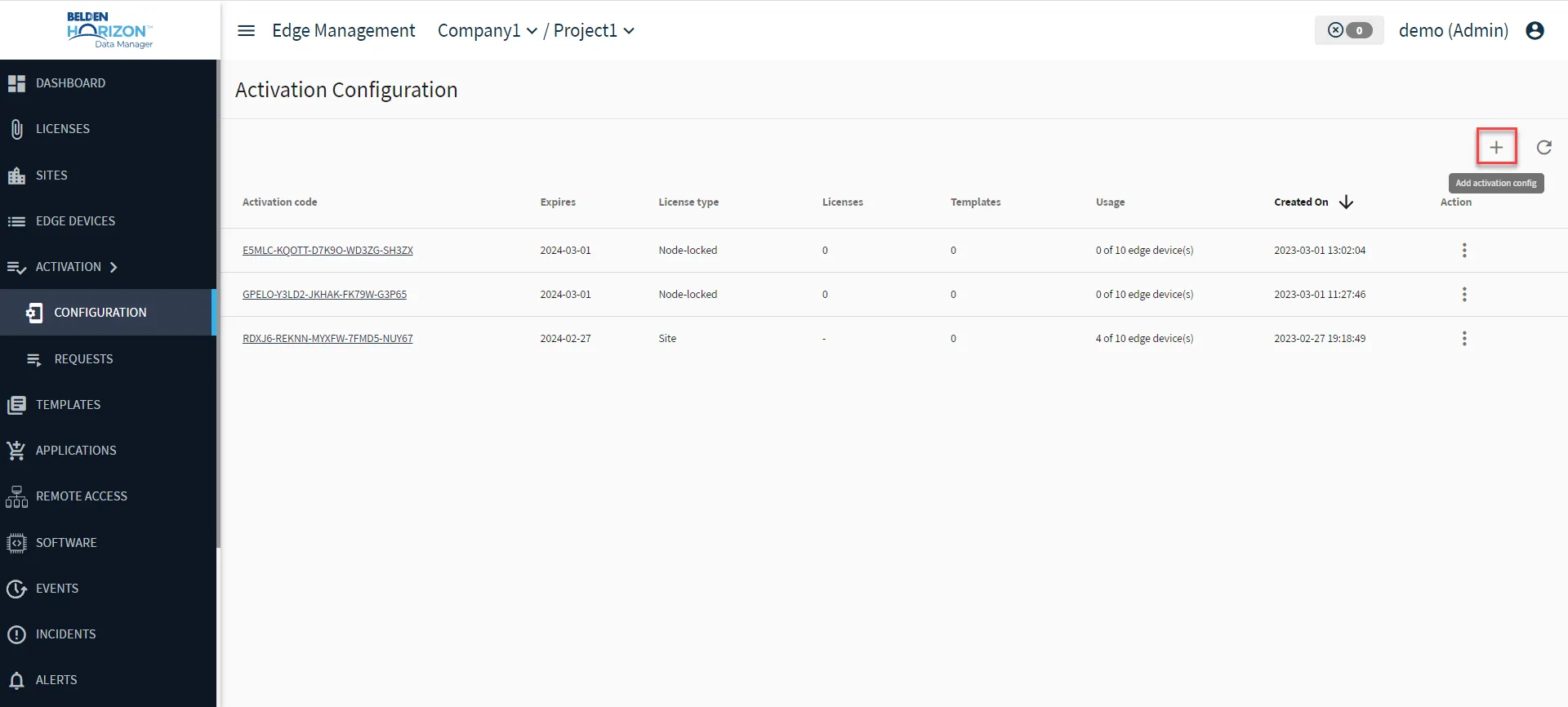
- (Optional) Customize the following characteristics according to your requirements. For more information, refer to Step 1-4 of Set Up an Activation Config.
- Limits
- Number of edge devices
- Lease TTL
- Expiration Date
- License Type: Node-Locked vs Site
- Node-Locked License Keys
- Templates
- Template Variables
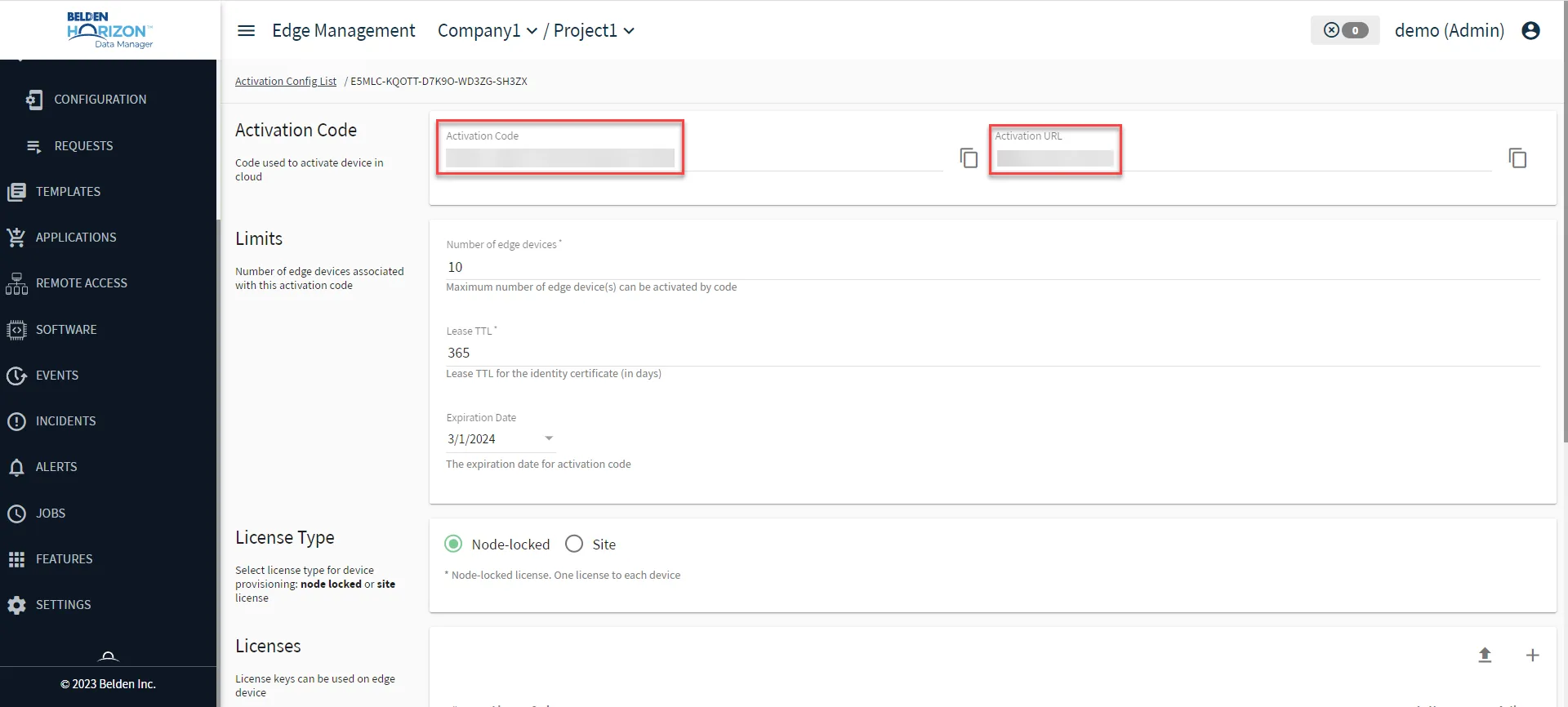
- Click Save. The activation configuration you have created is saved. For site-based licenses, the edge device activation code appears in the Activation Code field of the Activation Code section.
- Copy aside the Activation URL and Activation Code values.
Step 2: Create an Activation Request in Belden Horizon Data Operations
After creating at least one activation template on Belden Horizon Data Manager, you will switch to the corresponding Belden Horizon Data Operations instance. In Belden Horizon Data Operations, you will next create an activation request.
To create an activation request for an edge device:
- In a separate browser tab, access the edge device (Belden Horizon Data Operations) you want to activate and log in.
- From the navigation panel, select System > Device Management.
In the Cloud Management section's Data & Device Management Endpoint field, click Edit, then paste the Activation URL value you have copied from Belden Horizon Data Manager and then click Set. The Certificate dialog box appears.
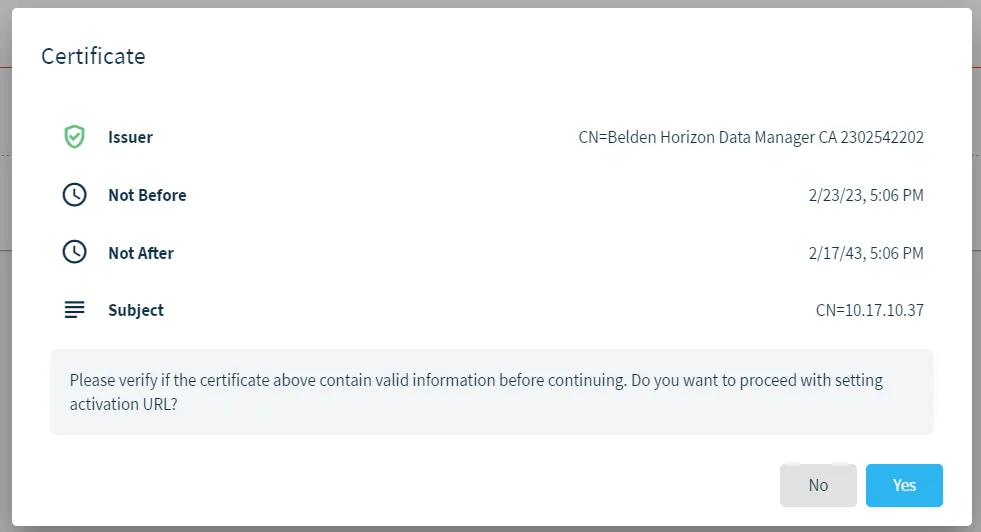 Certificate dialog box
- Verify that the certificate information is correct and acceptable, then click Yes. The cloud activation URL updates.
- Paste the Activation Code value you have copied from Belden Horizon Data Manager in the Activation Code field, and then click Activate. The activation request is sent to Belden Horizon Data Manager. A notification box appears.
See Activate an Edge Device for more details.
Step 3: Approve the Activation Request in Belden Horizon Data Manager
In Belden Horizon Data Operations, after creating an activation request, you will switch back to Belden Horizon Data Manager to approve the activation configuration request.
To approve the activation configuration request you have created:
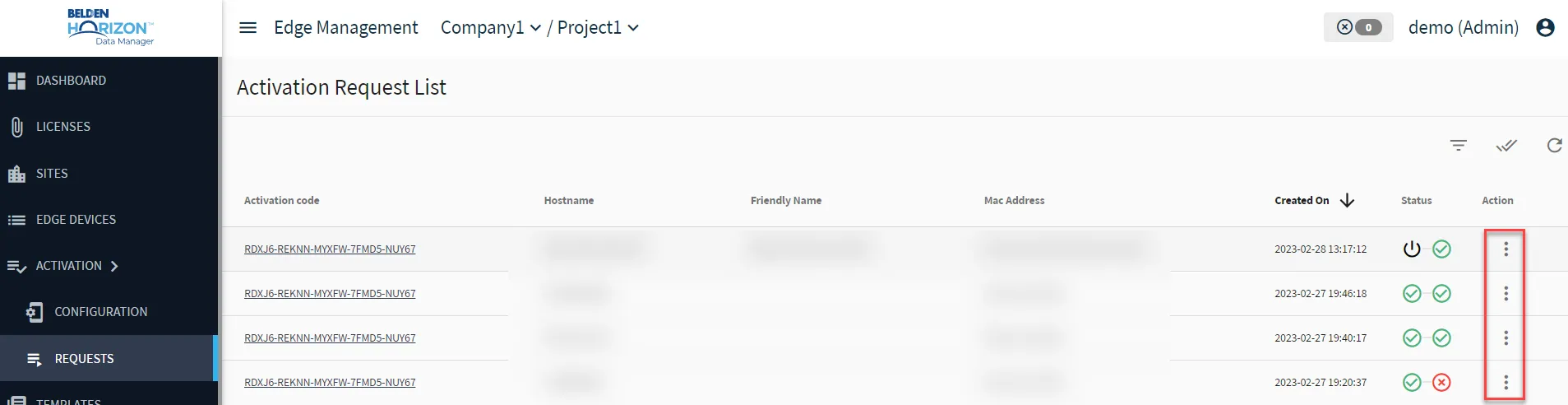
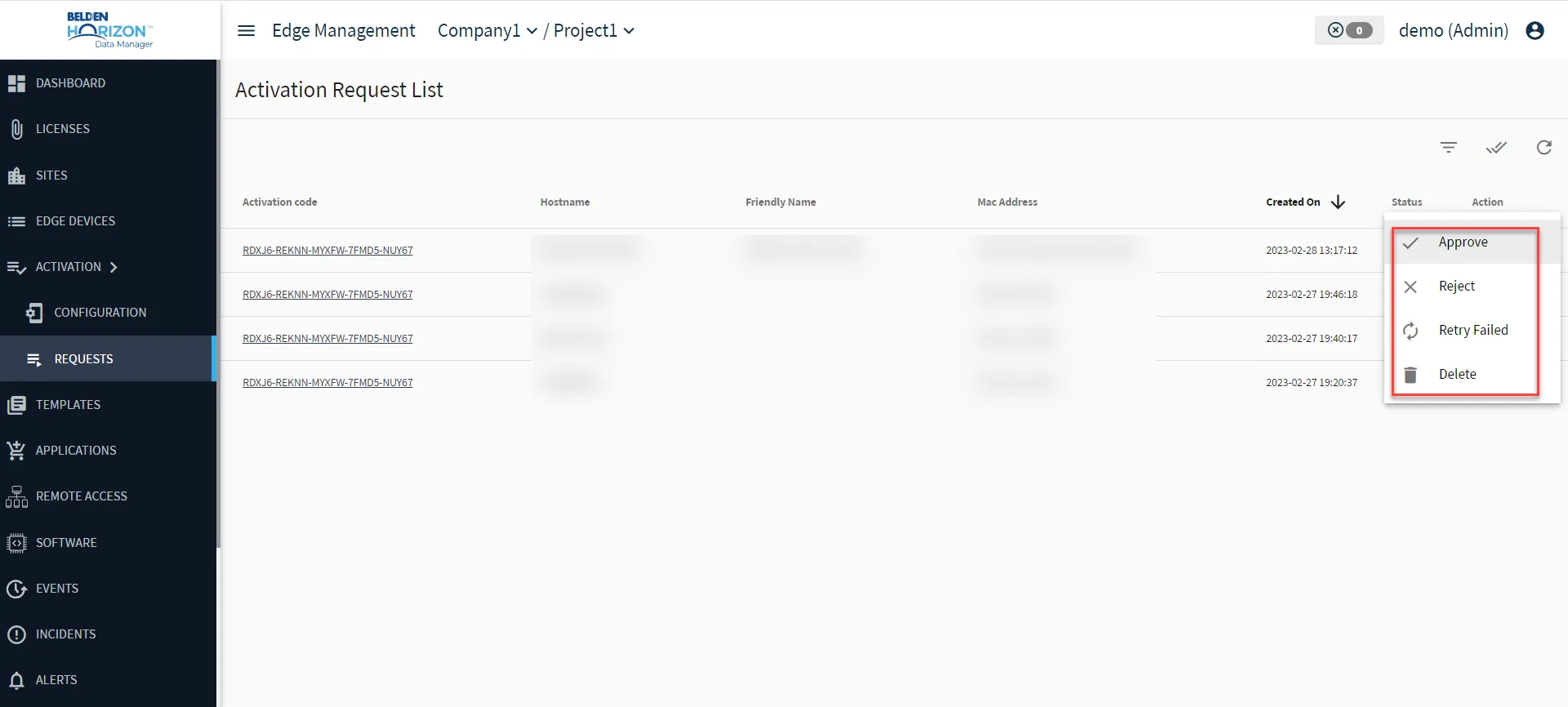
- From the Belden Horizon Data Manager navigation panel, select Activation > Requests. The Activation Request List pane appears.
- Click the Action Menu icon next to the activation request you have created from earlier, and then select Approve. For more information, see the Approve option of Manage Device Requests. The status for the activation changes. The first (left) green checkmark is for the activation stage, and indicates that the activation sequence have been received, approved, and confirmed. The second (right) green checkmark is for the provision stage, and indicates that the offline license have been generated, provisioned to the Belden Horizon Data Operations instance, and the default password policy is also provisioned to the Belden Horizon Data Operations instance. See Activation Request Stage for more details.
Step 4: Verify Edge Device Activation in Belden Horizon Data Operations
After you have approved the activation request in Belden Horizon Data Manager, return to Belden Horizon Data Operations to verify the activation was successful.
To verify the activation was successful:
- From the navigation panel, select System > Tokens.
From REST API Keys, verify the creation of a System API key (read only).
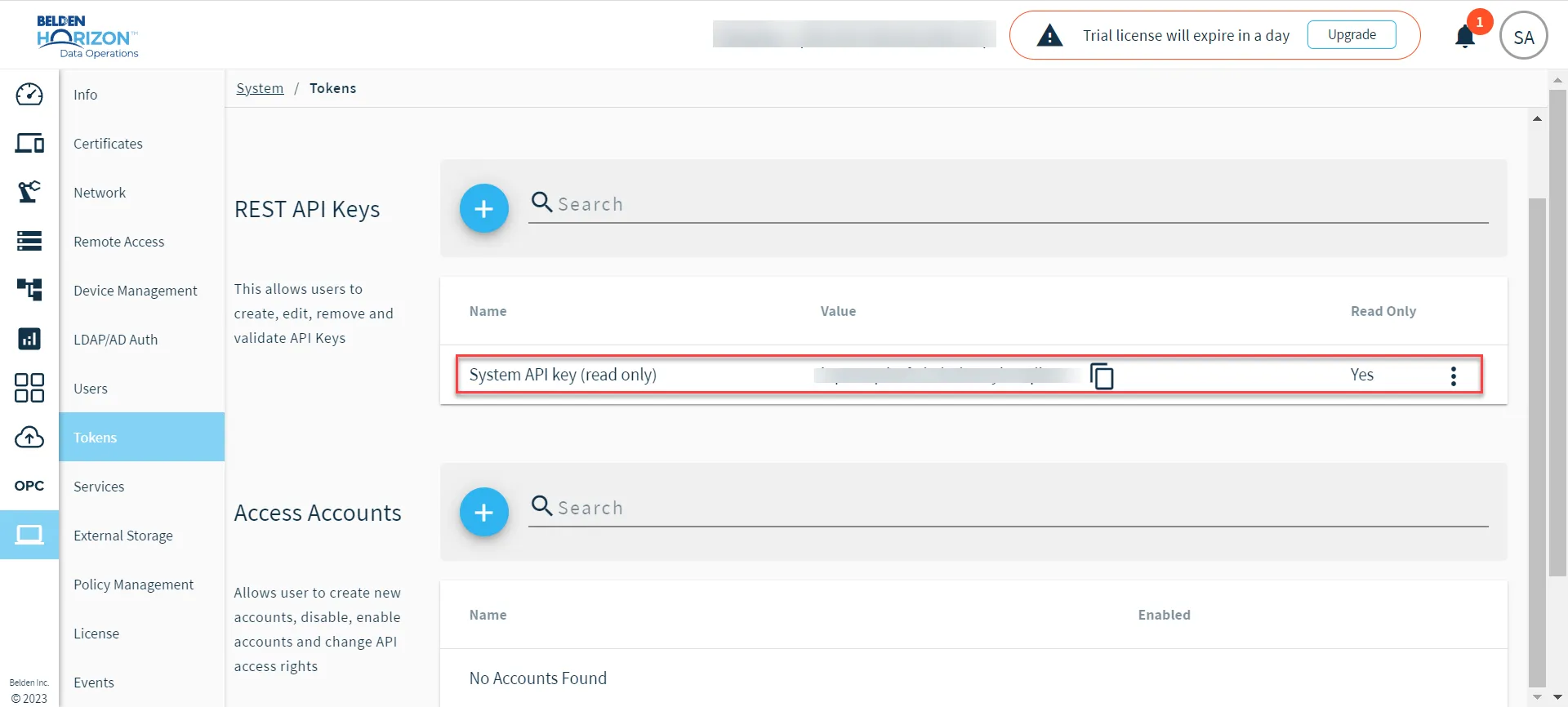 System API key (read only)
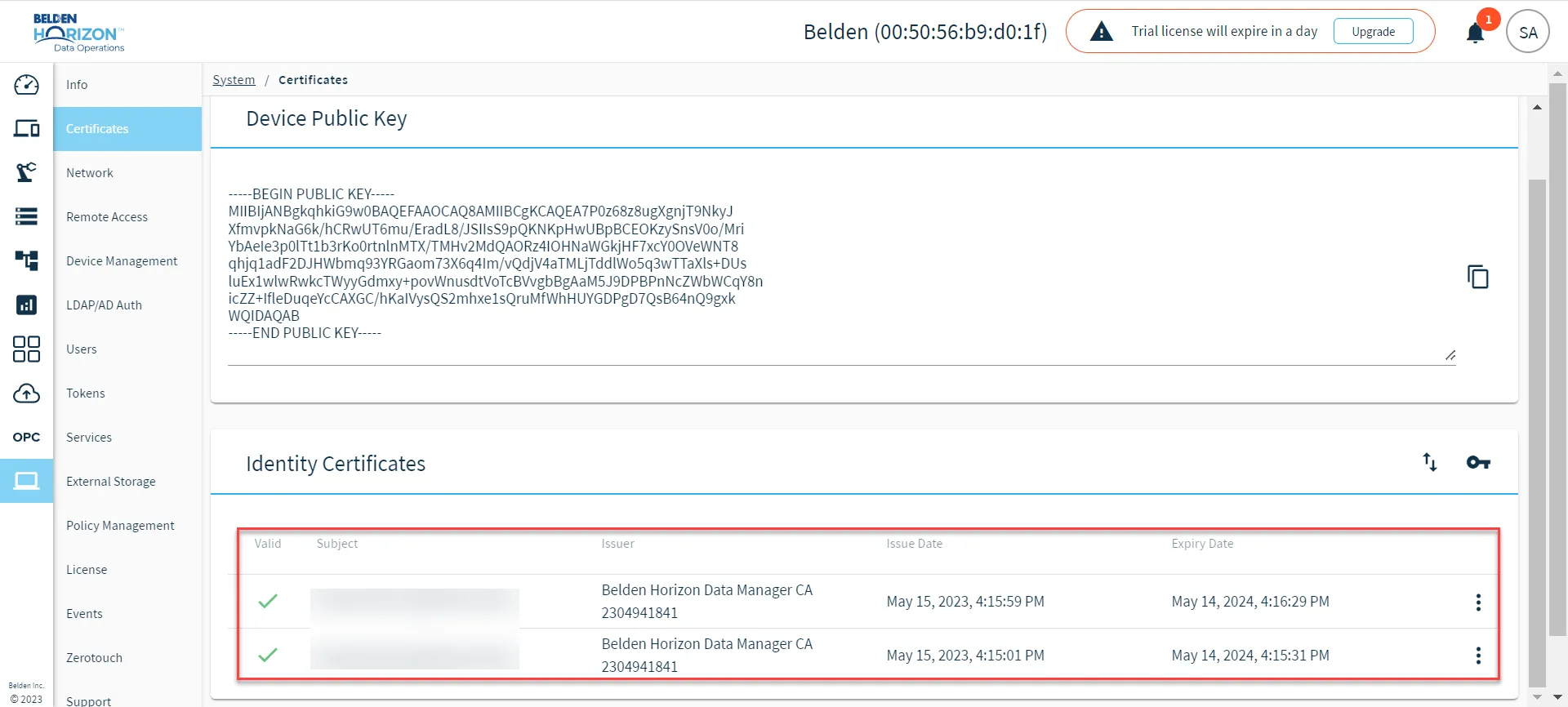
- From the navigation panel, select System > Certificates > Identity.
- From Identity Certificates, verify the creation of an Identity Certificate issued by Belden Horizon Data Manager.
Step 5: Enable Default Generic MQTT SSL Connector in Belden Horizon Data Operations
In Belden Horizon Data Operations, you will next enable the default generic MQTT SSL connector to facilitate a data connection between the Belden Horizon Data Operations instance and its respective Belden Horizon Data Manager.
To enable the connector:
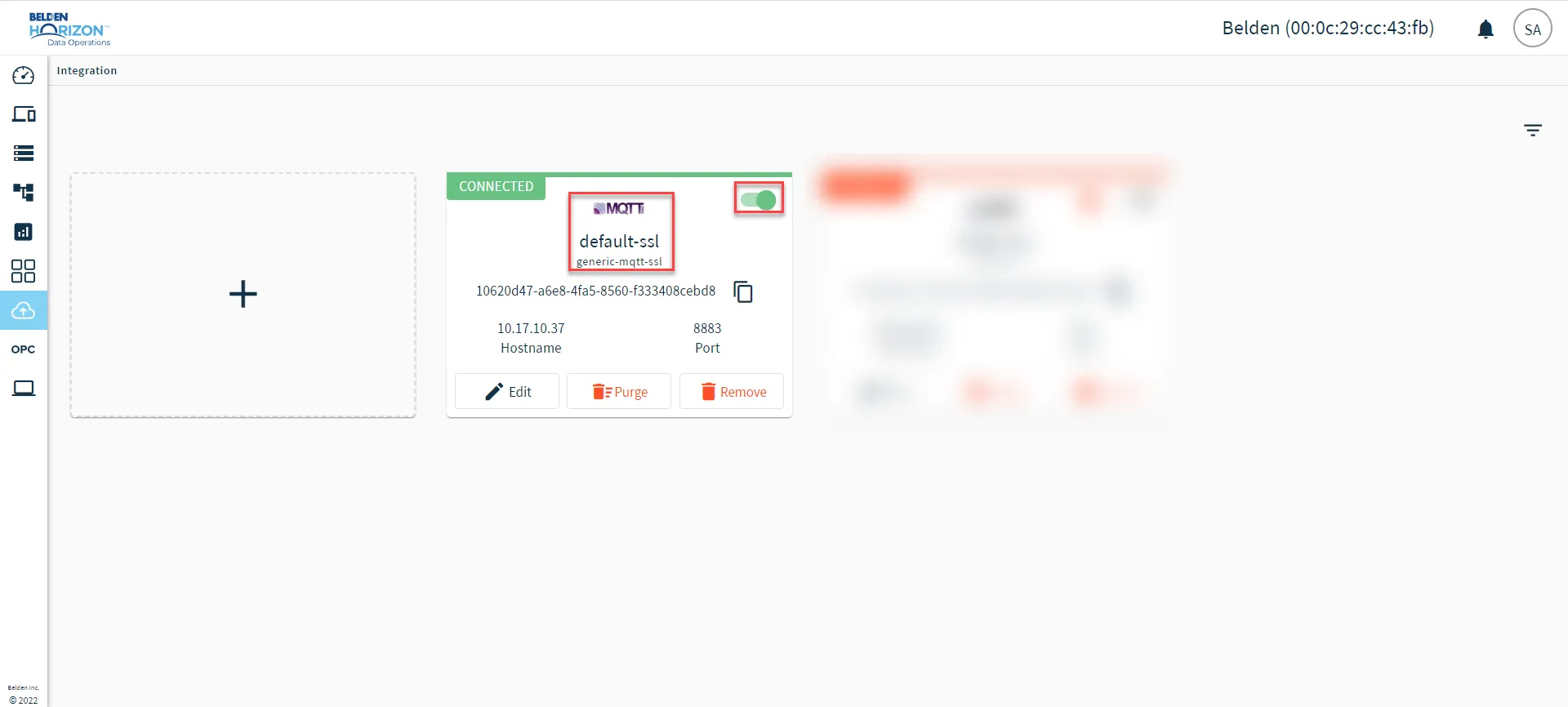
- From the navigation panel, select Integration.
- From the Default Generic MQTT SSL connector tile's top right corner, click the connector toggle switch.
- Wait a few seconds for the Default Generic MQTT SSL connector tile's top left corner to show CONNECTED status.
See the Manage Individual Connectors section in Manage Connectors for more information.
Step 6: Verify Edge Device Activation in Belden Horizon Data Manager
In Belden Horizon Data Manager, view the status for MQTT and LWM2M. See the Data and Control Status section in Edge Devices for more information. The statuses should be green.
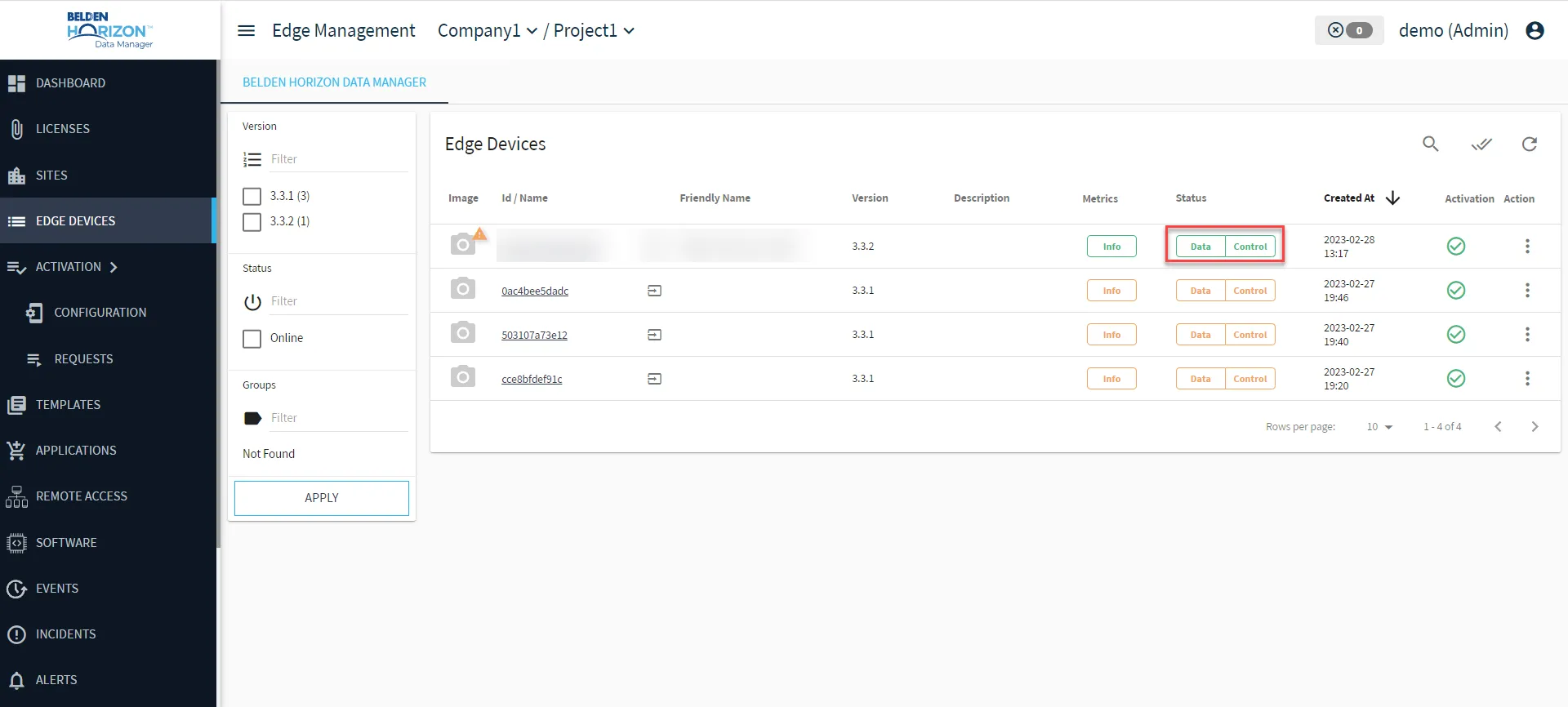
If the Control status is orange, the Belden Horizon Data Operations device might not be online or it may not be reachable by the Belden Horizon Data Manager. If the Data status is orange, the Default Generic MQTT SSL connector on the Belden Horizon Data Operations instance might not have been successfully enabled.