Firefox Upload Error
When using the Belden Horizon Data Manager Admin Console with Firefox to upload a software image, an error can occur due to a problem with the way Firefox manages certificates.
Belden Horizon Data Manager uses a self-signed certificate. This prompts the browser to display an error message. Follow the browser guidelines for how to bypass a self-signed security error message.
Resolution
To resolve this issue, the certificate for the Minio application, which manages the uploaded images, must be accepted. To accept the certificate for the port 8445:
1. From the Firefox web browser, enter the IP address and port 8445 (for example, https://192.162.2.18:8445) in the URL bar, and then press ENTER.
Important: To connect to the Belden Horizon Data Manager, the URL must begin with https://.
2. Belden Horizon Data Manager uses a self-signed certificate. This prompts the browser to display an error message. Follow the browser guidelines for how to bypass a self-signed security error message.
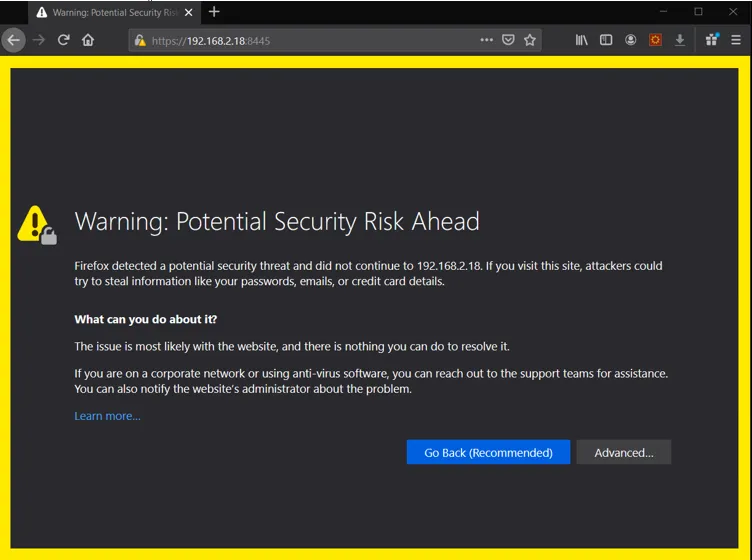
3. Click Advanced. The risk and error code drop down.
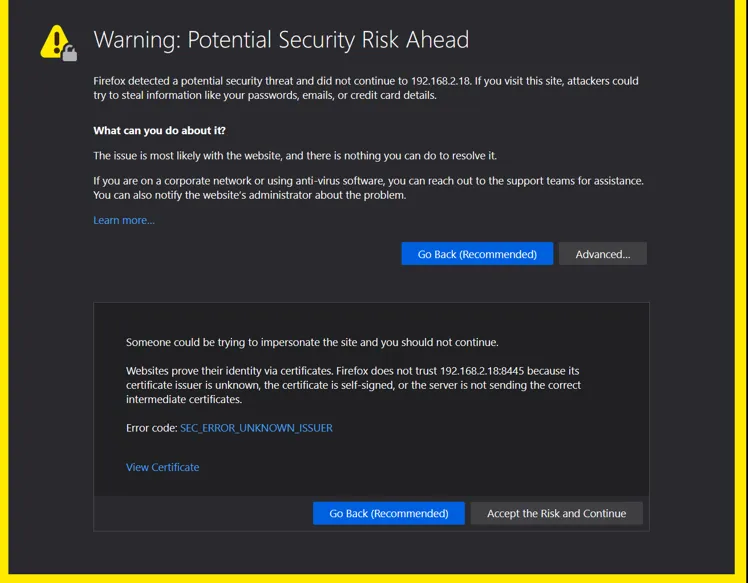
4. Click Accept the Risk and Continue. The login page for Minio appears showing that the certificate is accepted.
5. Close the browser tab. No login is required.