Edge Remote Networks
The Edge Remote module allows you to remotely connect your edge devices to the default or added networks. You can view additional information about the networks status, bandwidth and peers.
The Edge Remote module includes two sub-modules:
- Networks: The Edge Remote Networks pane includes two sections:
- Network: Contains a list of Edge Remote networks, including a default network. You can add a network, modify a network, set a network as default, and remove a network.
- Projects: Contains a list of companies / projects that access the networks. You can change the network for a company / project.
- Statistics: The Edge Remote Network Statistics pane includes:
- Network: View the Edge Remote Network Status, view the number of networks, view the number of peers, and view the percentage of networks online.
- Networks Bandwidth: View the amount of data transmitted for the connected networks in Mbps.
- Network Peers: View the connected peers which are connected edged devices in another project.
Access Edge Remote Networks UI
To access the edge software networks UI:
1. Log in to Belden Horizon Data Manager Admin Console.
2. From the Navigation panel, select Edge Devices. Edge Device's Edge Software Update pane by default appears.
3. From Edge Device's navigation sub-panel, select Edge Remote Networks. Edge Device's Edge Remote Networks pane appears.
Network
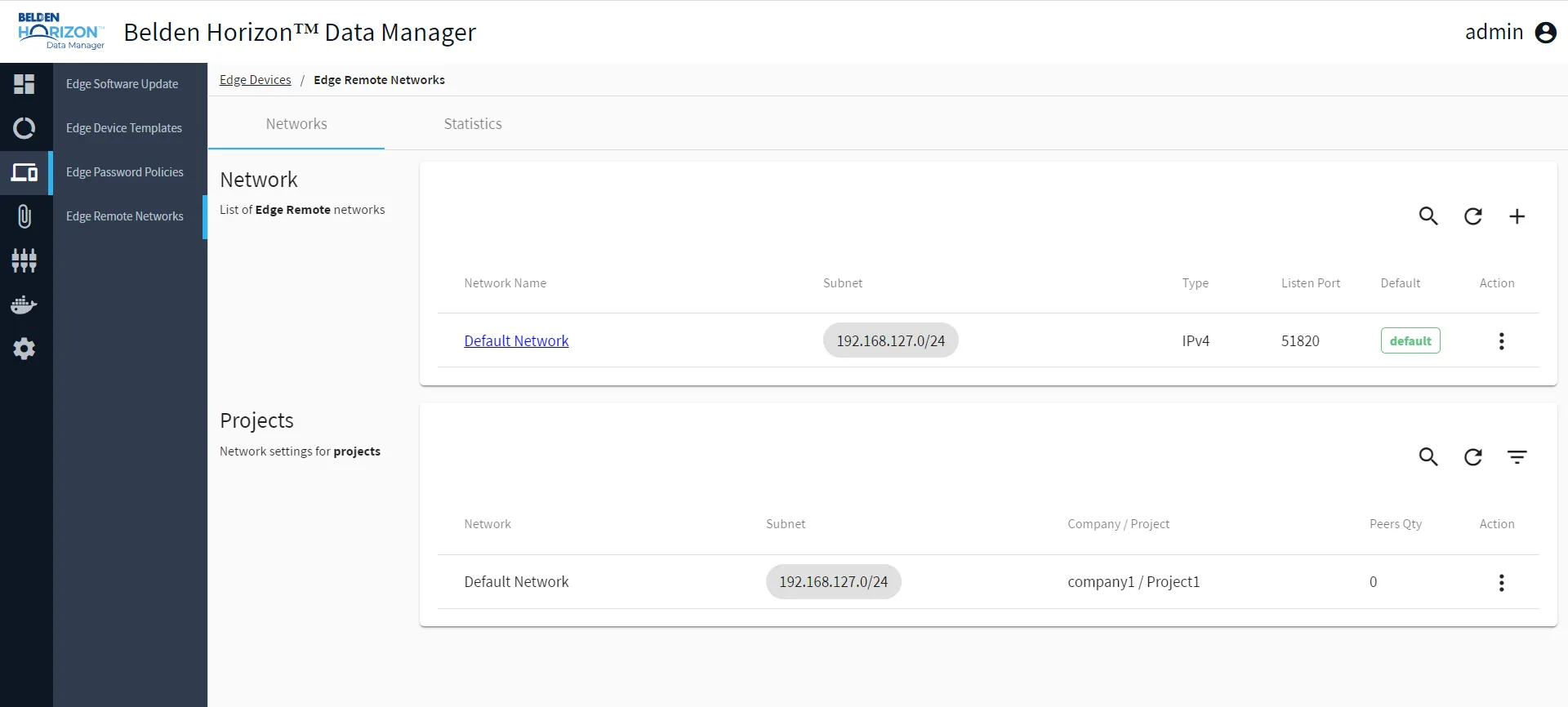
From the Edge Remote Networks pane, you can add and manage remote networks and view the company and project for connected edge devices. The Edge Remote Networks pane includes two sections.
The Network section contains a list of Edge Remote networks. You can add a network, modify a network, set a network as default, filter the networks list, refresh the networks list and remove a network.
The Networks list displays the network name, the network's subnet mask, the type of subnet, the port, which network is default and its state, and an action list where you can perform tasks.
The Projects section contains a list of companies and their associated projects that have access to the networks. These are added automatically to the default network when you connect an edge device to a project in Belden Horizon Data Manager. You can view the projects without a subnet mask, refresh the project list, and filter the project list. If you have added multiple networks, you can change the network for a company / project listed here.
The Projects list displays the network name, the network's subnet mask, company and project name of the connected edge device, the number of peers associated with the network, and an action list where you can perform tasks.
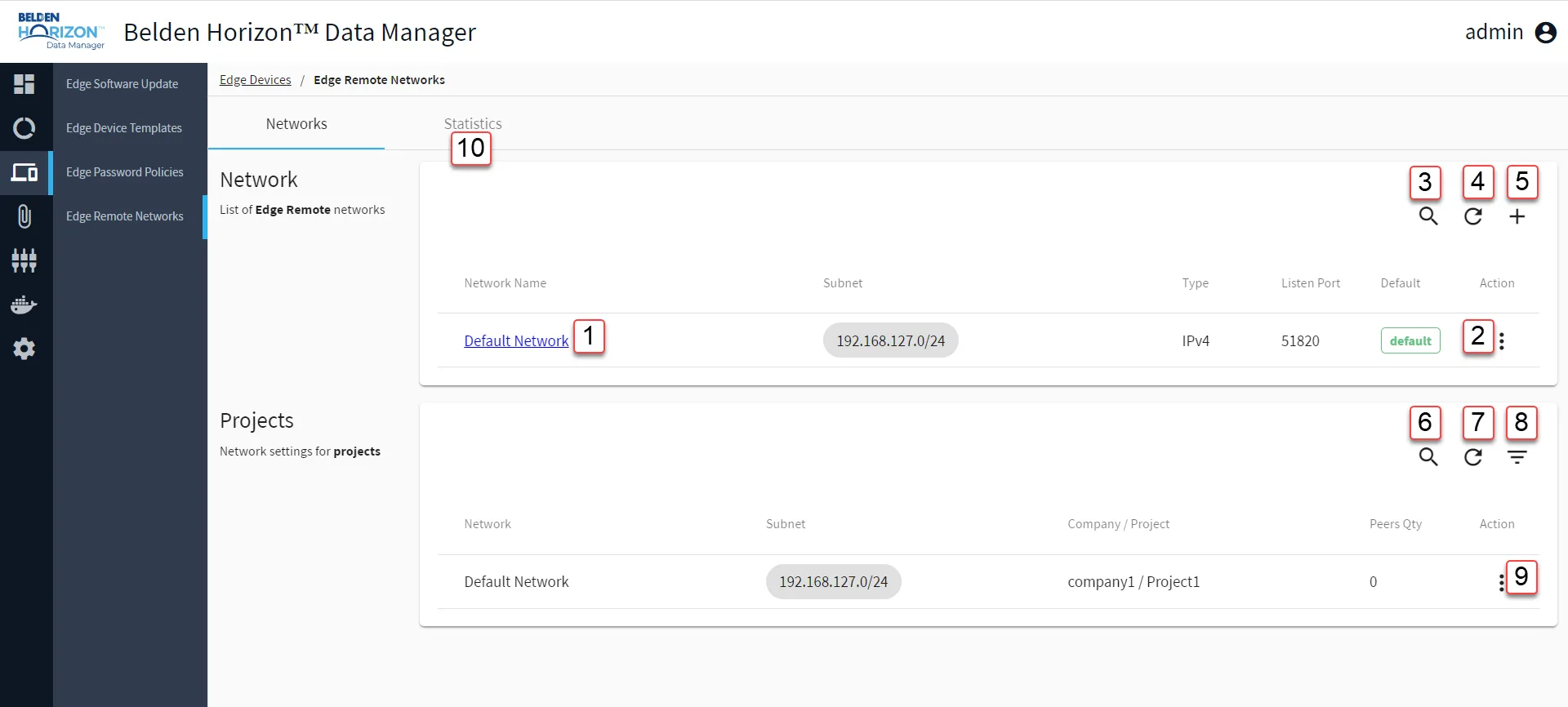
[1] View Network Name: Add/View a Remote Network
[2] Action menu:
- Edit
- Set Default: The network assigned to the company / projects do not change when you set a new default network. Any new edge devices that you connect are automatically assigned to the new default network.
- Remove: You cannot remove a default network. Set a different network as default if you want to remove the network.
[3] Show filter / Hide filter: Search by Network Name, Subnet, or Listen Port
[4] Refresh
[5] Add a Network: Add/View a Remote Network
[6] Show filter / Hide filter: Search by Network Name, Subnet, Company / Project, Peers Qty
[7] Refresh
[8] Show Projects without subnet / Show all projects
[9] Action menu:
- Change Network : You must have at least two networks added to the Networks list.
[10] Switch to Statistics tab
Statistics
From the Edge Remote Network Statistics pane in the Edge Remote module, you can view information about the remote networks for edge devices. The Edge Remote Network Statistics pane includes three sections.
The Network section contains a panel indicating network status, the number of networks, the number of peers associated with the edge devices, and the percentage of networks online.
The Networks Bandwidth section contains a chart of the bandwidth over time for the connected networks in Mbps. You can hover over the chart to view the bandwidth for a particular point in time.
The Networks Peers section contains a list of connected peers that are connected edged devices in another project. You can view the default network for any connected peer.
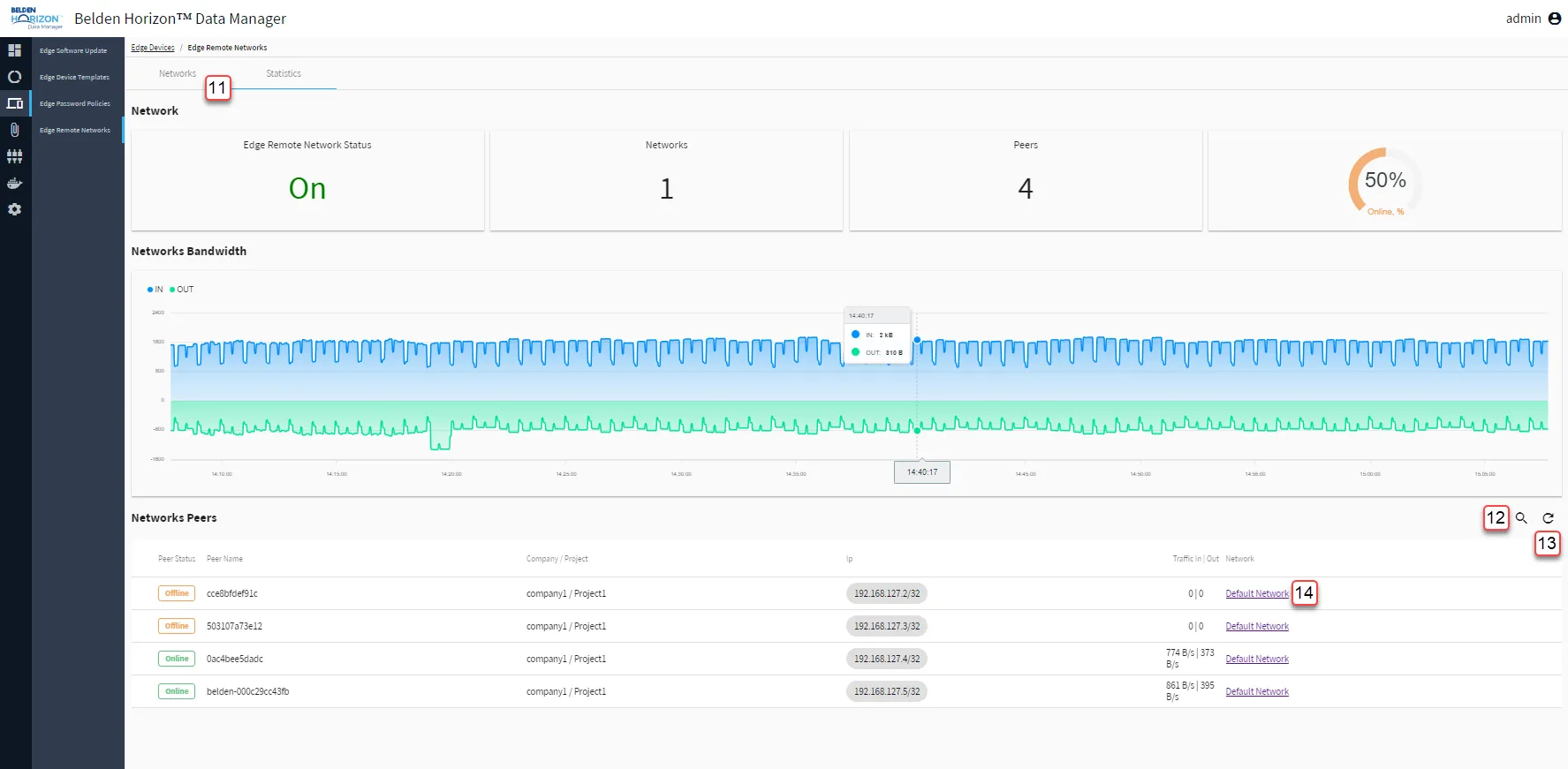
[11] Switch to Networks tab
[12] Show filter / Hide filter: Search by Peer Name, Company / Project, Ip
[13] Refresh
[14] View Network Name: Add/View a Remote Network