Edge Password Policies
The Policies module allows you to modify current policies for connected edge devices and view the usage for which the policy is applied.
Default policies are part of the system, and are added during installation or upgrade.
You can create multiple policies from a default policy tailored to your environment by copying a default policy and then modifying the copy. You can make copies of any previously saved policy. Policies created in the Belden Horizon Data Manager Admin Console are available to your connected edge devices. You cannot delete a default policy.
The Policies pane includes two sections:
- Password Policies: Allows you to modify the default password policy or copy the default password policy, rename it, and modify it to specifications. Remove a copied password policy.
- Policy Usage: Allows you to view the policy that is applied to the company and projects listed. View the number of edge devices for which the policy is applied.
See Policy for more information on how to apply a policy for a specific edge device.
Access Edge Password Policies UI
To access the edge password policies UI:
1. Log in to Belden Horizon Data Manager Admin Console.
2. From the Navigation panel, select Edge Devices. Edge Device's Edge Software Update pane by default appears.
3. From Edge Device's navigation sub-panel, select Edge Password Policies. Edge Device's Edge Password Policies pane appears.
Refer to the following actions you can take on Belden Horizon Data Manager Admin Console's Edge Password Policies pane.
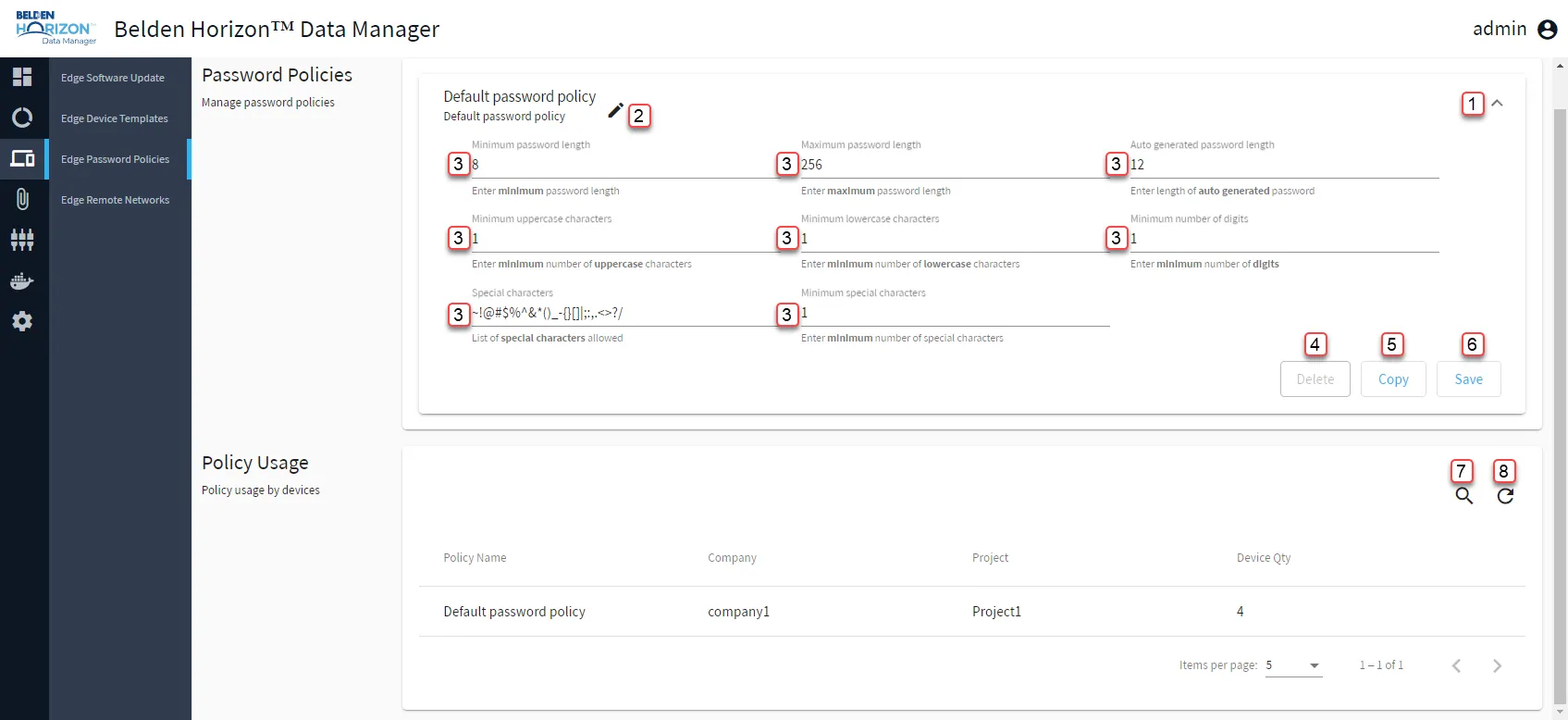
[1] Expand Password Policy
[2] Edit Policy Name and Description
[3] Edit Password Policy field
[4] Delete Password Policy
[5] Copy: To view details on how to enable a policy in edge device, see Policy. Once copied, you can make changes to the values in the policy and then save again.
[6] Save
[7] Show filter / Hide filter: Search by Policy Name, Company, or Project
[8] Refresh