Add New Software Job
Software jobs are used to upgrade your edge device software.
Note: Software packages are added from the Images module in the Belden Horizon Data Manager Admin Console. See Edge Software Update.
Before You Begin
- Ensure the edge device that will be upgraded are online.
- Ensure an edge device is currently not already undergoing an existing software job (update). You cannot create a new software job for an edge device that is already undergoing an existing software job.
Step 1: Add New Job
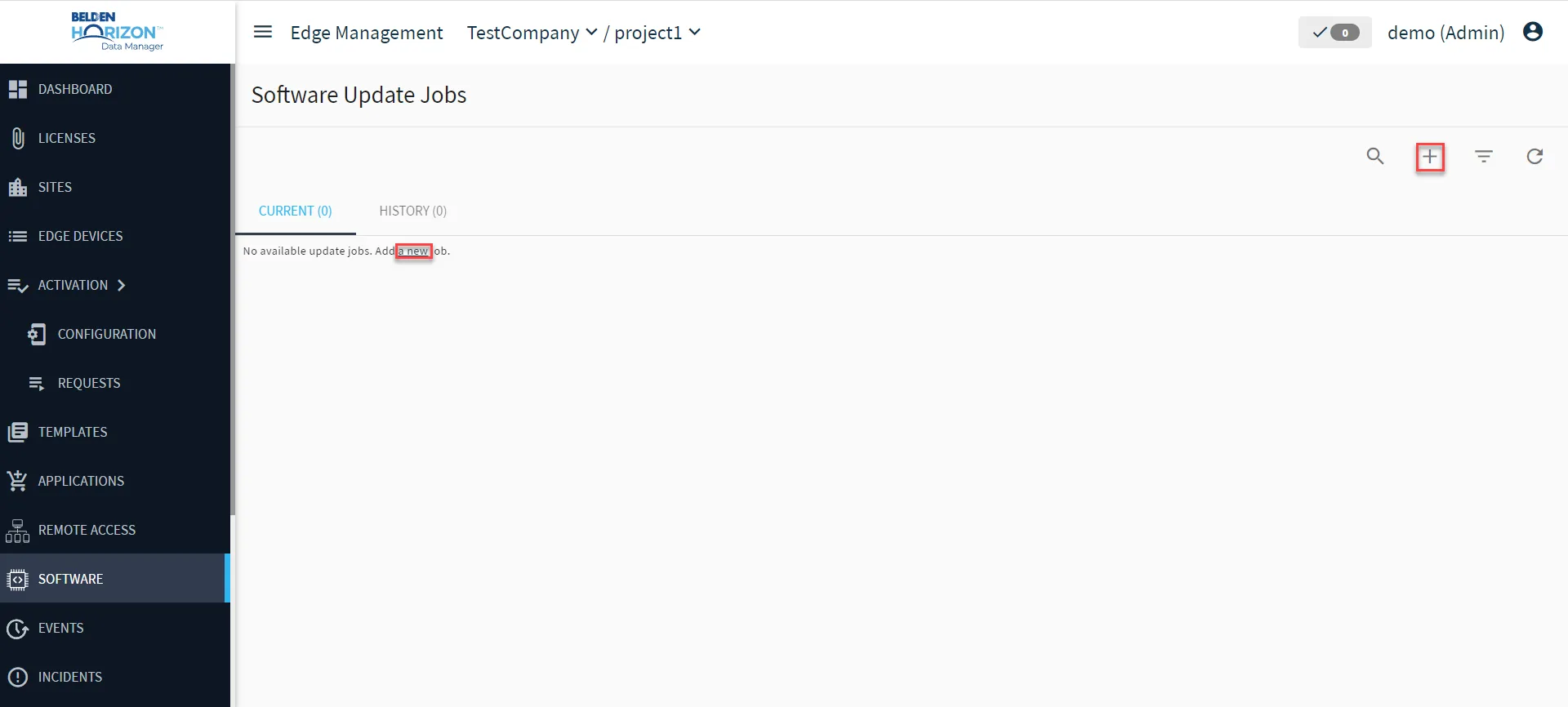
You can add a software update job from the Software pane by clicking a new or the Add new Job icon.
Step 2: Select Software
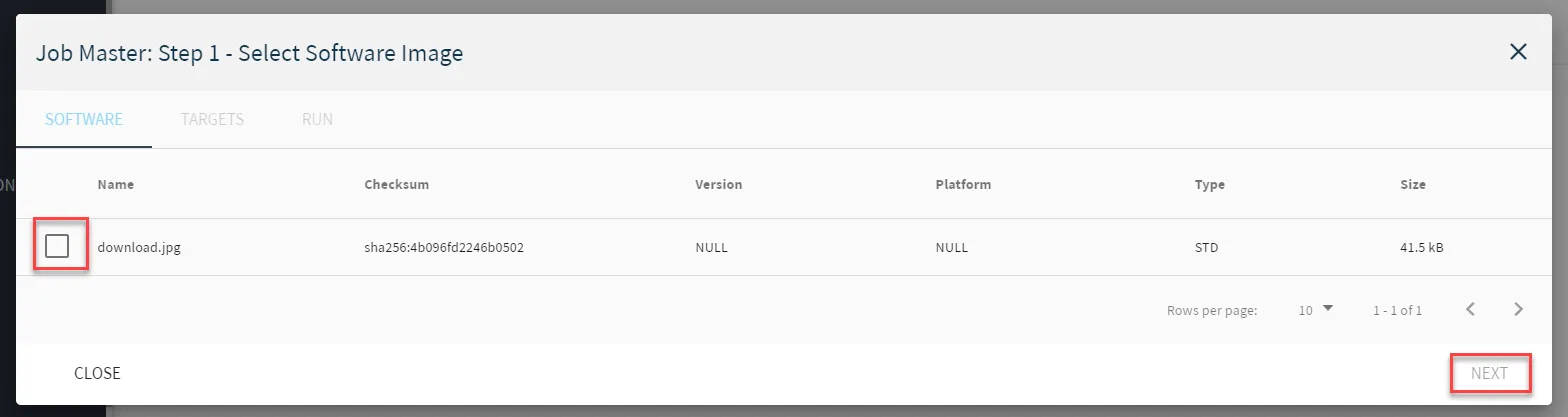
You can select some software that will be applied to recipient Edge Devices. The user interface below is for Belden Horizon Data Manager version 2.10.0 and later.
To select software:
- From the Software tab, select at least one software package to add.
- Click Next.
Step 3: Select Target Device(s)
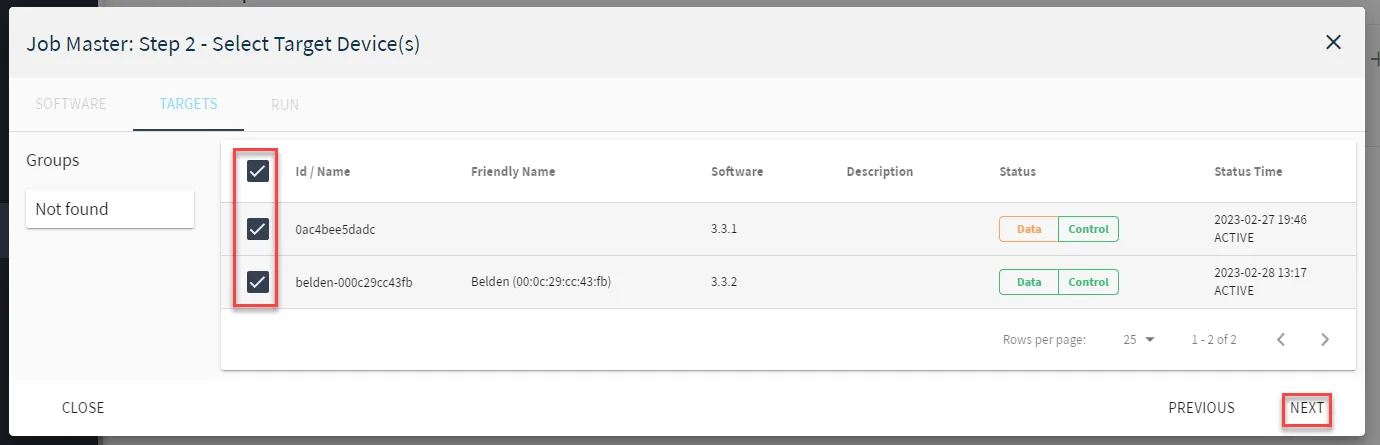
After selecting software that will be applied to Edge Devices, select the devices that will receive the software. There is no limit on the number of edge devices that can be updated.
To target devices to apply:
- From the Targets tab, select one or more edge devices from the edge device list.
- Click Next.
Step 4: Run Deploy
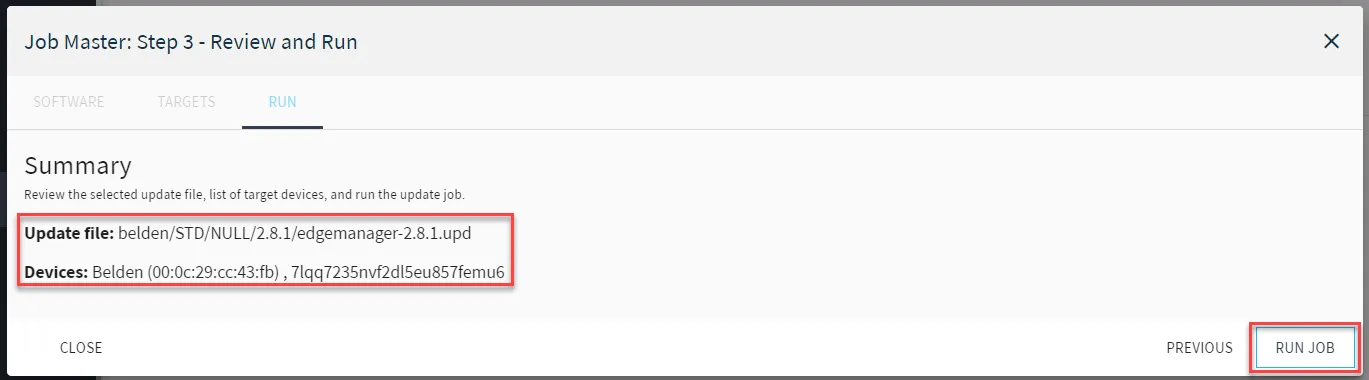
Before deploying software to a list of Edge Devices, you can review job details before it gets executed.
To deploy jobs to edge devices:
- From the Targets tab, you have the option to select the Start job immediately check box.
- Click Save.
Note: If you do not check the Start job immediately check box, the Job Status column displays PENDING. Otherwise, it will display as RUNNING.
The software job appears in the Software Update Jobs pane Current (#) tab.
Running Job Properties
- Up to 10 running jobs can run in parallel. Additional ones will be queued until a running job completes.
- The progress bar will automatically fill up from 0 to 100% without a need to refresh the page. It will automatically by itself refresh every 5 seconds.
- A Software Update Job will usually take a few minutes to complete.
- A Software Update Job will automatically timeout after 1 hour.
- A Software Update Job that disconnects before it finishes could still upgrade and reboot a Belden Horizon Data Operations instance. This will happen if the Belden Horizon Data Operations successfully receives the .upd file before the disconnect.
- Once the job completes, it will be transferred from the Current (#) tab to the History (#) tab. If the job was successful, the update status will be set to COMPLETED. If instead the job failed, the update status will be set to ERROR.