Multi-Select Mode
The Edge Devices module includes a Groups and Edge Devices section. You can create and apply a group to selected edge devices from the Groups section.
Multi-Select Mode is used when you want to perform the same actions to multiple devices from the Edge Devices pane.
You can modify the properties, or start, stop and restart services for the selected devices.
To enable multi-select mode:
1. Log in to Belden Horizon Data Manager. 2. Select a company. The Projects pane appears. 3. Do one of the following:
- Click a project from the Project pane.
- Click the Actions icon for a project, and then select View.
The Dashboard pane appears for the project. 4. From the Navigation panel, select Edge Devices. The Edge Devices pane appears. 5. Click the Multi-Select icon. Selection boxes appear next to each edge device.
6. Select one or more edge devices in the Edge Devices list. You can perform the following available actions for the selected edge devices.
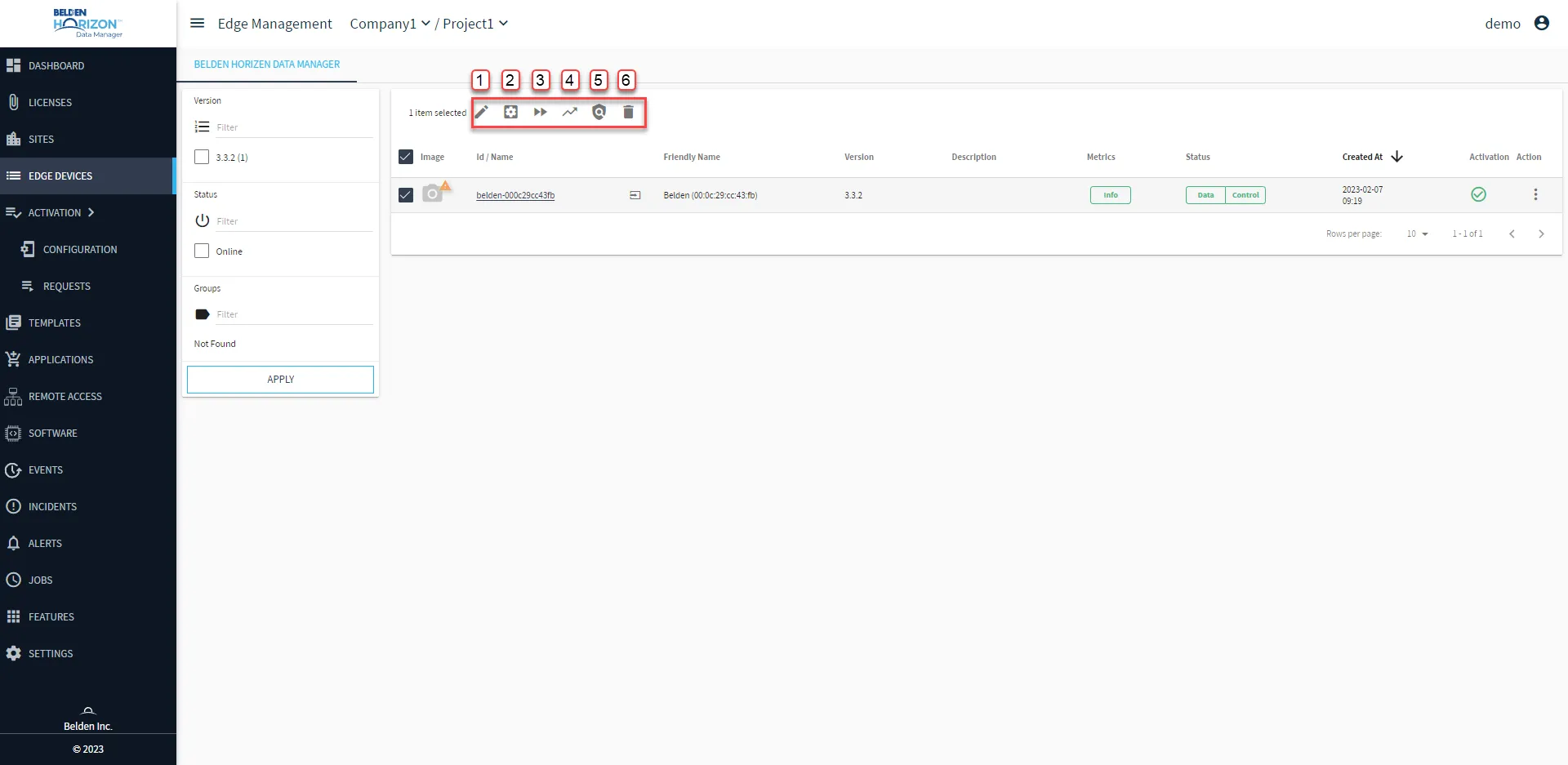
[1] Edit Selected Edge Device
[2] Manage Edge device(s) Services
[3] Manage Events Forwarding
[4] Manage Metrics Pulling
[5] Change Password Policy
[6] Delete Edge Devices(s)
Edit Selected Edge Devices
You can modify the properties for multiple selected edge devices using Multi-Select.
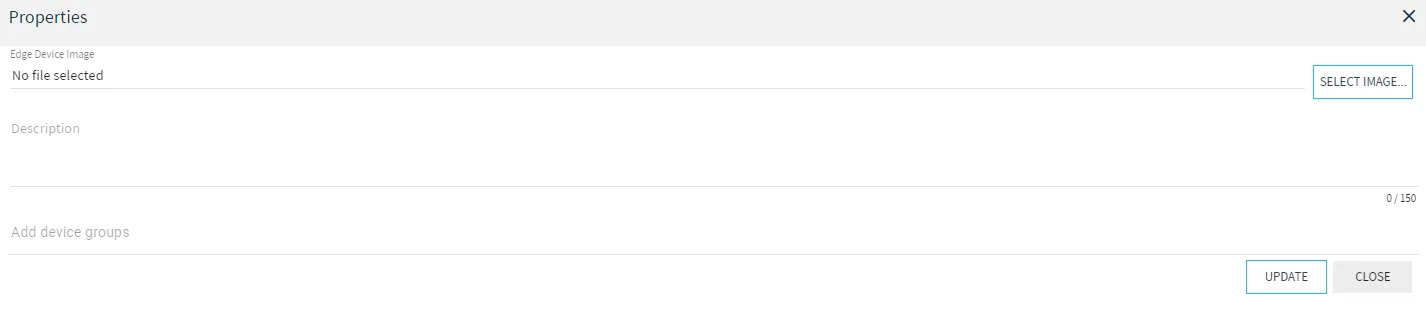
1. Click Select Image, navigate to the image file and click Open. The Image file appears in the Device Image field. 2. (Optional) In the Device Description field, enter a description for the selected edge devices
3. (Optional) In the Add device groups field, enter a group name for the selected edge device. 4. Click Update. The image for the selected devices updates to reflect your selection.
Manage Edge Device(s) Services
You can modify the properties, or start, stop and restart services for the selected edge devices.
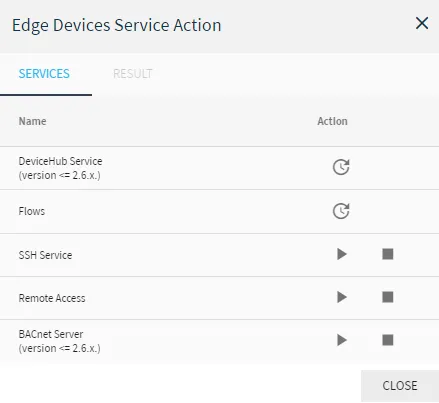
- Click the Start service icon next to a service. The service starts for the selected edge devices.
- Click the Restart service icon next to a service. The service for the selected edge devices restarts.
- Click the Stop service icon next to a service. The services for the selected edge devices stops.
Manage Events Forwarding
You can apply or disable events forwarding to multiple edge devices.
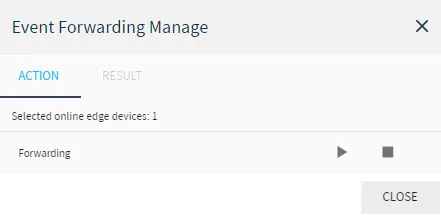
- Click the Start icon next to Forwarding to apply Events Forwarding to the selected edge devices.
- Click the Stop icon next to Forwarding to disable Events Forwarding for the selected edge devices.
Manage Metrics Pulling
You can apply or disable metrics pulling to multiple edge devices.
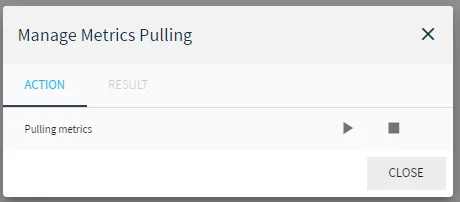
- Click the Start icon next to Forwarding to apply Metrics Pulling to the selected edge devices.
- Click the Stop icon next to Forwarding to disable Metrics Pulling for the selected edge devices.
Change Password Policy
You can apply a selected password policy to multiple edge devices.
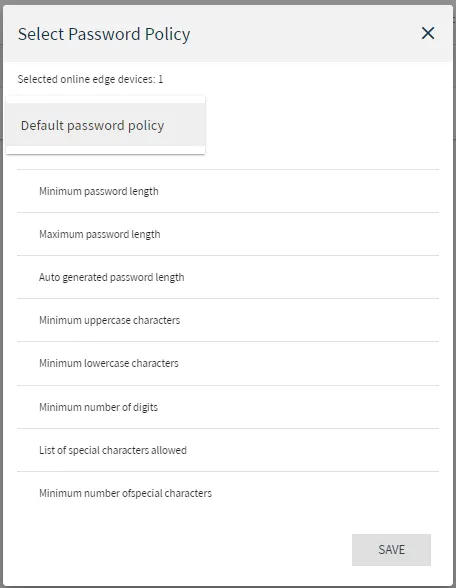
From the Select Password Policy dialog box, select an option from the Selected Policy drop-down list.