Licenses
The Licenses module provides information for the available licenses, features, and performance packs related to your plan. You can activate your Belden Horizon Data Manager license from the Licenses module. You can activate your license either online or offline.
Contact your Belden representative to request a license key.
The License pane has five sections:
- Available Licenses: View the applied licenses for Belden Horizon Data Manager.
- Features: View the enabled features associated with your applied licenses.
- Performance: View the allowed maximum number of edge devices and stored data associated with your applied licenses.
- Online Activation: Activate a license if you are connected to the internet.
- Offline Activation: Activate a license if you not connected to the internet.
Warning: Before activating the license, ensure all hardware / VM configuration steps that can modify the MAC address (add/replace a Network Interface Controller (NIC) card) are finalized.
The license Host ID depends on the Media Access Control (MAC) address for the device. The MAC address identifies the devices on a network. Changing the MAC address will invalidate the license.
License Settings
A Belden Horizon Data Manager (BHDM) license can be either Node-locked or Site. A Node-locked license is one that's locked onto the BHDM to enable the instance to be used at anytime without a connection to the license server. A Site license requires a reachable connection to a licensing server.

[1] Select License Settings
[2] Save License Settings
Available Licenses
Note: As of Belden Horizon Data Manager version 2.10.0, this section is only available when selecting a Node-locked license. It is unavailable when a Site license is selected.
You can filter and view licenses that are available for your plan from the Available Licenses section in the Licenses module. Available Licenses allow you to monitor which licenses are activated, their key, and their expiry date.

[3] Show Filter / Hide Filter: Search by License
[4] Refresh Available Licenses
Features
You can filter and view features that are available for your plan from the Features section in the Licenses module. Features allows you to monitor which features are unlocked and available by the licenses. You can filter for a specific feature or group of features.

[5] Show Filter / Hide Filter: Search by Features
Online Activation and Offline Activation
You can activate your Belden Horizon Data Manager Node-locked license from the Online Activation or Offline Activation section in the Licenses module. Contact your Belden representative to request a license key. You can activate your license either online or offline.
Important: Any license activated for a Belden Horizon Data Manager is bound to its MAC address. In case the Belden Horizon Data Manager has to be reinstalled, assign the same MAC address again to be able to reuse all licenses.
Online Activation
Online activation allows you to activate a Belden Horizon Data Manager Node-locked license directly with the Belden Licensing system.
Before you begin
You must establish a connection with the internet before you can activate a Belden Horizon Data Manager Node-locked license online.

[6] Enter Online Activation Key: Enter the Belden Horizon Data Manager Node-locked license key you received from the Belden. A successful online license activation loads the activated licenses, available feature list and performance entitlements in the Available Licenses, and Features section respectively. The key has the following structure: <4 digits>-<4 digits>-<4 digits>-<4 digits>
Example: 1234-4567-7891-1579
[7] Submit
Offline Activation
Offline activation allows you to activate a Belden Horizon Data Manager Node-locked license if enterprise cybersecurity rules do not allow for direct access with the Belden Licensing system through the internet.
You can add a Core or an Add-on license from Offline Activation. While multiple Add-on licenses can be added as needed, only one Core license can exist.
Before you begin
- Make sure you have access to a browser that is connected to the internet to complete this activation.
- If your Internet browser is on a separate computer, use a text file to copy the Host ID, Activation URL and Offline Response.
Activate a Node-Locked License Offline
To activate a node locked license offline:
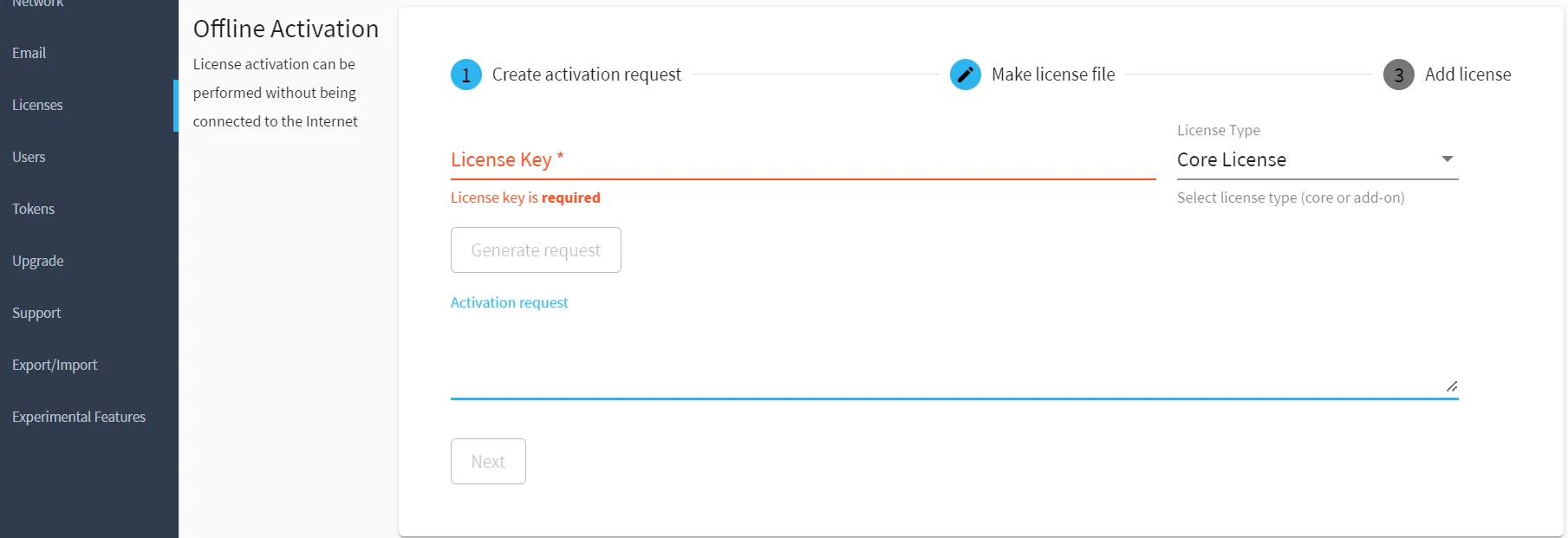
- From the Create Activation Request section:
- In the License Key field, enter the Node-locked license key.
- (Optional) From the License Type drop down menu, select a license type to add.
- Click Generate request. The activation request appears in the Activation request field.
- Next to the Activation request field, Click the Copy activation request icon. The activation request is copied to your clipboard.
- Click Next.
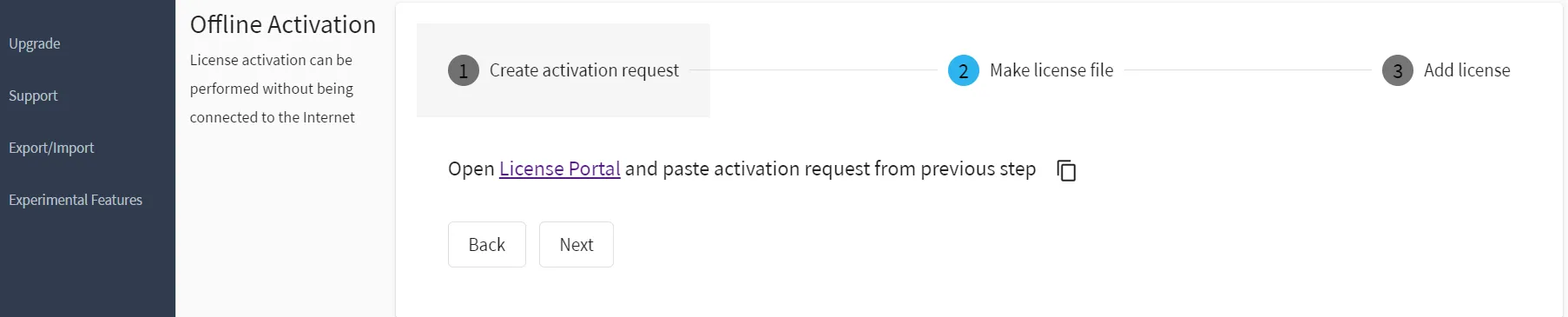
- From the Make license file section, click the License Portal link. The Licensing Portal page (https://litmus.activate.id/offline) opens in a new tab.
- In the Activation Request field, paste the activation request, and then click Make License. (You may need to verify I'm not a robot) The encoded license appears in the Activation Result field.
- Next to the Activation Result field, click the Copy content to clipboard icon.
- Return to the Make license file section in the Offline Activation browser tab, and then click Next.
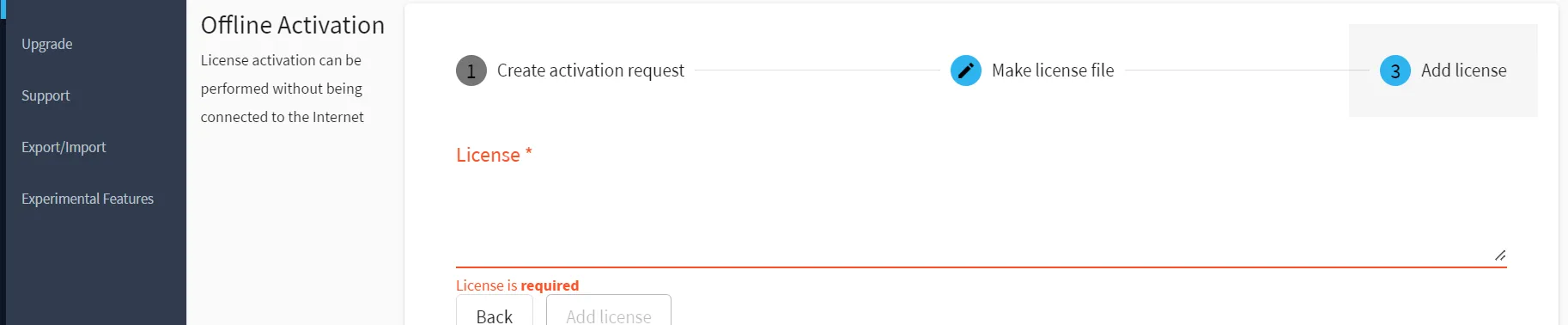
- From the Add License section, in the License field, paste the encoded license, and then click Add License. The license is added.