Manage Alert Triggers
Note: The user interface below is for Belden Horizon Data Manager version 2.10.0 and later.
You can add a user alert trigger for edge devices in the Triggers section in the Alerts module.
Important: Triggers require an action for notification implementation.
Variables change depending on the Source selected.
Before You Begin
Add an action to the Action List to receive a notification. See Add new Action for details.
Step 1: Select and Set Up Source
Completing the Source section first avoids issues with the variables for the Subject and Message fields in the Trigger section. The source is the type of condition needed to trigger an alert.

To select a source:
- Select a Source. The options are:
- Metrics: The Trigger section's Subject and Message fields will be hidden and disabled.
- Events: The Trigger section's Subject and Message fields will be revealed and enabled.
- Click the Add link to add a new rule. The rule table drops down. The rule table is dependent on your source selection.
Step 1a: Set Up Metrics Source
Select a metrics source to set up an alert that triggers based on metrics collected by Belden Horizon Data Manager, specifically when the value of a variable is a certain desired value or certain set/interval of values. You may create only one metrics rule per alert.
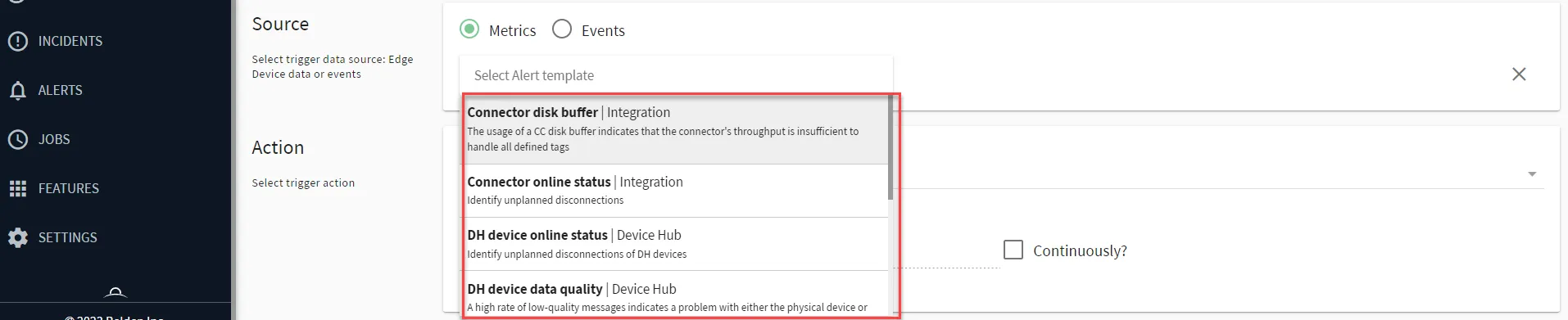
To set up a metrics source:
- From the Select Alert template drop-down list, select an alert template. The options are:
- Connector disk buffer | Integration
- Connector online status | Integration
- DH device online status | Device Hub
- DH device data quality | Device Hub
- DH device tag value | Device Hub
- Edge Device online status | Edge Device
- Edge Device license expiration | Edge Device
- Edge Device free disk space | Edge Device
- Edge Device memory available | Edge Device
- Edge Device CPU idle | Edge Device
- Instance free disk space | System
- Instance memory available | System
- Instance CPU idle | System
- Instance license expiration | System
- For the alert template you've chosen, for each of it's respective fields, enter a respective value.
Step 1b: Set Up Events Source
Select an events source to set up an alert that triggers when a specific event occurs.
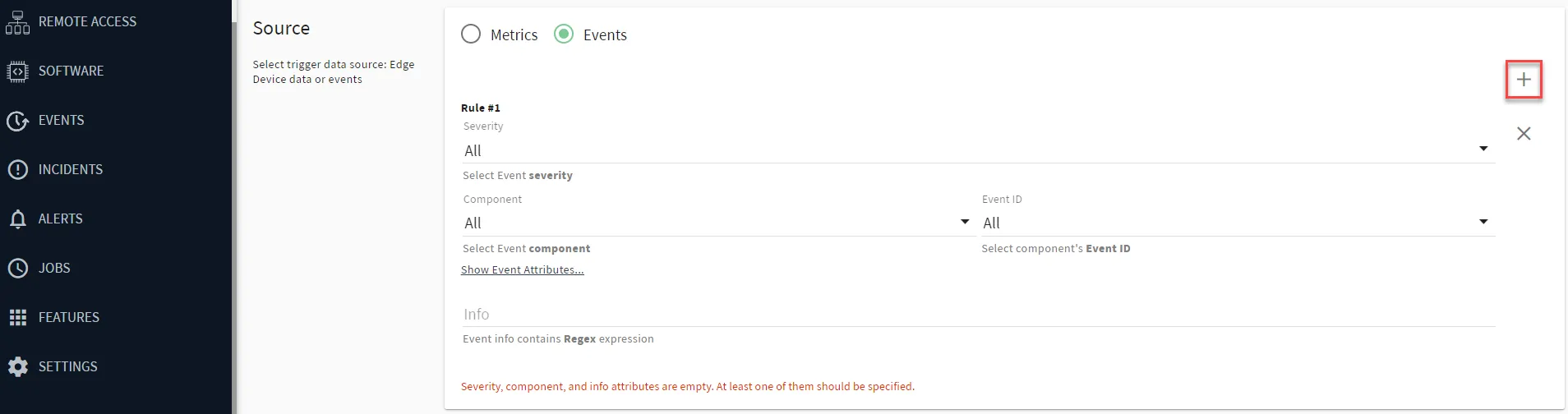
To set up an events source:
- From the Severity drop-down list, select an option.
- All
- Info
- Warning
- Alert
- From the Component drop-down list, select an option.
- All
- cc - Integrations
- mp - Marketplace
- dh - Device Hub
- auth - Auth
- dm - Device Management
- From the Event ID drop-down list, select an option. Options are dependent on the Component selected. See Event ID for User Alert Triggers.
- (Optional) Click Show Event Attributes... For each of the event attributes, enter a value.
- (Optional) In the Info field, enter a value.
- Repeat with additional new rules by clicking the Add new rule button as needed.
Step 2: Set Up Trigger
You can customize the trigger's subject/message contents that will be sent to a recipient. The visibility of the Subject and Message fields are dependent on the Source selection from Step 1.

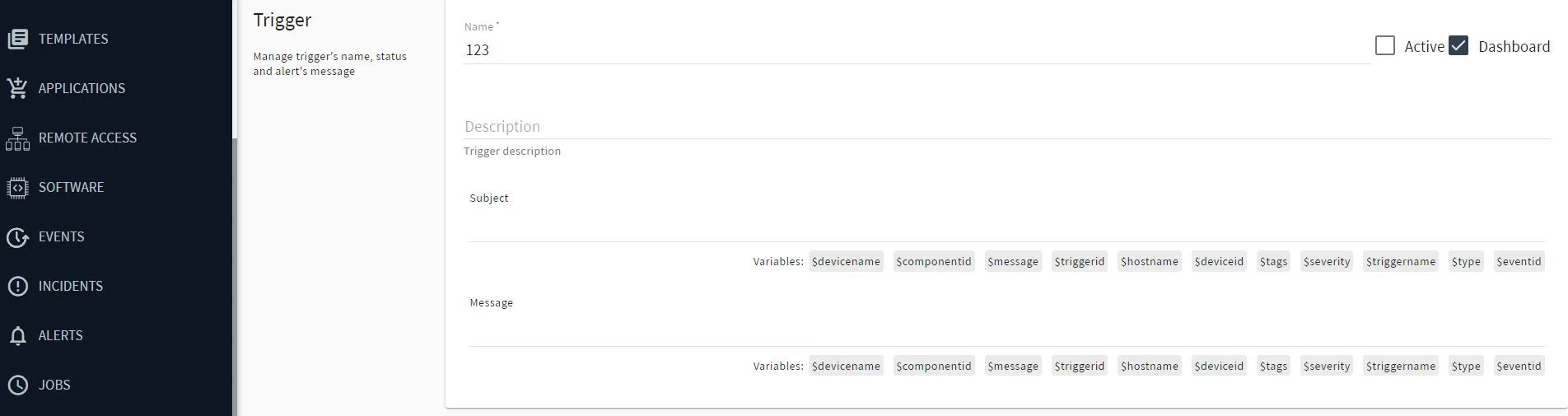
To set up the trigger:
- In the Name field, enter a name for the trigger.
- (Optional) Click the Active checkbox to set an active trigger flag.
- (Optional) Click the Dashboard check box to show trigger alerts on the dashboard.
- In the Description field, enter a description for the trigger.
- Events-source only
- (Optional) In the Subject field, add subject text.
- (Optional) Select one or more variables from the Subject variables list.
- The options for Events source are:
- $devicename
- $componentid
- $message
- $triggerid
- $hostname
- $deviceid
- $tags
- $severity
- $triggername
- $type
- $eventid
- The selected variables appear in the Subject field.
- For the Message field, repeat the same steps as Subject field from above.
Step 3: Set Up Scope
You can customize the scope of the user triggers. This will determine the applicable edge device(s) that will receive this alert trigger.

To set up the scope:
- From the Scope section, select an option .
- All edge devices
- Edge Device. From the Edge Device drop-down list, select an edge device.
Step 4: Set Up Action
You must create an action to use this section. You can select the response action that will immediately occur after the alert is triggered.

To set up the action:
- Select an option from the Action List drop-down list.
- (Optional) Select the Continuously check box.
- If you have checked Continuously, enter a value in the Notification Period field in minutes.
- Click Save. The alert trigger appears in the Trigger List.