Add/Upgrade a Node-locked License to an Edge Device
From the Edge Device Detail's License tab, you can add a Node-locked license to an edge device or upgrade an existing Node-locked License.
Access the Edge Device Detail License tab
To access the Edge Device Detail license tab:
- Log in to Belden Horizon Data Manager.
- Select a company. The Projects pane appears.
- Do one of the following:
- Click a project from the Project pane. The Dashboard pane appears for the project.
- Click the Actions icon for a project, and then select View. The Dashboard pane appears for the project.
- From the Navigation panel, select Edge Devices. The Edge Devices pane appears.
- Click an edge device ID link in the Edge Devices pane. The selected Edge Device Details page open with the Info tab.
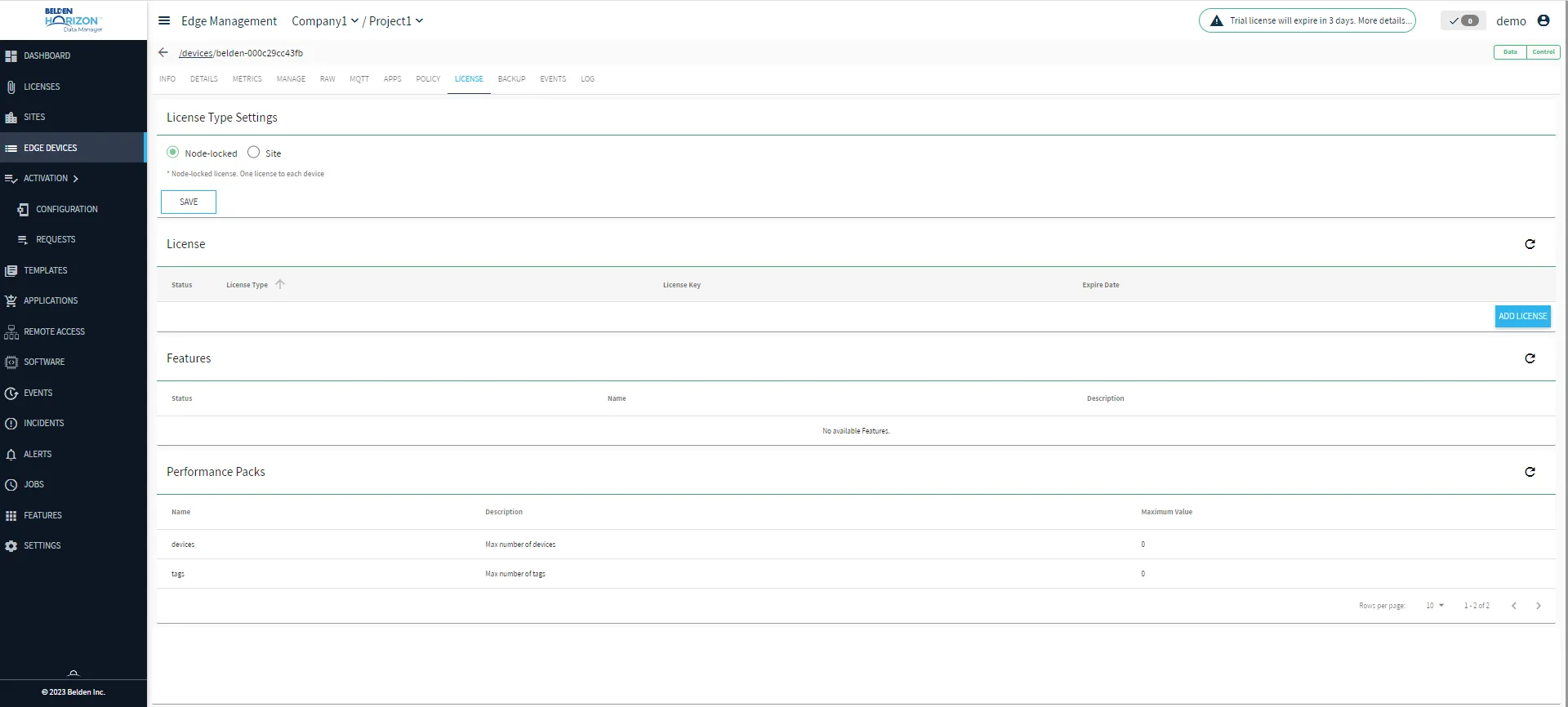
- From Edge Device Details page, select the License tab.
Prepare to Add a License
A license can only be added if there is no existing Node-locked license.
To prepare to add a license:
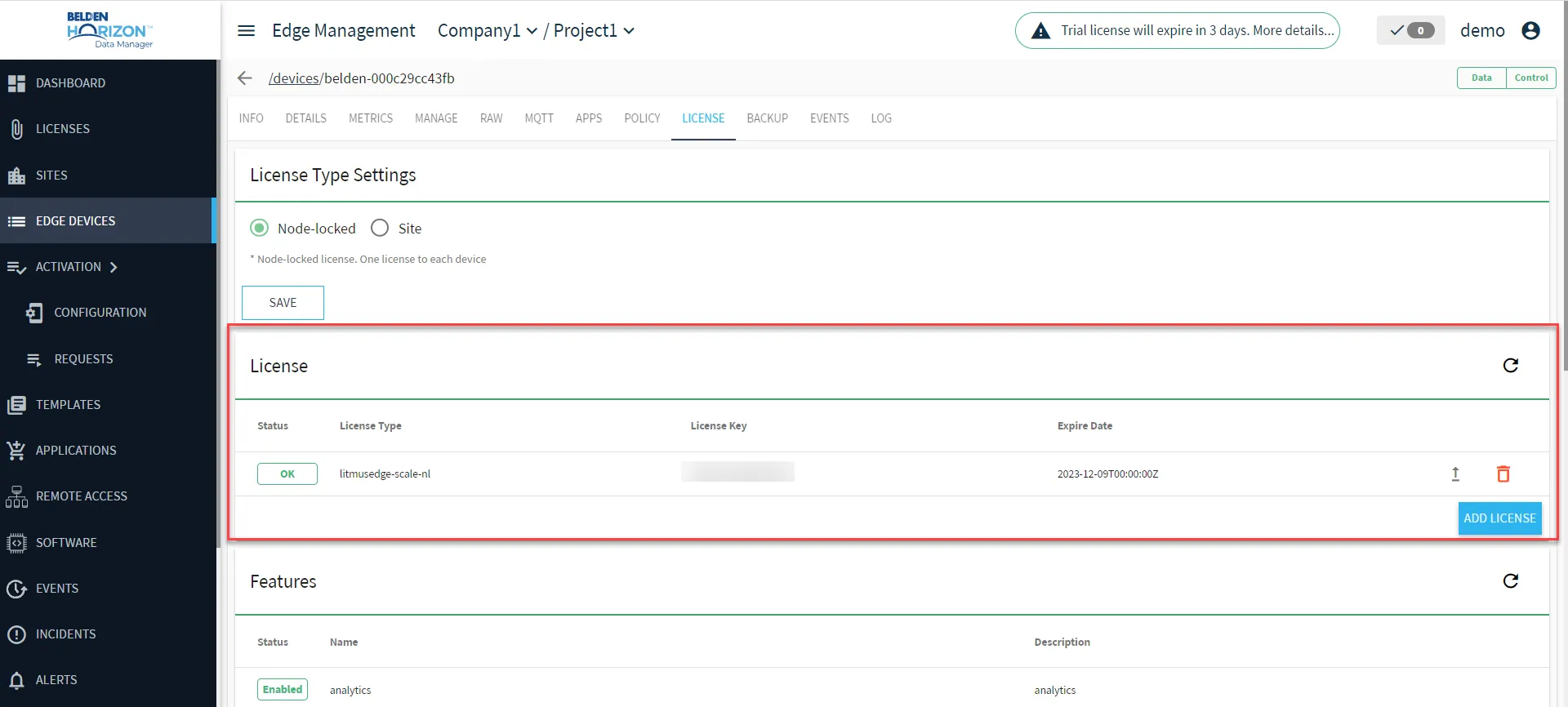
- From the Edge Device Details' License tab, scroll down, and select Add License.
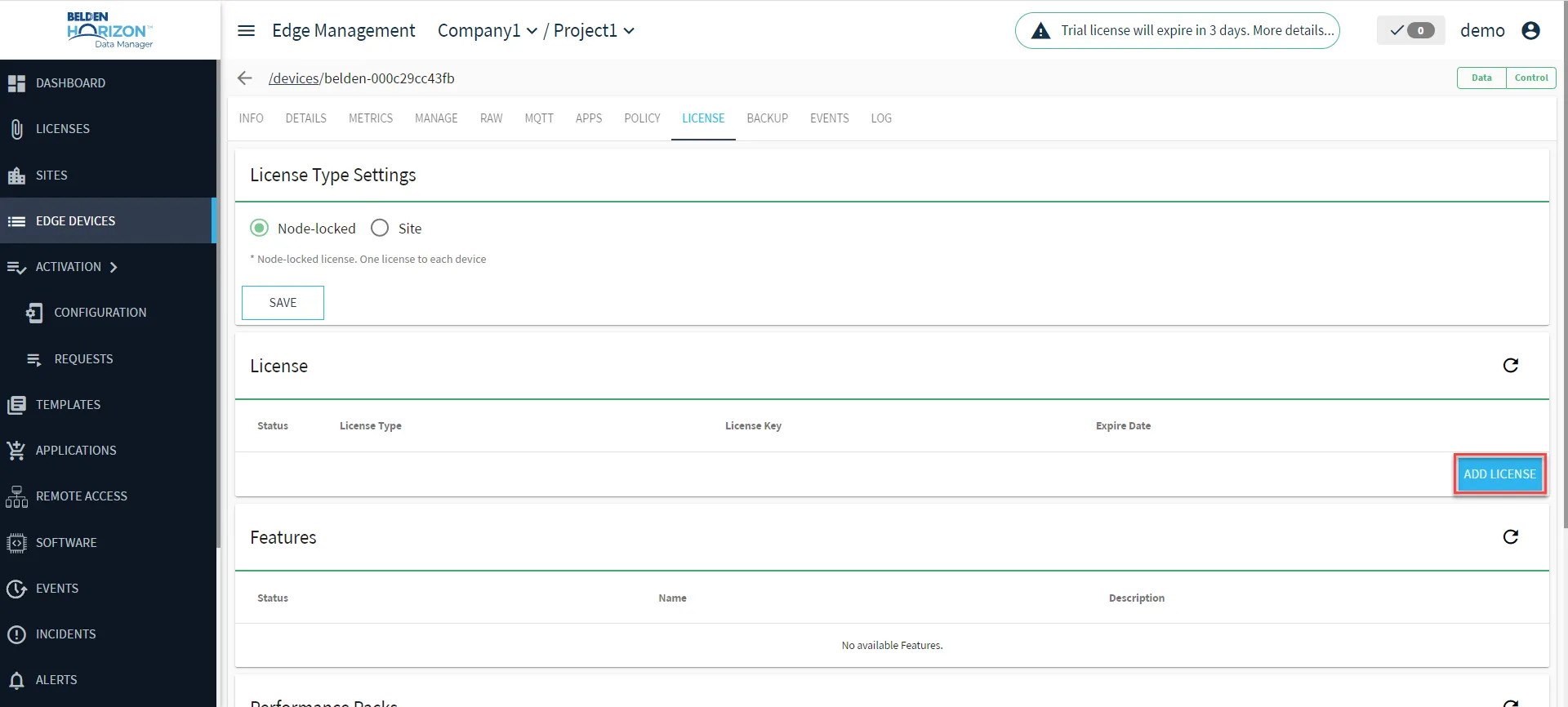
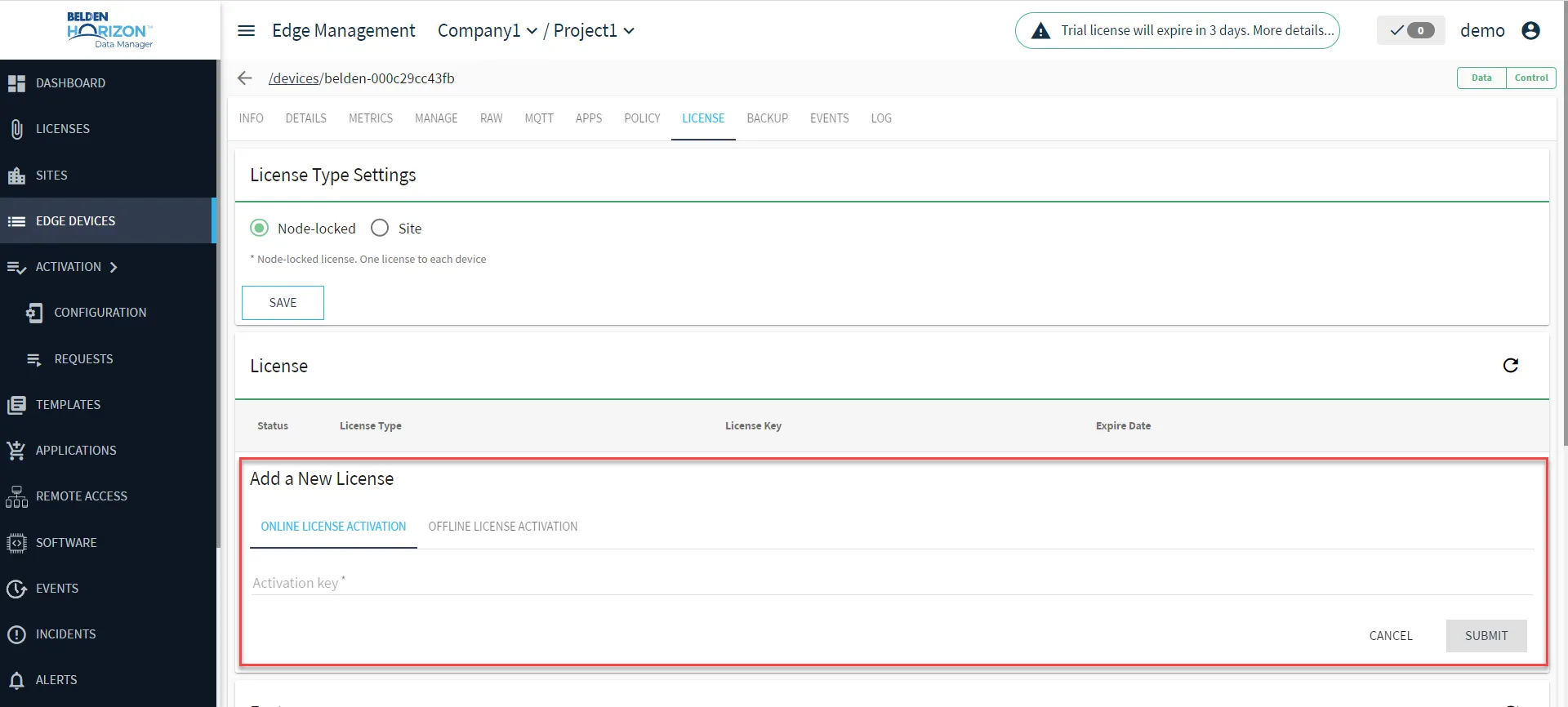
The License user interface expands with the Add a New License section. By default, the Online License Activation tab appears.
Prepare to Upgrade a License
A license must exist before it can be upgraded.
To prepare to upgrade a license:
- From the Edge Device Details' License tab, scroll down, and for the license to be upgraded, click Upgrade License.
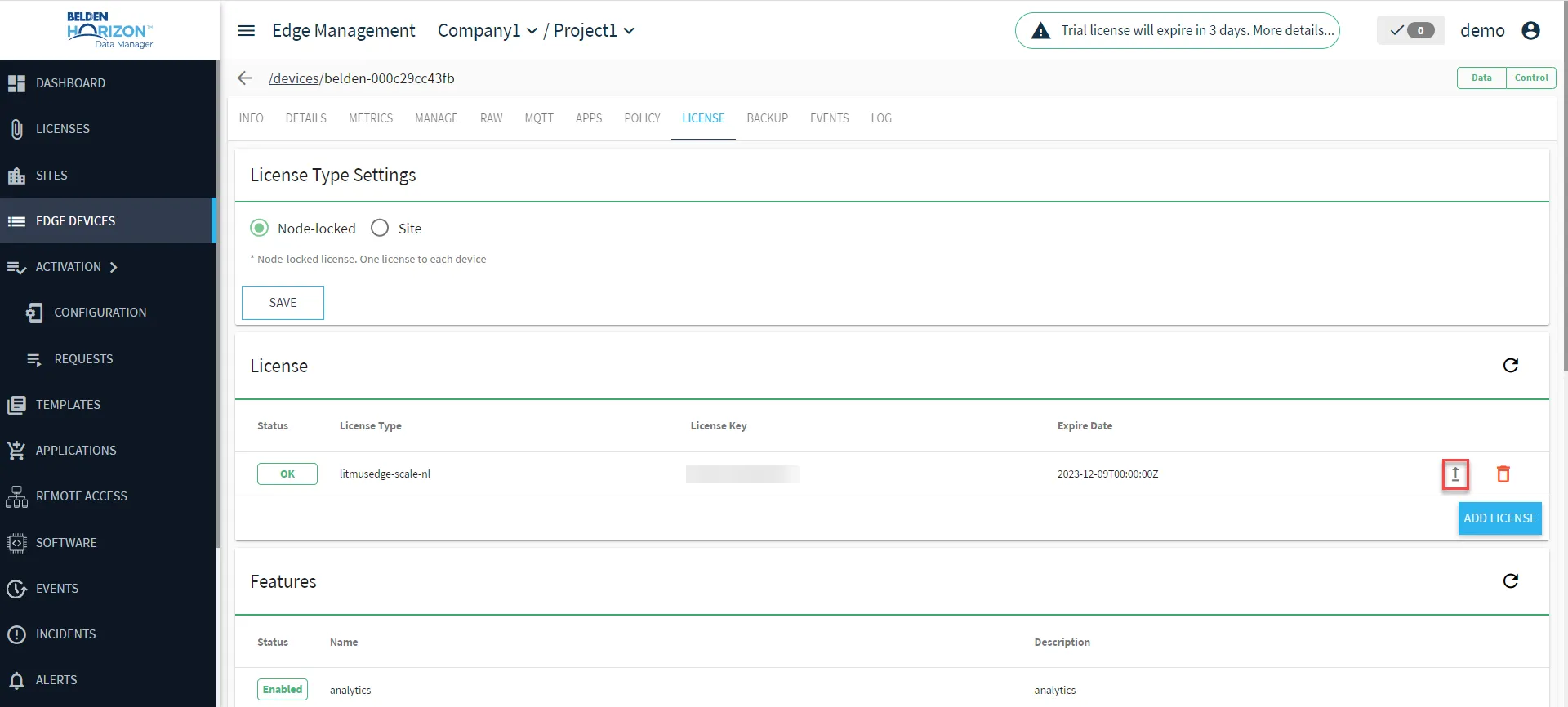
The License user interface expands with the Upgrade License section. By default, the Upgrade License Online tab appears.
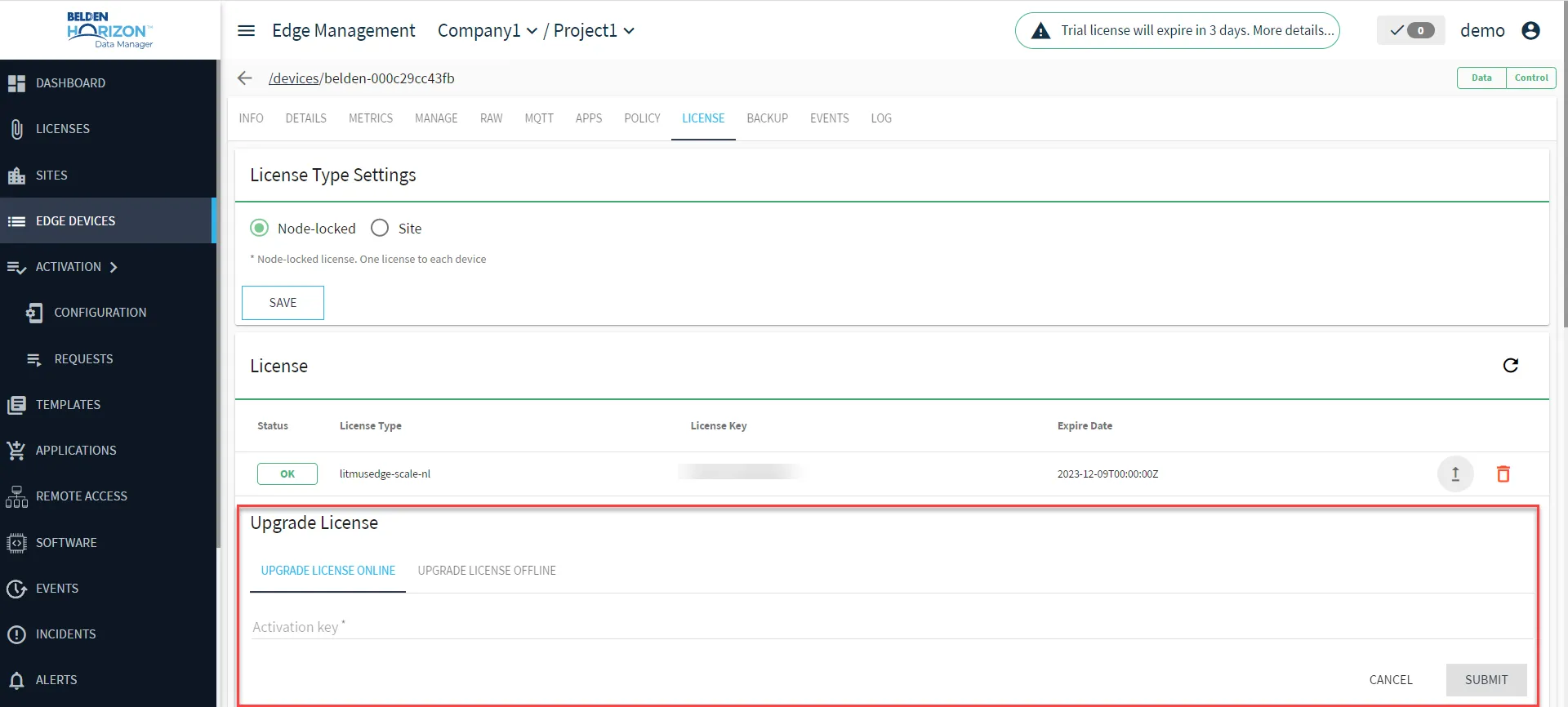
Online Activation
The process for adding a new license and upgrading an existing license are identical. The only difference is that for upgrading an existing license, the new post-upgrade license will replace the old pre-upgrade license.
To add/upgrade a license online:
- From the Online License Activation/Upgrade License Online tab, in the Activation key field, enter the 16-digit Activation key you've received from Belden.
- Click Submit.
- If successful, the new license will be added to the Edge Device Details License tab user interface.
Offline Activation
The process for adding a new license and upgrading an existing license are identical. The only difference is that for upgrading an existing license, the new post-upgrade license will replace the old pre-upgrade license.
To add/upgrade a license offline:
- From the Offline License Activation/Upgrade License Offline tab, in the Activation key field, enter the 16-digit Activation key you've received from Belden. The Activation key must be a valid key for later steps of this process to operate successfully.
- Click Generate Request. Under Offline Activation Request, an offline activation request string will be generated.
- To the right of the offline activation request string, click Copy to clipboard. This will copy the offline activation request string.
Below the offline activation request string, click License Portal or Open License Portal. This will open a new browser tab titled Licensing Portal.
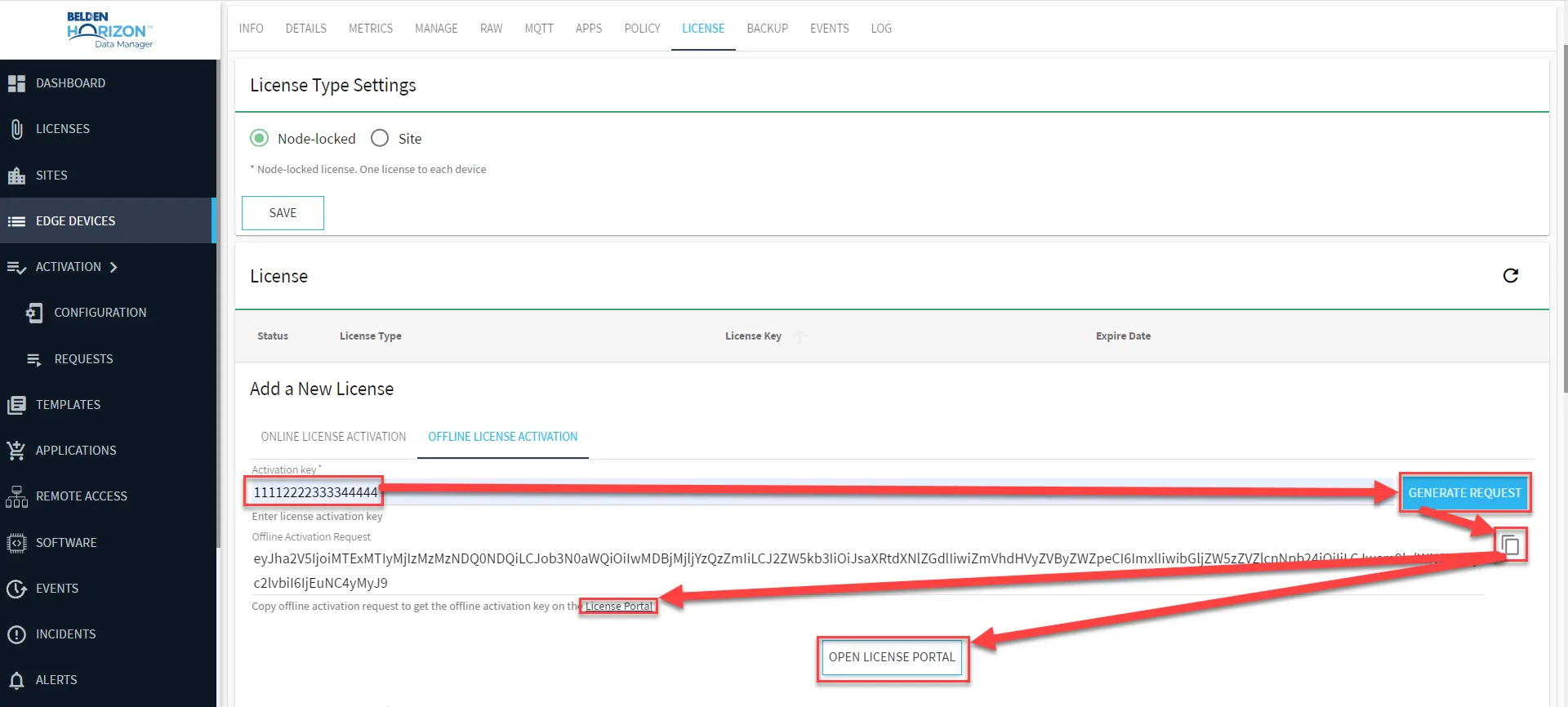 Generating Offline Activation Request String
- From the Licensing Portal, in the Activation Request field, enter the copied offline activation request string from Step 3.
- To the bottom-left of the Activation Request field, click on the I'm not a robot Checkbox.
- Click Make License. If the received Activation Key from step 1 is a valid key, the Activation Result text will display.
To the right of the Activation Result text field, click Copy content to clipboard to copy the Activation Result string. Once copied, click Close.
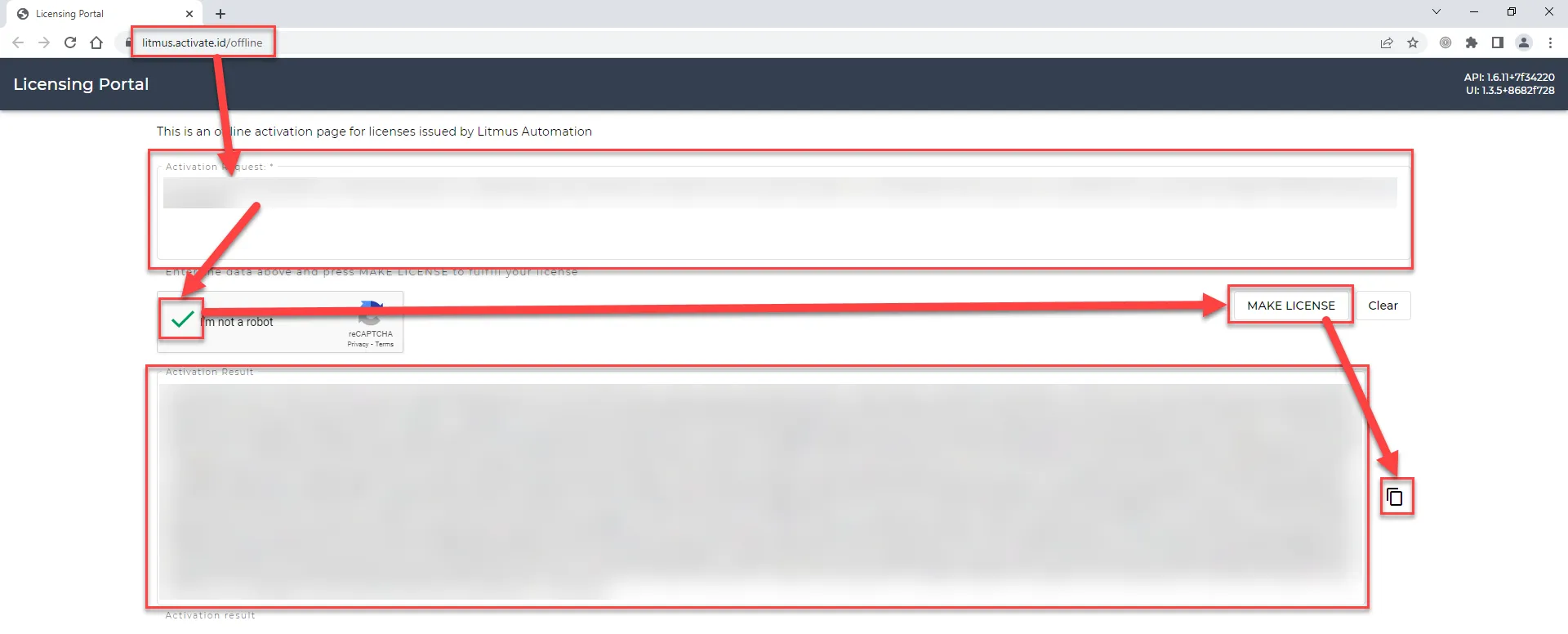 Converting Offline Activation Request String to Activation Result String
- Return to the Offline License Activation/Upgrade License Online tab. In the Offline Activation Key field, paste the Activation Result string.
Click Submit.
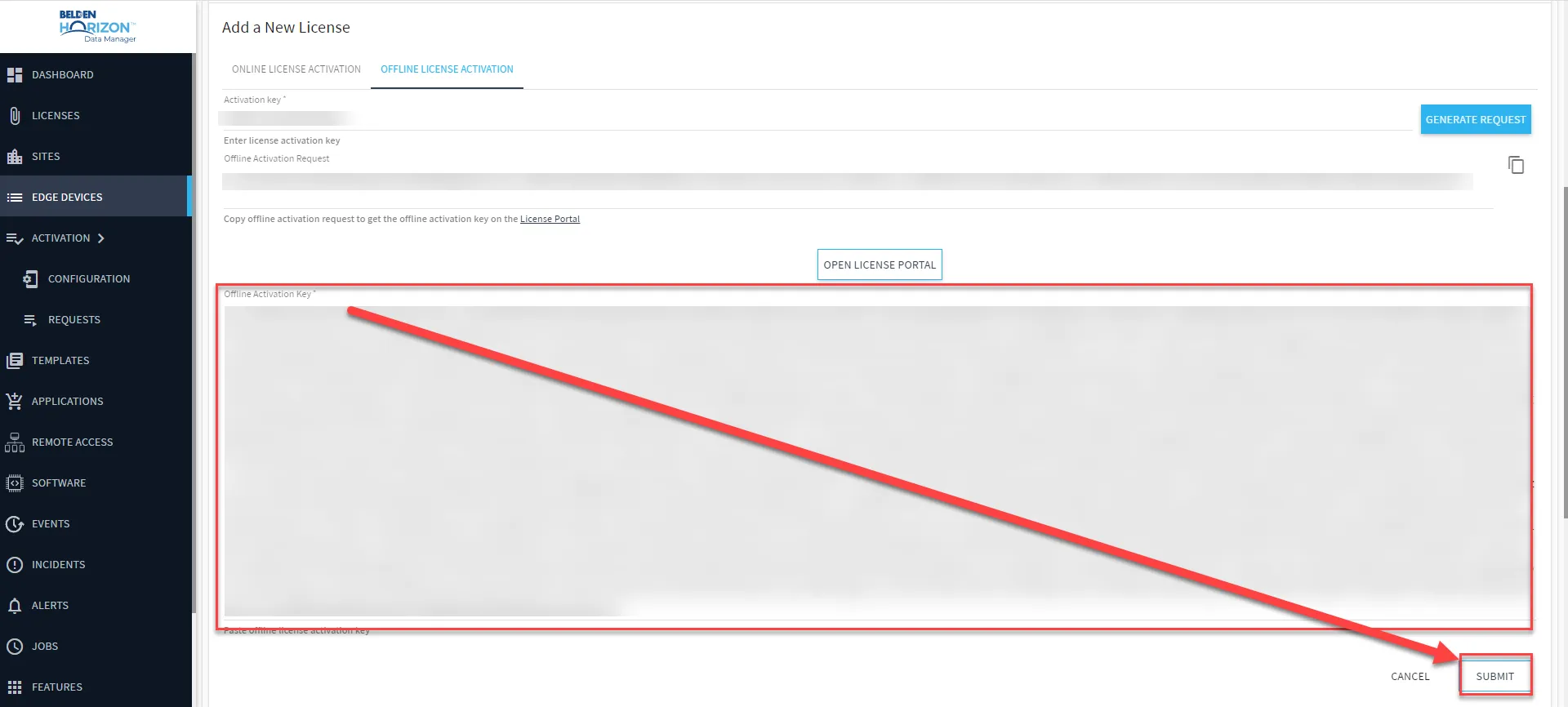 Using Activation Result String to Offline Activate
- If successful, the new license will be added to the Edge Device Details License tab user interface.