Set Up an Activation Config
An activation configuration can be configured with limits, license keys, template and/or template variables. These configurations are all entirely optional. Some of these configurations have existing default values while others can be left blank. These configurations are all implemented in the first four steps and can be skipped if no additional customization is needed.
Generating the details for an activation configuration occurs only in Step 5: Save while retrieving the key details are in Step 6: Retrieve Activation Code/URL.
Before You Begin
- If you are using a node-locked license, make sure you have a license key for deployment.
- If you are using a site-based license, make sure you have the URL and port for the license server.
Step 1: Configure Limits
You have the option of configuring limits, specifically number of edge devices, lease TTL and expiration date. If no changes are needed, proceed to the next step.

- Number of Edge devices: Enter the number of devices that will share the activation code. The activation code (created after saving) can be used for multiple edge device activation.
- Lease TTL for identity certificate: Enter the number of days the activation code is valid to be used for an Edge device activation.
- For the Expiration Date field, select the date on when the activation code will expire. Specifically, when the Belden Horizon Data Operations instances that use this license will need a new activation code.
Step 2: Configure Licenses and License Types
You have the option of using either a node-locked or a site license. By default, a node-locked license is selected. A node-locked license associates and attaches an license with a Belden Horizon Data Operations instance. A site license is where Belden Horizon Data Operations retrieves a license from a Belden Horizon Data Operations License Server.
If no changes are needed, proceed to the next step.

To select license type:
- For the Select license type field, select either Node-Locked or Site
- Node-locked: Use this for one license to each edge device.
- Site-based: Use this to set the license server IP address.
Configure a Site-based License
Ensure there's a URL and port for the license server. Use this to set the license server IP address. When using this license type, a site-license must be created via License Server's Offline activation.
Configure a Node-locked License
Ensure there's a license key for deployment. Use this for one license to each edge device.
Add License Key Manually

To manually add a node-locked license key:
1. Click the Add icon. The License Code field drops down.
2. Copy from a .csv or .txt file and paste the license code in the available License key field.
Upload License Keys

To upload node-locked license keys:
1. Click the Upload icon. 2. Click Upload From File, navigate to the license .txt file, and then click Open.
- Each license must use a separate line in the .txt file.
- A .csv file can be used if you are bulk uploading licenses.
- You can also enter each license using a separate line manually without clicking Upload From File.
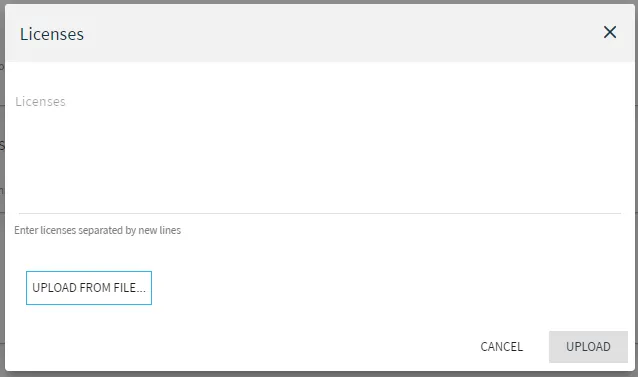
The licenses appear in the Licenses field on separate lines for each license.
3. Click Upload. The licenses appear in the Licenses List and display No in the In Use column.
Step 3: Add Templates
You have the option of applying templates when activating a Belden Horizon Data Operations instance. If the Belden Horizon Data Operations instance doesn't need a template, proceed to the next step.

To add at least one template:
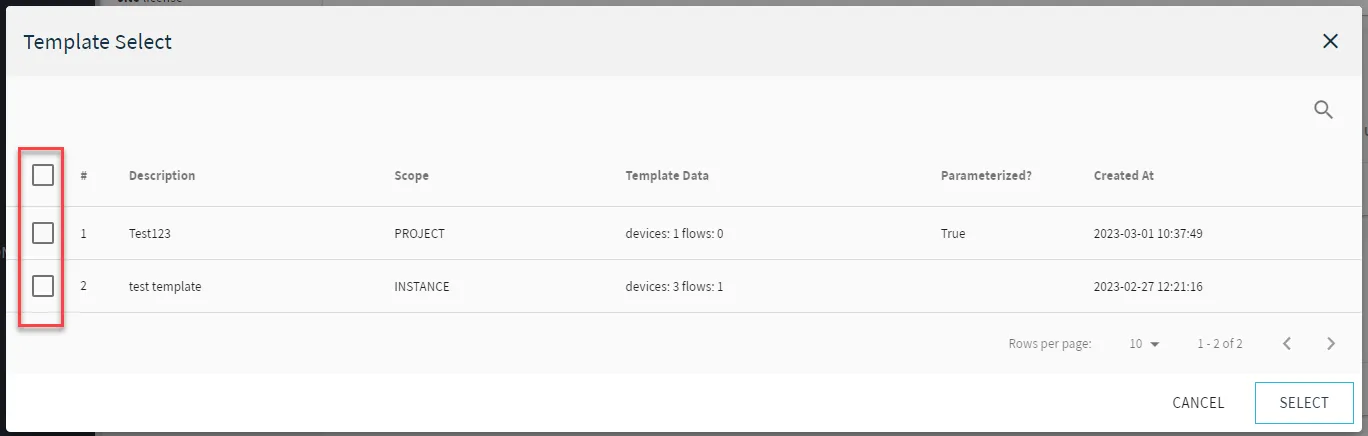
- Select one or more templates from the list, and then click Select. The selected template appears in the Templates list.
Step 4: Add Template Variables
You have the option of applying template variables when activating a Belden Horizon Data Operations instance. If the Belden Horizon Data Operations instance doesn't need any template variables, proceed to the next step.
Adding Template Variables Manually

To add at least one template variable manually:
- From the Template Variables section, click the Add icon. The Add new variable set dialog box appears.
Adding Template Variables for All Devices
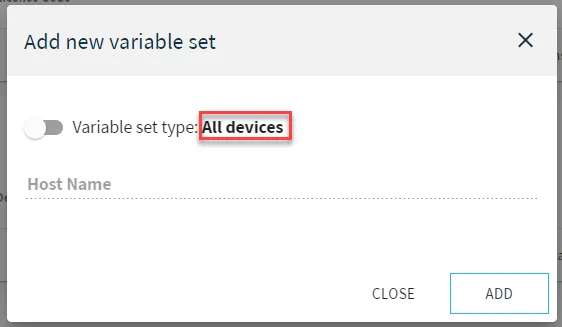
1. From the Add new variable set dialog box, click the Variable set type toggle so it displays All Devices.
2. Click Add. The Variable set: All devices appears in the Template Variables list.

3. Click the Add icon next to the variable set. The Variables line items drop down.
4. In the Variable Name field, enter a variable name.
5. in the Variable Value field, enter a variable value.
Adding Template Variables for Individual Edge Device
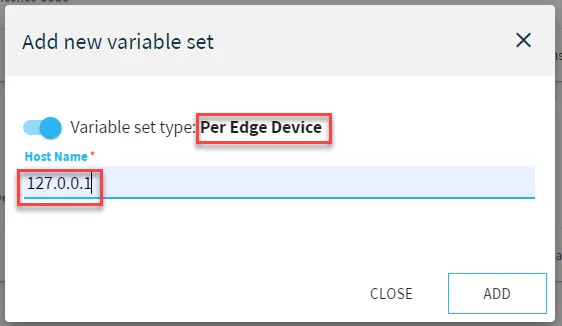
1. From the Add new variable set dialog box, click the Variable set type toggle so it displays Per Edge Device.
2. In the Host Name field, enter the host name for an edge device. To find host name for an edge device, see Configure the Network Settings' Host Information.
3. Click Add. The Variable set: per Edge Device: <hostname> appears in the Template Variables list.

4. Click the Add icon next to the variable set. The Variables line items drop down.
5. In the Variable Name field, enter a variable name.
6. in the Variable Value field, enter a variable value.
Adding Template Variables Using .csv File
Multiple template variables can be uploaded using a .csv file. A sample .csv file is available to download for customization.

To add at least one template variable using a .csv file :
- From the Template Variables section, click the Upload icon. The Upload variable sets dialog box appears.
- (Optional) Click the here link to download a sample .csv file.
- Click Select File, navigate to a variable set .csv file, and then click Open. The selected .csv file appears in the File Name field.
- Click Upload. The variable sets listed in the .csv file appear in the Variable Sets list.
Step 5: Save
Once all the configuration for a Activation Configuration is complete, a save is needed to generate the activation code.
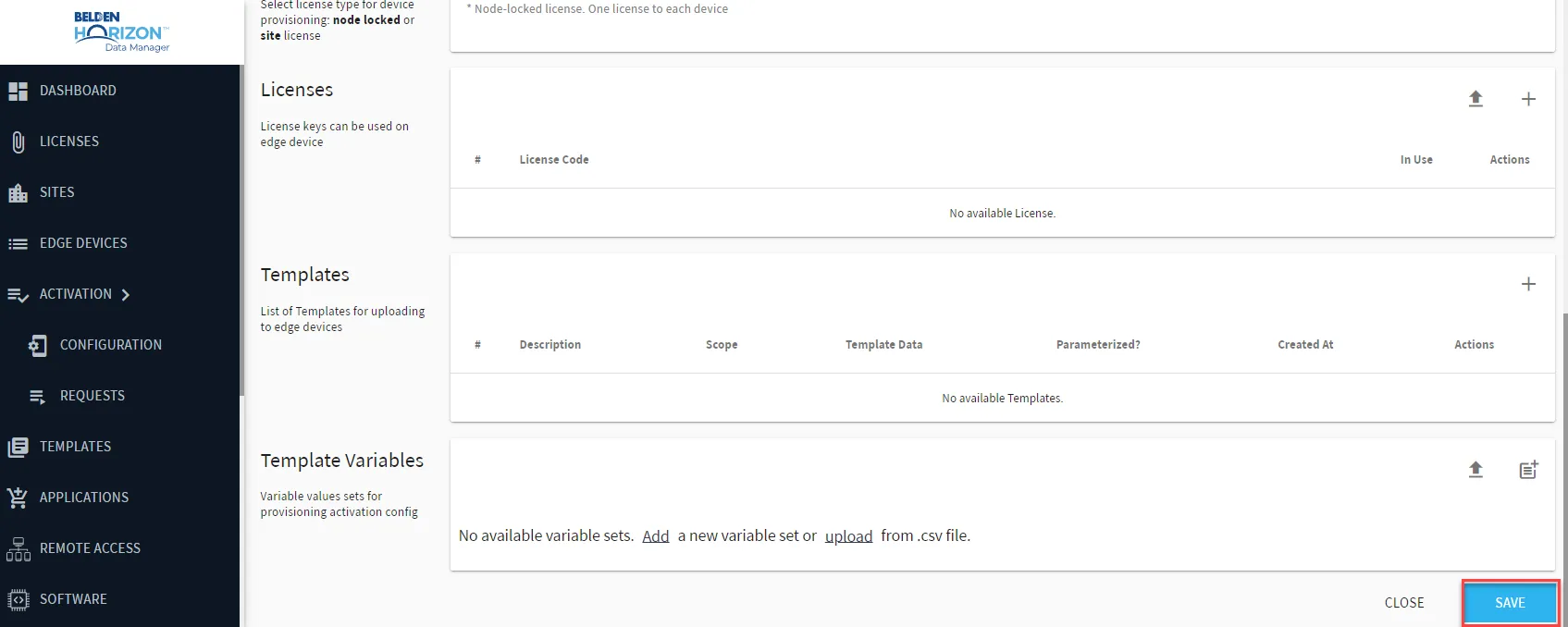
To complete an activation configuration creation:
- Click Save. Once saved, the activation code will then be generated at the Activation Code field.
Step 6: Retrieve Activation Code/URL
After a Save is successfully complete, the Activation Code will display underneath the Activation Code section. This code and the Activation URL will be needed when activating a Belden Horizon Data Operations instance.
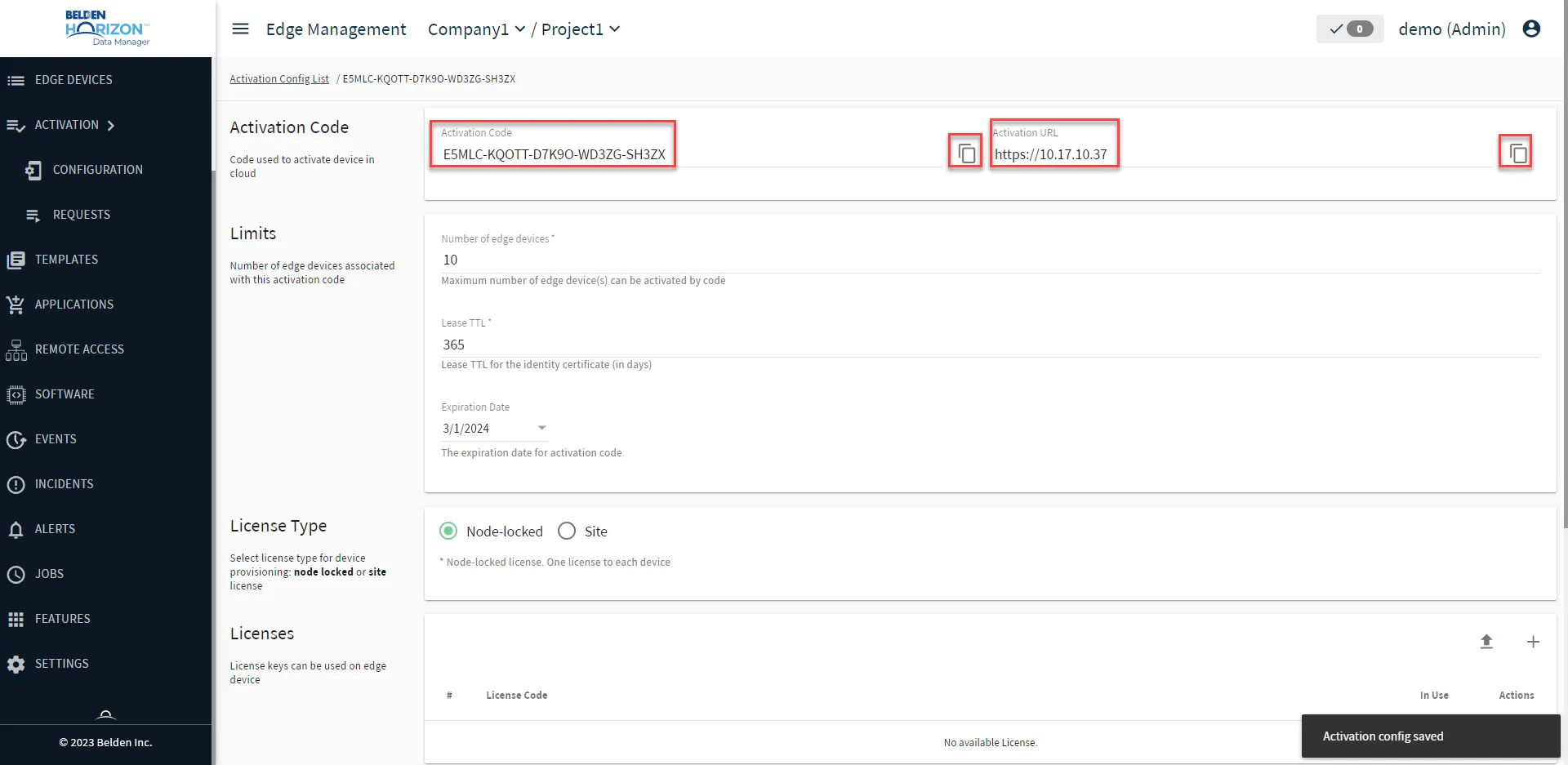
To retrieve the activation code/URL :
- Copy to clipboard the Activation Code. It will be needed for activating a Belden Horizon Data Operations instance.
- Copy to clipboard the Activation URL. It will be needed for configuring a Belden Horizon Data Operations instance.
Next Steps
Use the copied Activation Code and Activation URL to Activate an Edge Device.