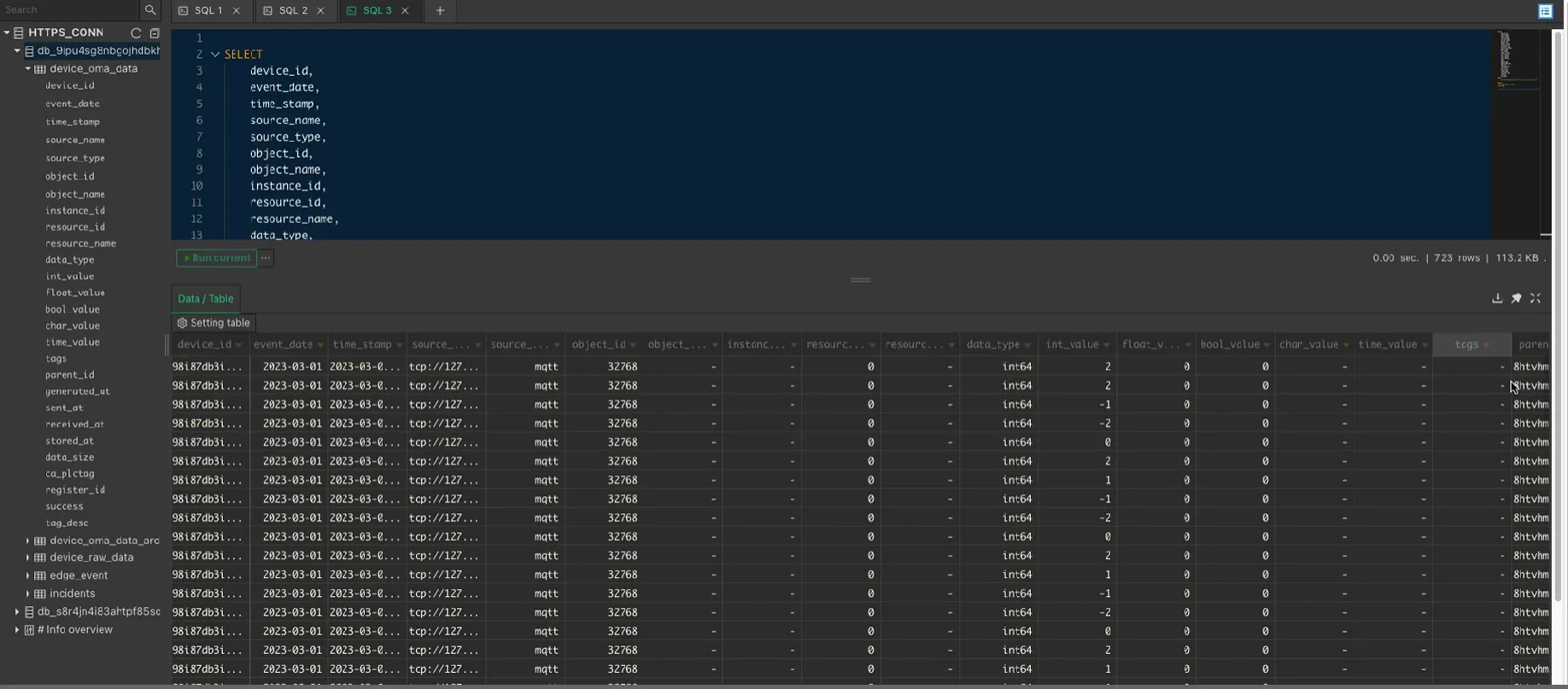
Access Tabix UI with Belden Horizon Data Manager
Tabix can be used to retrieve and display PLC data from a Belden Horizon Data Manager. Tabix can then execute SQL queries onto the PLC data.
Before You Begin
- Ensure that the Clickhouse port 8543 [HTTPS] is enabled. See the Change port status state option in Clickhouse.
- Associate the created Tabix User with a Topic (Company / Project). See the Add ACL option in Clickhouse.
Log into Tabix
To initially enter Tabix UI from the Belden Horizon Data Manager Admin Console, see the Open Tabix option in Clickhouse. You can click the HTTPS_CONN button to automatically fill in the Title and URL.
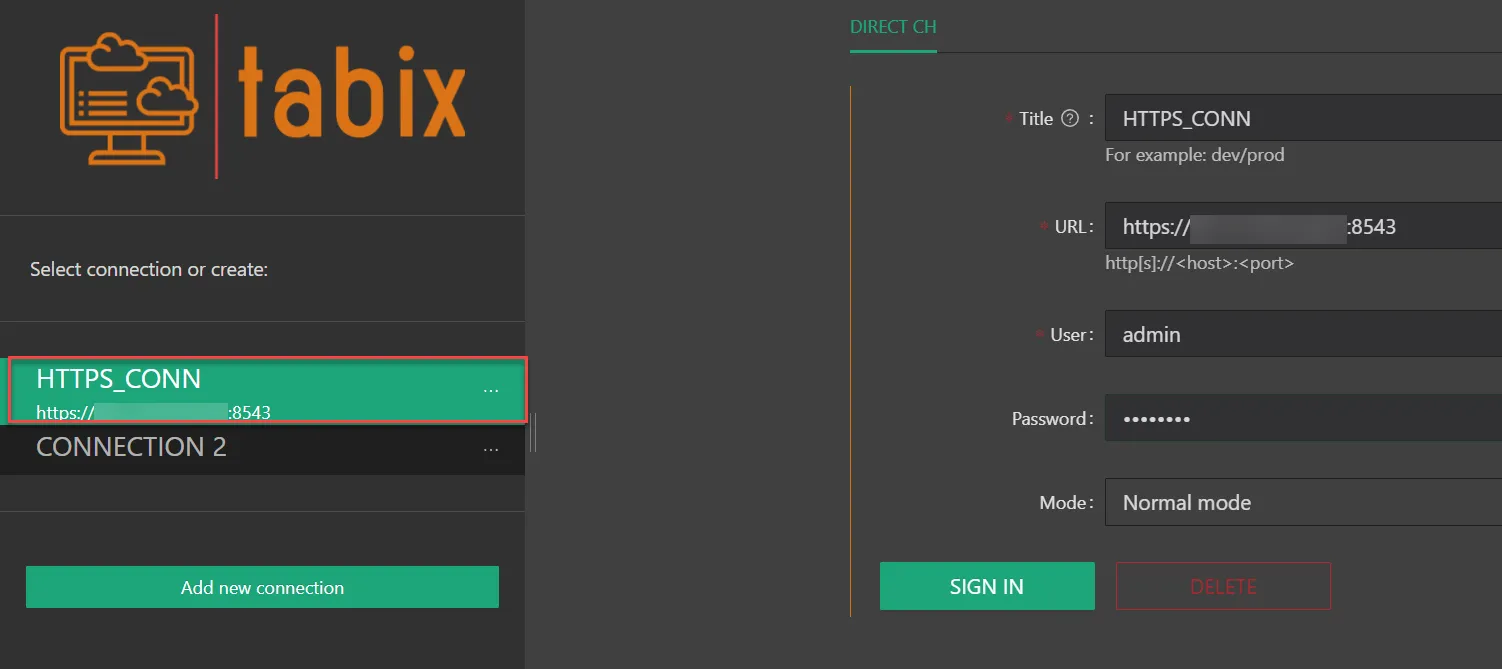
- Title: By default, this is HTTPS_CONN.
- URL: https:// followed by the IP address / domain name of the Belden Horizon Data Manager instance, followed by :8543 .
- User: This is the Clickhouse username that was created from earlier and associated with a Topic.
- Password: This is the Clickhouse user's respective password that was created from earlier.
- Mode: Keep it as Normal mode.
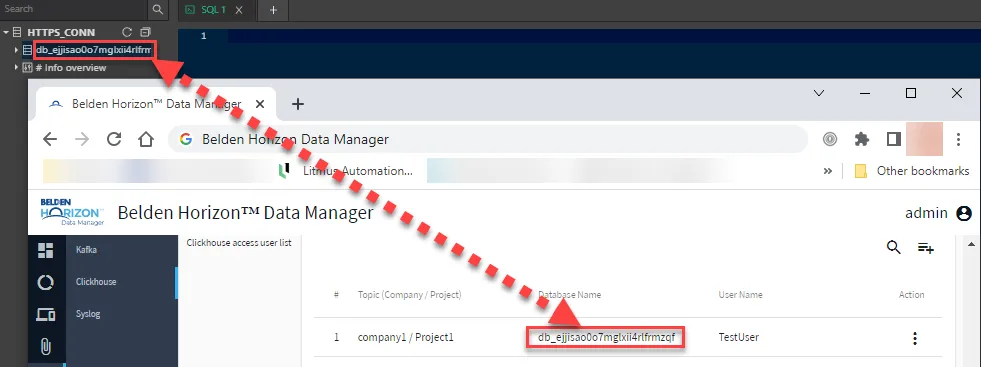
Once you are successfully logged in, all the Database Name(s) that were created from an association between a Clickhouse user and Topics (Company/Project) will be available.
Using Tabix
From there, you can view additional data and execute SQL queries in Tabix. For more information about Tabix, see https://tabix.io/doc/.
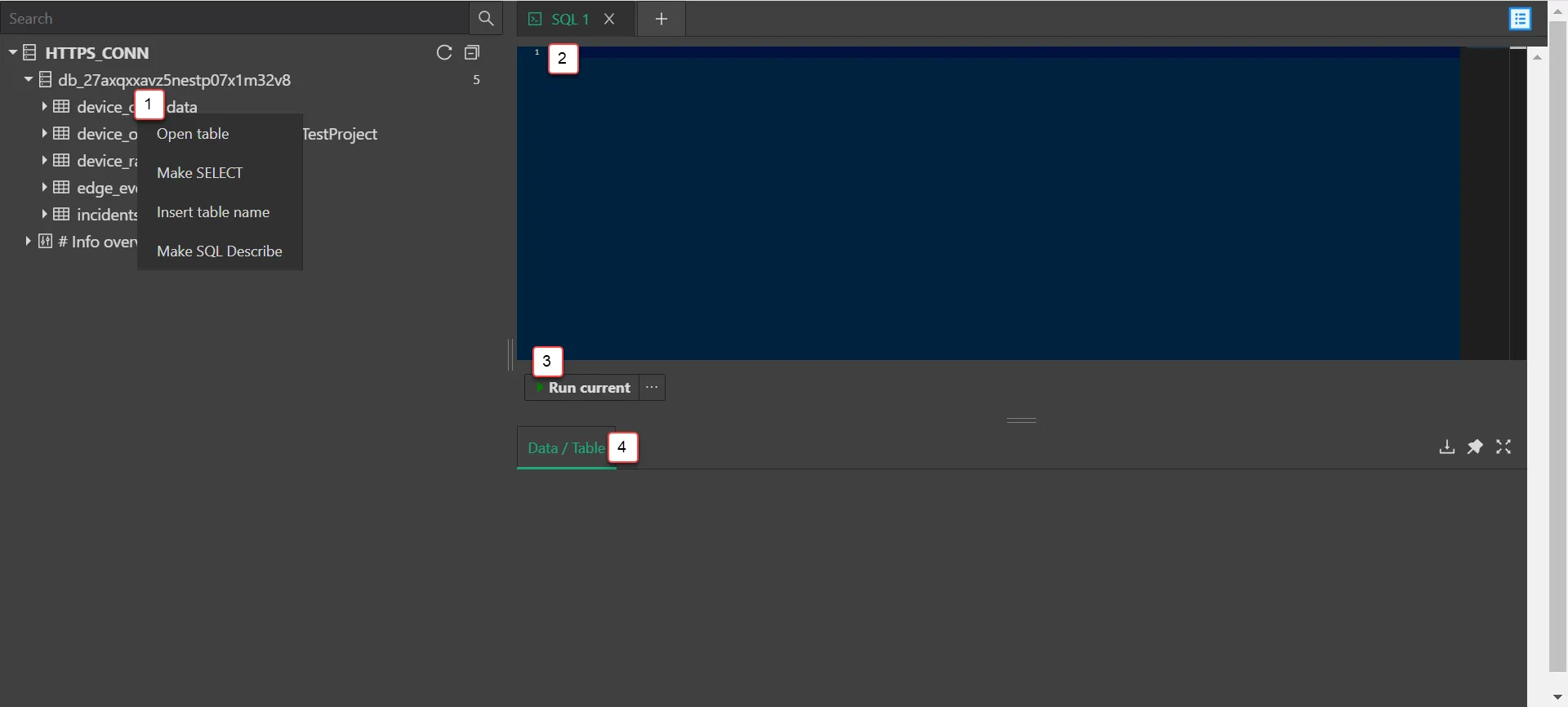
[1] Access default sql query drop down menu: Right click on one of the five tables below the Database name.
[2] Enter SQL query: See Clickhouse SQL Reference for details
[3] Run current SQL
[4] View SQL query results
Example SQL Query on Tabix