Software Updates
You can upload new version updates and upgrades to Belden Horizon Data Operations. Your Belden Horizon Data Operations devices can be upgraded from previous versions by using UPD files. Get the latest UPD files from your Belden account executive.
The upgrade process preserves your data and existing configurations. After the Belden Horizon Data Operations software has been installed on a device, this upgrade process can be used throughout the lifetime of the device.
Important
- You can't downgrade a lower version.
- If needed, you can upgrade to the same version you're currently on.
- An upgrade to an internal pre-release version is possible, but contains a warning. Pre-release versions are not upgradeable.
- You cannot skip any version between upgrades.
- Creating a backup prior to upgrading is recommended.
- You cannot upgrade if your controller is IDE. You must have a SATA controller to upgrade.
- Software upgrades haven’t been validated yet on VirtualBox 6.1.x. An upgrade attempt running on VirtualBox 6.1.x may result in a corrupted and unrecoverable Belden Horizon Data Operations instance.
- If you want the same edge device configuration and setup on a fresh installation or with an update, you can use a template. See Templates for more information.
Caution: Software upgrades haven’t been validated yet on VirtualBox 6.1.x. An upgrade attempt running on VirtualBox 6.1.x may result in a corrupted and unrecoverable Belden Horizon Data Operations instance.
Before You Begin
- Get the latest software file (.upd) from your Belden account executive..
- Verify the current software version running on Belden Horizon Data Operations in System > Info under the General section.
Backup Checklist
For backup purposes, you can complete the following tasks before doing a software upgrade.
Note: All configurations and settings are maintained and carried over after upgrading to a new version.
Download all tags in a CSV file from DeviceHub > Tags. See Manage Tags.
Download flows files from Flows Manager. See Manage a Flows Manager for more information.
Export all flows from your Analytics groups. See Manage Processors and Analytics Flows for more information.
Export the OPC UA hierarchy configuration JSON file from the OPC > Hierarchy pane. See Manage Nodes for more information.
Create a Template from the Template tab in System > Backup / Restore. See the Download a Template section in Manage Templates.
Create a support bundle from the Support section in System > Support. See Support.
Make a backup of your system from the Backup / Restore Configuration section in Settings > Backup / Restore. See Back Up a Device.
Upgrade Belden Horizon Data Operations
You have three options for upgrading Belden Horizon Data Operations.
Option 1: Upload Local File
This is the recommended upgrade method.
Before You Begin
- Get the latest software file (.upd) from your Belden account executive..
- Verify the current software version running on Belden Horizon Data Operations in System > Info under the General section.
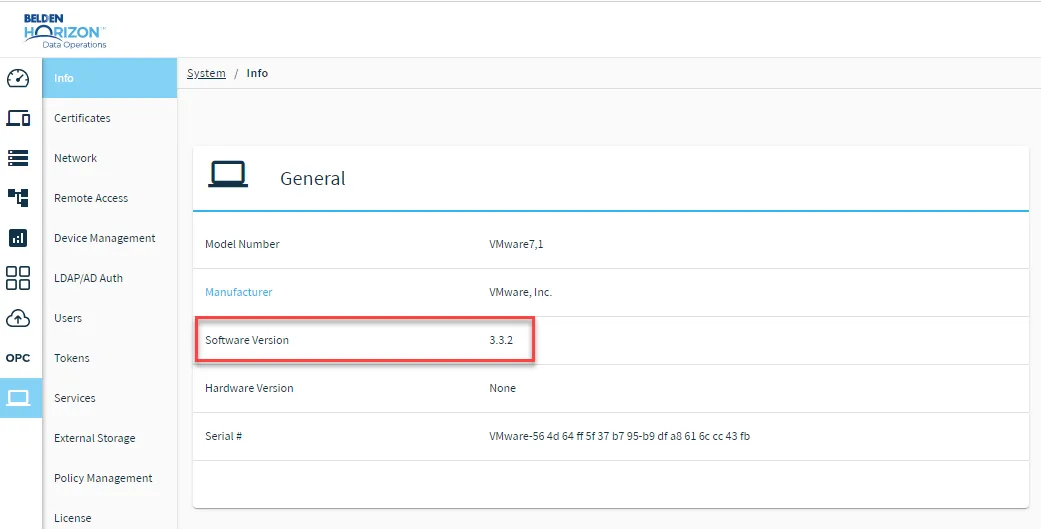
Upload a New Version of Belden Horizon Data Operations Software
Once you have the .upd file that has the new version of Belden Horizon Data Operations, complete the following steps to upload it to your Belden Horizon Data Operations instance.
To upload a new version of Belden Horizon Data Operations:
- In Belden Horizon Data Operations, navigate to System > Device Management. The Device Management pane appears.
From the Manage section, click Upload File.
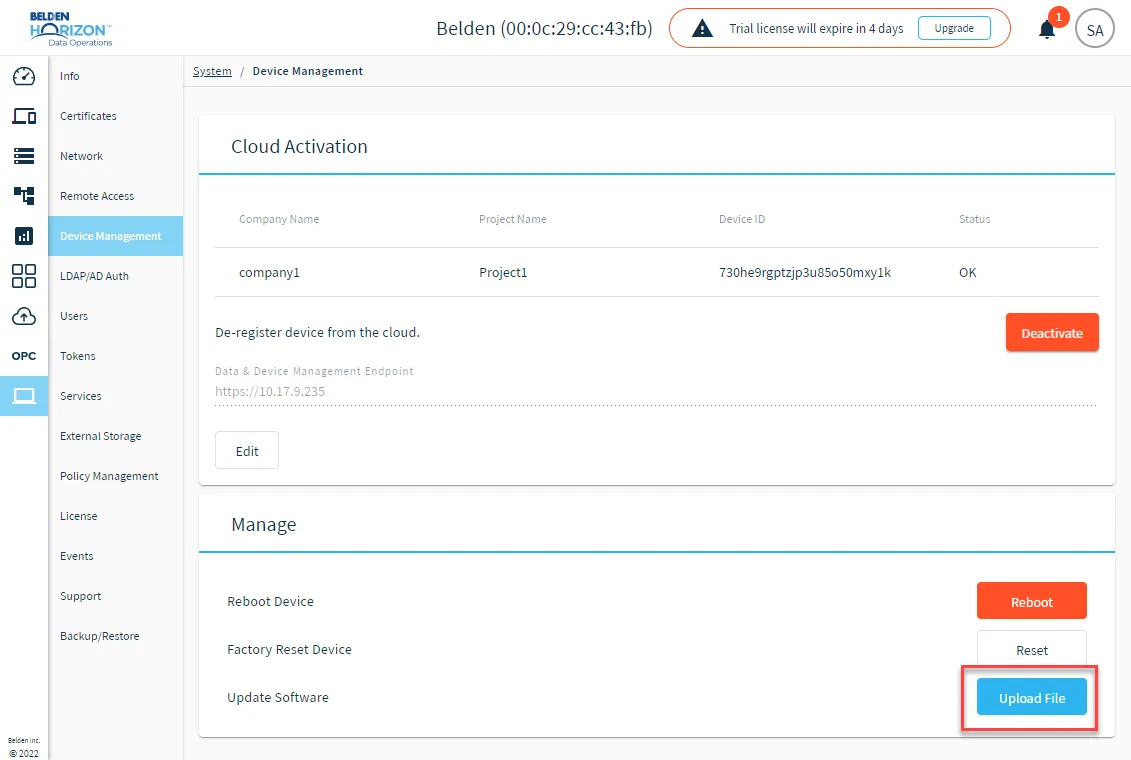
- Select the upd. file you want to use, and then click Open. A pop-up warns you of the device reboot and prompts you to confirm the upload.
- Click Ok. The software loads and installs, and then the system reboots.
- Once the system has restarted, close your browser and open the browser again.
- Clear your browser cache.
- Log in to Belden Horizon Data Operations and navigate to System > Info. Verify the software version is the updated version.
Option 2: Upgrade Through Belden Horizon Data Manager
If you have access to Belden Horizon Data Manager, see the following for upgrading remotely:
Option 3: Download Upgrade File
If the two options above are not available, then you can download the upgrade file in Belden Horizon Data Operations.
Before You Begin
Follow up with your Belden account executive to get the required download URL and Checksum value that will be used to access the upgrade file.
Download the Upgrade File in Belden Horizon Data Operations
To download the upgrade file in Belden Horizon Data Operations:
- In Belden Horizon Data Operations, navigate to System > Device Management. The Device Management pane appears.
In the Update Files section, click Download from URL.
The Download Software Update dialog box appears.
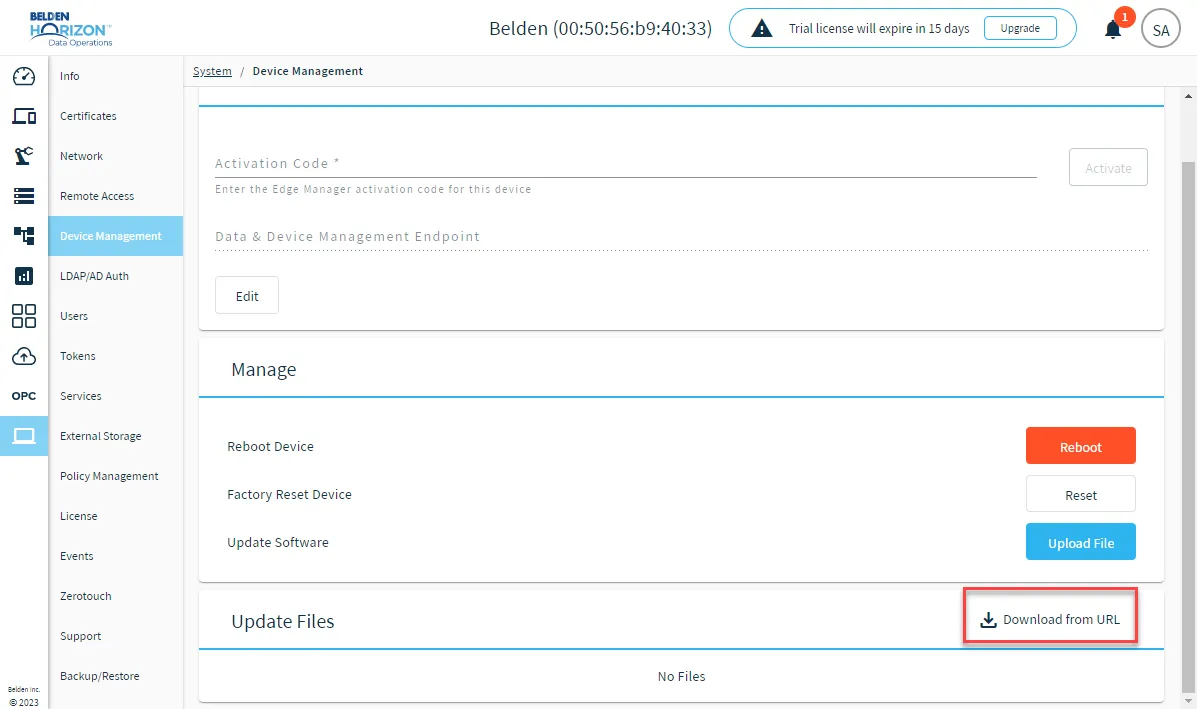 Download from URL option
- Enter or paste the Download URL and Checksum value in the required fields. Then, click Start download. When the download successfully completes, the file displays in the Update Files section.
- For the downloaded file, click Update.