Manage Tags
You can manage tags by navigating to DeviceHub > Tags.
Manage Existing Tags
You can manage existing tags from the Tags pane.
To manage existing tags:
- Navigate to DeviceHub > Tags.
From the Tags pane, select the device that has the tag you want to manage.
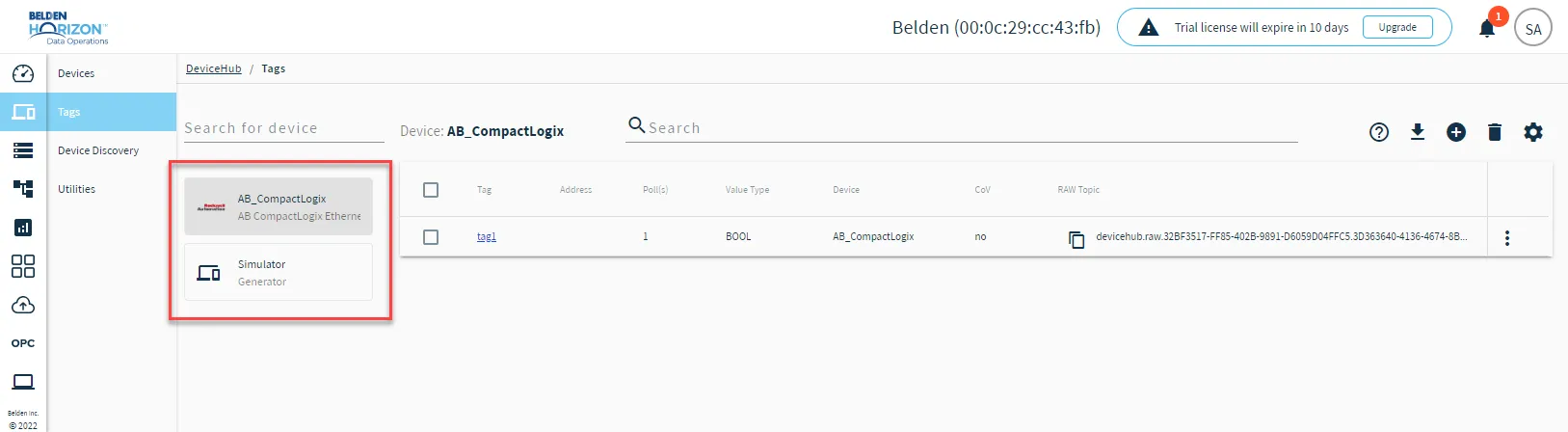 List of devices from the Tags pane
If needed, use the search bar to find the tag. You have the option of using search filters contains and equal to. Search filters are available for Belden Horizon Data Operations version 3.5.2 and later.
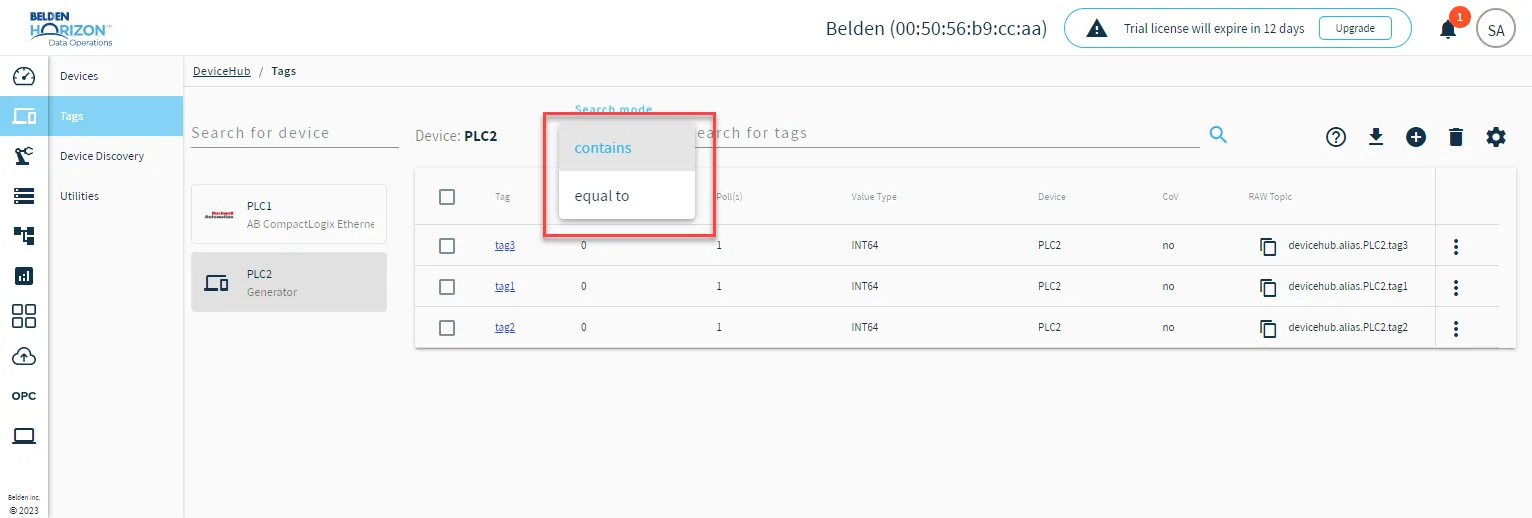 Search filters
For the tag you want to manage, click the Action menu.
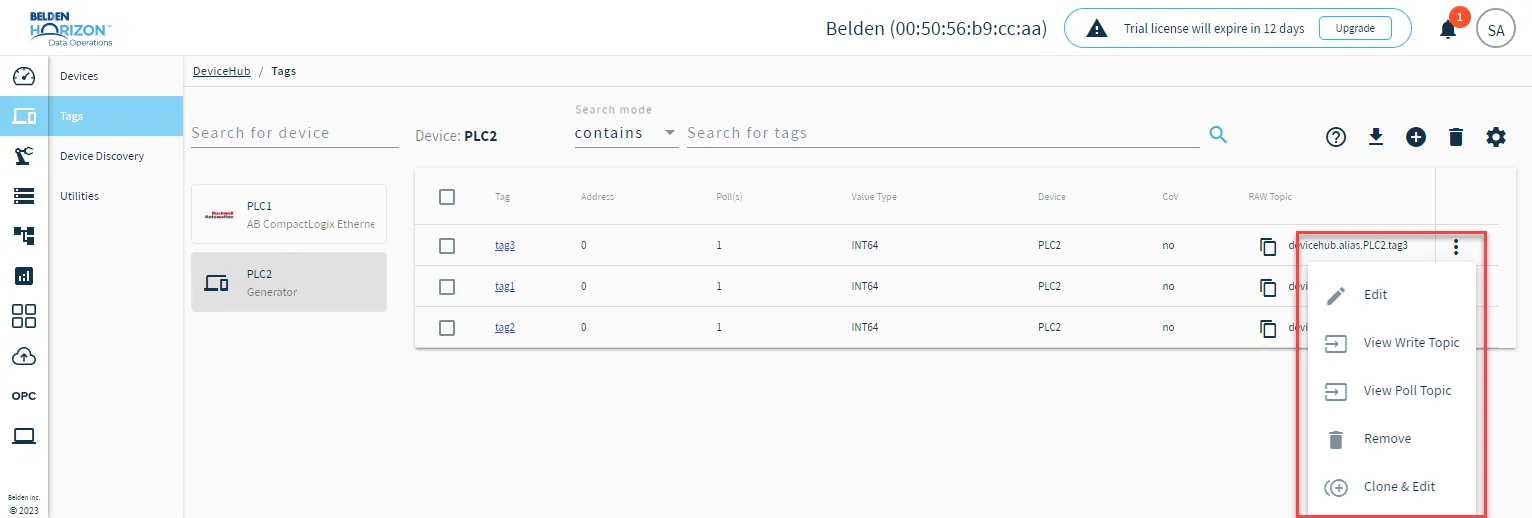 Tag management options
- Select from the following options.
- Edit: Update the parameters for the tag as required and click Update Tag.
- View Writer Topic: Write Topics can be used with Flows to write to the topic. From the Write dialog box, you can click the Copy icon to copy it to your clipboard.
- View Poll Topic: Poll Topics can be used with Flows to poll a tag. From the Poll Once dialog box, you can click the Copy icon to copy it to your clipboard.
- Remove: Delete the tag from the Tags list.
- Clone & Edit: Clone an existing tag and then edit the cloned tag. When done, click Clone Tag.
Note: The Tag Name for the cloned tag and existing tag must be different.
Download Tags as a CSV File
You can download the list of tags visible in the Tag List by clicking the Download as CSV icon.
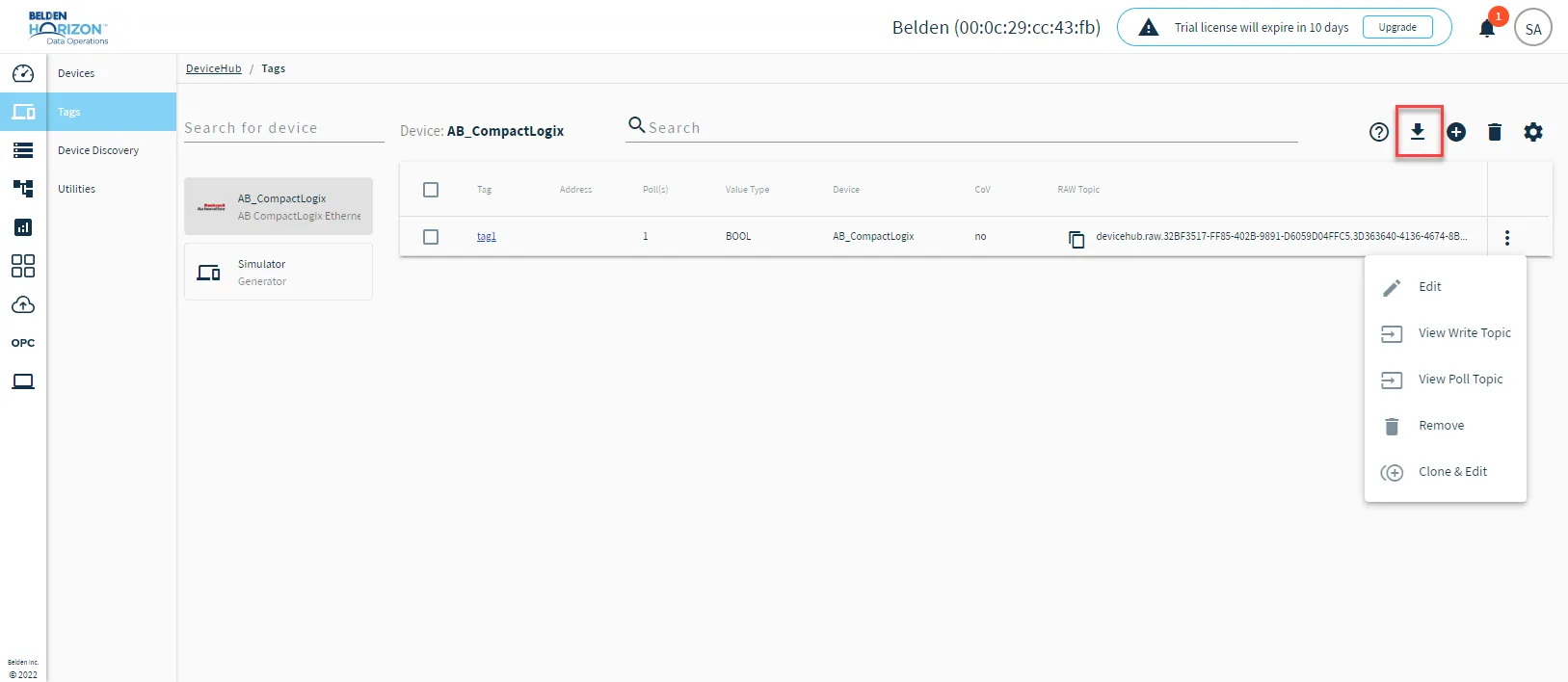
Remove Multiple Tags
You can remove multiple individual tags or all tags from the Tags pane.
To remove multiple tags:
- Navigate to DeviceHub > Tags.
From the Tags pane, do one of the following.
Remove all tags: Select the Tag column check box for all the tags.
Select individual tags: Select each individual tag's check box.
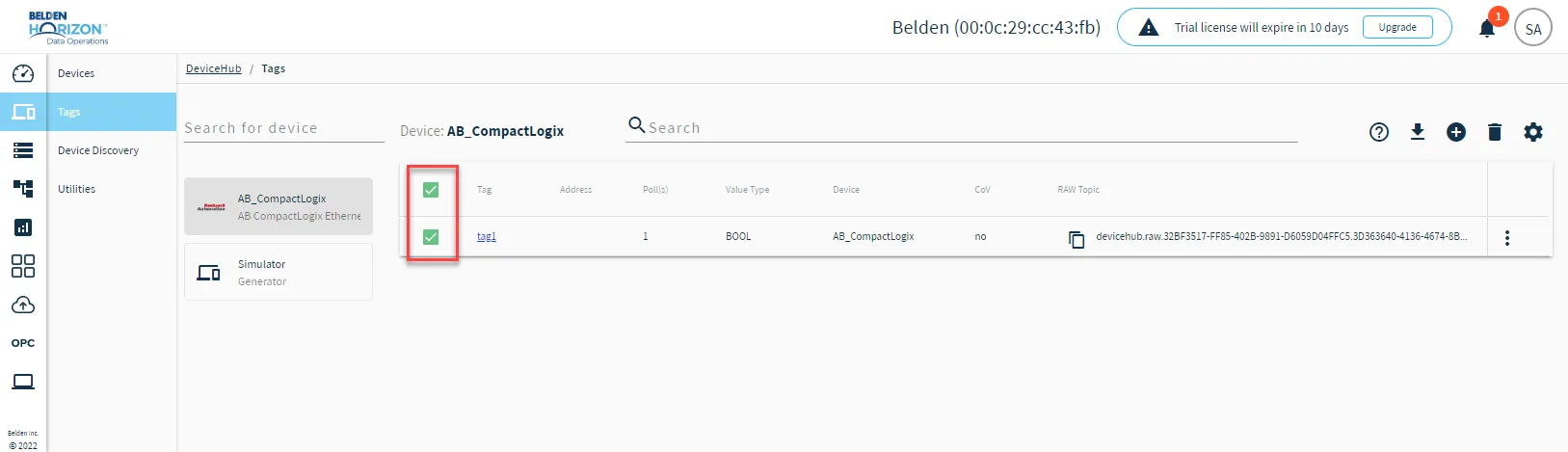 Check boxes for tags
Click the Trash icon. The Confirmation dialog box appears.
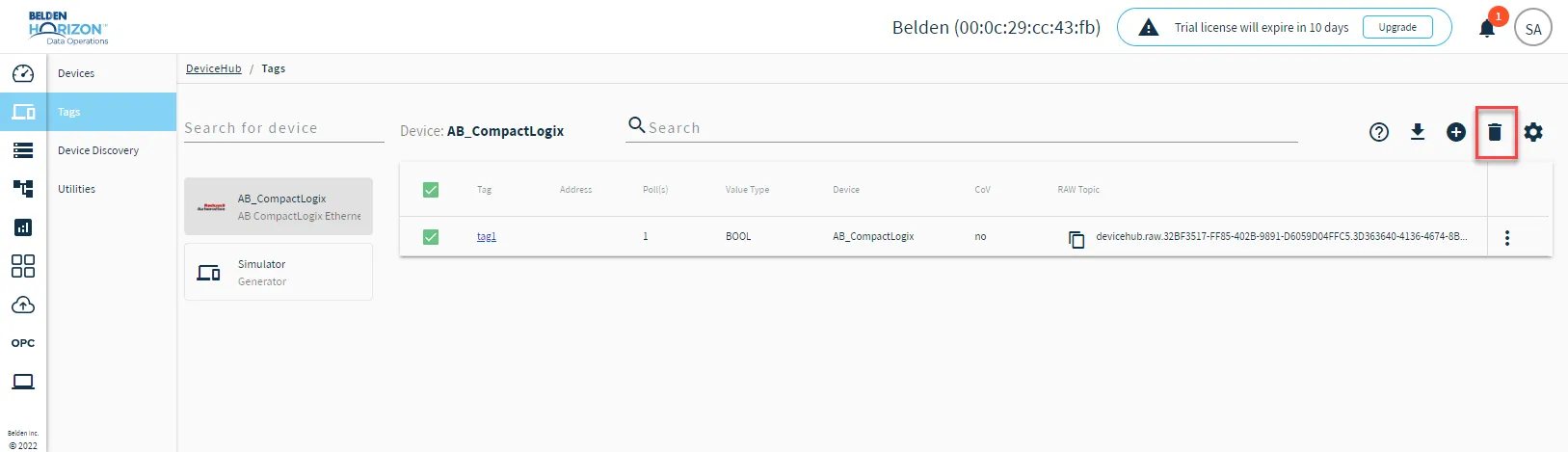 Remove tags icon
- Click Yes. All tags are removed from the Tags list.
Copy a Raw or Alias Topic
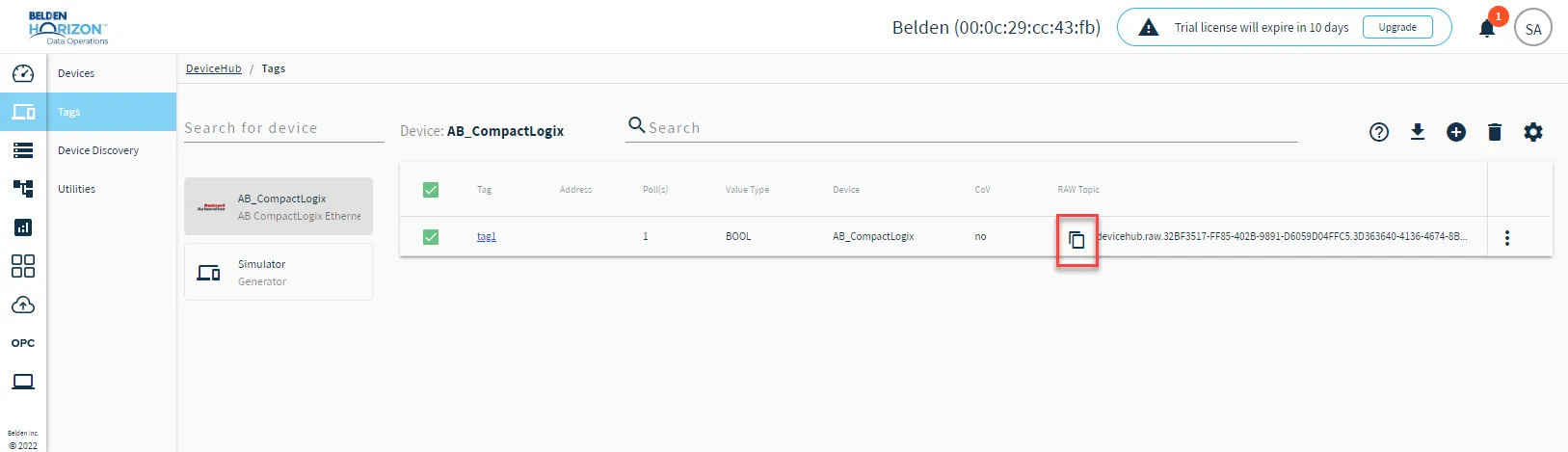
You can copy a raw or alias topic from a device's tag detail pane. Topics are used when configuring a connector.
To copy a raw or alias topic, from the Tags pane, click the Copy icon in the RAW Topic column for the tag.
Note: The Enable Alias Topics option must be selected for the device configuration. See the Enable Alias Topics section in Connect a Device for more information.
Configure Tag Column View
You can modify which columns are displayed in the Tags pane.
To modify columns displayed:
- Navigate to DeviceHub > Tags.
From the Tags pane, click the Configure icon.
The Display Columns List appears.
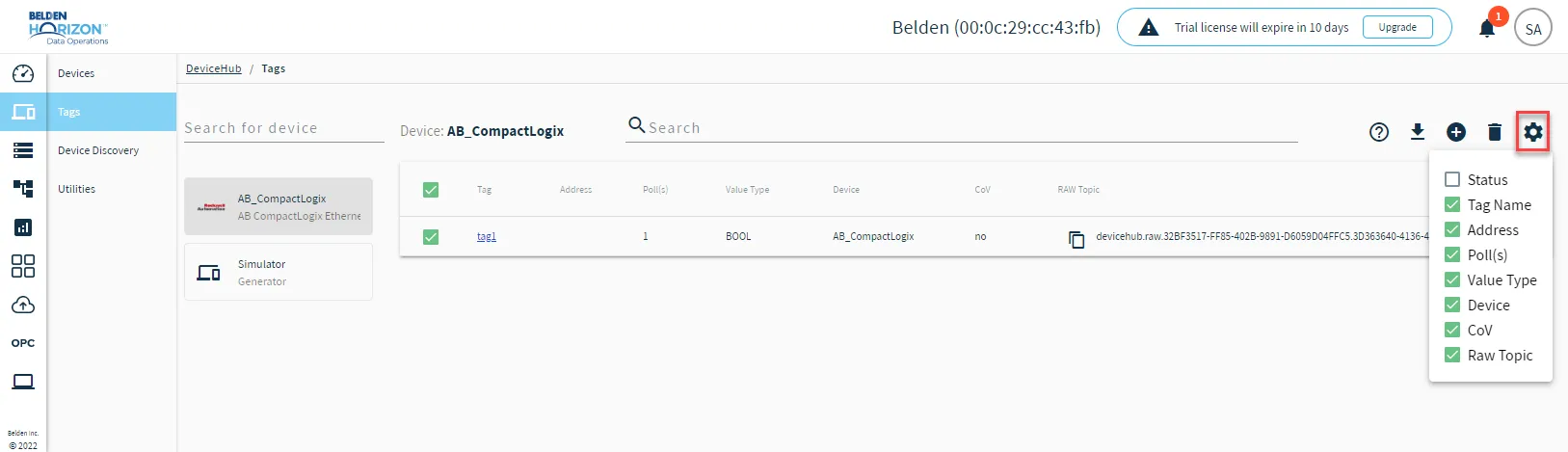 The Configure icon for Tags
- Select or deselect the columns you would like to display for the Tags List on the Tags pane, and then click outside the Display Columns List. The columns are displayed according to you modifications.
Note: If the Status check box is enabled, a color-coded status appears next to each tag in the tag list. Green means that the status is good. Red means that there is an error.