Manage a Flows Manager
You can manage flows managers by navigating to Flows Manager > Overview.
Manage Individual Flows Managers
Refer to the image and callouts below for management options.
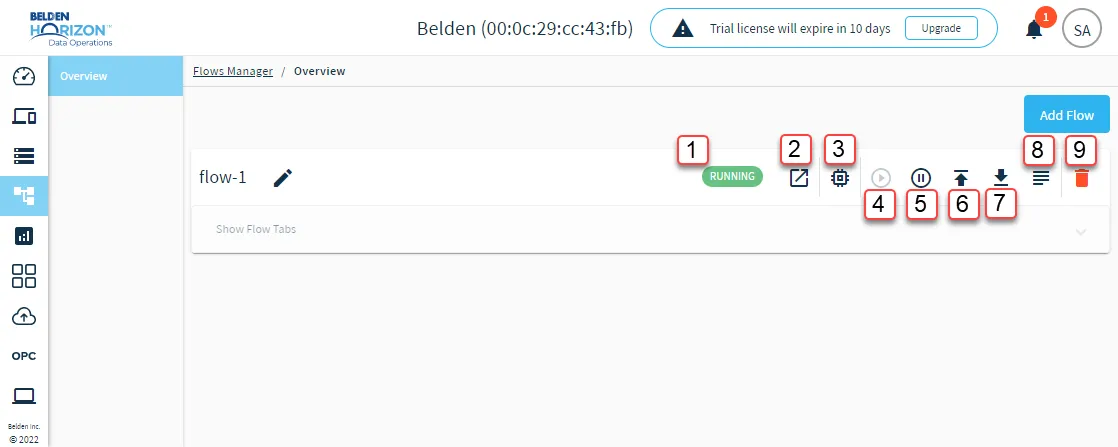
[1] Flows Manager status: The Flows Manager can have the following statuses.
- Running: The flow has been deployed and is currently running as defined.
- Stopped: The flow has been stopped by the user.
- Warning: The flow encountered a problem. It has either timed out or is not running as defined.
[2] Go To Flow Definition: Opens the flow canvas. See Create a Flow to learn more.
[3] Update Memory Limit: Change the current memory limit. The options are: 256 MB, 512 MB, 1024 MB, 2048 MB, and 4096 MB.
[4] Start Flow: Starting a Flows Manager affects all associated individual flows and tabs in the flow canvas.
[5] Stop Flow: Stopping a Flows Manager affects all associated individual flows and tabs in the flow canvas.
[6] Upload Modules: You can upload a preexisting module or custom modules from an individual flow.
Review the following important information for uploading modules.
- Make sure your node_modules zip file contains all dependencies.
- If your custom node modules are version specific, make sure they work with nodejs 10.16.3.
- If custom node modules have any binding or require C/C++ compilation, the upload may not work.
- To upload a custom module file, you must use a ZIP file named node_modules.
- After uploading the module, you must stop and start the Flows Manager.
- If you do not see the expected new nodes after uploading and then stopping/starting, check the flow log to troubleshoot the issue.
[7] Download Flow File: Download all associated flows and tabs for the Flows Manager.
[8] Download Logs: Download a log to review the activity of the Flows Manager and troubleshoot issues.
[9] Remove Flow: Removing a Flows Manager affects all of the associated tabs and cannot be undone.