Kafka TCP
You can connect and send messages to Kafka-TCP from a Belden Horizon Data Operations device. Data is collected from the selected device. Devices on Belden Horizon Data Operations can be set for further analysis and reporting capabilities.
Step 1: Set up the Kafka-TCP server
To set up the Kafka-TCP server:
- Connect and log in to the Kafka-TCP server.
- From the command screen cursor, enter cat docker-compose.yml. The services list appears.
- From the cursor, enter docker-compose up. The TCP_Zookeeper and TCP_Kafka start up.
Step 2: Add Device
Follow the steps to Connect a Device. The device will be used to store tags that will be eventually used to create outbound topics in the connector. Make sure to select the Enable Data Store check box.
For this use case, select the Simulator device and Simulator (Gen1) driver.
Step 3: Add Tag
After connecting the device in Belden Horizon Data Operations, you can Add Tags to the device. Create tags that you want to use to create outbound topics for the connector.
For this use case, create a tag with the following details.
- Name: Select int-integer.
- Value Type: Select int.
- Tag Name: Enter temp.
- Polling Interval: Enter 1.
- Address: Enter 0.
Step 4: Add Kafka TCP Connector
Follow the steps to Add a Connector and select the Kafka TCP provider.
Configure the following parameters.
- Name: A recognizable name to identify the connector.
- Brokers list separated by comma: Enter the Kafka broker URL. For example: 192.168.56.1.
- SASL mechanism: Select an option: NONE, SASL_PLAINTEXT, SCRAM-SHA-256, SCRAM-SHA-512.
- Username (Optional)
- Password: (Optional)
- Topic: Enter test_topic.
- Throttling Limit: The maximum number of messages per second to be processed. The default value is zero, which means that there is no limit.
- Persistent storage: When enabled, this will cause messages to undergo a store-and-forward procedure. Messages will be stored within Belden Horizon Data Operations when cloud providers are online.
Step 5: Add Topics to Kafka TCP Connector
You will now need to import the tag you added in Step 3 to the connector as topics.
To import tags:
- Click the Kafka TCP connector tile. The connector Dashboard appears.
- Click the Topics tab.
Click the Import from DeviceHub tags icon.
The DeviceHub Import dialog box appears.
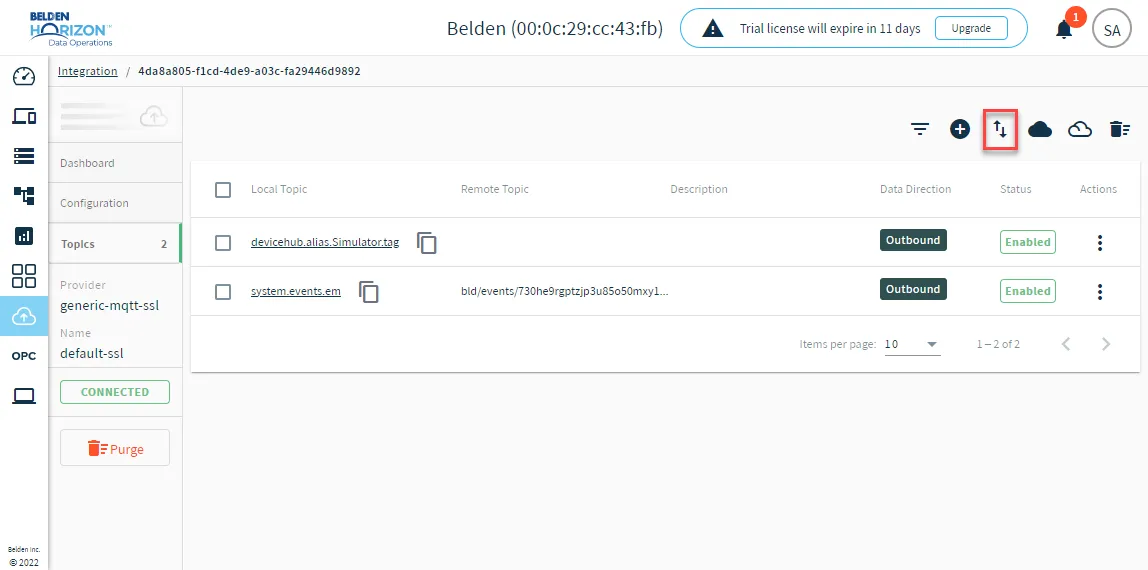 Import tags icon
- Select the appropriate device and click Import.
From the connector tile, click the toggle to disable and then enable the connector to restart it.
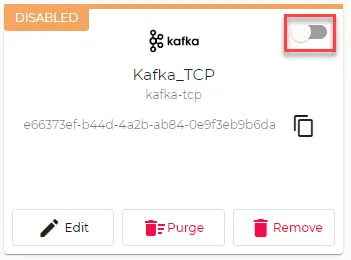 Toggle to enable connector
See the Connector Topics section in Manage Connectors for more details.
Step 7: Enable Topics
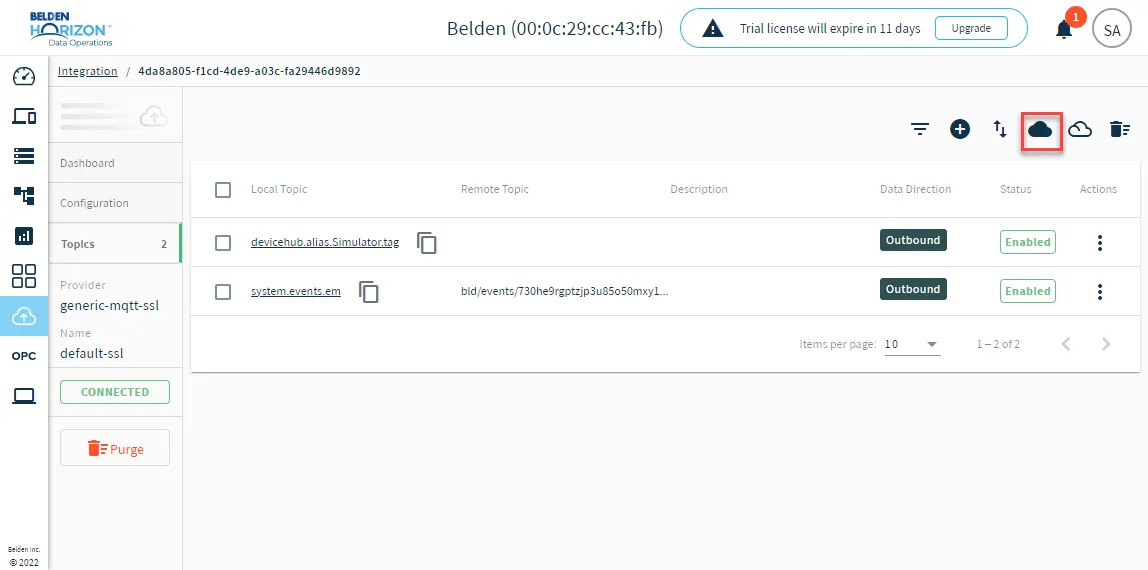
To enable the topics, return to the Topics tab and click the Enable all topics icon.