Connect a Device
You can connect devices by navigating to DeviceHub > Devices.
Before You Begin
Make sure you configure the physical device and collect the appropriate connection parameters. Refer to the Industrial Systems Connection Guide and locate your device for specific instructions.
Step 1: Select Device to Connect
You will first need to select the device type you want to connect and enter a name and description.
To connect a device:
From the DeviceHub pane, click the Connect a Device box. The Connect Device dialog box appears.
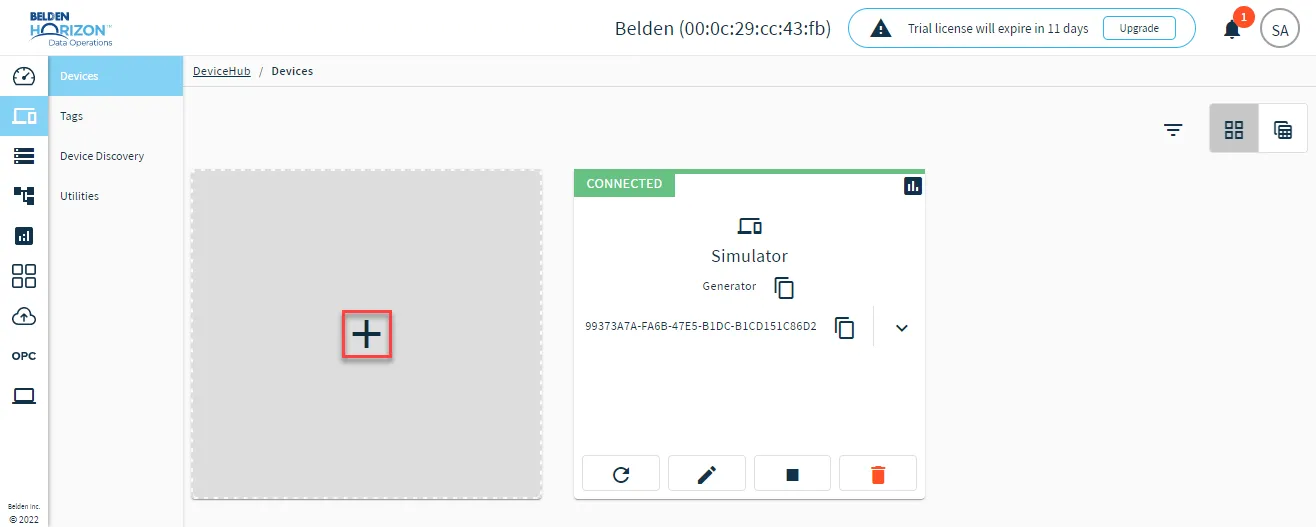 Connect a Device box
- Click the Device Type drop-down list and select a Device Type from the list.
- Click the Driver Name drop-down list, and select a Driver Name from the list.
- Enter a name and description for the device. The name can have numbers, uppercase and lowercase characters, and special characters. It can't start or end with whitespaces.
Step 2: Define Device-Specific Parameters
Depending on the type of device you are connecting, you will need to define specific parameters.
Refer to the following resources for information on specific drivers and use cases:
Device Discovery Tool
Depending on the device and driver you select, you may have the option of using the Device Discovery Tool, which searches for devices and pre-fills network parameters to connect the device to Belden Horizon Data Operations.
Refer to the table below for the required and optional parameters for device types.
Device Type | Required and Optional Parameters |
|---|---|
Ethernet device |
|
Serial device |
|
CAN device |
|
File-based device |
|
Step 3: Define Optional Parameters
You can select optional parameters for your device connection.
Meta Data
The Meta Data option summarizes basic information about data. It enables you to define key-value pair data for the device output payload later on. It can then be used to find, use, and reuse particular instances of data.
See Device and Tag Metadata Use Case to learn more.
If you select the Meta Data checkbox, the section expands with parameters to complete. By default, the list of Meta Data key-value pairs displays No records defined.
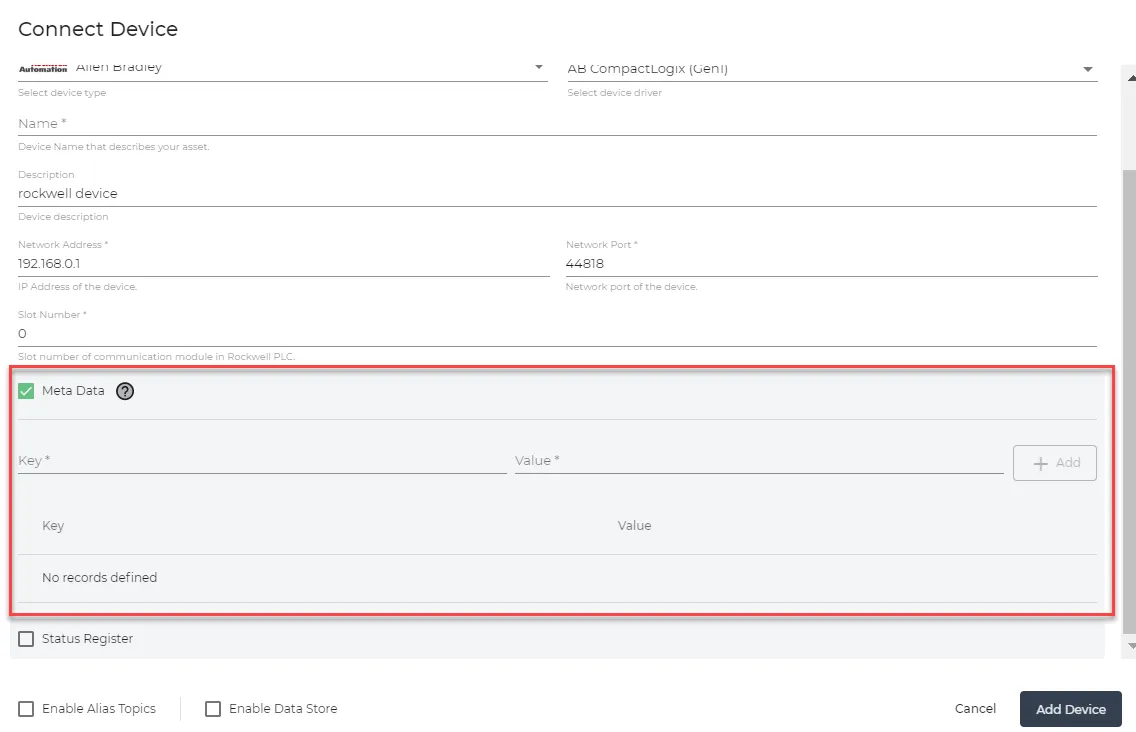
To define meta tags:
- In the Key field, enter the meta tag key.
- In the Value field, enter the meta tag value.
- Click + Add.
- Continue adding key-value pairs you want to add.
Status Register
The Status Register option allows you to define a register for keeping track of the device status (either connected or disconnected).
See Status Register Use Case to learn more.
If you select the Status Register check box, the section expands.
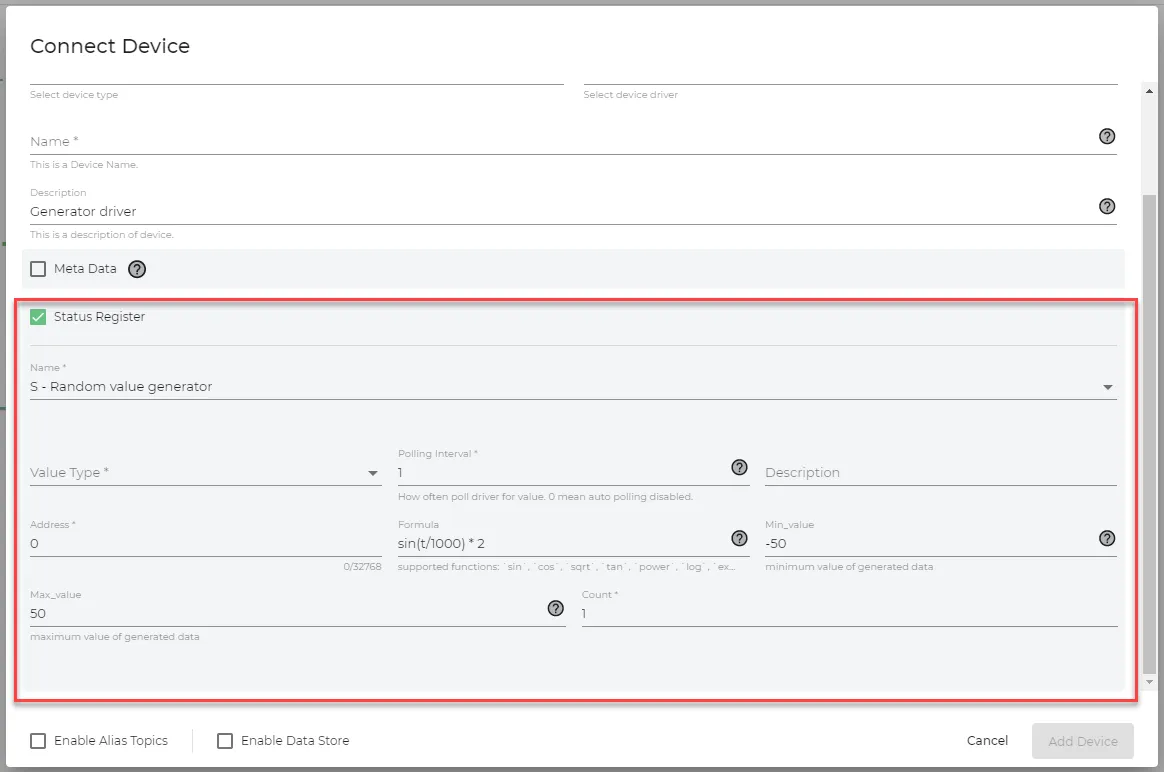
To define the Status Register option:
Depending on the device and your selections for Name and Value Type, the following parameters may have to be configured:
- Name: Depending on the device, either enter a name or select from the drop-down list.
- Value Type: Select the register data type.
- Polling Interval
- Description
- Address
- Formula
- Min Value
- Max Value
- Count: Enter the array size, so that you can read an array from the selected register.
As long as the above register responds to polling by DeviceHub, the device appears in the UI as Connected, regardless of the status of any other tags added to that device.
Enable Alias Topics
The Enable alias topics option allows you to substitute long, unreadable device and tag IDs with human-readable device and tag names in topic names. See Default Topics and Descriptions for more information.
For Belden Horizon Data Operations version 3.5.2 and later, the Enable alias topics check box is selected by default.
Notes:
- When you enable alias topics, DeviceHub stops publishing to raw topics and publishes only to alias topics.
- Belden Horizon Data Operations substitutes all special characters in aliases with "_" (underscore).
- When alias topics are enabled for a device, you can't use batch write topics. To use batch write topics, you must not select the Enable alias topics check box in the device configuration. See Default Topics and Descriptions for more information.
Enable Data Store
The Enable Data Store option allows you to define how long you want to store data locally.
To enable this option, select the Enable Data Store check box, and then define the number of hours in the Retention Hours field.
After creating the device, a data store icon appears in the top-right corner of the device tile.
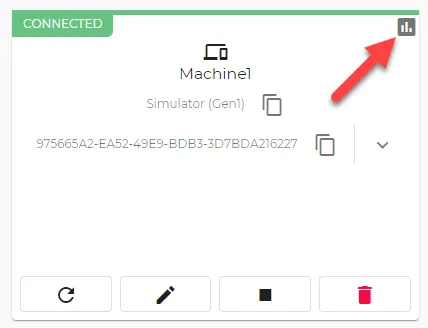
Enable Logging
Note:
- The Logs feature is available for Belden Horizon Data Operations version 3.5.2 and later.
- If you download a file a logs, the file will have a maximum of 50 entries.
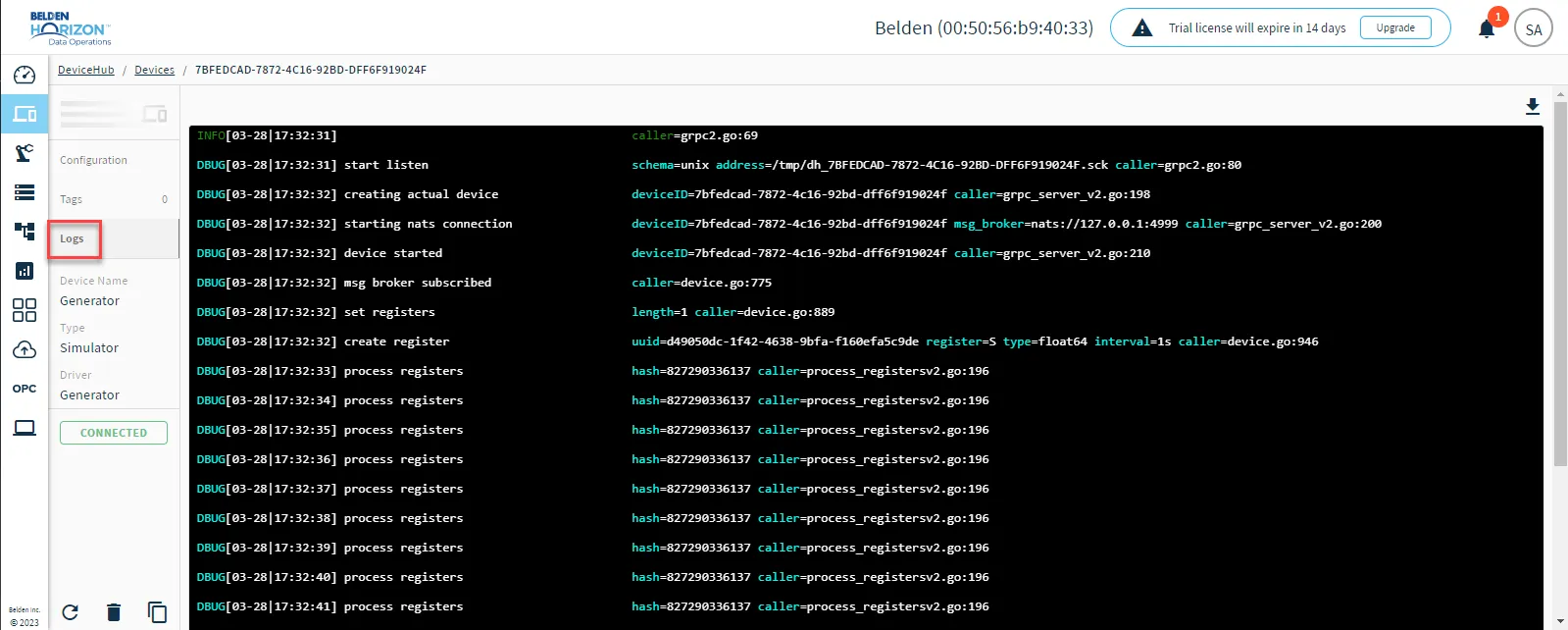
The Enable Logging option is available only for Gen 2 drivers. Once you connect the device, click the device tile and select the Logs tab to view the log.
Step 4: Create Device
When done defining the new device, click Add Device. A tile for the new device appears in the Devices pane. A green CONNECTED indicator means that a connection to the device has been established. You can stop a device to disconnect it.