Add Tags
You can add tags to connected devices by navigating to DeviceHub > Tags.
To learn more about the list of registers for specific devices, visit the Industrial Systems Connection Guide.
You can add tags as follows:
- One at a time: Adds a single tag for the selected device.
- Multiple tags in a CSV file: Uploads a list of tags from a CSV file.
- Browse selectable tags: Browse a list of pre-defined tags to add. See Browse Tags for more information.
Before You Begin
Before creating tags, make sure you have connected a device. Refer to Connect a Device.
Important
Refer to the following information on Free Tags and OPC UA Drivers:
- Certain device drivers do not have a list of register names in the Add Tag form. These are referred to as Free Tags.
- You must enter case-sensitive register names exactly how they are defined in the device.
- Devices do not display a Connected status until a tag with a correct register name is created. See Device Connectivity Status for more information.
- For OPC UA, map the OPC server tags to the client. Enter the Register Name using this format where the semicolon is required: ns=1;s=tagname . For example: ns=2;s=Channel1.Device1.Tag1.
Add an Individual Tag
You can add a Tag for a single device register or upload tag details with a comma-delimited CSV file. See the Add Multiple Tags section for more information about loading comma-delimited values.
To add a tag for a single register:
- Navigate to DeviceHub > Tags.
From the Tags pane, click Add Tag, and then select Add Tag. The Add Tag dialog box appears.
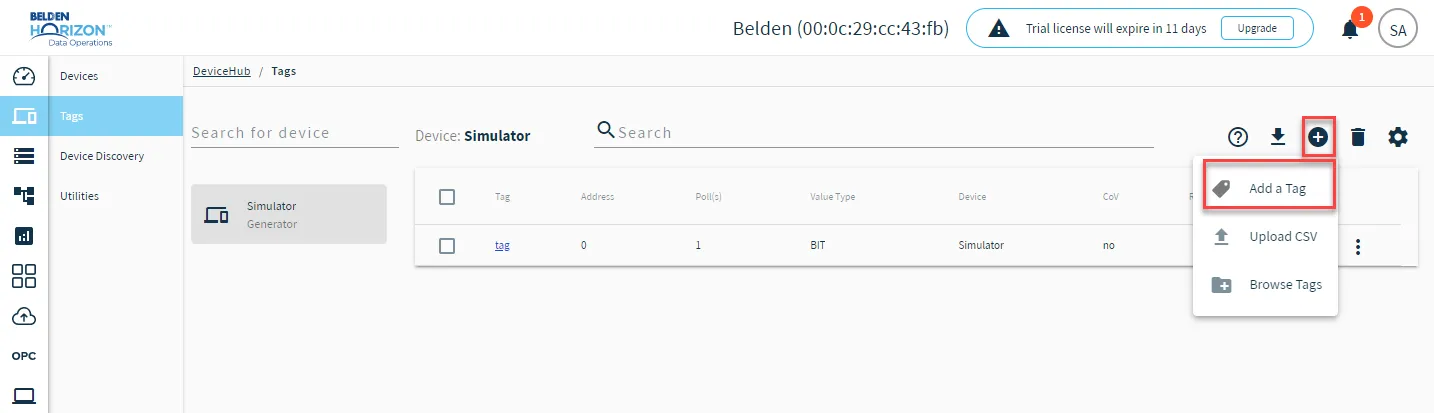 The Add Tag icon
- Click the Select a Device field, and then select an option from the drop-down list. Only devices that had been added to Belden Horizon Data Operations appear in the drop-down list. The fields displayed in the Add Tag dialog box depend on the device driver type.
- From the Add Tag dialog box, complete the parameters for the tag. Refer to the Industrial Systems Connection Guide for parameters specific to your device driver and review the Tag Parameters section.
- The following optional parameters apply to all device drivers. Configure them as needed.
- Tag Formula: Enter a formula for the tag to process the generated data. Two variables are permitted: value (current tag value) and timestamp (current tag UNIX time in milliseconds). The following math functions are available:
- sin
- cos
- sqrt
- tan
- power
- log
- exp
- Only Publish on Change of Value: Select the check box to customize NATS messages to be published only when the value parameter changes from a previous value to a new one. Change of Value only applies to numerical/string data values such as int, real, and float. It does not apply to JSON or arrays. Poll-once topics will not be affected by Change of Value settings. These topics will still only see a single message.
- Meta Data: Metadata summarizes basic information about data. This feature allows you to define key-value pair data for the device output payload later on. It can then be used to find, use, and reuse particular instances of data. See Device and Tag Metadata Use Case to learn more.
- When done configuring the tag, click Add Tag.
The tag appears in the Tags pane.
Add Multiple Tags
You can add multiple tags at once by downloading a CSV template file, filling out the file with tag details, and uploading the CSV file.
Important: When saving the CSV file, you must ensure that commas are used as column delimiters and not semicolons. If semicolons are used as column delimiters, you won't be able to upload the CSV file successfully. See Troubleshooting - DeviceHub to learn more.
Step 1: Download a Sample CSV Template
You will need to download a template CSV file that has the required fields for the tags you will add.
- Using the downloaded template, add a row for each tag to be added.
- Keep the header row as defined in the template.ma
To download a sample CSV template:
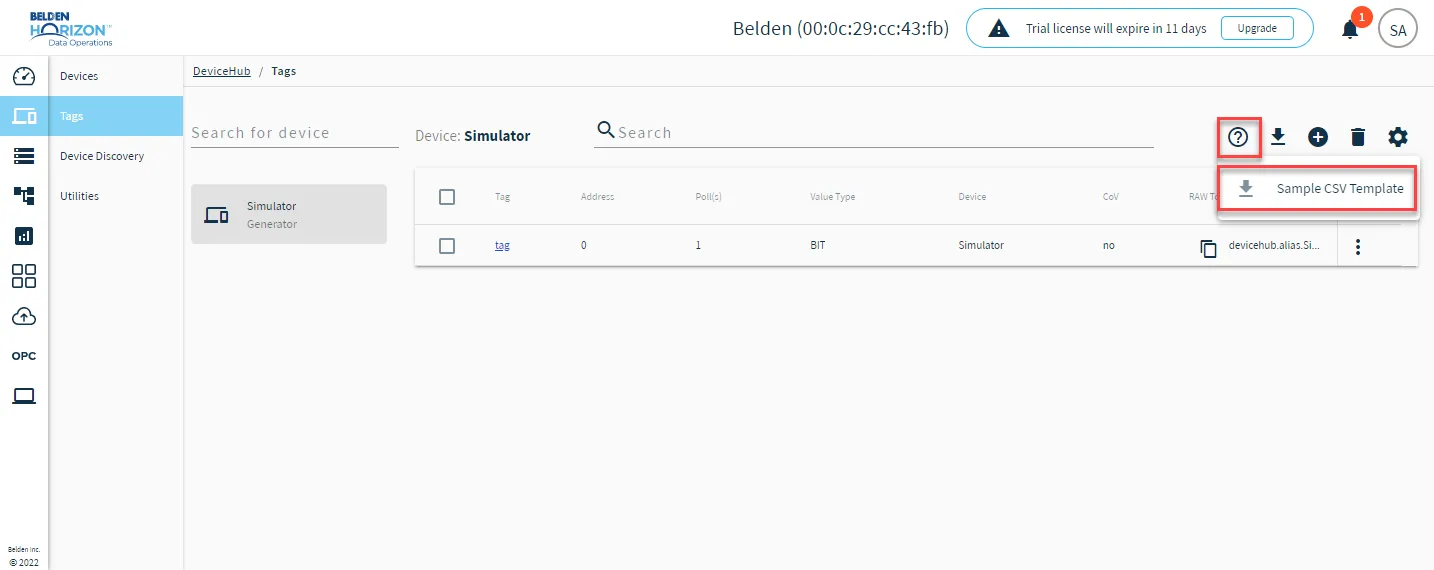
- From the Tags pane, click the Help icon.
- Select Sample CSV Template. The sample Tags CSV is downloaded to your local drive.
Step 2: Populate the CSV Template File
You can now populate the CSV template with the tags that will be added. A row/record for each tag must be populated with attribute values, as described below. Refer to the PLC's register definitions for details.
Important
- Don't make any changes to the header row in the file.
- If you are using a CSV file from a previous Belden Horizon Data Operations version, verify that all required columns are in the file. Additional columns may have been added to the current template file, or columns may have been renamed.
- The order of the attribute columns in the latest CSV template may be different from previous versions. The columns can be in any order.
Refer to the following sections for information on populating the CSV template file.
Example of a Tag CSV File
deviceId | deviceName | driverName | name |
|---|---|---|---|
A581B3E2-12CC-4A69-92C0-2C09DAFC5148 | Test_Device | AB CompactLogix Ethernet FreeTag | TestRegisterName |
tagName | description | valueType | registerID |
|---|---|---|---|
TestTagName | SampleDescription | bool | F26E4A5B-0F2A-4596-BDFF-444F4BCC9DBE |
publishCov | tagFormula | metaData | pollingInterval |
|---|---|---|---|
TRUE | value+timestamp+100 | {"MetaDataKey1":"MetaDataValue1"} | 1 |
Tag Attribute Rules
- Either deviceId or deviceName can be omitted, but not both. One of these fields is required to find the corresponding device.
- If a device identified by the deviceId is not found, the entire tag record is rejected.
- If a device identified by the deviceName is not found, this is not an error and the tag record is added.
- Attribute values are required unless noted as optional.
- If an optional value is null, it is ignored. This allows for the loading of register definitions for multiple device types from a single file.
- If the value is null and the device driver defines it as mandatory, the tag is not imported.
- If an optional value is present in the CSV file, but it is not supported by the device driver, it is treated as an error and the tag is not imported.
- Attribute columns in the CSV can be in any order.
Attribute Name | Data Type | Description | Notes |
|---|---|---|---|
deviceId | string | ID of the device (optional) | Click the Copy icon next to the very long device ID in the DeviceHub device tile to copy the device ID. If a device identified by the deviceId is not found, deviceName is used. |
deviceName | string | Name of the device (used if deviceId is not provided) | Copy the user-defined name for the device from the DeviceHub device tile. If a device identified by the deviceName is not found, this is not an error and the tag record is added. |
driverName | string | Driver name is for validating optional attributes against registration.json. This type should directly correspond to the name of the driver package. | Click the Copy icon next to the driver name in the Device tile to copy the driver name. Using this mandatory driver name, along with the device name, enables a user to replicate the device with the same tags over multiple Belden Horizon Data Operations systems. |
name | string | PLC register name or full PLC register address | Depends on valueType This name is case sensitive. |
tagName | string | Tag name that is displayed in DeviceHub | Often this is a combination of the register and address. |
description | string | Any text (optional) | An optional user-supplied description for each tag |
valueType | string | Type of the register value | The list of available selection depends on the Register Table of the device. Examples: bit, word |
registerID | string | An unique register Id generated for this tag | This value is automatically generated by Belden Horizon Data Operations upon tag creation. |
publishCoV | boolean | A flag that indicates whether to Only Publish on Change of Value or not | Disabled (FALSE) by default |
tagFormula | string | A formula that will transform the tag payload value to a new final value. | This column will be empty if there is no formula entered. Available parameter for the formula are as follows:
Available math functions
Example formula: sin(value) + 1 |
metaData | string | A JSON-formatted string containing one or more Metadata key-value pairs | This column will be empty if there are no Meta Data key value pairs |
pollingInterval | float | Polling interval in seconds | How often the tag will poll the driver for a value. 0 means auto polling disabled. 1 means poll every 1 second. |
Device-Specific Attributes
Attribute Name | Data Type | Sample Value | Description | Notes |
|---|---|---|---|---|
address | integer | 10 | Register address | Refer to the PLC vendor's guide for a list of valid addresses. |
count | integer | 1 | | |
CSV Formatting and Escaping Rules
Because CSV format is not standardized, several different methods could be used for escaping special characters. And, depending on locality, a different value separator may be used. For example, in European countries, a semi-colon is widely used as a separator. The Belden Horizon Data Operations CSV specification adheres to the rules used by Microsoft Excel, as listed below:
- Field separators can be comma (,), semicolon (;), or tab (\t).
- Fields can have white spaces around them. This space is removed during processing.
- Fields can be escaped with double quotes (") or single quotes ('). Leading or trailing white spaces inside the quotes are preserved.
- Any separator characters within a quoted field is treated as part of the field value.
- Any quotation character in a field value must be escaped with a backslash (\) character.
- Fields are parsed based on their data type: string values are read "as is" and numeric values are parsed with a numeric parser.
- Empty fields are treated as null values.
Step 3: Upload Populated CSV File of Tags
Once the CSV template file is populated, you can upload it to add all tags that were added to the file.
To upload a populated CSV file:
- Select the file to upload and click Open.
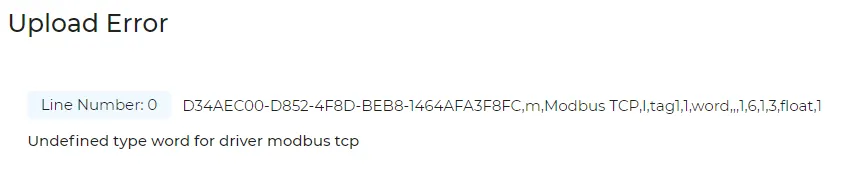
- From the Upload Tags dialog box, click Upload. Upon a successful upload, the tags appear in the Tags pane. If the details in the CSV file do not match the expected configuration, error messages indicate the issues.
Search for Device Tags
Some DeviceHub devices give you the option of searching, selecting, and downloading pre-defined device tags.
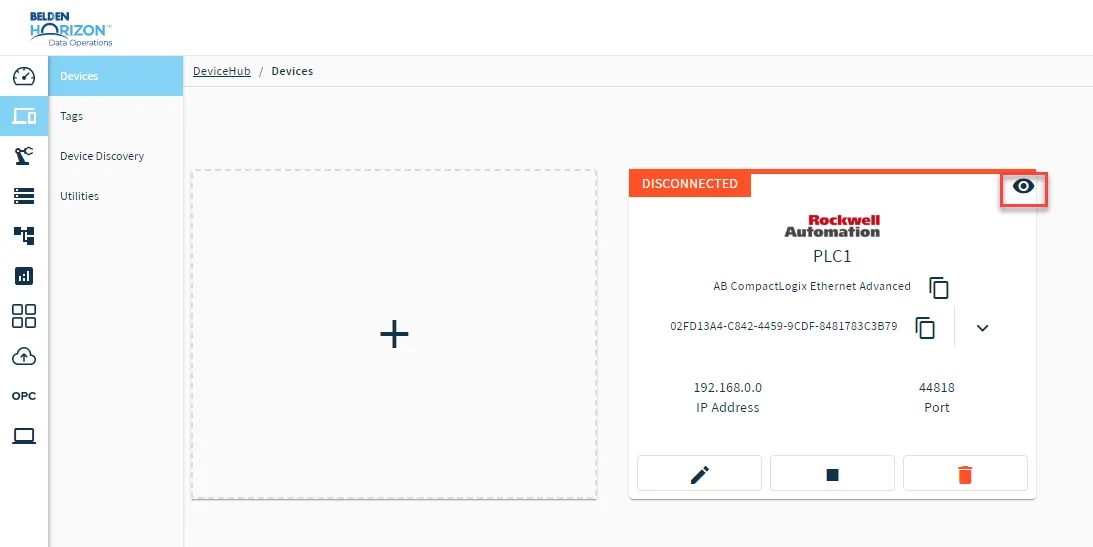
Devices that support searching for device tags display an "eye" icon in the top-right corner of the device card.
There are two ways to search for device tags:
Note: The Server Search option is available for Belden Horizon Data Operations version 3.5.2 and later.
- Use Browse Tags to view all available tags for a device. You can then select and download tags applicable for your DeviceHub device.
- Use Server Search to search for device tags. You will need to know the name of the tags you want to search for and add to your DeviceHub device.