Add a Connector
3 min
You can add a connector to connect to cloud applications and databases for data visualization and device management by navigating to the Integration pane.
To view the entire workflow of setting up integrations in Belden Horizon Data Operations, review Integration Use Cases.
Before You Begin
Before adding a connector, make sure you do the following:
- Set up the Belden Horizon Data Operations device on the same network as your device.
Add a Connector
To add a connector:
- Navigate to Integration.
From the Integration pane, click the Add a connector box. The Add a Connector dialog box appears.
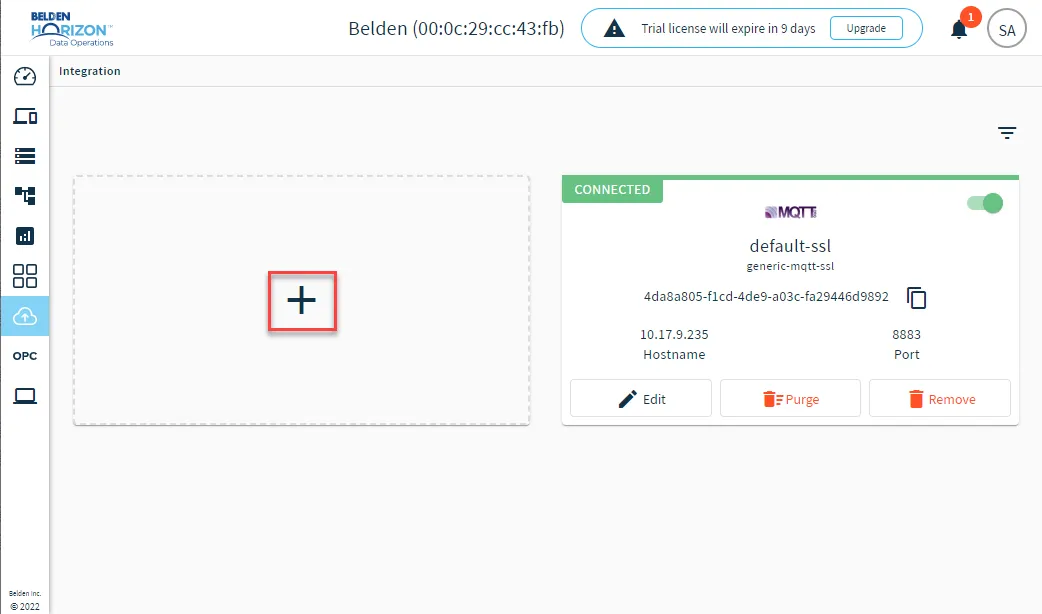 Add a connector box
- Select a provider from the Provider drop-down list.
- Depending on the provider selected, complete the following fields as detailed by Connector Provider Reference TableConnector Provider Reference Table.
- If you select DB - Microsoft SQL Server, DB - MySQL, or DB - PostgreSQL, see Work with Tables in SQL Connectors (Create Table and Show Mapping) to learn more about database table options.
- (If Available/Optional) Select the Persistent storage check box. When enabled, this will cause messages to undergo a store-and-forward procedure. Messages will be stored within Belden Horizon Data Operations when cloud providers are online.
- Click Add. The selected connector appears on the Integration pane.
- Toggle the Connector to the On position to turn on the communication.
Tips:
- You can modify your entries by clicking on the Connector tile and selecting the Configuration tab in the left pane.
- You must add and enable Topics for the Connector to receive data. See Manage Connectors for more information.