AMQP SSL
Review the following use case to integrate Belden Horizon Data Operations with an AMQP SSL connector to send and receive data (messages).
Step 1: Add a Device
Follow the steps to Connect a Device. The device will be used to store tags that will be eventually used to create outbound topics in the connector. Make sure to select the Enable Data Store check box.
Step 2: Add Tags
After connecting the device in Belden Horizon Data Operations, you can Add Tags to the device. Create tags that you want to use to create outbound topics for the connector.
Step 3: Add the AMQP SSL Connector
Follow the steps to Add a Connector and select the AMQP SSL provider.
Enter the details for the connector.
- Name: A recognizable name to identify the connector.
- Hostname: The AMQP broker's IP address.
- Port: The AMQP broker's port number. The default value is 5671.
- Virtual host (Optional): The virtual host path, which specifies the namespace for permissions, exchanges, queues, and bindings on the server.
- Username (Optional): The user name for authentication with the AMQP broker. The default value is guest.
- Password (Optional): The password for authentication with the AMQP broker. The default value is guest.
- Exchange (Optional): The northbound (third-party) topic to publish or subscribe to through the connector.
- exchangeType: Select the exchange type (direct, fanout, topic, x-custom).
- Exchange durable: Select the check box to allow the exchange to survive restarts.
- Exchange auto delete: Select the check box to make the server no longer remain declared when there are no remaining bindings.
- Exchange internal: Select the check box to enable the internal flag.
- Exchange no wait: Select the check box to instruct the exchange to not wait for a response.
- Routing key: The AMQP routing key that the exchange might use to determine how to route messages to the queue.
- ISO8601 timestamp: Select this check box to convert message timestamps to the ISO8601 format before sending.
- CA Certificate: The SSL certificate authority (CA) certificate.
- Certificate (Optional): The self-signed SSL certificate.
- Private key (Optional): The SSL private key.
- Throttling limit (Optional): The maximum number of messages per second to be processed. The default value is zero, which means that there is no limit.
- Persistent storage: When enabled, this will cause messages to undergo a store-and-forward procedure. Messages will be stored within Belden Horizon Data Operations when cloud providers are online.
Step 4: Enable the AMQP SSL Connector
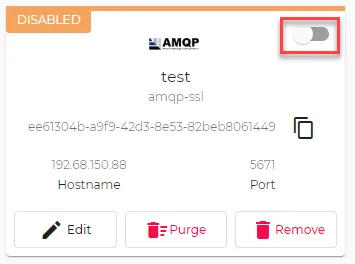
To enable the connector:
- Return to the Belden Horizon Data Operations Integration browser tab.
Step 5: Create Topics for AMQP SSL Connector
You will now need to create outbound topics for the connector from the tags created in Step 2.
To create outbound topics:
- Click the connector tile. The connector Dashboard appears.
- Click the Topics tab.
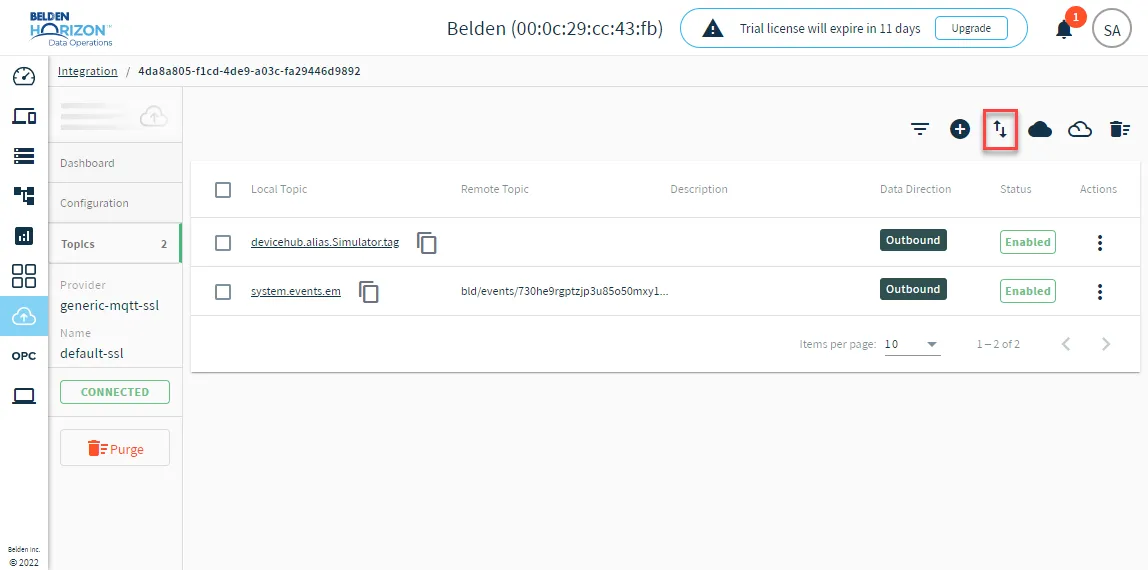
Click the Import from DeviceHub tags icon. The DeviceHub Import dialog box appears.
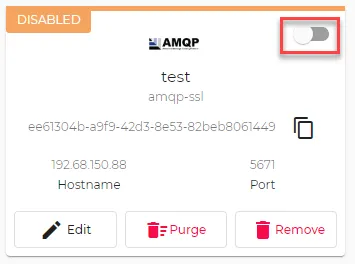
After adding all required topics, navigate to the Integration overview page and click the toggle to restart the connector verify the status is CONNECTED.
Step 6: Enable Topics
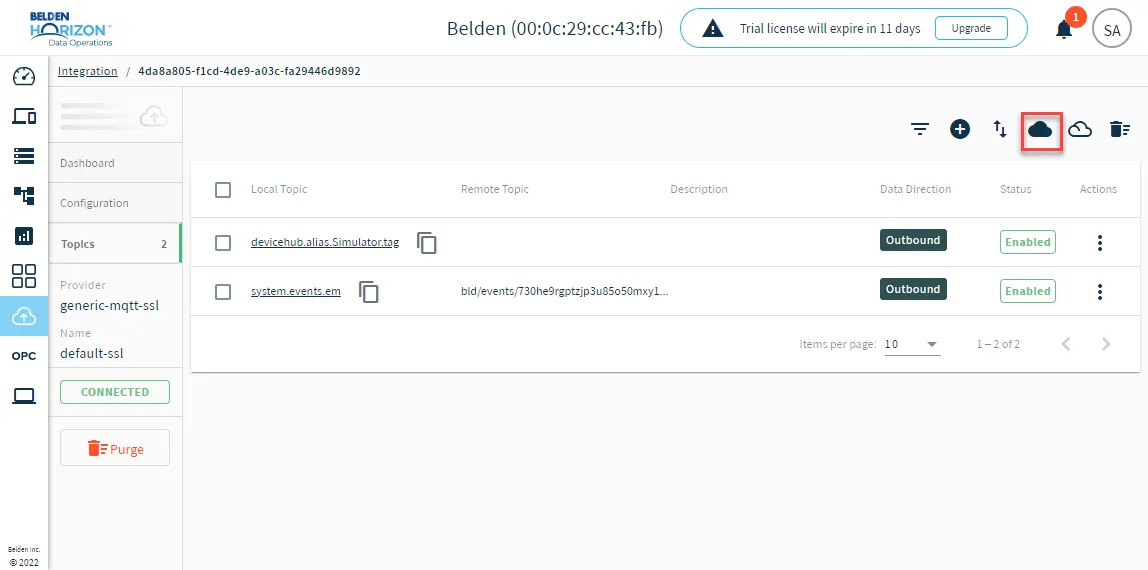
To enable the topics, return to the Topics tab and click the Enable all topics icon.