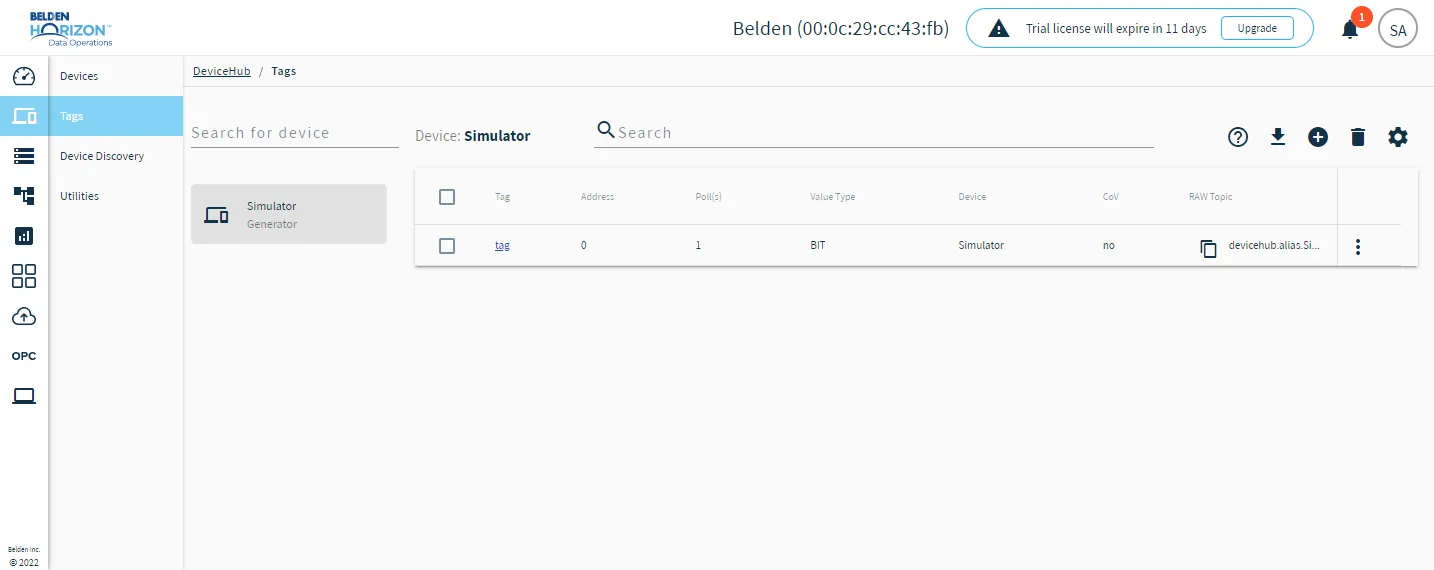
Tags
Tags are the single units of data collection from a device. Once you connect a device to Belden Horizon Data Operations, you add tags to that device. Tags map to the device's registers from which you want DeviceHub to collect data. Every device has memory registers that store sensor and system values. These registers can be analog and digital, input and output. Register information is accessed as tags and these tags are published as Topics to the internal Message Broker. By default a raw topic is generated with a tag. Alias topics can be generated by selecting the option to Enable alias topics. Alias topics consist of devicename and tagname instead of DeviceID and TagID. Topics can be used for publishing and subscribing with an internal message broker. Raw or processed data can be analyzed at the edge using Analytics or flows in Flows Manager. You can publish data to Belden Horizon Data Manager through raw topics.
You can add tags as follows:
- One at a time: Adds a single tag for the selected device.
- Upload a CSV file: Uploads a list of tags from a CSV file.
- Browse the device: Browse a list of selectable tags to add.
See Default Topics and Descriptions for information about topic formats.
Important
If you select Enable alias topics while adding or modifying a device:
- The Topic ID is replaced with a name (for example, devicehub.alias.PLC1.floatTag)
- DeviceHub stops publishing to raw topics and publishes only to alias topics.
- Belden Horizon Data Operations substitutes all special characters in aliases with "_" (underscore).
- Message broker allows subscribe and publish of Raw/Alias topics.
- When alias topics are enabled for a device, you can't use batch write topics. To use batch write topics, you must not select the Enable alias topics check box in the device configuration. See Default Topics and Descriptions for more information.
Access Tags UI
You can access Tags from the DeviceHub.
To access Tags:
- Log in to Belden Horizon Data Operations.
- From the Navigation panel, navigate to DeviceHub > Tags. The Tags pane appears.