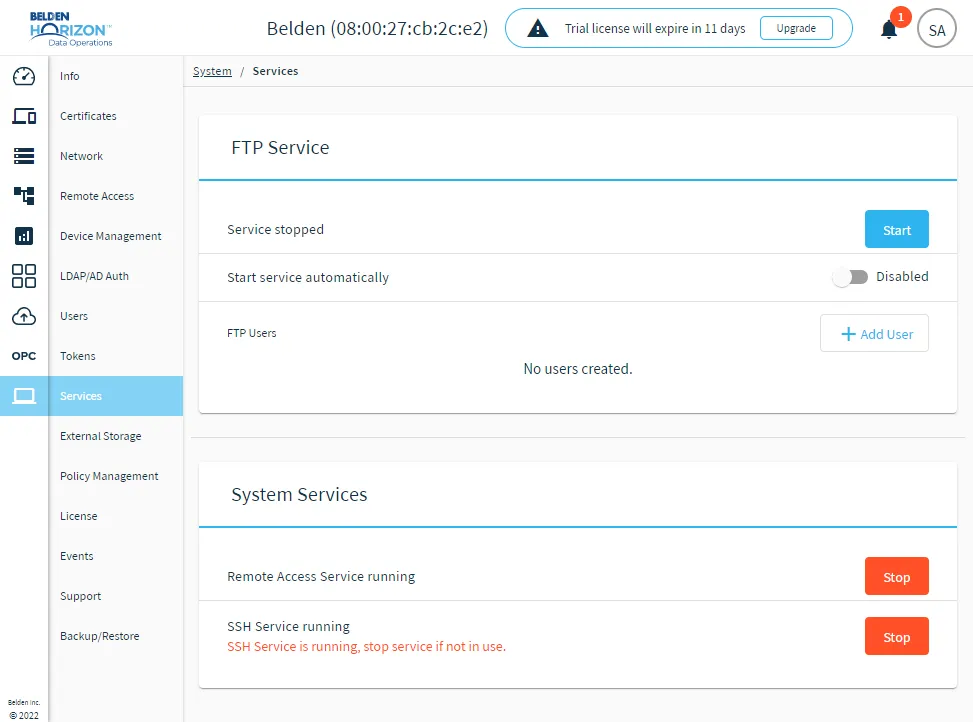
Services
You can navigate to the Services pane to manage services. You can manage following services:
- FTP (File Transfer Protocol) Server
- SSH (Secure Socket Shell)
- Remote Access services.
FTP Server
FTP is a standard network protocol used to transfer files between a client and server on a computer network.
- Belden Horizon Data Operations supports FTP, which allows devices to securely exchange files with the edge device. Belden Horizon Data Operations is the server in this exchange and the client is running on the device that is on the same network as Belden Horizon Data Operations.
- FTP can be used to transfer data through a CSV file or similar formats. It also can be used to read a file from the drive and send data to the cloud.
The FTP client must be running on a device that is on the same network as Belden Horizon Data Operations.
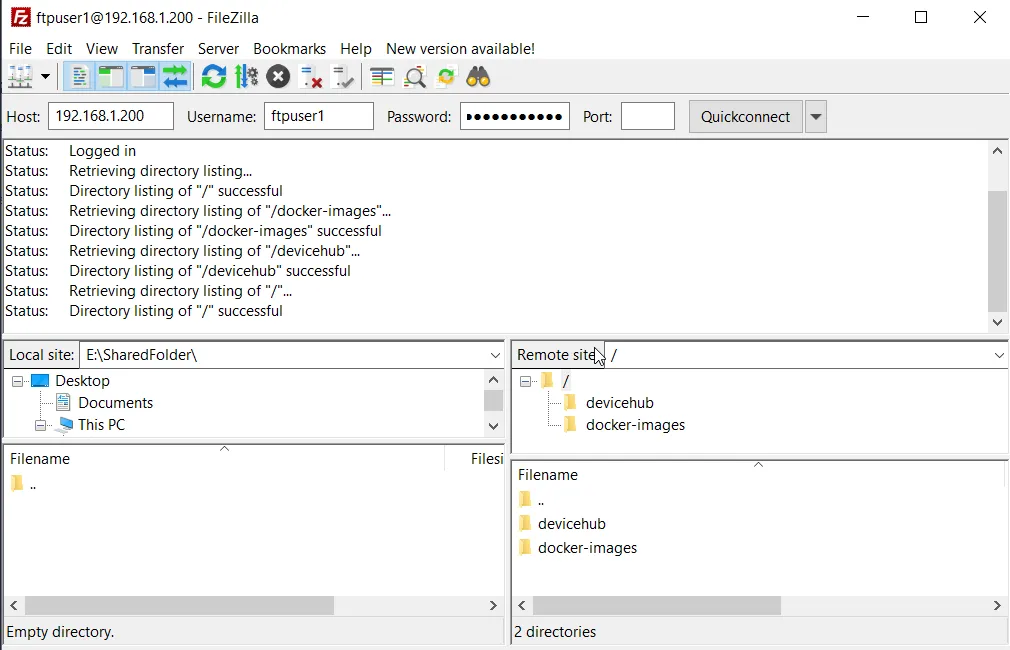
Use the following details to configure the FTP client, to establish a connection to the Belden Horizon Data Operations server.
- Host: The IP address of the Belden Horizon Data Operations device.
- Username: The Belden Horizon Data Operations FTP username.
- Password: The password that was generated.
- Port: The default FTP port is 21. The default SSH port is 22. SFTP uses port 22.
Filezilla works well as the FTP client communicating with Belden Horizon Data Operations. To establish a connection with Belden Horizon Data Operations (the FTP server) from Filezilla, you enter the Host, Username, and Password values (as described above), then click Quickconnect. Once connected, drag files from their source location to the default FTP directory in Belden Horizon Data Operations. This directory is /ftp-data.
System Services
This section helps you manage Remote Access Service and SSH Service. You can enable/disable these services from this section. By default it is enabled.
Access Services UI
To access the Services pane:
- Log in to Belden Horizon Data Operations.
- From the Navigation panel, navigate to System > Services. The Services pane appears.