Add an OPC UA Server Connection with UA Expert Client
You can connect a new client to the OPC UA server.
In the following use case, the Simulator is used as the selected device and UAExpert on Windows 10 is used as the client.
To add an OPC UA Server Connection, you will need to do the following:
- Step 1: Add the Simulator Device
- Step 2: Add a Tag for the Simulator Device
- Step 3: Add Nodes to the OPC UA Hierarchy
- Step 4: Connect a Client with UA Expert
To jump to a specific section, refer to the Table of Contents on the right side and click the corresponding step.
Before You Begin
Before completing the steps below, make sure you do the following:
Step 1: Add the Simulator Device
To add the Simulator device:
- Navigate to DeviceHub. The Devices pane appears.
- Select the Add box. The Connect Device dialog box appears.
- Click the Connect Device drop-down list, and select Simulator from the list.
- Click the Driver Name drop-down list, and select Simulator from the list.
- The Connect Device form drops down beneath your selections.
- Enter PLC1 in the Name field.
- (Optional) Enter a short description of the device in the Description field.
- Click Add Device.
Step 2: Add a Tag for the Simulator Device
Note: You should add multiple tags to the Simulator (for example, plc1_tag1, plc1_tag2, plc1_tag3, plc1_tag4).
To add a Tag for the Simulator device:
- Navigate to DeviceHub > Tags.
- From the Tags pane, click Add Tag, and then select Add One.
- Click the Select a Device field, and then select simulator from the drop-down list.
- From the Add Tag form , enter the following details:
- Value Type: Select int.
- Name: Select int-integer.
- Tag Name: Enter plc1_tag1.
- Polling Interval: Enter 1.
- Address: Enter 0.
- Min Value: Enter 1.
- Max Value: Enter 100.
- Description (Optional) Enter a description for the tag.
- Click Add Tag.
Step 3: Add Nodes to the OPC UA Hierarchy
You can add nodes to the OPC UA Hierarchy in the following ways:
Step 4: Connect a Client with UAExpert
To connect a client with UAExpert:
- From Custom Discovery, double click to add a server.
From the Enter URL dialog box, enter the Belden Horizon Data Operations IP address with the ocp:tcp:// protocol on port 4840. For example: ocp.tcp://192.168.1.130:4840.
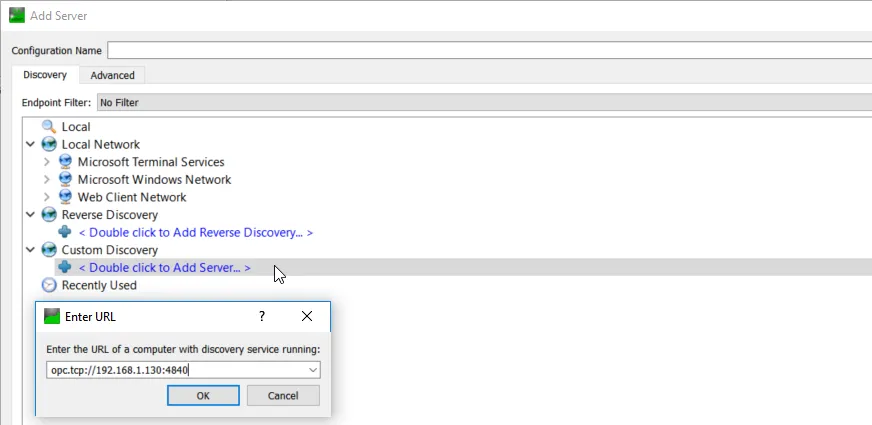 The Enter URL dialog box
Once connected successfully, verify that you can see the Root > Belden Horizon Data Operations > PLC1 > tags hierarchy in the Address Space panel.
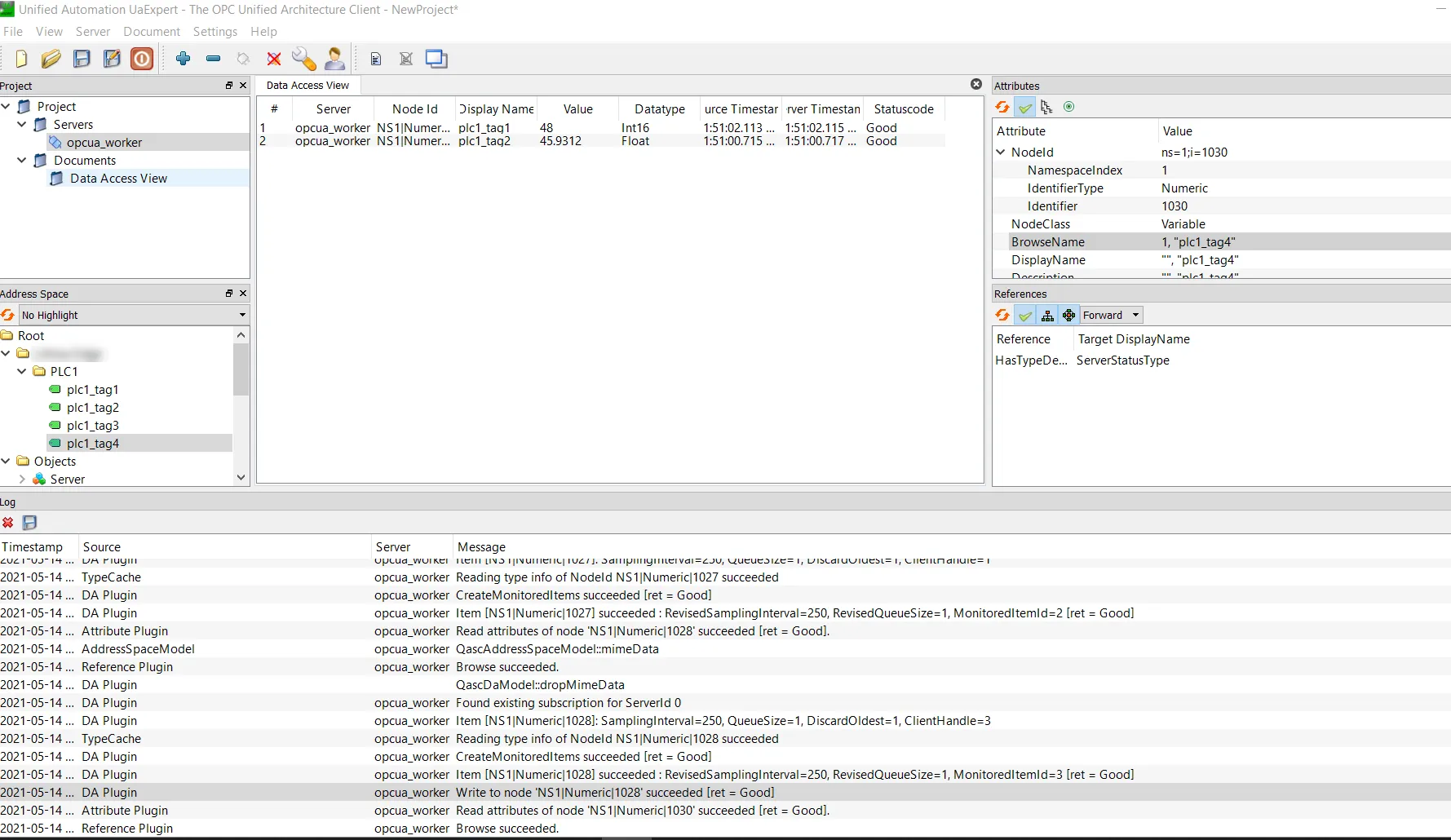 Address Space panel
- Select a Tag to view the the Tag's current value.