ISO Installation on an Industrial PC (IPC)
You can install Belden Horizon Data Operations with a physical gateway from a USB.
Before You Begin
- You have a basic knowledge of BIOS and selecting bootable media.
- Adjust the system clock using the BIOS prior to installing Belden Horizon Data Operations. The 15-day trial period may be rejected and invalidated by the license server if the system clock is not adjusted. If this happens, contact your Belden representative.
- Adjust the Boot Mode setting to UEFI using the BIOS prior to installing.
- Obtain a valid file in the ISO format from Belden.
- Make sure you have more than 16GB disk space to run 3.x images on a Bare Metal server.
To use a physical gateway to install Belden Horizon Data Operations, you will need to do the following:
- Step 1: Create a Bootable USB Flash Drive
- Step 2: Install On a Device
- Step 3: Log in to Belden Horizon Data Operations
To jump to a specific section, refer to the Table of Contents on the right side and click the corresponding step.
Step1: Create a Bootable USB Flash Drive
You will first need to create a bootable USB flash drive.
To create a bootable USB flash drive:
- Request an ISO file from Belden.
Important: The boot mode should be UEFI.
After preparing the USB drive, choose the instructions that are relevant for the device for which you are installing Belden Horizon Data Operations.
Step 2: Install on a Device
There are two methods to installing Belden Horizon Data Operations on a device:
- Install on a Device with Graphic Capability
- Install on a Device with No Graphic Capability (Headless Installer)
Select the method relevant for your device.
These instructions are applicable for VGA devices that can render the graphics displayed in the installer.
Install on a Device with Graphic Capability
Complete these steps to install from a USB flash drive.
To install on a device with graphic capability:
- Insert the USB flash drive (USB installation media) that contains the Belden Horizon Data Operations Installer image into the USB port on the gateway device. To execute the installer, the gateway device must boot from the USB flash drive.
- Perform one of the following:
- Start the gateway device.
- Reboot the gateway device from the USB flash drive to begin the installation. If the gateway device is not booting from the USB drive, bring up a list of boot devices. Each manufacturer has a specific button which must be pressed immediately after the device has been turned on or rebooted. The button is briefly displayed when the device boots after or while the logo is displayed. Common buttons are F12, the Windows key, and F9. Refer to your IPC manufacturer for more information.
- After the device initiates the installer, respond to the questions in the terminal user interface (TUI). Welcome to Operating System Installer. Are you installing over Serial (for advanced users)? Yes/No :
- Enter No, and then press Enter.
Select Install Operating System, and then select OK. Use the arrow keys to navigate to selections.
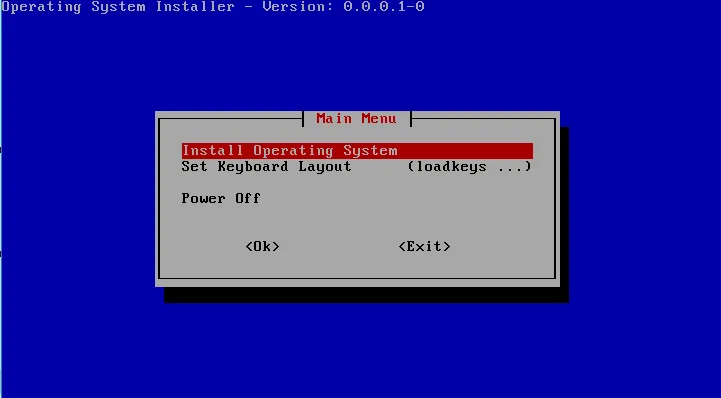 Install Operating System option
Select the partition to install, and then select Ok. The list is device-specific. Typically, the installation location is sda. If the device/gateway has embedded MMC (eMMC) components, the partition name may be listed as mmcblk instead of sda. Make sure you select the correct hard-drive location.
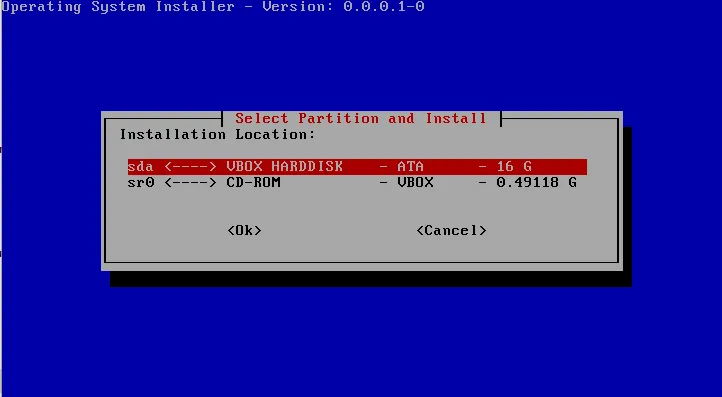 Select Partition and Install option
Verify the OS installation location by selecting Yes. If you select No, you are returned to the beginning of the installation.
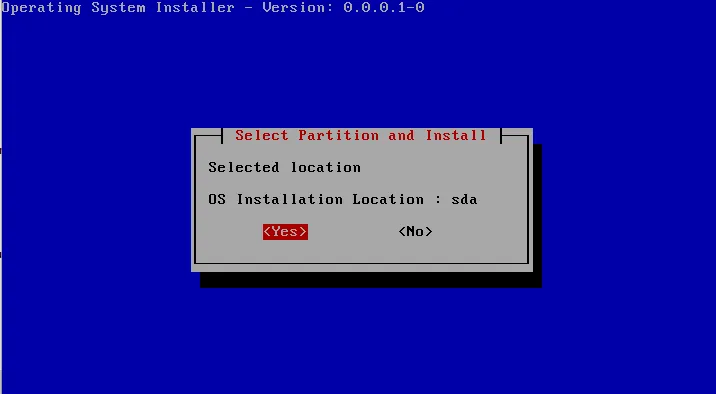 Select Partition and Install message
A second verification ensures that you are overwriting the correct device partition during the formatting process. Select Yes to continue formatting the device and installing the operating system. The installer indicates its progress, followed by a success message.
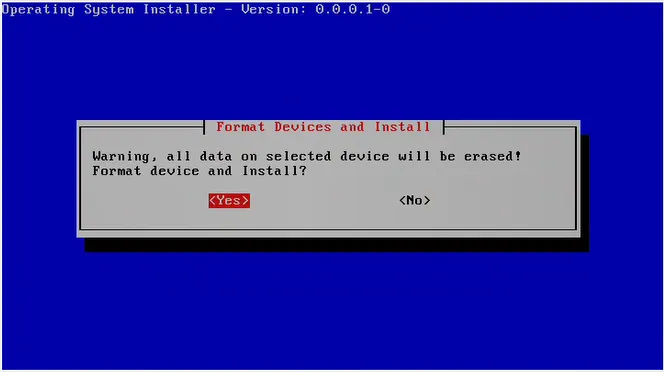 Format Devices and Install message
Power off the device and remove the USB drive (installation media).
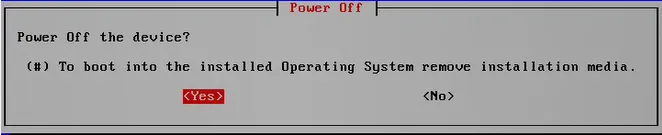 Power off message
- Reboot the gateway device.
The terminal window displays the URL that must be used to access the device using the Web UI.
Note: If several URLs are displayed, the first one is used for accessing the device through the Web UI.
You can now jump to "Step 3: Log in to Belden Horizon Data Operations".
Install on a Device with No Graphic Rendering Capabilities (Headless Installer)
Complete these steps to install from a serial device.
To install on a device with no graphic rendering capabilities:
- Insert the USB flash drive (USB installation media) that contains the Belden Horizon Data Operations Installer image into the USB port on the gateway device. To execute the installer, the gateway device must boot from the USB flash drive.
- Perform one of the following:
- Start the gateway device.
- Reboot the gateway device from the USB flash drive to begin the installation. If the gateway device is not booting from the USB drive, bring up a list of boot devices. Each manufacturer has a specific button that must be pressed immediately after the device has been turned on or rebooted. The button is briefly displayed when the device boots after or while the logo is displayed. Common buttons are F12, the Windows key, and F9. Refer to your IPC manufacturer for more information.
- After the device initiates the installer, respond to the questions in the terminal user interface (TUI). Welcome to Operating System Installer. Are you installing over Serial (for advanced users)? Yes/No :
- Enter Yes to continue with a text-only interface, and then press Enter. A list of partitions are displayed. This list is specific to the device.
Enter the partition name. In this example, sda. If the device/gateway has embedded MMC (eMMC) components, the partition name may be listed as mmcblk instead of sda. Make sure you select the correct hard drive location. You must type the name of the device. If you press Enter without typing the name, the installation fails.
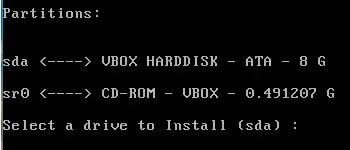 partition name prompt
Confirm the installation and format partitions, enter Yes, and then press Enter. The installer displays the installation status, followed by a success message.
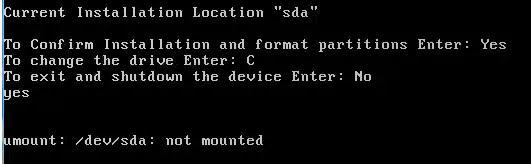 Confirmation message
- Remove the USB flash drive.
- Reboot the gateway device.
The terminal window displays the URL that must be used to access the device using the Web UI.
Note: If several URLs are displayed, the first one is used for accessing the device through the Web UI.
Step 3: Log in to Belden Horizon Data Operations
- See Access the Terminal User Interface for instructions on how to navigate and log in for the first time.