Access the Terminal User Interface
In some cases, you may need to use the terminal user interface (TUI) as you may have no direct network access to the device. In this case, you can connect locally to the device using a keyboard, mouse, and monitor. This will allow you to perform the required network setup to make the device accessible through the Web UI.
Using the TUI on the gateway device makes it possible to configure Belden Horizon Data Operations if network access is not possible and you have physical access to the device.
Connect a Keyboard and Monitor
The Gateway device has back-panel connectors for the monitor and a keyboard. These allow you to access the configuration options of the installed Belden Horizon Data Operations operating system.
You can:
- Connect a keyboard (for example, a USB connection).
- Connect a monitor (for example, an HDMI, Micro HDMI, or VGA connection).
Log in to the TUI after Initial Installation
When the system startup is complete, the TUI welcome screen displays the IP addresses and network interface settings. See the section below, Navigating the TUI, for tips on using the keyboard to navigate.
The eth0 Ethernet interface is required on first boot.

To log in to the TUI after the initial installation:
- Press F2 to enter the setup.
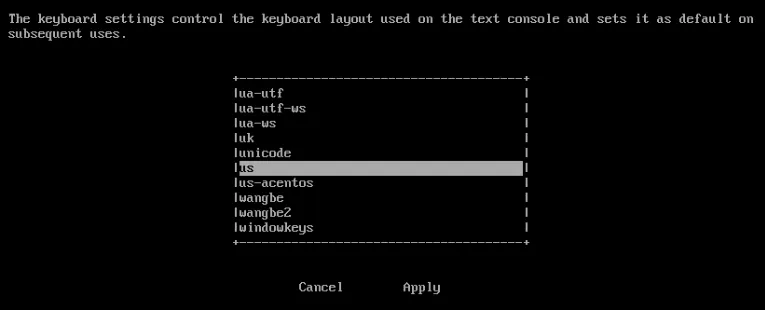
When logging in for the first time, you need to select the keyboard layout. The us layout is sufficient for most English keyboards. To select another layout, scroll up/down the list using the up/down arrows on your keyboard.
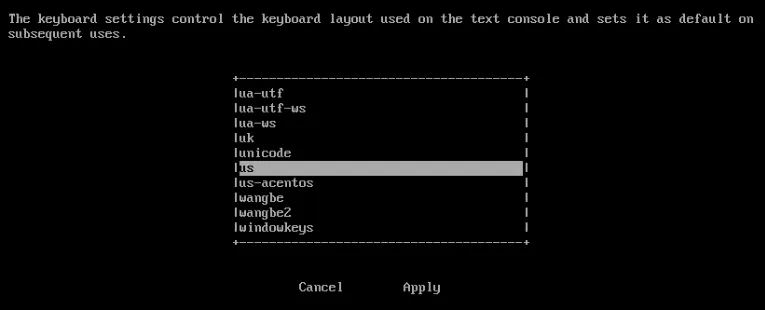 Keyboard selection
- Press Enter to apply the layout and display the login screen. If this is the first time anyone is logging in to this edge device, the credentials are: admin / password.
Enter your credentials. If this is the first time anyone is logging in to this edge device, the credentials are: admin / password. Use the Tab key to move fields.
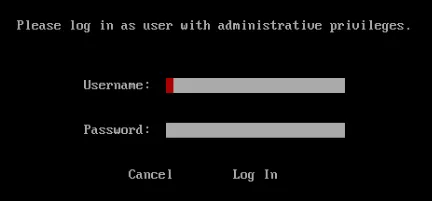 Login screen
- Tab to Log In and press Enter.
If this is the first time logging in to Belden Horizon Data Operations, refer to the following Log in to Belden Horizon Data Operations for the First Time section.
Log in to Belden Horizon Data Operations for the First Time
If you are logging in to Belden Horizon Data Operations for the first time, the end-user license agreement (EULA) is displayed.
To log in to Belden Horizon Data Operations for the first time:
Use the down arrow key to scroll through the agreement.
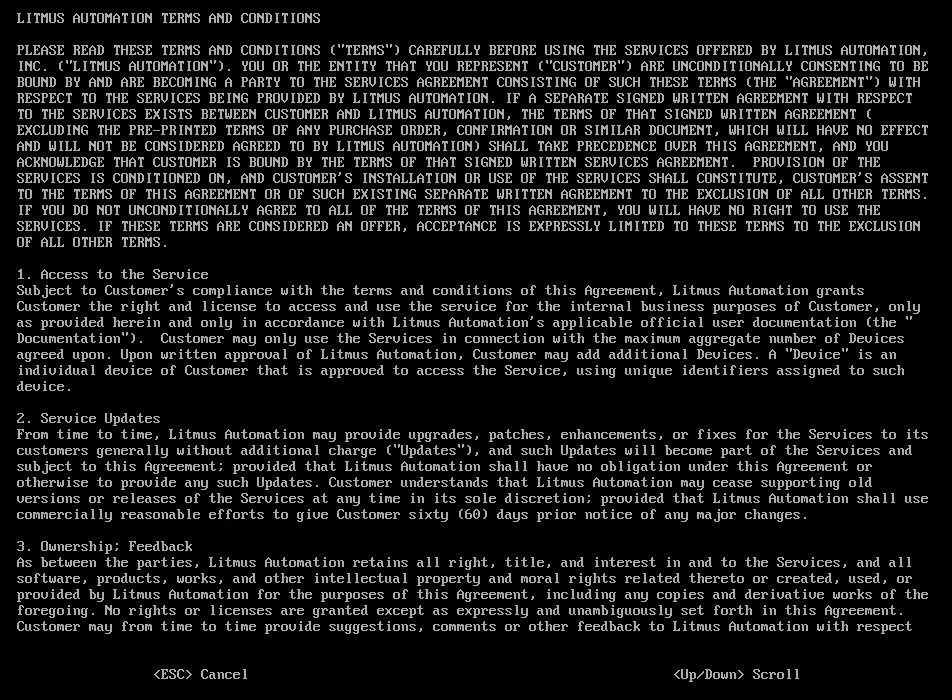 Terms and conditions
Press Enter to accept the agreement. The Change Password screen is displayed.
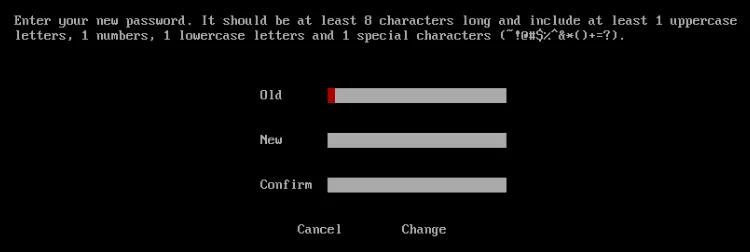 Change password screen
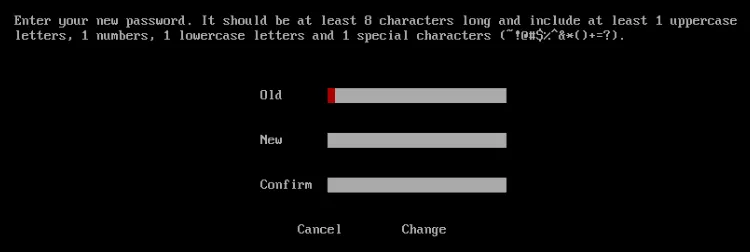
- Enter the old password (password) when logging in for the first time.
- Enter the new password and confirm it by entering that password again. See Policy Management for more information.
- Tab to select Change, and then press Enter.
Navigating the TUI
- The TUI logs you out if no activity occurs within a few minutes.
- To log in again, press F2.
The TUI is limited to keyboard input. Here are some tips for navigating the TUI with the keyboard:
- F2: Enter setup to configure settings.
- F5: Refresh the screen.
- Tab: Move the cursor from one field to the next.
- Arrows keys:
- Move the cursor to select an item in a list, such as the TUI Configuration Options.
- Use the Arrow keys to select an item, tab to Next at the bottom of the screen, then press Enter to advance to the screen of the selected option.
- Enter:
- Accept the data and move to the next field.
- Submit the form and display the next screen in the workflow.
Example of TUI Navigation
When selecting an option:
- Use the Arrow keys to move through the list of TUI Configuration Options.
- Use the Tab key to select the item highlighted by the cursor. The cursor moves to the Next button.
- Press Enter when the cursor is on the Next button to advance to the screen of the selected option.
Configure Belden Horizon Data Operations Using the TUI
The TUI has many of the same options that are available through the web browser interface.
Many of these settings need to be set when first deploying a device. Several options can be set later.
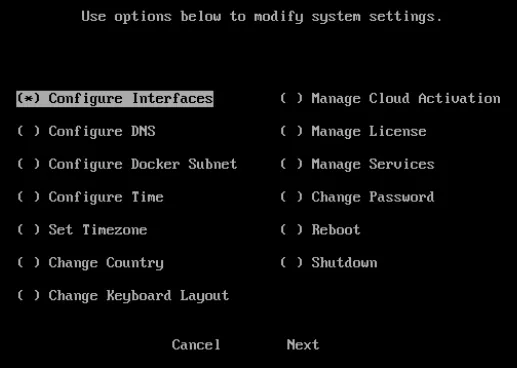
Configure Interfaces
Select the interface configuration type and enter the details.
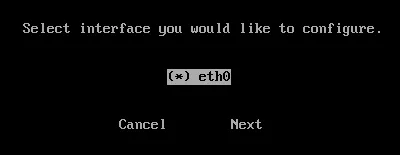
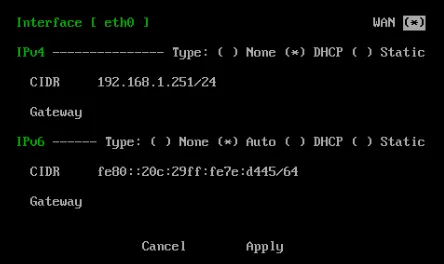
In the following example, you can set a static IP address by providing the following information:
- CIDR: This Classless Inter-Domain Routing (CIDR) notation identifies a block of IP addresses, similar to network subnetting. This example of CIDR notation (192.168.0.15/24) means that the first 24 bits of the IP address are used for network routing.
- Gateway: The default gateway address on a network can be found using the ipconfig command.
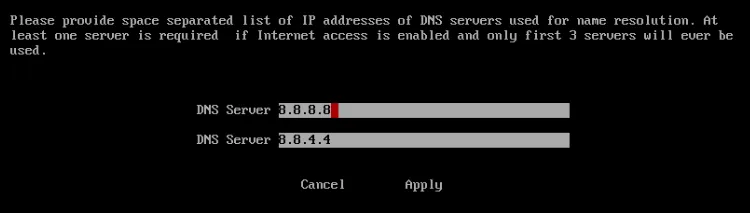
Configure DNS
Use this dialog to enter space-separated IP addresses of the DNS servers.
- At least one server is required.
- If internet access is enabled, only the first three servers are used.
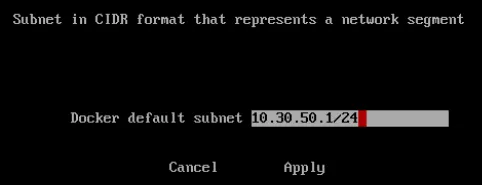
Configure Docker Subnet
Enter the default subnet for Docker and select Apply.
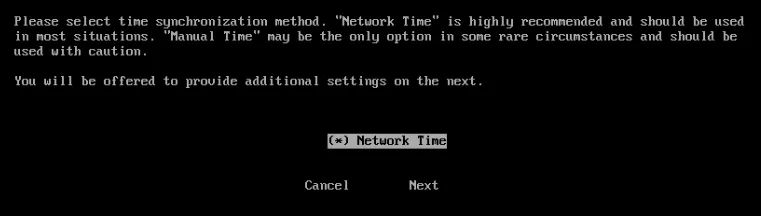
Configure Time
Network Time is the recommended configuration.
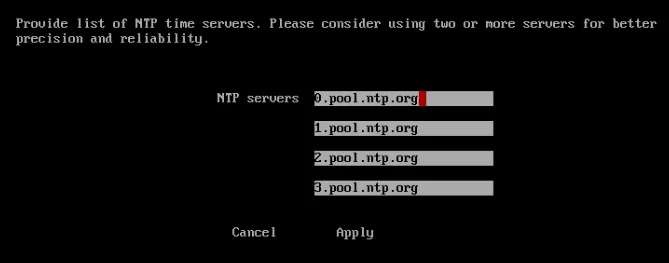
Enter NTP (Network Time Protocol) servers and select Apply.
Two or more NTP servers is recommended.
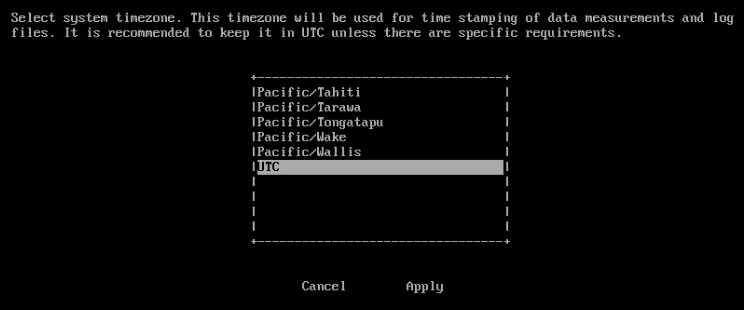
Set Timezone
The time zone setting is significant because it is used for data collected by the system and log timestamps. See Time Synchronization (Troubleshooting) to learn more.
It is best practice to use UTC for your time zone.
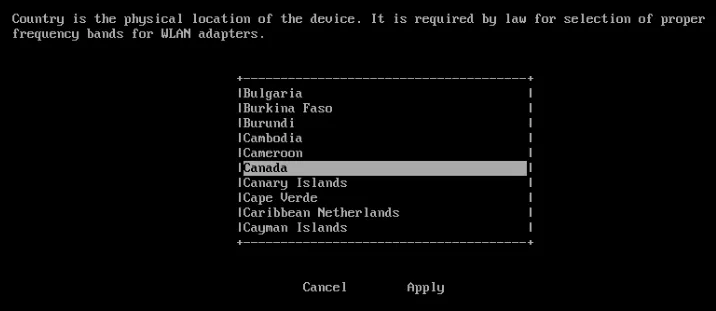
Change Country
Country is the physical location of the device. This affects the frequency band of the WLAN adapter.
Choosing the appropriate frequency band of the WLAN adapter is a legal requirement.
Change Keyboard Layout
Use this menu to change the keyboard layout to match the keyboard layout of your country.
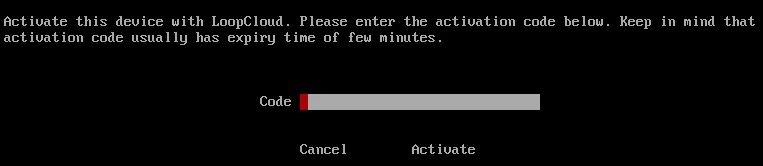
Manage Cloud Activation
Use this option to activate the Belden Horizon Data Operations device with Belden Horizon Data Manager.
This TUI option should only be used when someone at another location is accessing Belden Horizon Data Manager through a web browser. Contact Belden to provide the activation code to the TUI user.
The validity period of the activation code is usually several minutes. See Activate a License for more information.
Enter the activation code and select Activate.
If your edge device had already been cloud-activated, the activation details are shown.
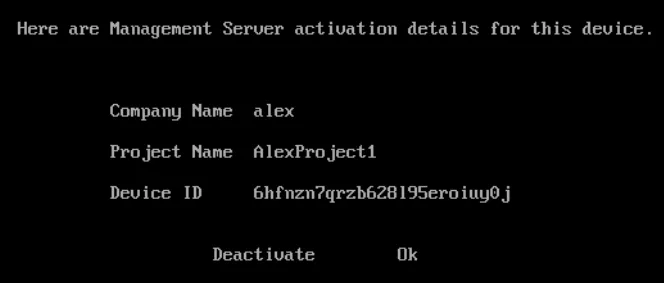
To deactivate the edge device, select Deactivate.
Manage License
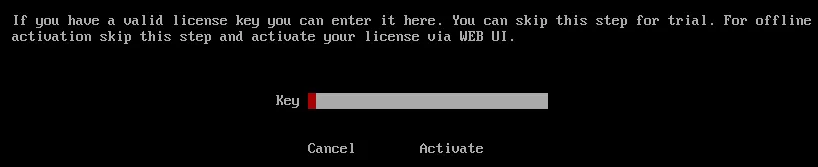
Use this option to enter a license key.
For offline license activation, use the browser interface. See Licenses for more information.
Manage Services
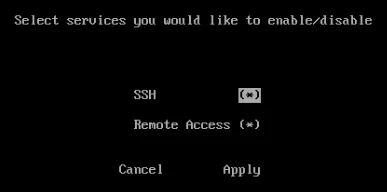
Select or deselect the required service and select Apply.
Change Password
See Policy Management for more information.
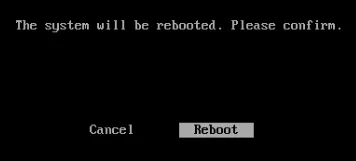
Reboot
If you decide to not reboot:
Use the arrow keys to select Cancel, then press Enter.
The operating system reboots and returns to the initial screen where you can once again press F2 to log in, then choose TUI Configuration Options.
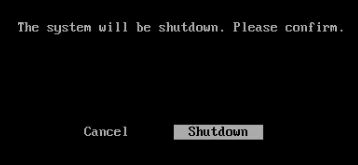
Shutdown
If you decide to not shut down the operating system:
Use the arrow keys to select Cancel, then press Enter.
When you shut down Belden Horizon Data Operations, the TUI interface closes.