Access the Belden Horizon Data Operations Web UI
After successfully installing Belden Horizon Data Operations, you can access the Web UI from a browser such as Chrome or Firefox.
Important: You may see the following error message when working with Analytics: "Http failure response for /analytics/v2/version: 0 Unknown Error". If you see this message, disable any ad-blockers your browser may have.
Access from a Browser
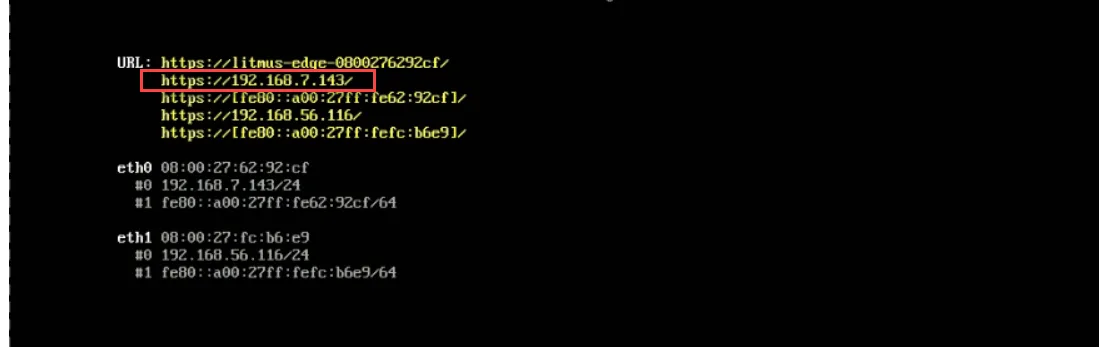
After you have installed Belden Horizon Data Operations you can connect to the Belden Horizon Data Operations device from a browser using the network IP address for the device. The address can be found on the terminal display of the gateway or of the VM terminal.
Notes:
- The system is accessible from a browser by host name if your computer supports mDNS. This is a convenient feature if your device uses DHCP for address
- Make sure that your network is not behind a company firewall or proxy that is blocking the connection.
Log in to the Belden Horizon Data Operations Web UI the First Time
Refer to the following to log in to Belden Horizon Data Operations the first time after installing it to your device.
- Make sure you connect your personal computing device (Laptop, Tablet, Desktop) to the network in which the device operates. The Belden Horizon Data Operations software should be installed on the device that is connected to the same network as your personal computing device so that you can establish a network connection.
- To access the Web UI, you must use Google Chrome, Mozilla Firefox, or Apple Safari. The browser must be able to establish a network connection to the device.
- Gather the Belden Horizon Data Operations IP address from the terminal window as shown above.
The IP used to access the device is usually the WAN IP or eth0 IP. If the IT and OT networks are segregated, the network used to establish the connection to the PLC system, robotic system, or CNC system is the eth1 network and cannot be accessed from the browser. If no segregation exists, only eth0 is used by both the OT and IT connection. There is no open external API point.
Belden Horizon Data Operations uses a self-signed certificate, so the browser will most likely block the login for security reasons. Choose the advanced option to bypass the error message.
To log in to Belden Horizon Data Operations the first time:
- Enter Belden Horizon Data Operations IP address into the browser address bar.
- Enter the default credentials. The default username is admin and password is password.
- Click Log in.
- A Software License Agreement displays. Review the agreement and click Accept.
- Follow the prompts to change your password.
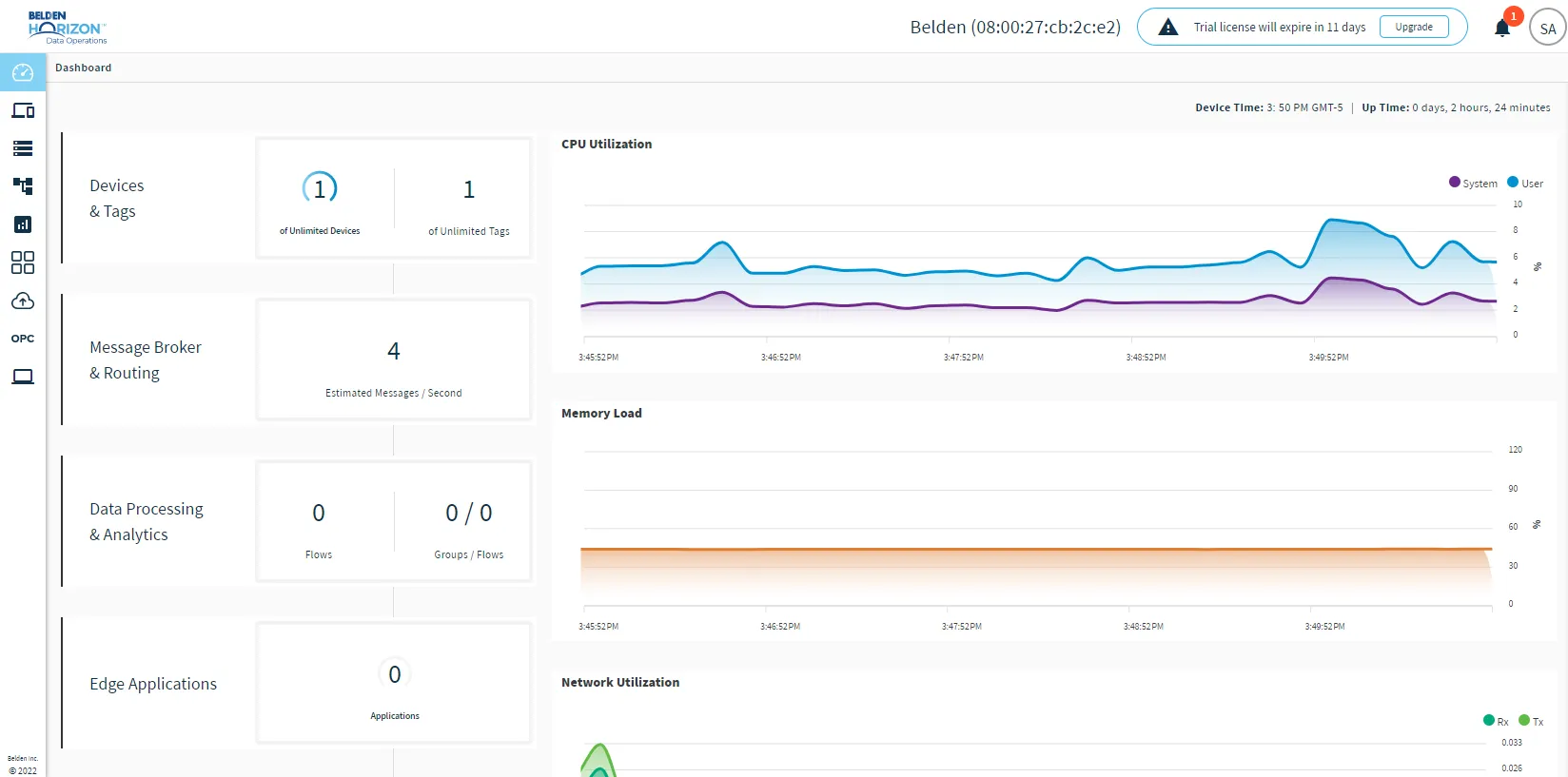
- Belden Horizon Data Operations opens in your browser. The Dashboard page appears by default. You are now logged into Belden Horizon Data Operations.
Password Requirements
Password requirements are applied when you reset your password or create user accounts within Belden Horizon Data Operations. At the first login, you will be prompted to change the default password. When creating a password, the password must meet the Password Policy Management Requirements. See Policy Management for more information.
Notes:
- Do not forget your password. For security reasons, there is no password recovery. If you lose the administrator password, you must reinstall Belden Horizon Data Operations.
- In some cases, you may need to use the Terminal User Interface as you may have no direct network access to the device. In this case, you can connect locally to the device using a keyboard, mouse, and monitor. This will allow you to perform the required network setup to make the device accessible through the Web UI.