Excel (Gen1)
7 min
You can set up the Excel driver to read values in an Excel file.
Before You Begin
Make sure you do the following:
- Have an Excel file located on your hard drive.
Set Up Excel Driver
Setting up the Excel driver includes the following tasks:
- Step 1: Set Up FTP Client
- Step 2: Add Excel Driver
- Step 3: Add a Tag For a Single Cell in Excel
- Step 4: Add a Tag for Range of Cells in Excel
- Step 5: Create Flow for Single Cell in Excel
- Step 6: Create Flow for Range of Cells in Excel
Step 1: Set Up FTP Client
To set up the FTP client:
Open the WinSCP FTP client. The FTP Login dialog box appears.
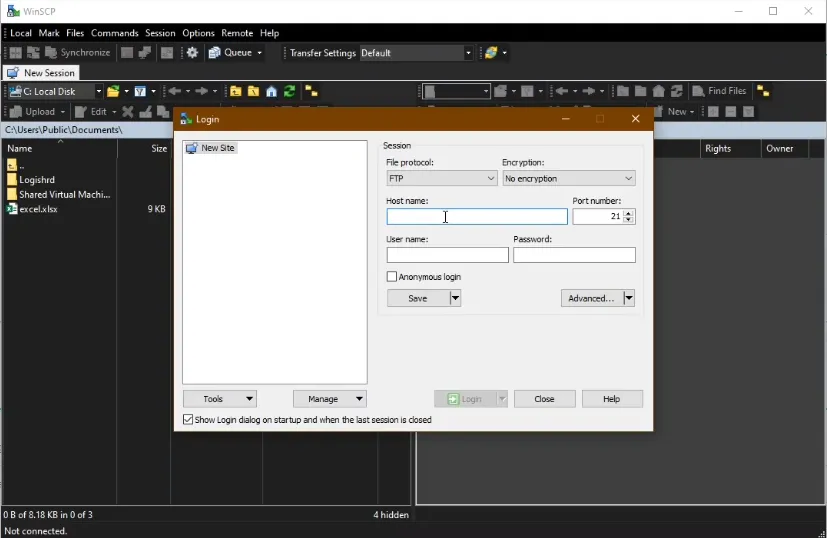 FTP Login dialog box
- For File Protocol, select FTP.
- Configure the following parameters.
- Host name: Enter the Belden Horizon Data Operations URL.
- Click Login. The WinSCP window appears.
- Open the DeviceHub folder in the right pane.
- From the left pane, drag the Excel file to the open DeviceHub folder. The Excel file uploads to the folder.
Step 2: Add Excel Driver
To add the Excel driver:
- In Belden Horizon Data Operations, navigate to DeviceHub > Devices.
Click the Connect a Device box. The Connect Device dialog box appears.
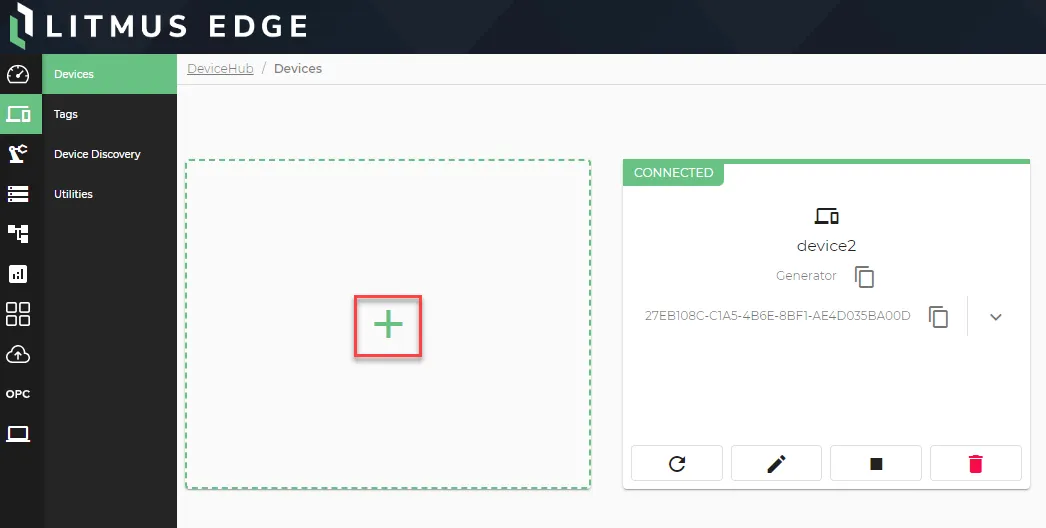 Connect a Device box
- In the Device Type drop-down list, select Excel.
- In the Driver Name drop-down list, select Excel (Gen1).
- In the Name field, enter a name for the device.
- In the Path field, enter the path for the Excel file that you just previously uploaded.
- Click Add Device. The Excel device appears in the Devices pane.
Step 3: Add a Tag For a Single Cell in Excel
The Excel device is disconnected until you add a tag.
To add a tag for single cell:
- In Belden Horizon Data Operations, navigate to DeviceHub > Tags.
- Click the Excel device.
Click the Add icon and select Add a Tag.
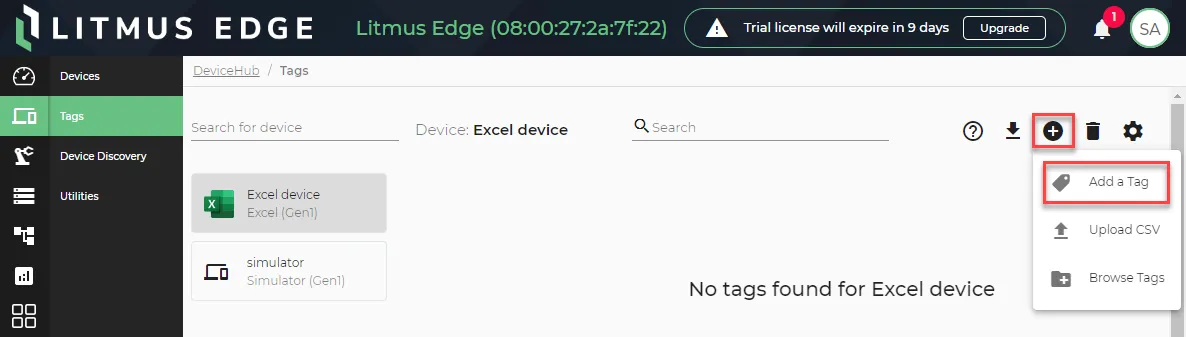 Add a Tag option
- Name: Select R.
- Value Type: Select single.
- Polling Interval: Enter a value.
- Tag Name: Enter a tag name.
- Start Cell: Enter a value. For example, A1.
- End Cell: To configure the tag for only one cell, enter the same value as the Start Cell.
- Sheet: Enter the Excel file sheet name from which the cell data is used. The sheet name must be exactly the same as the sheet name in the Excel file.
- Click Add Tag. The tag is added to the tags pane.
- Click the Copy icon for the tag in the RAW Topic column.
Step 4: Add a Tag for Range of Cells in Excel
To add a tag for a range of cells:
- In Belden Horizon Data Operations, navigate to DeviceHub > Tags.
- Select the Excel device.
Click the Add icon and select Add a Tag.
Add a Tag option- Name: Select R.
- Value Type: Select range.
- Polling Interval: Enter a value.
- Tag Name: Enter a tag name.
- Start Cell: Enter the starting cell to read data.
- End Cell: Enter the ending cell to read data.
- Sheet: Enter the Excel file sheet name from which the cell data is used. The sheet name must be exactly the same as the sheet name in the Excel file.
- Click Add Tag. The tag is added to the tags pane.
- Click the Copy icon for the tag in the RAW Topic column.
Step 5: Create Flow
To create a flow:
- In Belden Horizon Data Operations, navigate to the Flows Manager and create a new flow. See Create a Flow to learn more.
- Drag the DataHub Subscribe and Debug nodes to the canvas and wire them together.
- Double-click the DataHub Subscribe node
- In the Topic field, paste the RAW Topic value from either "Step 3: Add a Tag For a Single Cell in Excel" or "Step 4: Add a Tag for Range of Cells in Excel".
- If needed, configure the Datahub Subscribe connection. See the "Step 3: Configure Connector Nodes" section in Create a Flow to learn more.
- Click Deploy.
- Click the Debug icon. See the "Additional Options" section in Manage the Flow Canvas to learn more.