DeviceHub Agent
The DeviceHub agent acts as a proxy between OPC DA and the Belden Horizon Data Operations system. It allows you to search for available OPC DA Servers and provides a list of tags for the selected server. Multiple servers can be selected.
Review the following use case for connecting and configuring the DeviceHub Agent in Belden Horizon Data Operations.
Important
- It is possible to configure multiple connections to several DeviceHub Agent instances inside a Belden Horizon Data Operations or multiple Belden Horizon Data Operations instances using only one DeviceHub Agent application. You can create each connection using the Add (+) icon.
- Plain TCP with text-based protocol is used to communicate with the DeviceHub Agent driver.
- The DeviceHub agent includes options to export tags to a CSV file. The CSV file can then be used to import the tags to Belden Horizon Data Operations. The status of the tags are checked periodically. Sending tags to DeviceHub is the preferred method.
Before You Begin
Download the DeviceHub Agent EXE file from Belden Horizon Data Operations by navigating to System > Support in the File Downloads section.
Setting up the DeviceHub Agent includes the following tasks:
- Step 1: Add DeviceHub Agent to DeviceHub
- Step 2: Create API Token
- Step 3: Install Matrikon OPC Explorer and Simulation and Testing Tool
- Step 4: Set up DeviceHub Agent
- Step 5: Connect the OPC DA Explorer
- Step 6: Send Tags to DeviceHub
- Step 7: View Tag Data
Step 1: Add DeviceHub Agent to DeviceHub
To add the DeviceHub Agent to DeviceHub:
- In Belden Horizon Data Operations, navigate to DeviceHub > Devices.
Click the Connect a Device box.
The Connect Device dialog box appears.
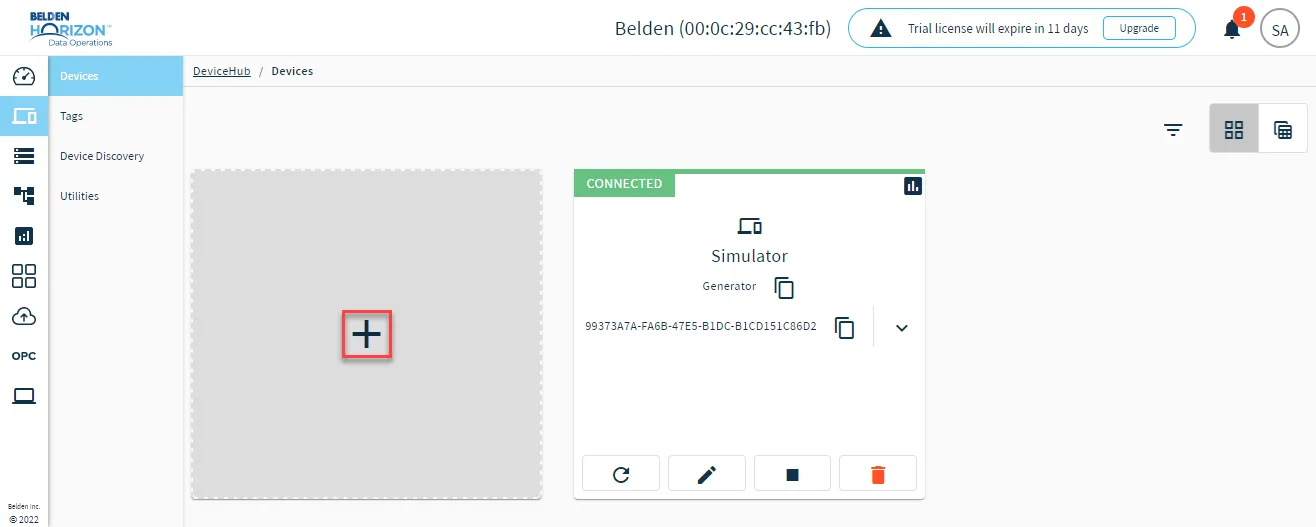 Connect a Device box
- In the Device Type drop-down list, select OPCUA.
- In the Driver Name drop-down list, select DeviceHub Agent.
- Enter a name for the device. The device name you configure is used for the Device name parameter in the DeviceHub Agent configuration.
- (Optional) Select the Enable alias topics check box. This allows you to name the Topic ID when creating a Tag.
- If you enable alias topics during device creation or modification, DeviceHub stops publishing to raw topics and publishes only to alias topics.
- Belden Horizon Data Operations substitutes "." (period) in aliases with "/" (forward slash).
- Click Add Device. The device appears in the Devices pane.
Step 2: Create API Token
Follow the steps to Create an API Token. Copy the token and store it for later use.
Step 3: Install Matrikon OPC Explorer and Simulation and Testing Tool
Note: To install these files, you may have to enable the .NET Framework 3.5. See Microsoft documentation on this topic to learn more.
In this use case, Matrikon Server is used. You can also use Kepware Server or Prosys Server.
To download Matrikon OPC Explorer and Simulation and Testing Tool:
- From the Matrikon search bar, enter OPC Simulation Server Download, and click Search.
- Click the OPC Simulation Server Download link.
- From the download page, enter your first name, last name, and email address, and then click Download Now.
- From the registration form, enter your account information, and then click Download Now. An activation email is sent from Matrikon.
- Click the link provided in the email. Use your email address as your user name, and the password you provided in the form as your password for the http://www.matrikonopc.com/portal URL.
- Click Download Now. The MatrikonOPCSimulation.exe file downloads to your hard drive.
- Install the MatrikonOPCSimulation file.
- From the Matrikon search bar, enter MatrikonOPC Explorer Download, and click Search.
- Click the MatrikonOPC Explorer Download link.
- From the download page, click Download Now.
- Install the MatrikonOPCExplorer filie.
The server configuration is by default. You can add an alias configuration. Explorer is used to connect to the OPC DA server and browse the tags.
Step 4: Set Up DeviceHub Agent
You can now set up the DeviceHub Agent by connecting to the OPCDA server and DeviceHub in Belden Horizon Data Operations.
To set up the DeviceHub Agent:
- Open the DeviceHub Agent EXE file you downloaded.
From the Main tab, click the Add box. The Add connection dialog box appears.
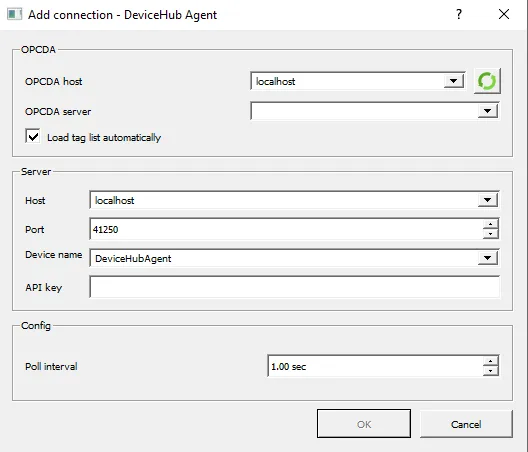 Add connection dialog box
Click the Detect icon. The servers are detected and appear in the OPCDA server drop-down list. The OPCDA host is localhost because the OPC DA server is installed on the same machine as Belden Horizon Data Operations.
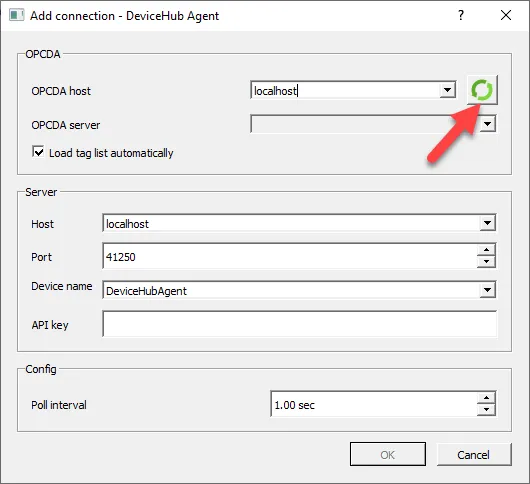 Detect icon
- Select an option from the OPCDA server drop-down list.
- Configure the Server settings section.
- Host: Enter the IP address for your Belden Horizon Data Operations instance.
- Port: The port value should be the same one configured for the DeviceHub Agent device in Belden Horizon Data Operations.
- Device name: Enter the device name you configured for the DeviceHub Agent device in Belden Horizon Data Operations.
- API key: Paste the API key created in Step 2.
- Click OK. The OPC DA driver is added in the DeviceHub Agent in another tab, and the tags for the selected server are viewable in the tags box.
Click the Connect icon. The DeviceHub Agent connects to DeviceHub in Belden Horizon Data Operations.
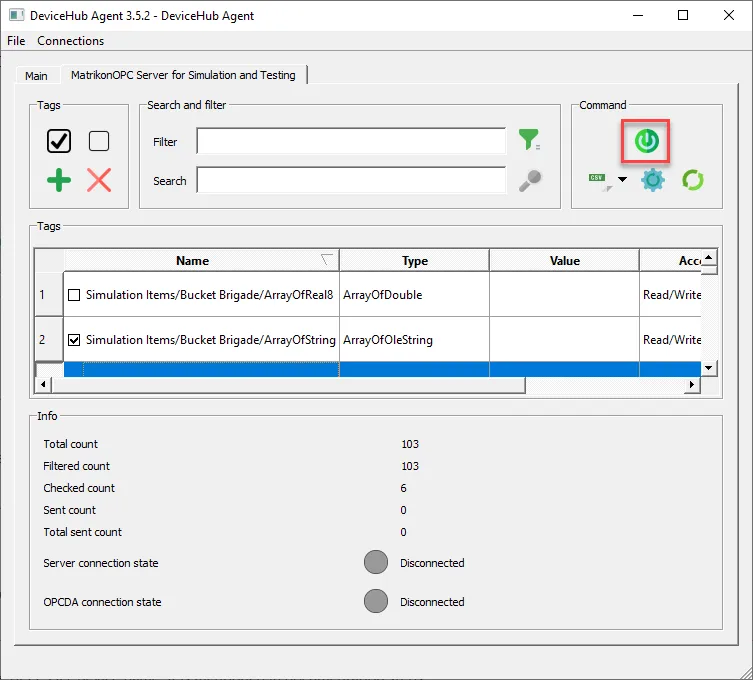
- Return to the Belden Horizon Data Operations instance and navigate to DeviceHub.
If you need to remove a connection in the DeviceHub Agent application, select the tab for the connection you want to remove and go to Connections > Remove connection.
Step 5: Connect the OPC DA Explorer
To connect the OPC DA Explorer:
- Open the MatrikonOPC Explorer.
- Under the Localhost entry in the hierarchy, click the Matrikon.OPC.Simulation.1 entry.
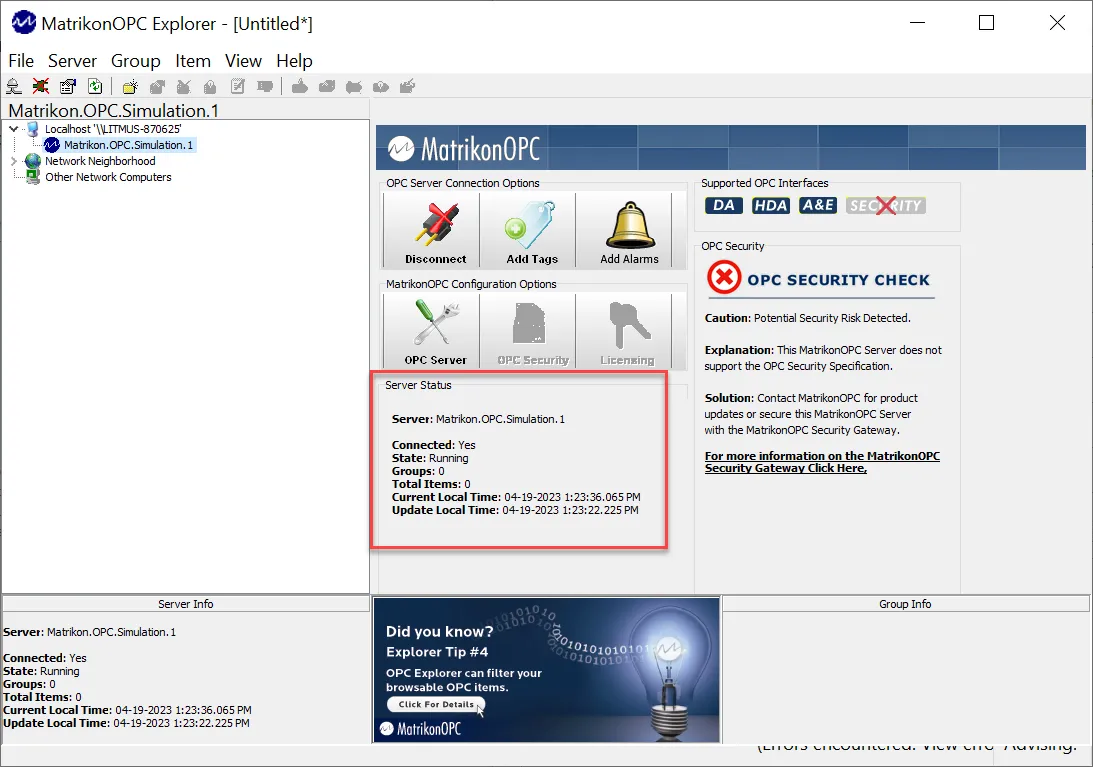
- Click the Connect button. Connection information appears in the Server Status panel.
You will need to connect the OPC Explorer to the Simulation and Testing Tool.
To connect the OPC DA Explorer:
- Open the MatrikonOPC Explorer.
- Under the Localhost entry in the hierarchy, click the Matrikon.OPC.Simulation.1 entry. If you get the error message "Matrikon OPC explorer machine is not browsed", go to View > Options > General and select the Registry check box in the OPC Server Browsing section.
- Click the Connect button. Connection information appears in the Server Status section.
Step 6: Send Tags to DeviceHub
You can send tags from the DeviceHub Agent applicaiton directly to DeviceHub in Belden Horizon Data Operations. This is the recommended method to add tags to the DeviceHub device.
To send tags to DeviceHub:
Make sure the DeviceHub agent is disconnected from DeviceHub.
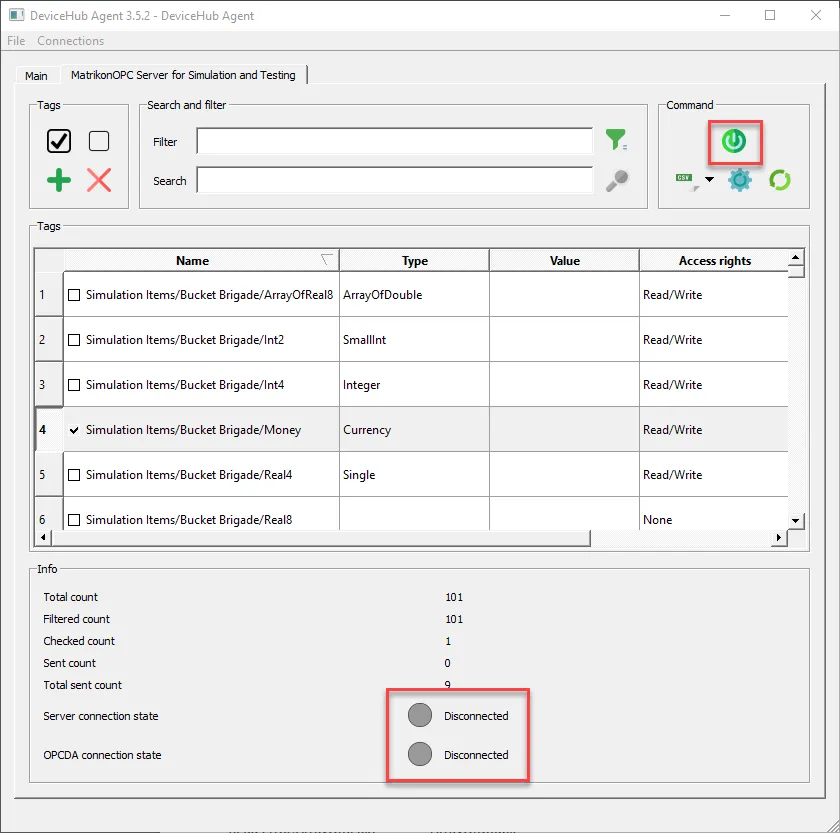
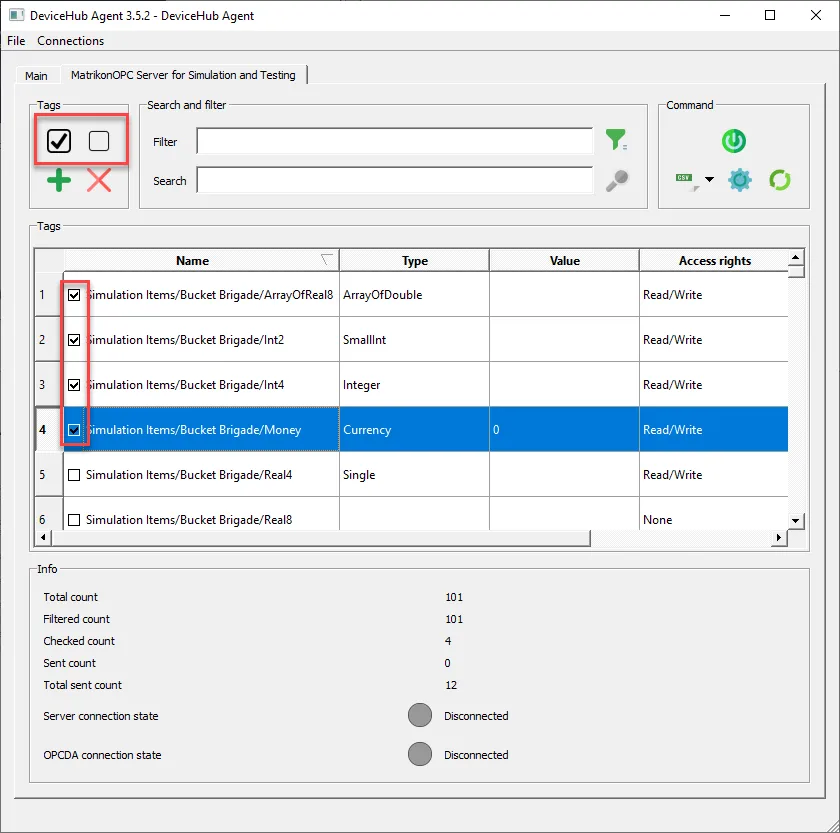
Select the check box for tags you want to send. Alternatively, you can use the Select all tags and Unselect all tags icons.
Click the Connect icon to connect to DeviceHub in Belden Horizon Data Operations.
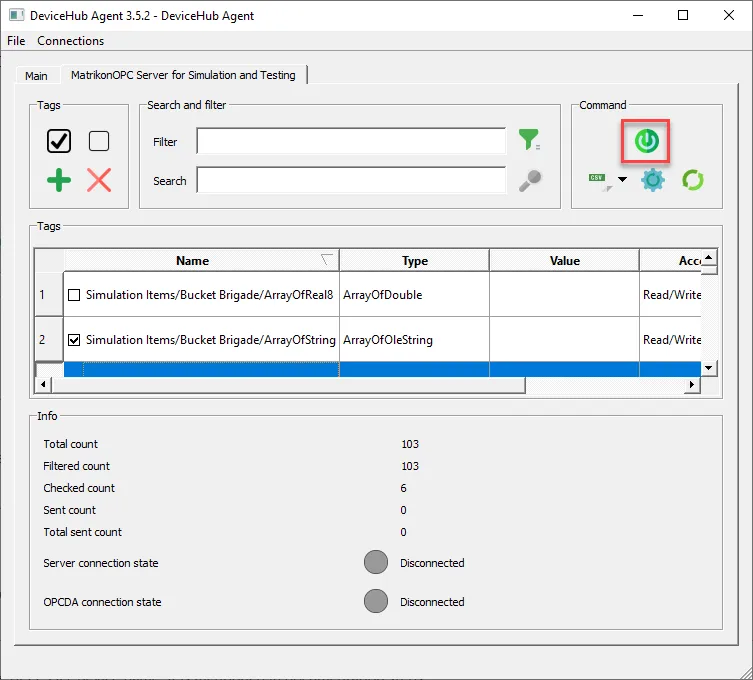 The Connect icon
Click the CSV icon and select Send Tags. A message displays that the tags were successfully sent.
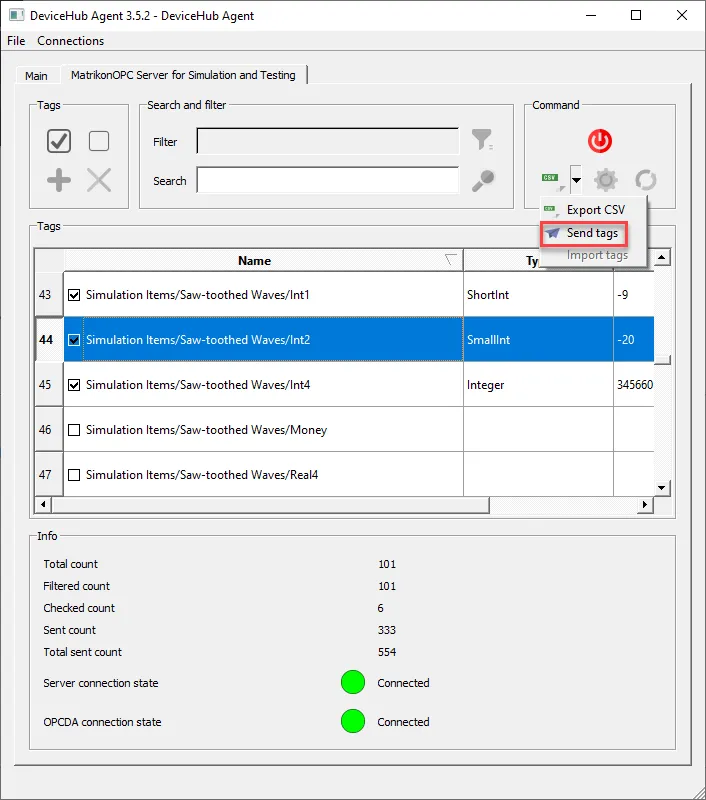 The Send tags option
You can also add tags to the DeviceHub device in the following ways:
- Use the Export CSV option in the DeviceHub Agent application. Then, follow Step 3: Upload Populated CSV File of Tags.
Step 7: View Tag Data
You can use the Flows Manager or Analytics in Belden Horizon Data Operations to view the tag data.
To view tag data in the Flows Manager:
- In Belden Horizon Data Operations, navigate to DeviceHub > Tags.
Drag the DataHub Subscribe and Debug nodes to the canvas and wire them together.
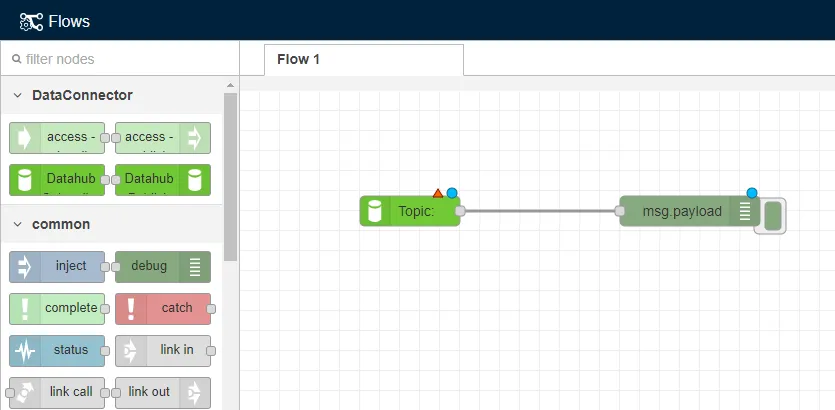 The DataHub Subscribe and Debug nodes
- Double-click the DataHub Subscribe node.
- If needed, configure the Datahub Subscribe connection. See the "Step 3: Configure Connector Nodes" section in Create a Flow to learn more.
- Click Done, and then Deploy.
Click the Debug icon.
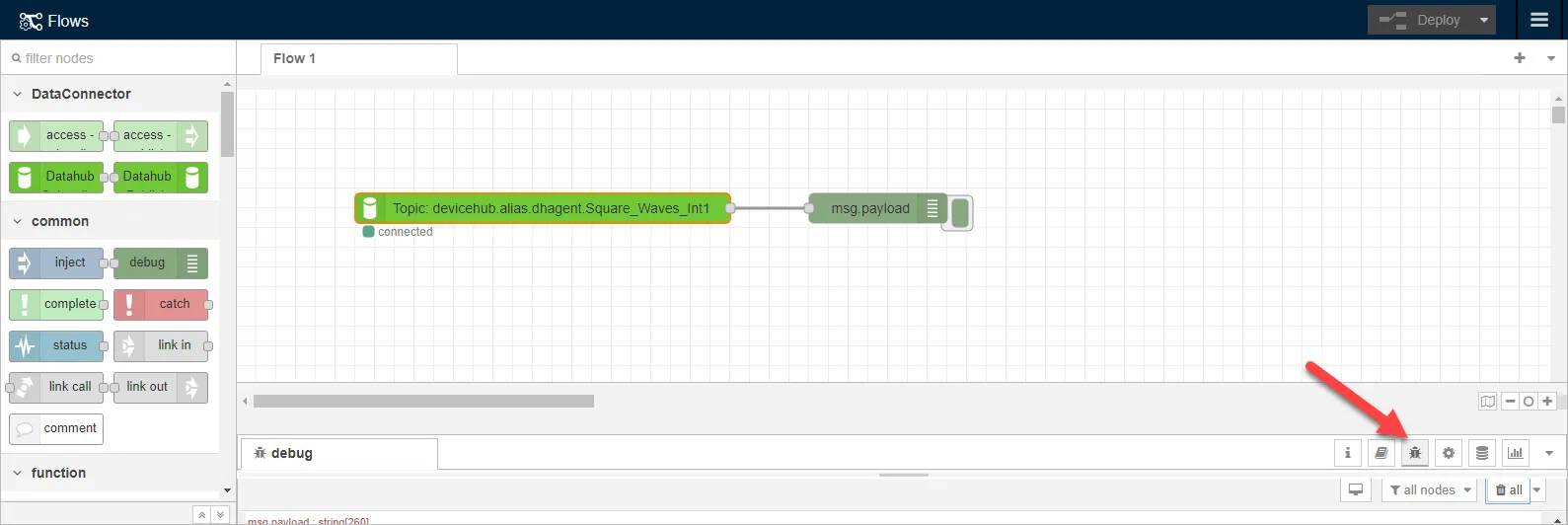 The Debug icon
Drag the message window up and review the messages. A "success": true message confirms the connections is successful.
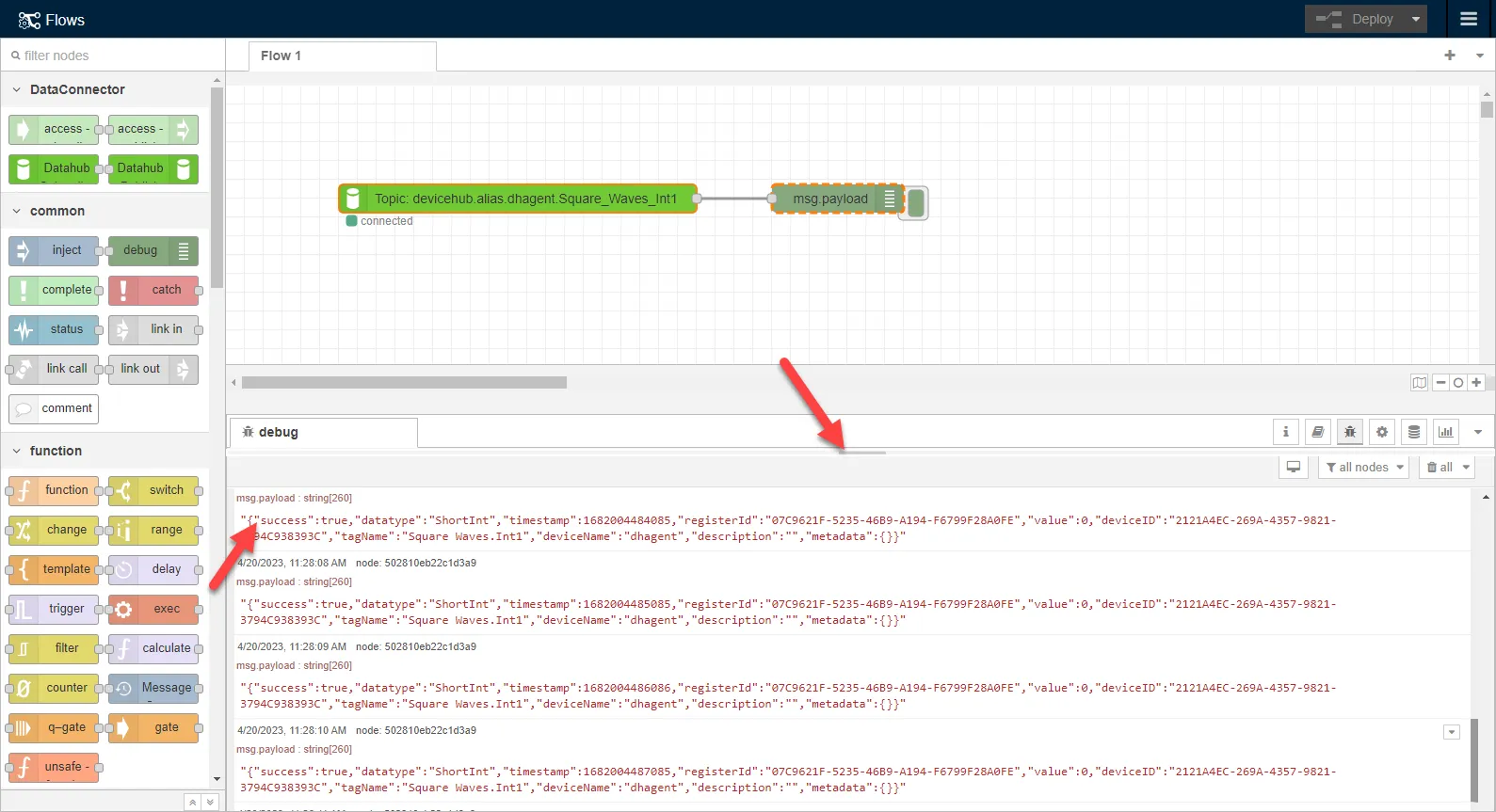
To view tag data in Analytics:
- In Belden Horizon Data Operations, navigate to Analytics.
- Click Add processor and select DataHub Subscribe.
- In the Topic field, paste the tag ID you copied earlier.
- Click Save.
Click the View icon.
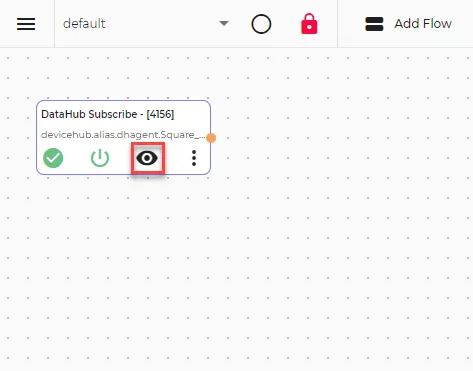 The View icon
Review the messages. A "success": true message confirms the connections is successful.
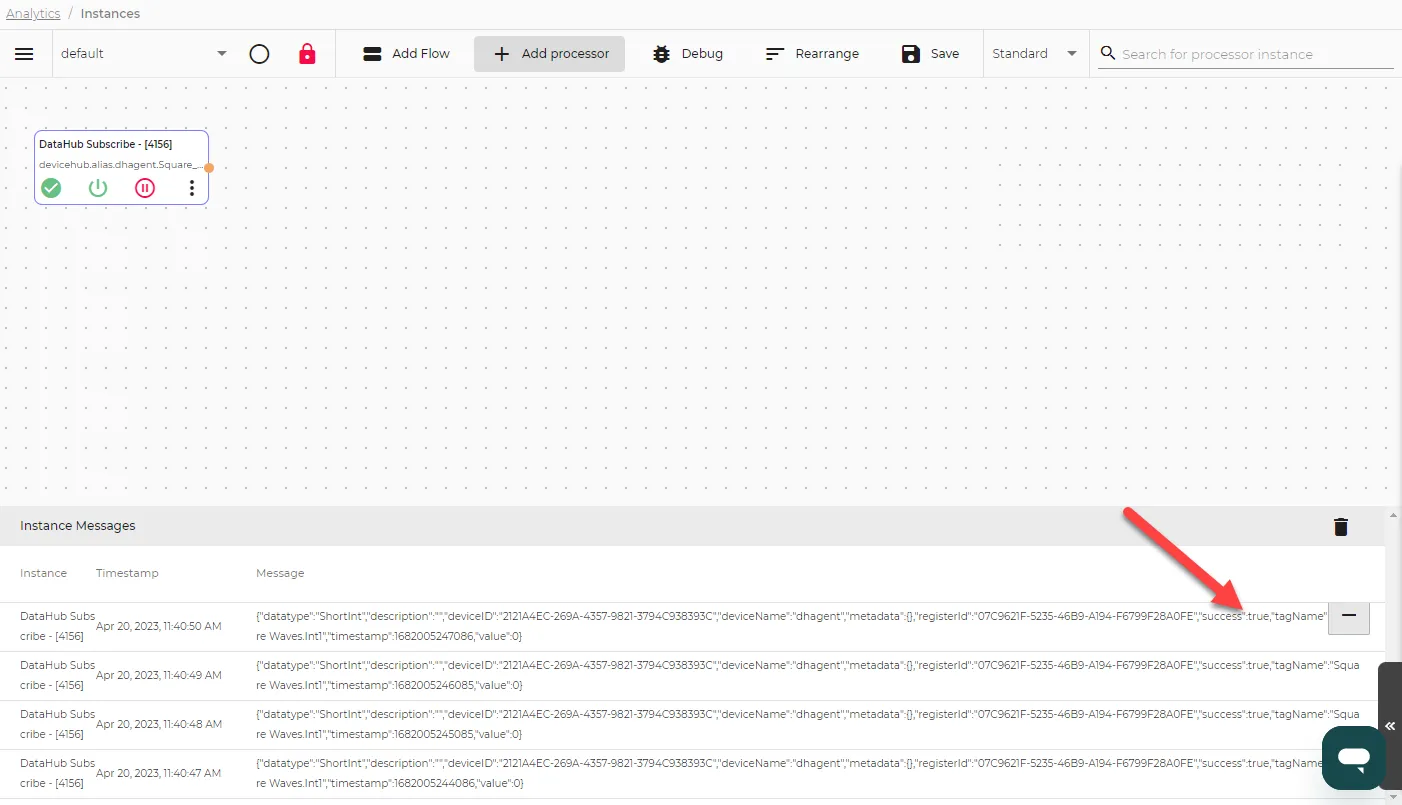 Instance Messages