Add an Instance
Note: The Digital Twins feature is available for Belden Horizon Data Operations version 3.5.2 and later.
You can add a Digital Twins Instance by navigating to Digital Twins > Instances.
Instances are inherited from a model. They are the actual data objects that contain static and dynamic data from different sources. You must create a model before creating an instance.
Before You Begin
Before you add an Instance, you will need to create a Digital Twins Model. See Create and Import Models for details.
Step 1: Add Instance
To add an instance:
- Navigate to Digital Twins > Instances. The Instances pane appears.
From the Instances pane, click the Add an instance tile.
The Add an Instance dialog box appears.
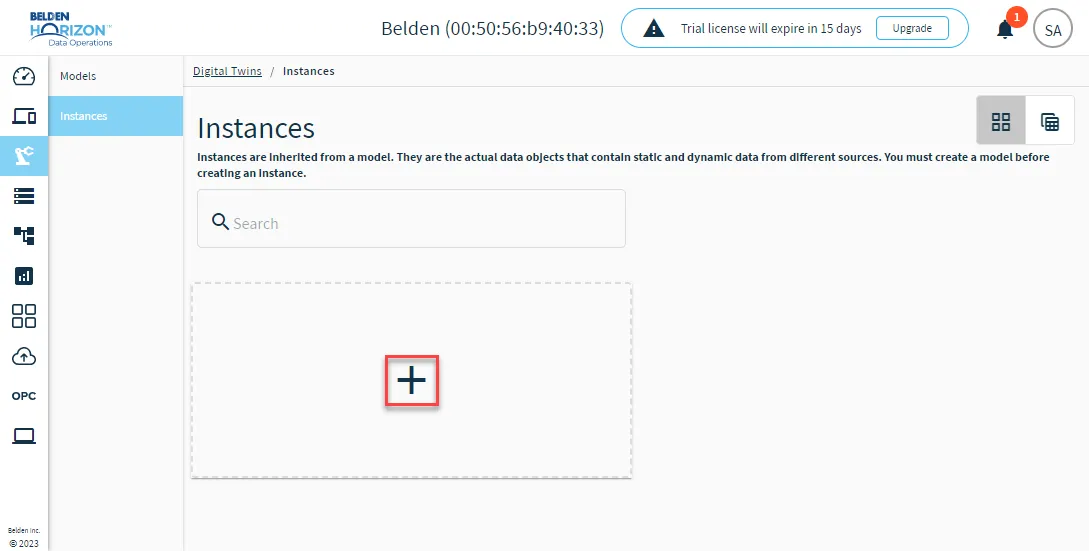 Add an instance tile
Select a model to associate with the instance. Either search for a model or select one from the list.
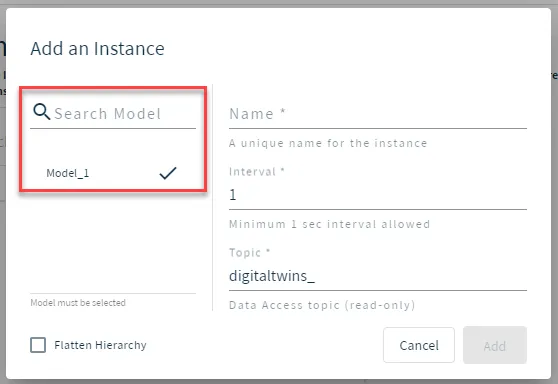
- Enter the details for the Instance.
- Name
- Interval: The minimum interval allowed is one second.
- Topic: A default topic name is generated, but you have the option of entering a custom topic name.
- Flatten hierarchy: Select the check box to send hierarchy data in a flat JSON structure. When selected, it will take a nested JSON object and convert it into a JSON object with one layer using dot notation. This is useful when sending JSON objects to Influxdb, because Influxdb does not accept nested JSON objects.
- Click Add.
Step 2: Configure Instance
After creating the instance, you can customize the model parameters it is associated with.
Click the Instance tile (grid view) or Instance name (table view) to view the instance details.
Static Attributes
The Static Attributes tab displays the metadata values for the model the instance belongs to. You can customize the attribute values for the instance.
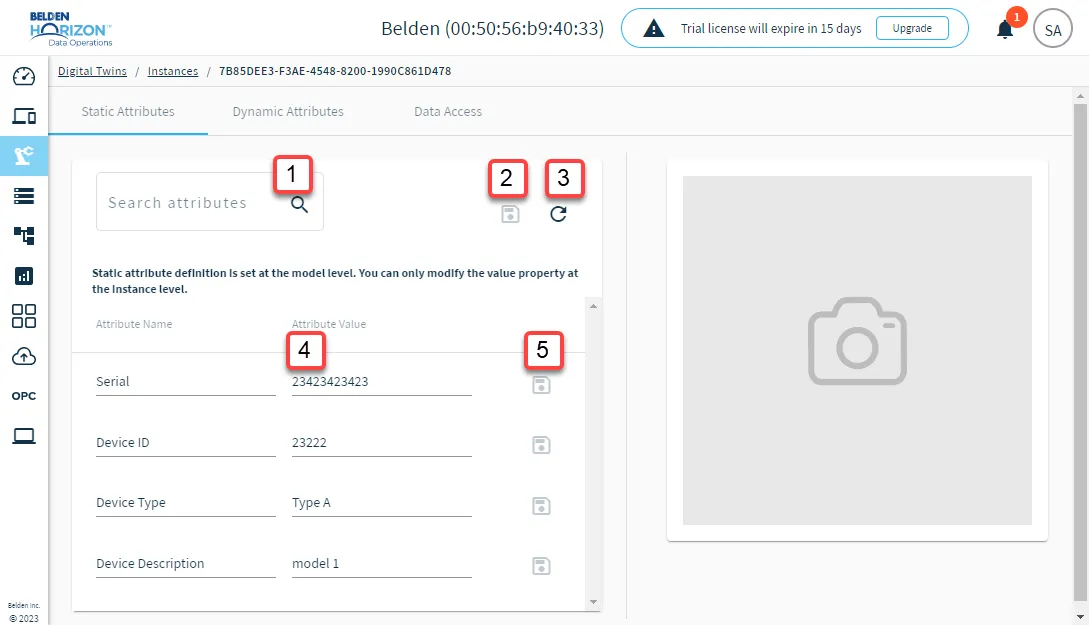
[1] Search for static attributes configured in the model the instance is associated with
[2] Save all updated attribute values
[3] Refresh attribute values
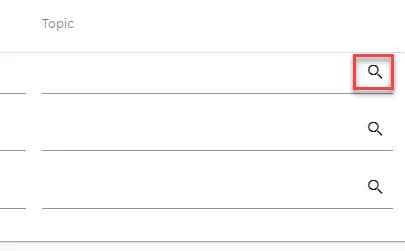
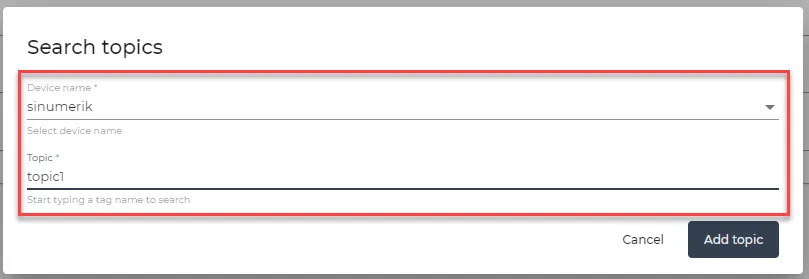
[4] You have the option of adding topics from different data sources in Litmus Edge, such as from DeviceHub or from an integration. Click the Topic search icon, select the appropriate device in the Device name drop-down list, and then select the corresponding topic name in the Topic field.
[5] Save updated attribute value for individual attribute
Dynamic Attributes
The Dynamic Attributes tab displays the variable data attributes configured in the model the instance belongs to. You can map one-to-one relationships with data topics and attributes by updating the topic field for the instance.
Important: To view data from a topic in the instance payload, you must map the topic to a dynamic attribute.
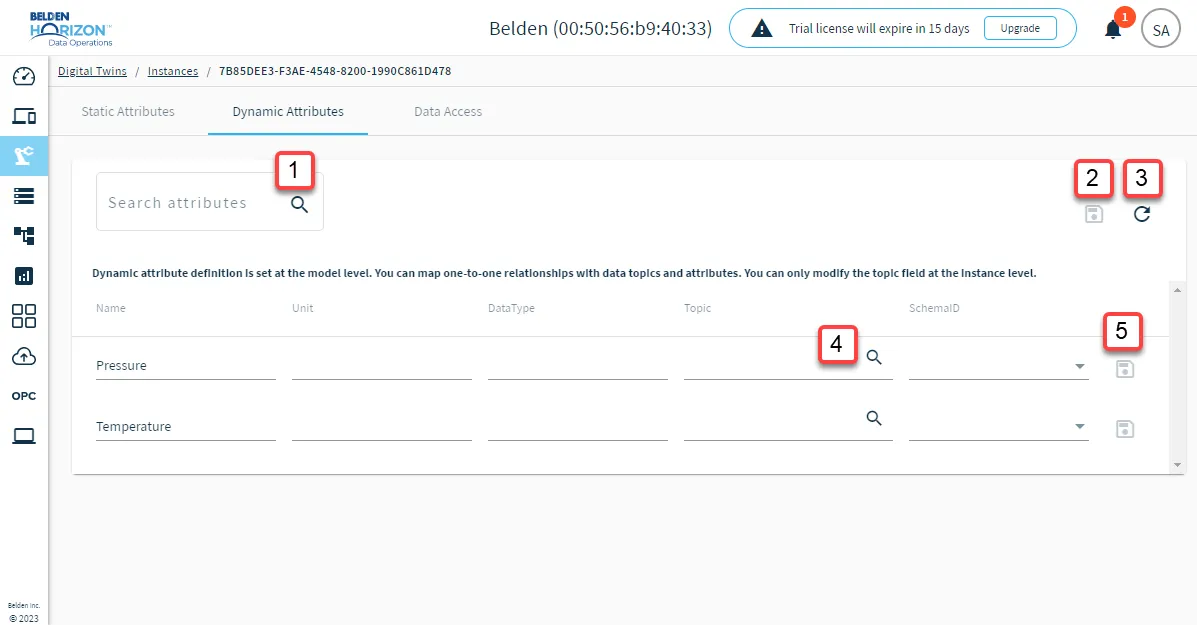
[1] Search for dynamic attributes in the model the instance is associated with.
[2] Save all updated topic values.
[3] Refresh attribute values.
[4] You have the option of adding topics from different data sources in Belden Horizon Data Operations, such as from DeviceHub or from an integration. For example, navigate to DeviceHub > Tags, copy a raw topic for a device, and then paste the topic in instance Topic field.
[5] Save updates to the dynamic attribute.
Data Access
The Data Access tab allows you to view real-time data for the instance.
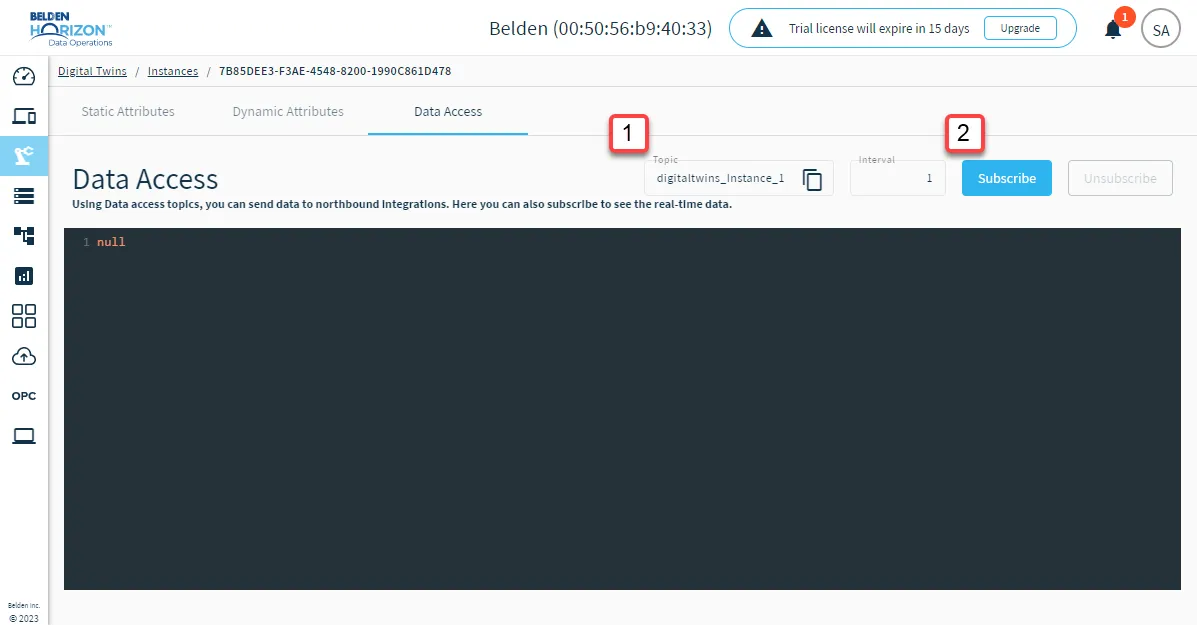
[1] Review the topic name and interval configured for the instance. Click the Copy icon to copy the topic name.
[2] Subscribe and unsubscribe for data access to view real-time data for the instance.