Status Register Use Case
The status register option in device configurations allows you to set up a connection with a PLC device that won't successfully connect using the default connection configuration between Belden Horizon Data Operations and the device.
This use case simulates the situation when a PLC device default configuration can't connect to Belden Horizon Data Operations. Instead of a PLC device, you will use a simulator to connect to Belden Horizon Data Operations.
Before You Begin
For this use case, the Modbus slave simulator is used. To complete these steps, you will need to download the Modbus slave simulator.
Step 1: Set up Modbus Simulator
To set up the Modbus slave simulator:
- Open Modbus slave simulator.
- Navigate to Setup > Slave Definition...
Configure the following parameters. Slave ID: 1 Function: 03 Holding Register (4x) Address: 0 Quantity: 10
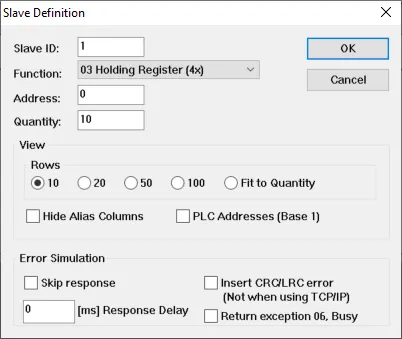 Slave Definition dialog box
- Click OK.
- Navigate to Connection > Connect...
Configure the following parameters. Connection: Modbus TCP/IP IP Address: Enter the IPv4 address for your computer. If needed, use the ipconfig command in the command prompt window and copy the IPv4 Address. Port: 502 IPv4: Select this option.
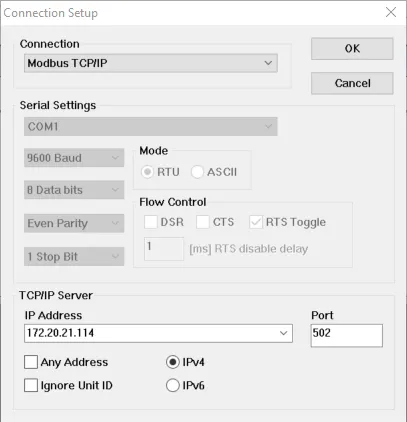 Connection Setup dialog box
- Click OK.
The simulator successfully connects.
Step 2: Connect Modbus Device in Belden Horizon Data Operations
You can now follow the steps to Connect a Device.
Configure the following parameters:
Device Type: Modbus
Driver Name: Modbus TCP
Name: Enter a name for the Modbus TCP Ethernet Driver.
Network Address: Enter the IP address you configured in the Modbus slave simulator.
Network Port: 502
Station ID: This is the Slave ID configured in the Slave Definition in the Modbus slave simulator. Enter 1.
After adding the device, the device shows a successful connection to the slave simulator.
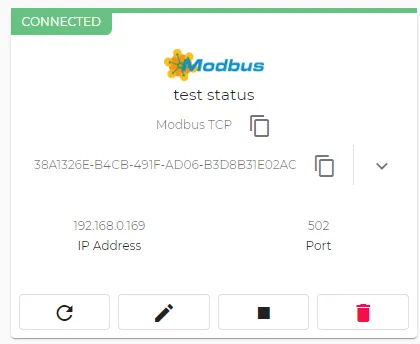
Now that the device is successfully connected, you can test the status register function.
Step 3: Update Slave Definition Function
To test the status register function, you will need to update the function parameter in the slave definition of the slave simulator. This simulates a PLC device with a default configuration that can't connect to Belden Horizon Data Operations.
To update the slave definition function:
- In the Modbus slave simulator, navigate to Connection > Disconnect.
- Navigate to Setup > Slave Definition...
- Update the Function to 04 Input Register (3x).
- Click OK.
- Navigate to Connection > Connect... and click OK.
The Belden Horizon Data Operations device you created should now show a disconnected status due to the change in function from the slave simulator.
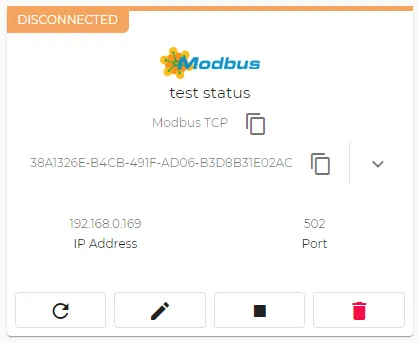
Step 4: Configure Status Register in Belden Horizon Data Operations
You can now set up the status register option in the device configuration to successfully connect to the slave simulator.
To configure the status register in Belden Horizon Data Operations:
In Belden Horizon Data Operations, click the Edit icon for the device.
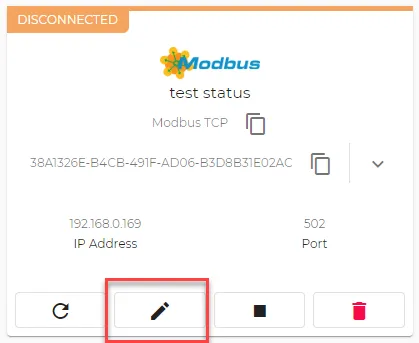 Edit icon
Select the Status Register check box.
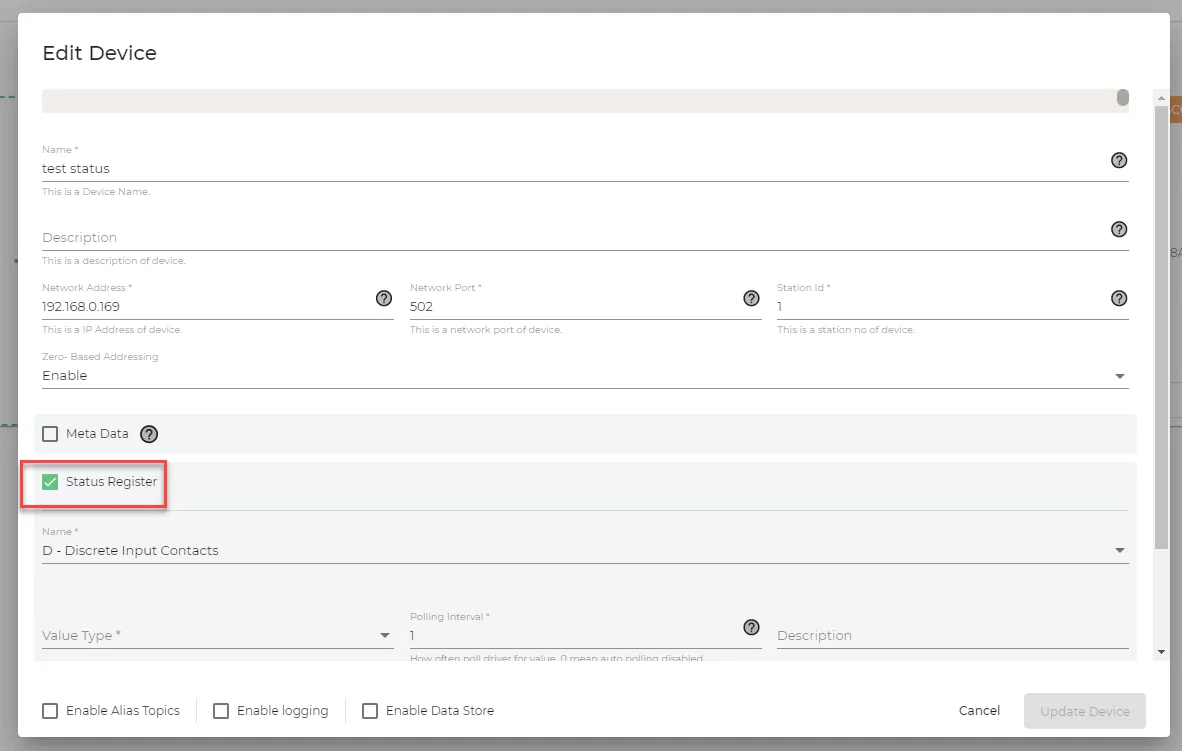
- Configure the following parameters.
- Name: I - Analog Input Registers
- Value Type: int32
- Click Update Device.
The device now shows a successful connection again based on the status register configuration.
Step 5: Test Tags
Now that the device is successfully connected using status register, you can now test that tags in the device can be read.
You will do the following:
- Create a tag in Belden Horizon Data Operations.
- Update register values for the connected device in Modbus slave simulator.
To test the tags for the device:
- In Belden Horizon Data Operations, navigate to DeviceHub > Tags.
Select the Modbus TCP device.
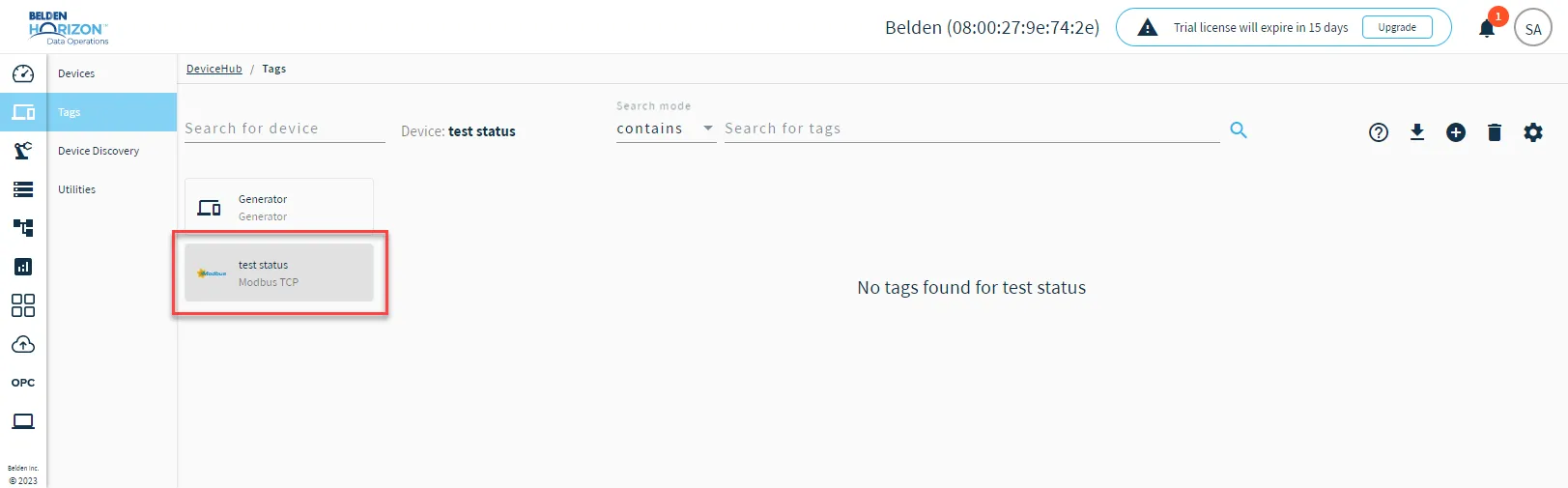 Select Modbus TCP device
Click the Add Tag icon and select Add a Tag.
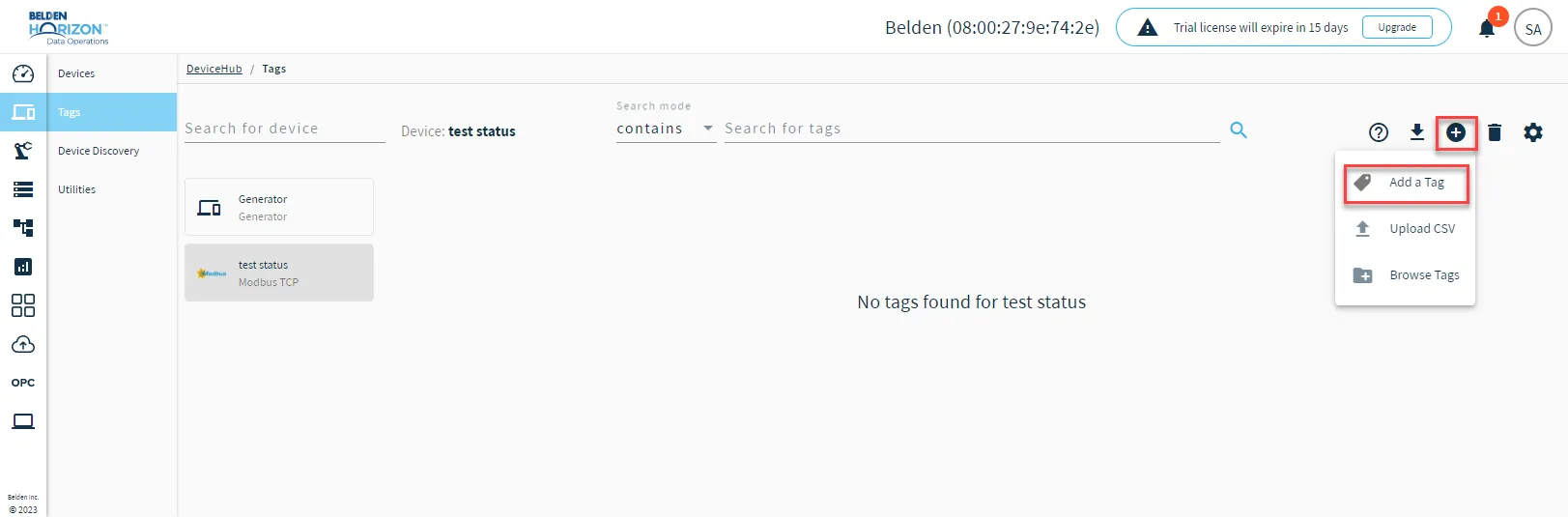 Add Tag icon
- Configure the following parameters.
- Name: This needs to be the same register as used in the Modbus slave simulator. Select I - Analog Input Registers.
- Tag Name: Enter a name for the Modbus TCP Ethernet Driver tag.
- Value Type: int16
- Polling Interval: The interval in seconds that the tag will poll for data. Enter 1.
- Address: The register that the tag will start reading data. Enter 1.
- Count: The number of registers that that the tag will read. Enter 5.
- Click Add Tag.
Click the Copy icon for the tag's RAW Topic. You will refer to this later.
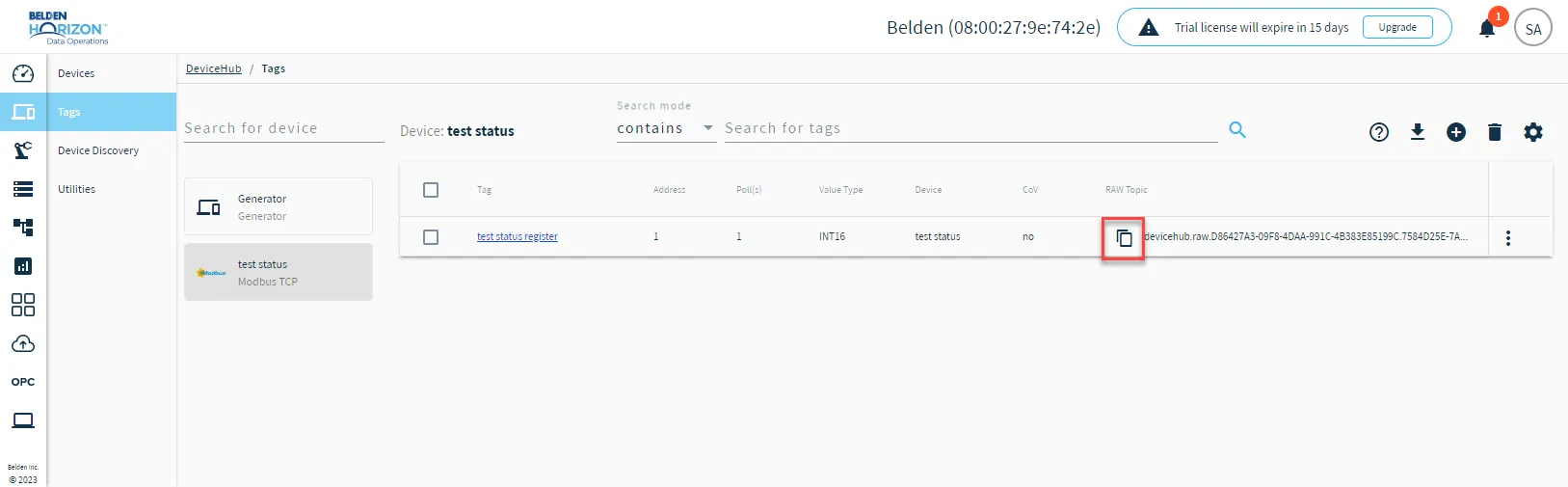 Copy icon for tag
In Modbus slave simulator, double-click the cell in column 00000 and row 1. This is the cell that the tag you created will start reading from (Address parameter). Enter the value 5 and click OK. Do the same for row 2 to 5 and enter the following values: 11, 22, 44, 66.
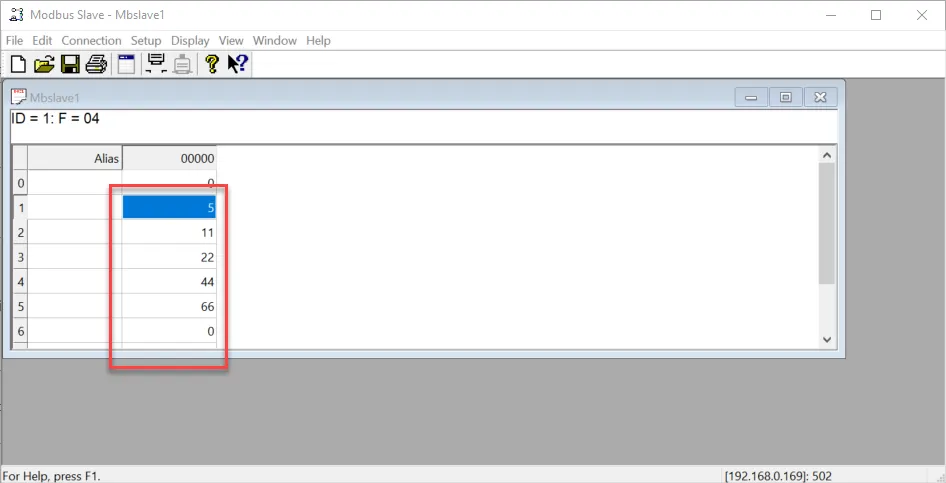 Modbus slave simulator register tag values
- In Belden Horizon Data Operations, navigate to Analytics.
Open the Action menu and select Add a processor.
The Create a Processor dialog box opens.
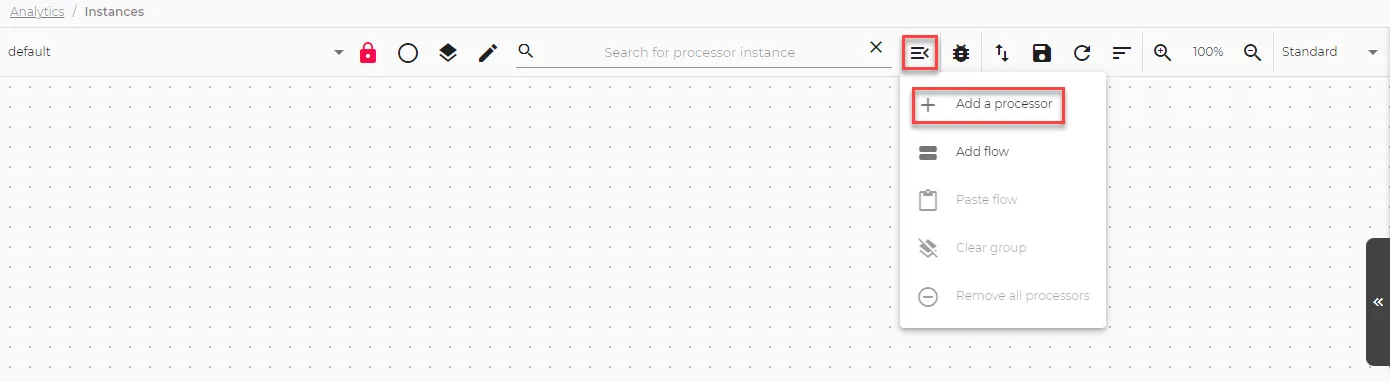 The Add a processor option
- Select DataHub Subscribe.
- In the Topic field, paste the tag's RAW topic that you copied earlier from step 6.
- Click Save.
Click the View icon for the processor.
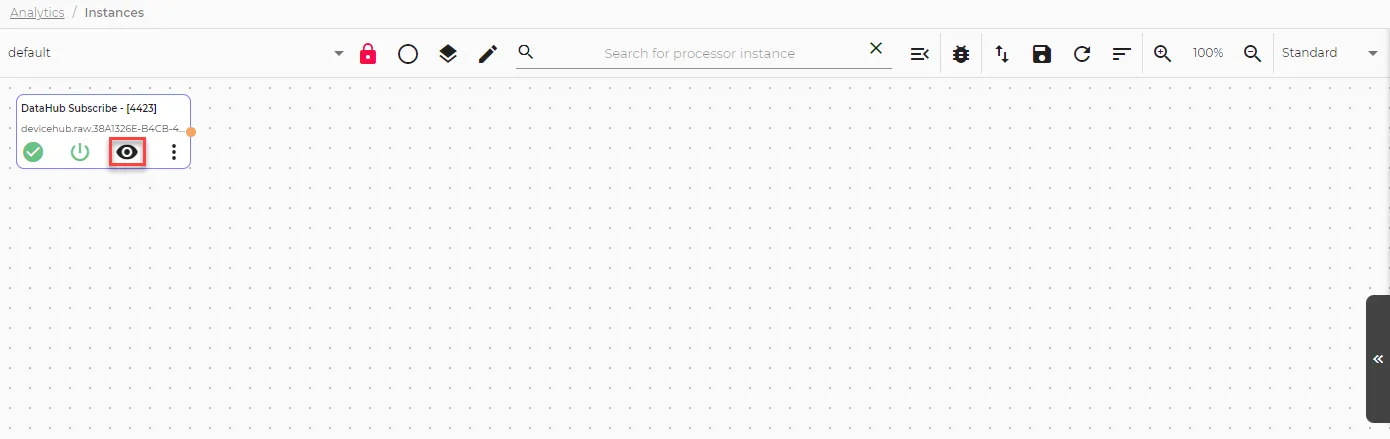 The View icon
Under Instance Messages, verify that success displays true and value displays the five values you configured in the Modbus slave simulator (5,11,22,44,66).
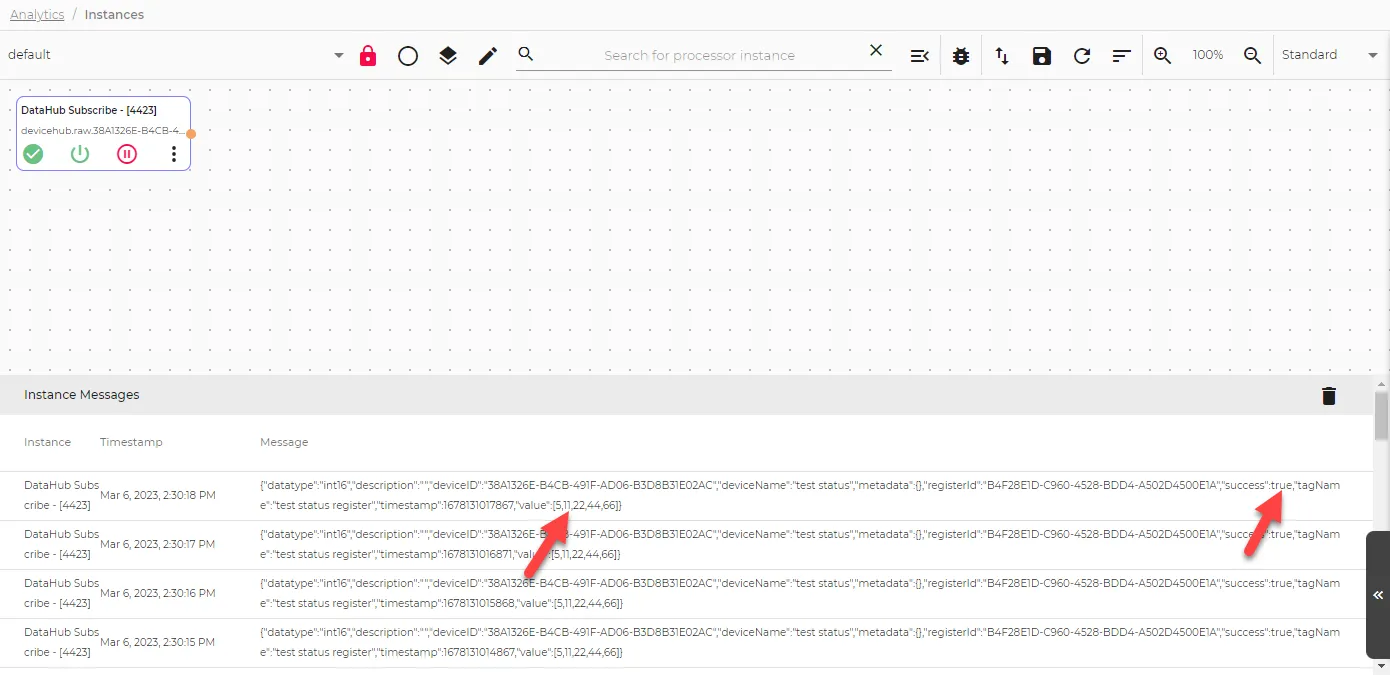 Instance messages for tag