Pull an Image from the Azure Container Registry
4 min
You can import an image from the Azure container registry from the Images pane.
Before You Begin
Before you complete the steps below, make sure you do the following:
- Verify you have permissions to import an image.
Step 1: Copy Image from Azure
To copy the image from Azure:
- Open the Azure application.
- Navigate to the AzureContainerRegistry.
- Click the registry item from which you want to pull.
From the registry item pane, copy the name of the image.
 Azure image name
Note: If you copy the entire registry name, you will get a bad request when you import the application and the import will fail.
Step 2: Pull Image in Belden Horizon Data Operations
To pull the image in Belden Horizon Data Operations:
- Log in to Belden Horizon Data Operations.
- From the Navigation panel, select Applications. The Overview pane appears.
- From the Navigation panel, select Images. The Images pane appears.
Click the Pull Image icon. The Pull Image dialog box appears.
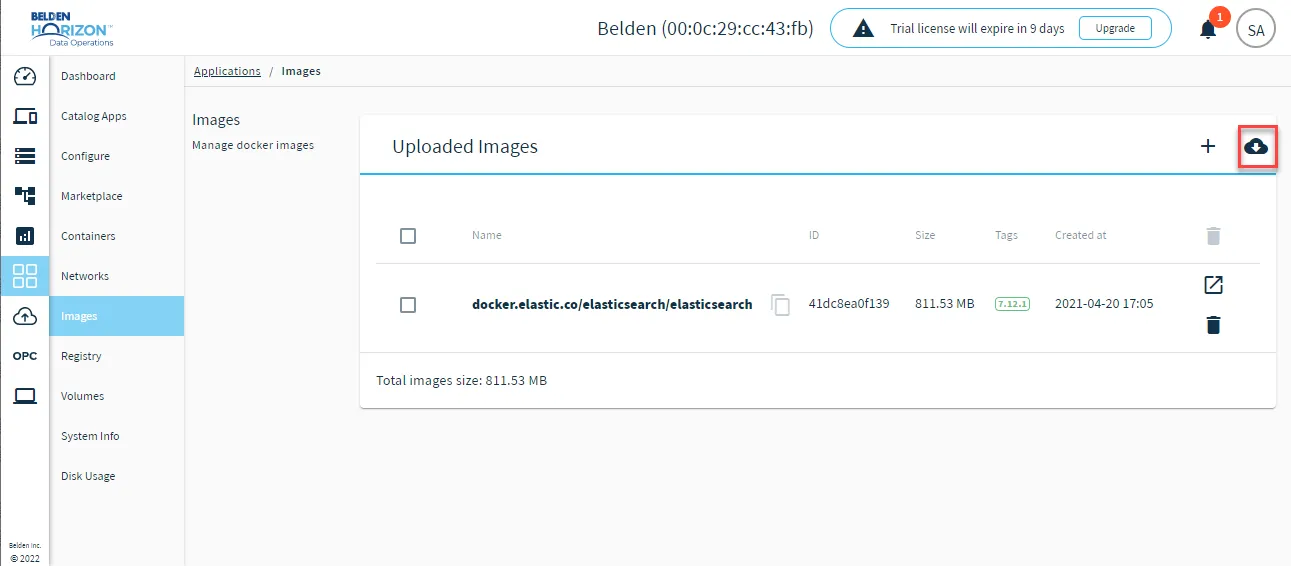 Pull image icon
- In the Image Name field, paste the image you previously copied from Azure.
- Click Pull.