Events
The Events pane displays a list of events that have occurred in Belden Horizon Data Operations.
Events are the actions the edge device performs, identifies, and then logs during its operation.
You can view information for each of the listed events: the edge device component where the event occurred, the event severity, and so on.
Events are tracked for the following components:
- Integration (cc)
- DeviceHub (dh)
- System (dm)
- Authentication (auth)
- Marketplace (mp)
- Licensing (lic)
Limitation: Delete and restart events are not tracked.
See Generated System Events for more information.
The Events pane includes two tabs:
- Live Events: Shows events as they occur in inverse chronological order.
- Events History: Filter and sort the events using a number of criteria: date and time range, component name, and so on.
Live Events
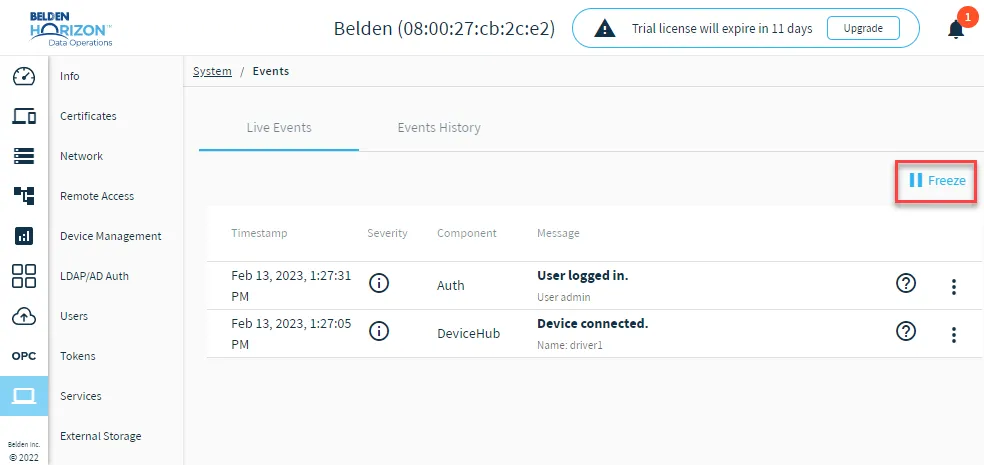
The Live Events tab allows you to view the following columns for each event:
- Timestamp for when the event occurred
- Severity of the event
- Component for which the event occurred
- Message explaining the event action
- Event Information icon allowing you to view information about the event
- Action icon allowing you to select History for the event
Note: Hovering over the Event Information icon allows you to view the severity, driver, connector, message, user, name, tags added and tags removed depending on the component for the event selected.
Freeze and Resume Live Events
You can click Freeze to stop the logging of live system events. Click Resume to start the logging of live system events.
Events History
You can view events history from the Events pane.
Event History for Individual Live Events
To view the event history of an individual live event, click the Action menu for the event in the Live Events tab and select History.
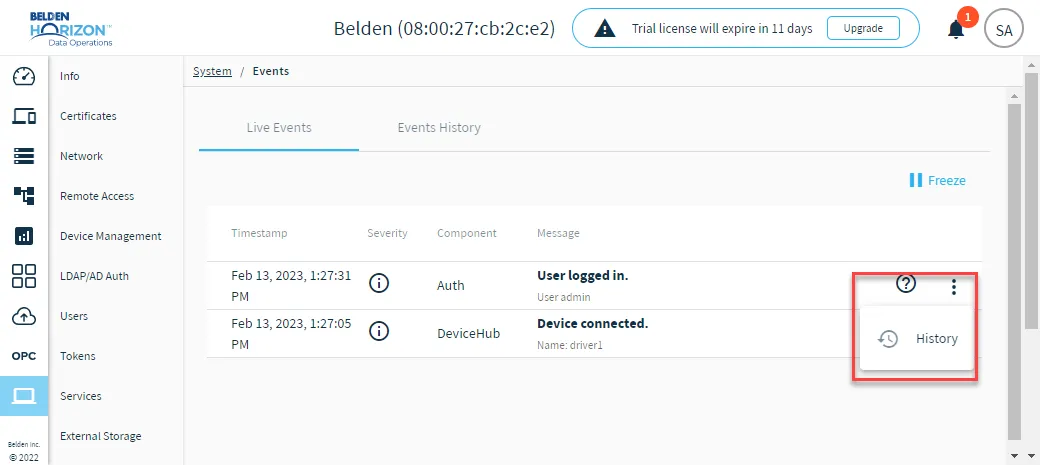
The filtering is preloaded and the events history for the selected live event appears in the Events History tab.
Filtered Event History
You can use the Events History tab to enter filter criteria and view specific event history.
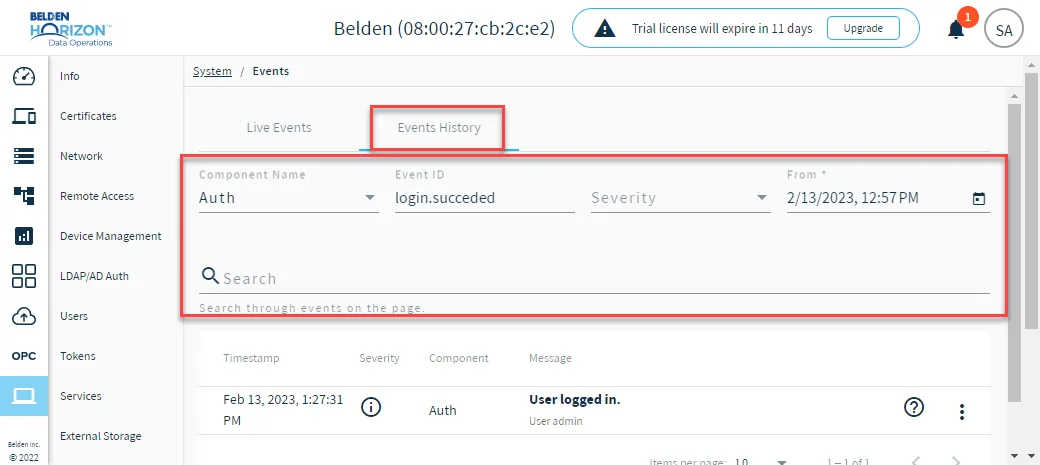
Enter your filter criteria for viewing event history and click Load. To use the search function, make sure you have loaded an event history with filtering criteria before entering search terms.
You can view the following columns for each event:
- Timestamp for when the event occurred
- Severity of the event
- Component for which the event occurred
- Message explaining the event action
- Event Information icon allowing you to view information about the event
- Action icon allowing you to select Event History for the event