Restore a Device
You can restore a Belden Horizon Data Operations device from the backup.dat file you have stored on your local drive by navigating to System > Backup/Restore.
If you need to replace a damaged device, see Replace a Damaged Device.
There are two ways to restore a device:
- Restore a device manually
- Back up a device to the Cloud
Important
- The backup can only be restored to the same device or to a replacement device.
- The backup can only be restored to a device with the same license key.
- The restore operation overwrites all configurations collected since the last backup.
Restore a Device Manually
To manually restore a device:
- In Belden Horizon Data Operations, navigate to System > Backup/Restore. The Backup/Restore pane appears.
- Navigate to the backup.dat file you stored on your local drive, and click Open. A warning message indicates that the system reboots after the restore has completed.
- Click OK. Once restored, the Belden Horizon Data Operations device restarts with the configuration backed up on the selected file. When the device reboots, refresh the Belden Horizon Data Operations application.
Restore a Device from the Cloud
You have the option of restoring a device from the Cloud.
Tip: You can also restore a device from Belden Horizon Data Manager from the Backup tab for the device details.
Before You Begin
- Make sure you have obtained a license for backup and restore.
- Make sure you have activated the device with Belden Horizon Data Manager. See Activate an Edge Device for more information.
To restore a device from the cloud:
- In Belden Horizon Data Operations, navigate to System > Backup/Restore. The Backup/Restore pane appears.
From the Restore/Backup to the Cloud section, select a saved backup file and click the Restore from Cloud icon. A warning message indicates that the system reboots after the restore has completed.
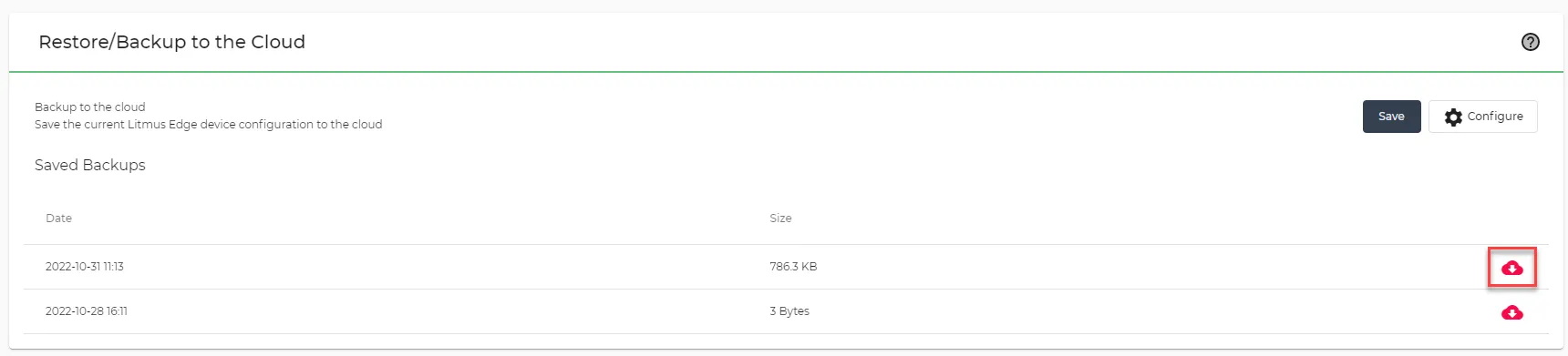 Restore from Cloud icon
- Click OK.
Once restored, the Belden Horizon Data Operations device restarts with the saved backup selected.
When the device reboots, refresh the Belden Horizon Data Operations application.