Mount External Storage
3 min
You can mount and view the details for the external storage you set up in Belden Horizon Data Operations using CIFS or FTP by navigating to System > External Storage.
Mount External Storage Using CIFS
To mount the external storage using CIFS:
- Navigate to System > External Storage. The Mount points pane appears.
Click Add new mount point. The Create Mountpoint dialog box appears.
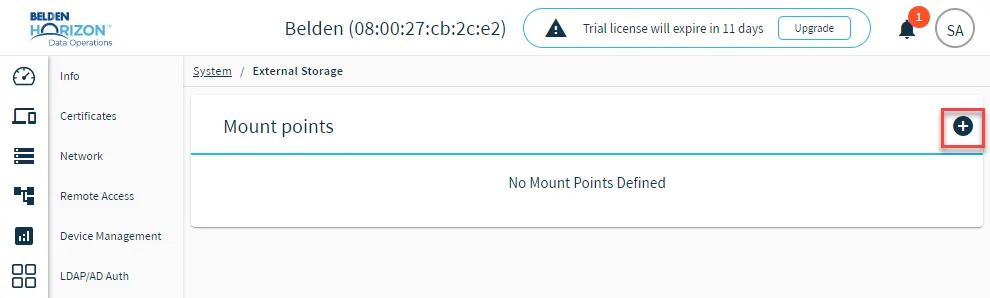 The Add new mount point icon
- Enter the details for the mount point.
- Mount Point Name: Enter a name for the mount point. The system automatically creates the folder in /data/ on the Belden Horizon Data Operations device.
- Type: Select CIFS.
- Share: Enter the shared folder name. Enter the URI of your remote storage location (//<Host_IP_Address or hostname>/<Shared_Folder_Name>). To find your systems IP address, type cmd into the Windows search bar. Type ipconfig into the window and use the IPv4 address for your Ethernet or wireless adapter.
- Read Only: Uncheck the Read Only check box. If you select this check box, writing to the network storage is disabled.
- Mount on Boot (Optional): If you check the Mount on Boot check box, the remote storage is mounted whenever you boot the Belden Horizon Data Operations device.
- Username: Enter the user name for the network location (the Windows username or the Linux Samba username you created previously).
- Password: Enter the password for the network location (the password for the Windows username or the Linux Samba username you created previously). All special characters except comma(,) may be used for the password.
- Domain: Enter a domain name. This information is not necessary to connect in most cases. It is the name of the machine where the network folder resides. Type hostname in the Windows command line or Linux terminal to view this information.
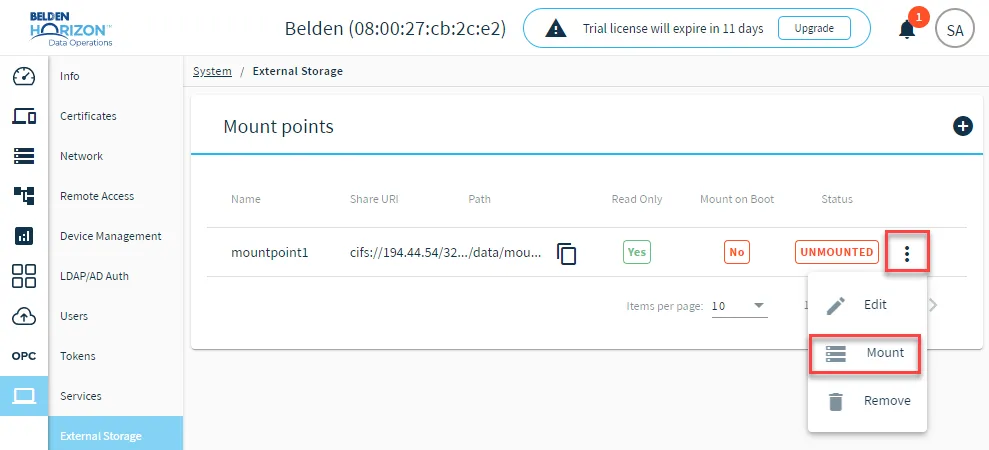
Mount External Storage option
Mount External Storage Using FTP
To mount the external storage using FTP:
- Navigate to System > External Storage. The Mount points pane appears.
Click Add new mount point.
The Create Mountpoint dialog box appears.
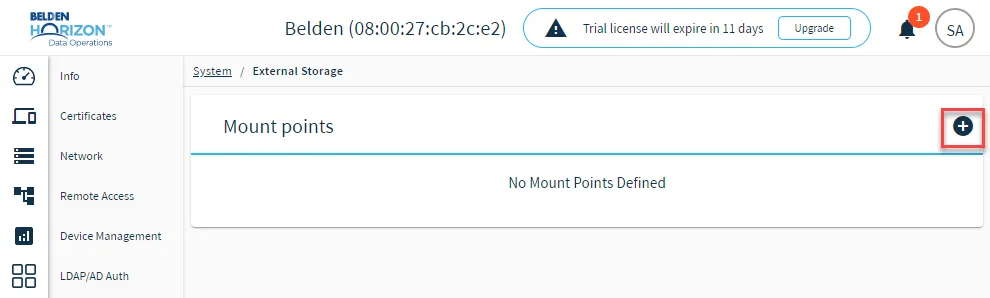 The Add new mount point icon
- Enter the details for the mount point.
- Mount Point Name: Enter a name for the mount point. The system automatically creates the folder in /data/ on the Belden Horizon Data Operations device.
- Type: Select FTP.
- Share: Enter the shared folder name. Enter the URI of your remote storage location (//<Host_IP_Address or hostname>/<Shared_Folder_Name>). To find your systems IP address, type cmd into the Windows search bar. Type ipconfig into the window and use the IPv4 address for your Ethernet or wireless adapter.
- Read Only: Uncheck the Read Only check box. If you select this check box, writing to the network storage is disabled.
- Mount on Boot (Optional): If you check the Mount on Boot check box, the remote storage is mounted whenever you boot the Belden Horizon Data Operations device.
- Username: Enter the user name for the network location (the Windows username or the Linux Samba username you created previously).
- Password: Enter the password for the network location (the password for the Windows username or the Linux Samba username you created previously). All special characters except comma(,) may be used for the password.
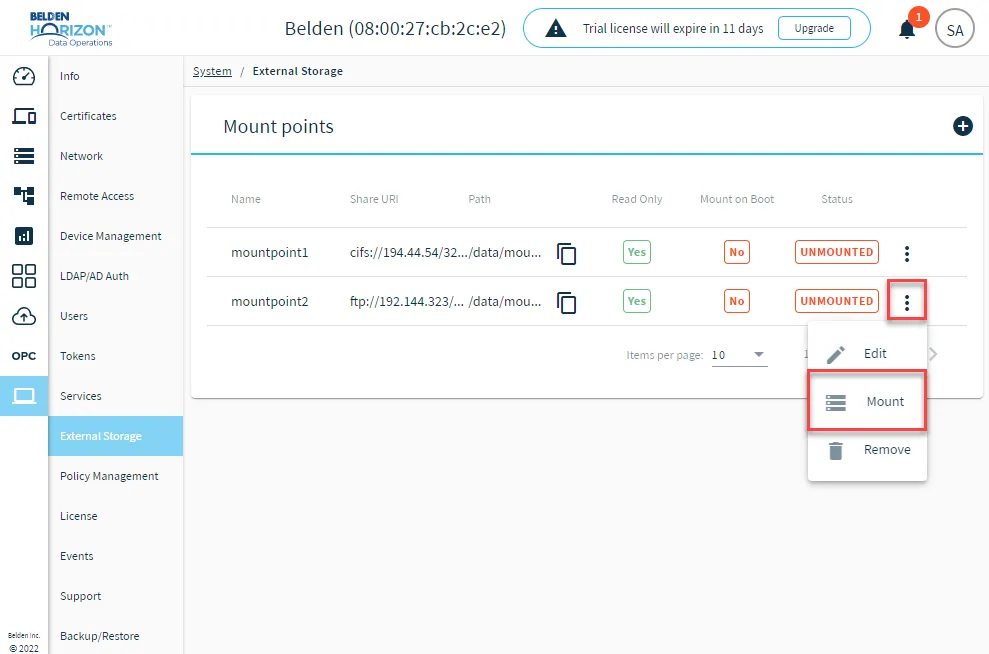
Mount External Storage option